Of course! Here is a comprehensive guide to using Java with SQL Server, focusing on the necessary JAR file, how to set it up, and best practices.
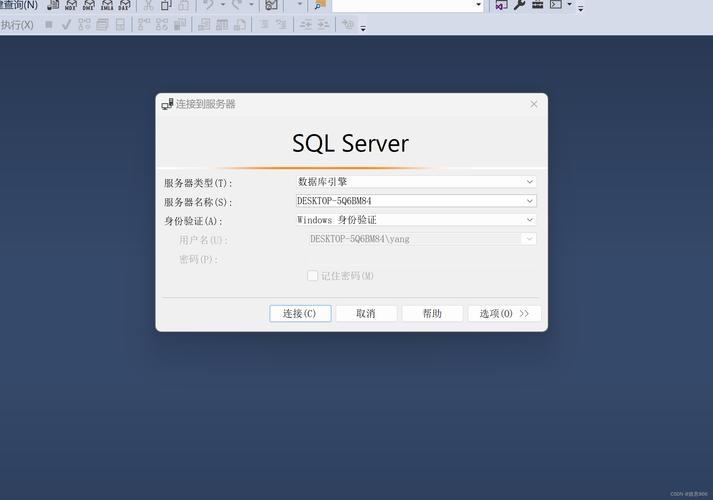
The Short Answer: The JAR File
The JAR file you need is the Microsoft JDBC Driver for SQL Server. The specific file you'll download is a .zip archive that contains the driver JARs.
- Official Download Page: Microsoft JDBC Driver for SQL Server
Step-by-Step Guide: How to Get and Use the JAR
Here’s a complete walkthrough, from downloading to writing a simple connection.
Step 1: Download the JDBC Driver
- Go to the official Microsoft JDBC Driver download page linked above.
- Select the version you need. For most projects, the latest stable version is a good choice.
- Under "Download," choose the platform (e.g., "Plug-in for Maven," "TAR.GZ," or "ZIP"). For manual setup, the ZIP file is easiest.
- Download and extract the ZIP file.
Inside the extracted folder, you will find a mssql-jdbc directory containing the actual JAR files. You'll see different versions for different Java runtimes.
Step 2: Choose the Right JAR File for Your Java Version
The driver package includes multiple JARs, each compiled for a specific Java version (e.g., for Java 8, Java 11, Java 17).
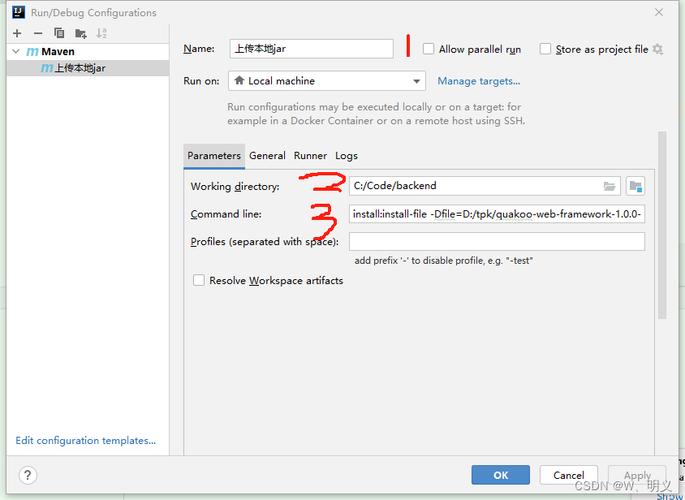
mssql-jdbc-<version>.jar: For Java 8 (JDK 8) and later.mssql-jdbc-<version>.jre8.jar: For Java 8 JRE (Runtime Environment).mssql-jdbc-<version>.jre11.jar: For Java 11 JRE.
Best Practice: Always use the JAR that matches your JDK version. If you are using Java 17, use the mssql-jdbc-<version>.jar file, as it's compatible with Java 8 and newer.
Step 3: Add the JAR to Your Project (Choose Your Method)
You need to make the JAR file available to your Java application's classpath. Here are the most common ways to do this.
Method A: For IDEs (Eclipse, IntelliJ, VS Code)
This is the most common and user-friendly method.
- In your IDE, open your Java project.
- Find your project's libraries or dependencies.
- In IntelliJ IDEA: Go to
File->Project Structure->Modules->Dependenciestab. Click the icon and selectJARs or directories.... - In Eclipse: Right-click on your project in the "Project Explorer" ->
Build Path->Configure Build Path.... Go to the "Libraries" tab and click "Add External JARs...".
- In IntelliJ IDEA: Go to
- Navigate to the location where you extracted the JDBC driver ZIP and select the appropriate JAR file (e.g.,
mssql-jdbc-<version>.jar). - Apply/OK the changes. The JAR is now part of your project.
Method B: For Maven Projects (Recommended)
Maven handles dependencies automatically. You just need to add the dependency to your pom.xml file.
<dependency>
    <groupId>com.microsoft.sqlserver</groupId>
    <artifactId>mssql-jdbc</artifactId>
    <!-- Use the latest version number -->
    <version>12.6.1.jre11</version>
    <!-- Specify the Java version scope -->
    <scope>runtime</scope>
</dependency>
After adding this, run mvn clean install in your terminal, and Maven will download the JAR for you.
Method C: For Gradle Projects
Similar to Maven, add the dependency to your build.gradle or build.gradle.kts file.
build.gradle (Groovy):
implementation 'com.microsoft.sqlserver:mssql-jdbc:12.6.1.jre11'
build.gradle.kts (Kotlin DSL):
implementation("com.microsoft.sqlserver:mssql-jdbc:12.6.1.jre11")
Run gradle build to download the dependency.
Method D: Command Line (Using java -cp)
If you are compiling and running from the command line, you need to specify the classpath.
-
Compile your Java file:
javac -cp ".;C:\path\to\your\jars\mssql-jdbc-12.6.1.jre11.jar" YourJavaFile.java
Note: The classpath separator is on Linux/macOS and on Windows.
-
Run your compiled class:
java -cp ".;C:\path\to\your\jars\mssql-jdbc-12.6.1.jre11.jar" YourJavaFile
Step 4: Write Java Code to Connect
Here is a basic, complete Java example to connect to a SQL Server database and execute a query.
Prerequisites:
- You have a SQL Server instance running.
- You know the server name, port, database name, username, and password.
import java.sql.Connection;
import java.sql.DriverManager;
import java.sql.ResultSet;
import java.sql.Statement;
import java.sql.SQLException;
public class SqlServerJdbcExample {
    // Connection URL format:
    // jdbc:sqlserver://[serverName[\instanceName][:port]][;databaseName=databaseName][;property=value[;property=value]]
    private static final String DB_URL = "jdbc:sqlserver://localhost:1433;databaseName=master;encrypt=true;trustServerCertificate=true;";
    private static final String USER = "sa"; // Your database username
    private static final String PASS = "yourStrong(!)Password"; // Your database password
    public static void main(String[] args) {
        // The try-with-resources statement ensures that the connection is closed automatically.
        try (Connection conn = DriverManager.getConnection(DB_URL, USER, PASS);
             Statement stmt = conn.createStatement();
             ResultSet rs = stmt.executeQuery("SELECT 'Hello, SQL Server!' as Message")) {
            // Check if connection is successful
            if (conn != null) {
                System.out.println("Connected to the database successfully!");
            }
            // Process the result set
            while (rs.next()) {
                // The column name is "Message"
                System.out.println(rs.getString("Message"));
            }
        } catch (SQLException e) {
            // Handle errors for JDBC
            System.err.println("SQL Error: " + e.getMessage());
            e.printStackTrace();
        }
    }
}
Explanation of the Connection URL:
jdbc:sqlserver://: The protocol and subprotocol.localhost:1433: The server name and port.1433is the default port. If your instance is named, you might uselocalhost\\SQLEXPRESS.databaseName=master: The specific database to connect to. Change this to your database.encrypt=true;trustServerCertificate=true;: This is very important for modern setups.encrypt=true: Enables TLS/SSL encryption.trustServerCertificate=true: This tells the driver to trust the server's certificate without validating it. This is fine for local development but should be used with caution in production. In production, you should provide the correct certificate chain.
Best Practices and Advanced Topics
Use a Connection Pool
Creating a new connection for every request is very inefficient. A connection pool reuses connections, dramatically improving performance.
-
Popular Libraries: HikariCP, Apache DBCP, C3P0.
-
Example with HikariCP:
import com.zaxxer.hikari.HikariConfig;
import com.zaxxer.hikari.HikariDataSource;
HikariConfig config = new HikariConfig();
config.setJdbcUrl("jdbc:sqlserver://...");
config.setUsername("sa");
config.setPassword("...");
config.addDataSourceProperty("cachePrepStmts", "true");
config.addDataSourceProperty("prepStmtCacheSize", "250");
config.addDataSourceProperty("prepStmtCacheSqlLimit", "2048");
HikariDataSource ds = new HikariDataSource(config);
try (Connection conn = ds.getConnection()) {
    // Use the connection
} catch (SQLException e) {
    e.printStackTrace();
}
Use Try-with-Resources
As shown in the example, always use the try-with-resources statement (try (Connection conn = ...)) for any AutoCloseable resource like Connection, Statement, and ResultSet. This guarantees they are closed, preventing resource leaks.
Use PreparedStatement to Prevent SQL Injection
Never concatenate user input directly into a SQL query string. Always use PreparedStatement.
Bad (Vulnerable to SQL Injection):
String username = request.getParameter("username");
String sql = "SELECT * FROM users WHERE username = '" + username + "'";
Good (Safe):
String username = request.getParameter("username");
String sql = "SELECT * FROM users WHERE username = ?";
try (Connection conn = dataSource.getConnection();
     PreparedStatement pstmt = conn.prepareStatement(sql)) {
    pstmt.setString(1, username); // Sets the first '?' parameter
    try (ResultSet rs = pstmt.executeQuery()) {
        // Process results
    }
}