Of course! Using Conda to manage your Python environment with OpenCV is a highly recommended and robust approach. It helps you avoid dependency conflicts and makes setting up complex projects much easier.
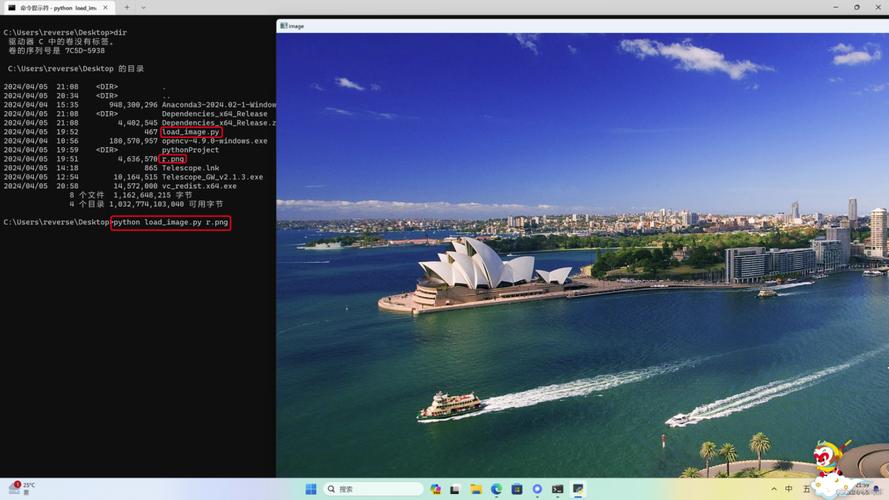
Here is a comprehensive guide covering everything from installation to common tasks and troubleshooting.
Why Use Conda for OpenCV?
- Dependency Management: OpenCV has many dependencies (like
numpy,hdf5,ffmpeg, etc.). Conda excels at resolving these complex dependency trees, ensuring you get a compatible and working build. - Isolated Environments: You can create separate environments for different projects. This prevents conflicts between libraries required by Project A and Project B.
- Cross-Platform: The same commands work on Windows, macOS, and Linux.
- Binary Packages: Conda packages are pre-compiled binaries, which means installation is often much faster and more reliable than compiling from source (like with
pip).
Step 1: Install Miniconda or Anaconda
If you don't have Conda installed, the easiest way is to get Miniconda, the minimal installer.
- Go to the Miniconda download page.
- Download the appropriate installer for your operating system and Python version (Python 3.10 or 3.11 are excellent choices).
- Run the installer and follow the on-screen instructions. Make sure to check the box that adds Conda to your system's PATH.
Step 2: Create a Dedicated Conda Environment
Never install packages into your base environment. It's best practice to create a new, clean environment for each project.
Open your terminal or Anaconda Prompt and run the following command. We'll name our environment opencv-env and specify Python 3.10.
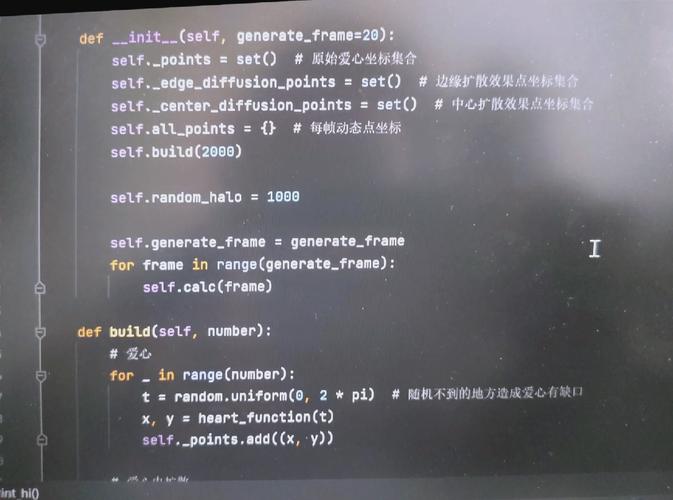
# Create a new environment with Python 3.10
conda create --name opencv-env python=3.10
Conda will show you the packages to be installed. Type y and press Enter to proceed.
Step 3: Activate the Environment
Before you can use the environment, you need to activate it. Your command prompt will change to show the active environment name.
# On Windows
conda activate opencv-env
# On macOS and Linux
source activate opencv-env
# or simply
conda activate opencv-env
You should now see (opencv-env) at the beginning of your command prompt.
Step 4: Install OpenCV
There are two main ways to install OpenCV with Conda. The recommended method is the first one.

Method 1: Using the conda-forge Channel (Recommended)
conda-forge is a community-led repository of high-quality Conda packages. It's the most reliable way to get a well-built version of OpenCV with all its optional dependencies.
# Install OpenCV with all common extras (contrib, headless, etc.)
conda install -c conda-forge opencv
Explanation of flags:
-c conda-forge: Tells Conda to use theconda-forgechannel.opencv: This package is a "meta-package" that automatically pulls in the mainopencvlibrary and useful extras likeopencv-contrib(algorithms not in the main library) andopencv-headless(if you don't need a GUI).
Method 2: Using pip within the Conda Environment
Sometimes, a specific version of OpenCV might not be available on conda-forge, or you might need a version from PyPI. You can use pip inside your activated Conda environment.
Important: Always use pip after conda for installing core dependencies. Use pip for libraries that are not available on Conda.
# Make sure your environment is activated first
conda activate opencv-env
# Install OpenCV using pip
pip install opencv-python
Note: opencv-python is a package from PyPI that includes only the core modules. If you need contrib modules, you should use opencv-contrib-python.
pip install opencv-contrib-python
Step 5: Verify the Installation
Now, let's write a small Python script to check if everything is working.
- Start the Python interpreter in your activated terminal:
python
- Run the following commands:
import cv2
print("OpenCV Version:", cv2.__version__)
If you see a version number printed (e.g., 8.1.78), your installation was successful! If you get an ImportError, something went wrong. Double-check that your environment is activated.
Common Tasks and Workflow
Here’s a typical workflow for a new project.
Project Setup:
# Create a new project folder
mkdir my-computer-vision-project
cd my-computer-vision-project
# Create and activate a new conda environment for this project
conda create --name cv-project python=3.11
conda activate cv-project
# Install necessary libraries
conda install -c conda-forge opencv numpy matplotlib pandas
Running a Script:
Save the following code as hello_opencv.py in your my-computer-vision-project folder.
# hello_opencv.py
import cv2
import numpy as np
# Print OpenCV version
print(f"Using OpenCV version: {cv2.__version__}")
# Create a black image
image = np.zeros((100, 400), dtype=np.uint8)
# Add some text to the image
font = cv2.FONT_HERSHEY_SIMPLEX
cv2.putText(image, 'Hello, OpenCV!', (50, 50), font, 1, (255, 255, 255), 2, cv2.LINE_AA)
# Save the image
cv2.imwrite('hello.png', image)
print("Image 'hello.png' created successfully.")
Run it from your terminal:
python hello_opencv.py
You should see a new file named hello.png in your project folder.
Troubleshooting
Problem: ImportError: No module named 'cv2'
- Cause: You are likely trying to run the script from a terminal where the Conda environment is not activated.
- Solution: Activate your environment first (
conda activate your-env-name) and then run the script again.
Problem: Installation fails with a linking or C++ error
- Cause: This can happen if you have conflicting C++ compilers or libraries on your system. Conda is trying to build from source because a pre-compiled binary isn't available for your specific setup.
- Solution 1 (Best): Ensure you are using the
conda-forgechannel. It has the best support for various platforms and compilers.conda install -c conda-forge opencv
- Solution 2: If you still have issues, try to install the required build tools first.
- On macOS:
xcode-select --install - On Linux (Ubuntu/Debian):
sudo apt-get update && sudo apt-get install build-essential cmake git - On Windows: Install Microsoft C++ Build Tools.
- On macOS:
Problem: I need a different version of OpenCV
You can specify a version during installation.
# Install OpenCV version 4.5.5
conda install -c conda-forge opencv=4.5.5
Problem: I need GUI support on a server (headless)
If you're running OpenCV on a server without a display, you need the "headless" version to avoid GUI-related errors.
# Install the headless version
conda install -c conda-forge opencv-headless
This version has all the image processing functions but is compiled without GUI modules like cv2.imshow().