Of course! This is a fundamental concept in Java development. Let's break it down with a simple analogy and then dive into the technical details.
The Simple Analogy: Blueprint vs. Finished House
- Java File (.java): Think of this as the blueprint for a house. It's a text file written in a specific language (Java) that describes all the rooms, doors, windows, and how they connect. It contains the source code.
- JAR File (.jar): Think of this as the finished, pre-fabricated house. It's a single, self-contained file that you can just drop on a piece of land (a computer) and use. It contains the compiled, ready-to-run house (the bytecode) along with any other materials needed (like libraries or images).
You can't live in a blueprint, and you can't give someone a pile of lumber and expect them to build a house correctly. You need the finished, packaged product.
Java File (.java)
A .java file is a source code file. It's human-readable text that you write using a text editor or an IDE (like IntelliJ, Eclipse, or VS Code).
Key Characteristics:
- Text-based: You can open it with Notepad, VS Code, or any text editor.
- Platform Independent: The code you write is the same whether you're on Windows, macOS, or Linux.
- Needs to be Compiled: The Java Virtual Machine (JVM) cannot understand
.javafiles directly. They must be translated into Java bytecode. - Contains: Classes, interfaces, methods, and variables.
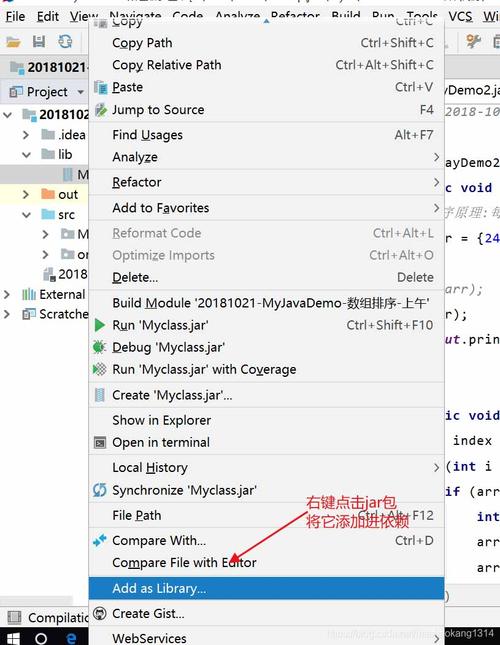
Example HelloWorld.java:
// HelloWorld.java
public class HelloWorld {
    // This is the main method, the entry point of the program.
    public static void main(String[] args) {
        System.out.println("Hello, World!");
    }
}
JAR File (.jar)
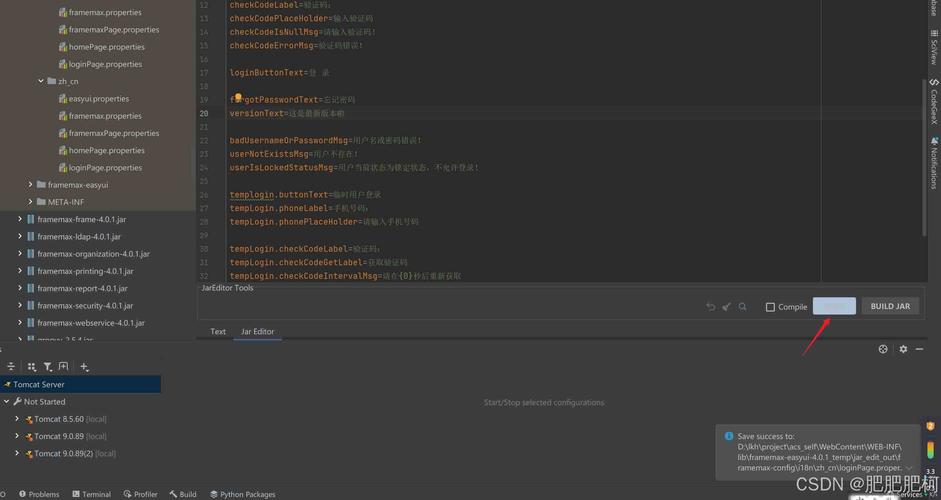
A .jar (Java Archive) file is a package file that aggregates many files into one. It's essentially a ZIP file with a .jar extension and a special META-INF directory inside.
Key Characteristics:
- Binary: It's a compressed archive, not a text file. You can't read its contents with a standard text editor.
- Contains Compiled Code: The primary content is Java bytecode, which is the result of compiling
.javafiles. Bytecode has a.classextension. - Contains Other Resources: It can also include:
- Configuration files (
.xml,.properties) - Images, icons, sounds
- Other library files (
.jarfiles) - A manifest file (
MANIFEST.MF) that can contain metadata about the application.
- Configuration files (
- Executable: A JAR file can be configured to be an "executable" JAR, meaning you can run it directly from the command line with the command
java -jar your-file.jar.
The Process: From .java to .jar
Here is the step-by-step journey of a Java program from source code to a distributable archive.
Step 1: Write the Source Code
You create one or more .java files. For example, App.java and MessageUtils.java.
Step 2: Compile the Source Code
You use the Java compiler (javac) to turn your human-readable .java files into Java bytecode (.class files).
Open your terminal or command prompt and run:
# This command finds all .java files in the current directory
# and compiles them into .class files in the same directory.
javac *.java
After this, you will have App.class and MessageUtils.class files.
Step 3: (Optional) Package Dependencies
If your application uses external libraries (like for connecting to a database or parsing JSON), you need to include them. The standard way to do this is with a build tool like Maven or Gradle. These tools automatically download the required library .jar files and bundle them for you.
For this simple example, we'll assume no external dependencies.
Step 4: Create the JAR File
You use the jar command-line tool to package your .class files (and any other resources) into a single .jar file.
The basic syntax is: jar cfm [your-jar-name.jar] [manifest-file.txt] [files-to-package]
c: Create a new archive.f: Specify the filename of the archive.m: Include a manifest file.
Example:
-
First, create a manifest file named
manifest.txt. This file tells the JVM which class contains themainmethod.manifest.txt:Main-Class: App(Note: There must be a blank line at the end of this file!)
-
Now, run the
jarcommand:# Create a JAR file named my-app.jar # The manifest file is manifest.txt # We are including all .class files in the current directory jar cfm my-app.jar manifest.txt *.class
After this command, you will have a my-app.jar file. This is your finished, distributable product!
Step 5: Run the JAR File
You can now run your application directly from the .jar file.
# Run the executable JAR
java -jar my-app.jar
Output:
Hello from the App!
This is a utility message.
Summary Table
| Feature | Java File (.java) | JAR File (.jar) |
|---|---|---|
| Purpose | Source code, the "blueprint" | Distributable package, the "finished product" |
| Content | Human-readable Java code | Compiled bytecode (.class), resources, libraries |
| Format | Plain text | Binary archive (like a ZIP file) |
| Readability | Readable by humans | Not directly readable by humans |
| Execution | Cannot be run directly | Can be executed (java -jar file.jar) |
| Dependency | Requires a compiler (javac) |
Requires a Java Runtime Environment (JRE) |
When to Use Which?
- You work with
.javafiles when you are developing an application. You write, edit, and compile them. - You distribute
.jarfiles when you are deploying or sharing your application. A user or another system only needs the.jarfile and a JRE to run your program. They don't need your source code.