Of course. Here is a comprehensive guide on how to use py2exe for Python 2.7.

Important Prerequisite: Python 2.7 is End-of-Life
First and foremost, it's crucial to understand that Python 2.7 reached its official end-of-life on January 1, 2025. This means it no longer receives security updates, bug fixes, or improvements.
Using py2exe with Python 2.7 is generally only recommended for:
- Maintaining legacy applications that cannot be ported to Python 3.
- Educational purposes to understand older Python packaging tools.
For any new project, you should strongly consider using a modern tool like PyInstaller or Nuitka, which have excellent support for Python 3.
What is py2exe?
py2exe is a Python extension that converts Python scripts into standalone Windows executables (.exe files) and all the necessary supporting files (like DLLs and .pyd files). This allows you to distribute your Python application to users who do not have Python installed on their systems.

Installation
Since Python 2.7 is no longer in the main package repositories, you'll need to find an older version of py2exe that is compatible. The easiest way is to use the pre-compiled Windows installers.
-
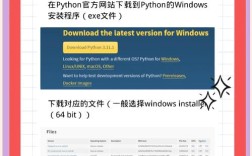
Download Python 2.7: If you don't have it, download the official installer from the Python 2.7.18 release page. Make sure to check the box that says "Add Python 2.7 to PATH" during installation.
-
Download py2exe: Go to the
py2exedownload archive. A reliable source is thepy2exeGoogle Code page, which is now archived. You can find installers for various Python 2.7 versions here:Look for a file named
py2exe-0.6.9.win32-py2.7.exe(or a similar version number). The version6.9is a common and stable one for Python 2.7. (图片来源网络,侵删)
 -
Install py2exe: Simply run the installer you downloaded. It should automatically detect your Python 2.7 installation.
A Simple, Step-by-Step Example
Let's create a simple "Hello, World!" application and package it with py2exe.
Step 1: Create Your Python Script
Create a file named hello.py with the following content:
# hello.py
import wx
app = wx.App(False)
frame = wx.Frame(None, title="Hello from py2exe!")
panel = wx.Panel(frame)
text = wx.StaticText(panel, label="Hello, World! This is a wxPython app.", pos=(20, 20))
frame.Show()
app.MainLoop()
Note: I've used wxPython instead of tkinter because tkinter can sometimes have issues with py2exe's dependency finding, and this example demonstrates how py2exe handles non-standard libraries.
Step 2: Create the Setup Script
This is the most important part. py2exe is controlled by a separate Python script. Create a file named setup.py in the same directory as hello.py.
# setup.py
from distutils.core import setup
import py2exe
import sys
# This is a simple, non-console application (no command window).
# If you were making a command-line tool, you would use "console".
# For a GUI app, use "windows".
#
# A common issue is that the script name is not specified correctly.
# We pass the script to be executed as a keyword argument.
setup(
    # The name of the executable file to create.
    # This will be the name of your .exe file.
    name="HelloApp",
    # This is the crucial part. It tells py2exe what to build.
    # We are building a "windows" (GUI) application.
    windows=[{
        "script": "hello.py",
        "dest_base": "HelloApp" # The name of the final .exe file
    }],
    # This option includes all necessary data files, icons, etc.
    # It's a good practice to always include it.
    data_files=[],
)
Step 3: Run the Setup Script
Open a command prompt (cmd.exe), navigate to the directory where you saved hello.py and setup.py, and run the following command:
python setup.py py2exe
You will see a lot of output as py2exe finds dependencies, copies files, and builds the executable.
Step 4: Find Your Application
After the script finishes, you will have a new directory named dist. Inside dist, you will find:
HelloApp.exe: Your standalone executable.- A
w9xpopen.exefile. - A
library.zipfile containing your Python code and bytecode. - A
HelloAppsubdirectory containing all the necessary.dlland.pydfiles (including those forwxPython).
To run your application: Simply double-click HelloApp.exe from within the dist folder.
To distribute your application, you just need to zip up the entire contents of the dist folder and send it to your users.
Common Issues and Solutions
Issue 1: Missing Dependencies (e.g., .dll not found)
Your application crashes on another computer with an error like The application was unable to start correctly (0xc000007b) or a missing .dll error.
Cause: py2exe failed to find a required library (like a .dll or .pyd file).
Solution:
- Use the
includesoption: Explicitly tellpy2exeto include specific modules.setup( windows=[{"script": "hello.py"}], options={ "py2exe": { "includes": ["wx", "module.name"], # Add any modules you are using } } ) - Use the
excludesoption: Sometimes, including standard library modules you don't need can cause conflicts. Try excluding them.options={ "py2exe": { "excludes": ["Tkinter", "tcl"], # Exclude tkinter if you aren't using it } } - Use the
dll_excludesoption: Explicitly exclude known problematic DLLs.options={ "py2exe": { "dll_excludes": ["MSVCP90.dll", "w9xpopen.exe"], } }
Issue 2: UnicodeDecodeError or zlib error
You see an error related to zlib or Unicode during the py2exe build process.
Cause: This often happens with older versions of setuptools or distribute that conflict with py2exe.
Solution:
- Upgrade your
setuptoolsfor Python 2.7:pip install --upgrade setuptools==44.0.0 # A stable version for py2exe
- Ensure you have
distributeuninstalled, as it can cause conflicts:pip uninstall distribute
Issue 3: The Console Window Flashes and Disappears
You created a GUI application, but a black console window appears and closes immediately.
Cause: You likely used console=["your_script.py"] in your setup.py instead of windows=[...].
Solution: Double-check your setup.py and ensure you are using the windows option for GUI apps.
Modern Alternatives (Highly Recommended)
As mentioned, for any new work, you should use a modern tool. Here's a quick comparison:
| Feature | py2exe (Python 2.7) |
PyInstaller (Python 2 & 3) | Nuitka (Python 2 & 3) |
|---|---|---|---|
| Status | Legacy, unmaintained | Active, well-maintained | Active, well-maintained |
| Ease of Use | Requires a setup.py script. |
Very simple, often works out-of-the-box with a single command. | More complex, requires a setup.py or command-line flags. |
| Performance | Good. | Good. | Excellent (compiles Python to C/C++). |
| Features | Solid, but dated. | Excellent (one-file mode, hidden imports, etc.). | Advanced (true compilation, plugin support). |
| Recommendation | Only for legacy Python 2.7 projects. | Best all-around choice for most users. | Best for performance-critical applications. |
How to use PyInstaller (Example):
- Install it:
pip install pyinstaller - Run it:
pyinstaller --onefile --windowed hello.py - Find your executable in the
distfolder. It's incredibly simple.