Of course! The Selenium WebDriver API for Python is a powerful library that allows you to automate web browsers. It's the cornerstone of web scraping, automated testing, and automating repetitive web tasks.
This guide will walk you through the core concepts, essential methods, and practical examples to get you started.
What is Selenium WebDriver?
Think of Selenium WebDriver as a robot that can control a web browser (like Chrome, Firefox, or Edge) for you. It can:
- Open a webpage.
- Click on buttons, links, and checkboxes.
- Fill out forms.
- Extract text and data from the page.
- Take screenshots.
- Wait for elements to appear.
Installation
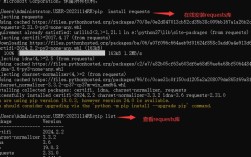
First, you need to install the selenium library.
pip install selenium
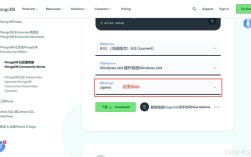
You also need to install a WebDriver, which is a separate executable that acts as a bridge between your Python script and the browser. The most popular choice is ChromeDriver for Google Chrome.

How to get ChromeDriver:
- Find out your Google Chrome version (go to
chrome://settings/help). - Go to the Chrome for Testing availability dashboard.
- Download the
chromedriverthat matches your Chrome version. Make sure to get the version for your operating system (e.g.,win64,mac-x64,linux64). - Place the
chromedriver.exe(orchromedriveron Mac/Linux) in a known location (e.g.,C:/WebDriver/bin/) or add its location to your system's PATH.
Core Concepts & API
Let's break down the main components of the API.
a. WebDriver - The Browser Controller
This is your main object. It represents the browser instance you are controlling.
from selenium import webdriver
# Option 1: Specify the path to the chromedriver executable
# driver = webdriver.Chrome(executable_path='C:/path/to/chromedriver.exe')
# Option 2 (Recommended): Let Selenium manage it (if chromedriver is in your PATH)
driver = webdriver.Chrome()
# --- Basic Operations ---
driver.get("https://www.google.com")  # Navigates to a URL
print(driver.title)  # Prints the page title: "Google"
driver.quit()  # Closes the browser and ends the session
b. Locators - Finding Elements
To interact with a page, you must first find the HTML element (button, input, link, etc.). Selenium provides several strategies for this. The most common are:

| Locator Strategy | Method | Description | Example |
|---|---|---|---|
| ID | find_element(By.ID, "value") |
Finds an element with a matching id attribute. (Fastest & most reliable) |
find_element(By.ID, "search-box") |
| Name | find_element(By.NAME, "value") |
Finds an element with a matching name attribute. |
find_element(By.NAME, "q") |
| XPath | find_element(By.XPATH, "value") |
Finds elements using a path expression in the HTML document. (Very powerful) | find_element(By.XPATH, "//input[@name='q']") |
| CSS Selector | find_element(By.CSS_SELECTOR, "value") |
Finds elements using a CSS selector. (Fast and flexible) | find_element(By.CSS_SELECTOR, "input[name='q']") |
| Link Text | find_element(By.LINK_TEXT, "value") |
Finds an anchor element (<a>) with the exact visible text. |
find_element(By.LINK_TEXT, "About") |
| Partial Link Text | find_element(By.PARTIAL_LINK_TEXT, "value") |
Finds an anchor element with the visible text containing the value. | find_element(By.PARTIAL_LINK_TEXT, "Abou") |
| Tag Name | find_element(By.TAG_NAME, "value") |
Finds elements by their tag name. | find_element(By.TAG_NAME, "h1") |
| Class Name | find_element(By.CLASS_NAME, "value") |
Finds elements with a matching class attribute. |
find_element(By.CLASS_NAME, "g") |
Note: For finding multiple elements, use find_elements (plural), which returns a list of web elements.
from selenium.webdriver.common.by import By
# Find a single element
search_box = driver.find_element(By.NAME, 'q')
# Find multiple elements
all_links = driver.find_elements(By.TAG_NAME, 'a')
c. Interacting with Elements
Once you have a web element, you can perform actions on it.
| Method | Description |
|---|---|
.click() |
Clicks on the element. |
.send_keys("text") |
Types text into an input field. Use Keys for special keys. |
.clear() |
Clears the text from an input field. |
.get_attribute("name") |
Gets the value of an element's attribute. |
.text |
Gets the visible text of an element. |
.is_displayed() |
Returns True if the element is visible to the user. |
.is_enabled() |
Returns True if the element is enabled. |
.is_selected() |
Returns True if the element (e.g., checkbox, radio button) is selected. |
Example:
from selenium.webdriver.common.keys import Keys
driver.get("https://www.python.org")
# Find the search box
search_box = driver.find_element(By.NAME, 'q')
# Interact with it
search_box.clear()
search_box.send_keys("pycon")
search_box.send_keys(Keys.RETURN) # Press Enter
# Verify the result
assert "No results found." not in driver.page_source
print("Search successful!")
d. Navigation
| Method | Description |
|---|---|
driver.get(url) |
Navigates to a new URL. |
driver.back() |
Navigates back in the browser's history. |
driver.forward() |
Navigates forward in the browser's history. |
driver.refresh() |
Reloads the current page. |
e. Waiting for Elements (Crucial!)
Modern websites are dynamic. Elements load at different times. If your script tries to interact with an element that isn't loaded yet, it will fail. Always use explicit waits.
WebDriverWait and expected_conditions are your best friends.
from selenium.webdriver.support.ui import WebDriverWait
from selenium.webdriver.support import expected_conditions as EC
# Wait for a maximum of 10 seconds for an element to be clickable
try:
    # Define the locator
    search_button_locator = (By.NAME, 'btnK')
    # Wait until the element is present and clickable
    search_button = WebDriverWait(driver, 10).until(
        EC.element_to_be_clickable(search_button_locator)
    )
    # Now you can safely click it
    search_button.click()
except TimeoutException:
    print("Element not found or not clickable within 10 seconds.")
Complete Practical Example: Automating a Google Search
This script automates a search on Google and prints the title of the first result.
import time
from selenium import webdriver
from selenium.webdriver.common.by import By
from selenium.webdriver.common.keys import Keys
from selenium.webdriver.support.ui import WebDriverWait
from selenium.webdriver.support import expected_conditions as EC
from selenium.common.exceptions import TimeoutException
# --- Setup ---
driver = webdriver.Chrome()
driver.get("https://www.google.com")
try:
    # 1. Find the search box and enter a query
    search_box = driver.find_element(By.NAME, 'q')
    search_box.send_keys("Selenium WebDriver Python tutorial")
    search_box.send_keys(Keys.RETURN)
    # 2. Wait for the search results to load and find the first result link
    # We wait for the CSS selector of the main result links to be present
    first_result_link = WebDriverWait(driver, 10).until(
        EC.presence_of_element_located((By.CSS_SELECTOR, "a[href*='selenium.dev']"))
    )
    # 3. Print the text of the first result
    print("First result text:", first_result_link.text)
    # 4. (Optional) Click on the first link
    # first_result_link.click()
    # 5. Verify the new page title
    # WebDriverWait(driver, 10).until(EC.title_contains("Selenium"))
    # print("New page title:", driver.title)
finally:
    # --- Cleanup ---
    print("Closing the browser...")
    driver.quit()
Advanced Features
- Page Object Model (POM): A design pattern that makes your tests more maintainable. You create classes that represent each page of your application, encapsulating the locators and methods for interacting with that page.
- Headless Browsing: Run the browser without a visible UI. This is great for running on servers.
from selenium.webdriver.chrome.options import Options options = Options() options.add_argument("--headless") # Run in headless mode options.add_argument("--disable-gpu") driver = webdriver.Chrome(options=options) - Handling Alerts:
driver.switch_to.alert()alert = driver.switch_to.alert alert.accept() # Clicks OK alert.dismiss() # Clicks Cancel alert.send_keys("Some text") alert.text # Gets the alert text - Handling iFrames: You must switch to an iframe before you can interact with elements inside it.
driver.switch_to.frame("frame-name") # or driver.switch_to.frame(0)
# ... interact with elements inside the frame ...
driver.switch_to.default_content() # Switch back to the main page
Best Practices
- Always use
driver.quit(): This closes the browser and, most importantly, ends the WebDriver session, freeing up resources. Use atry...finallyblock to ensure it's always called. - Prefer Explicit Waits over Implicit Waits:
WebDriverWaitis more reliable and specific. Implicit waits (driver.implicitly_wait(10)) can slow down your entire script. - Use Locators Wisely: IDs are best. If no ID, use CSS Selectors or XPath. Avoid using complex, brittle XPath if a simpler selector will do.
- Handle Exceptions: Wrap your code in
try...exceptblocks to handleNoSuchElementException,TimeoutException, etc., gracefully.