Of course! The term "Python FirefoxDriver" refers to using Python to automate the Mozilla Firefox web browser. The key component for this is Selenium, a powerful framework for web automation.
Selenium uses a special program called a WebDriver to act as a bridge between your Python script and the web browser. For Firefox, this driver is called geckodriver.
Here’s a complete guide covering everything you need to know.
The Core Concepts
- Selenium (Python Library): This is the main library you'll install in Python. It provides the API (the functions and commands) to control the browser (e.g.,
driver.get(),driver.find_element()). geckodriver(WebDriver Executable): This is a separate, small executable program that Selenium uses to "speak" to the Firefox browser. It translates your Python commands into actions that Firefox can understand (like opening a URL, clicking a button, etc.).
Analogy: Think of it like this:
- You (Python Script): Give orders.
- The Translator (
geckodriver): Understands your orders and relays them to the browser. - The Browser (Firefox): Performs the action.
You need all three parts to work together.
Step-by-Step Setup Guide
Step 1: Install Python
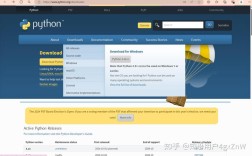
If you don't have Python, download it from python.org. Make sure to check the box that says "Add Python to PATH" during installation.
Step 2: Install the Selenium Python Library
Open your terminal or command prompt and run the following command:
pip install selenium
Step 3: Download geckodriver
This is the most crucial step. You need to download the geckodriver that matches your Firefox browser version and your operating system.
- Check your Firefox version: Open Firefox, go to
Menu(the three horizontal lines) >Help>About Firefox. Note down the version number (e.g., 126.0.1). - Download
geckodriver: Go to the official Mozilla GitHub releases page: https://github.com/mozilla/geckodriver/releases - Find the right version: Download the file for your OS and system architecture (most people will need
win64for Windows,macosfor Apple Silicon Macs, orlinux64for Linux). It will be a.zipfile. - Extract
geckodriver: Unzip the downloaded file. You will find an executable file namedgeckodriver.exe(on Windows) orgeckodriver(on macOS/Linux).
Step 4: Add geckodriver to Your System's PATH
This allows your Python script to find the geckodriver executable without you specifying its full location every time.
-
On Windows:
- Copy the
geckodriver.exefile. - Paste it into a directory that is already in your system's PATH. The easiest one is
Python\Scriptsinside your main Python installation folder (e.g.,C:\Users\YourUser\AppData\Local\Programs\Python\Python311\Scripts). - Alternatively, you can add the folder where you extracted
geckodriverto your system's PATH environment variable.
- Copy the
-
On macOS or Linux:
- Make the
geckodriverfile executable:chmod +x /path/to/your/geckodriver
- Move it to a directory in your PATH:
sudo mv /path/to/your/geckodriver /usr/local/bin/
The
/usr/local/bin/directory is usually in the PATH by default.
- Make the
Your First Python Script
Now that everything is set up, you can write a simple script to automate Firefox.
Create a new file named test_firefox.py and paste this code:
from selenium import webdriver
from selenium.webdriver.common.by import By
from selenium.webdriver.firefox.service import Service
from selenium.webdriver.firefox.options import Options
from selenium.common.exceptions import TimeoutException
from selenium.webdriver.support.ui import WebDriverWait
from selenium.webdriver.support import expected_conditions as EC
# --- Optional: Configure Firefox Options ---
# This can help in headless (no GUI) mode or for specific settings
options = Options()
# options.add_argument("--headless")  # Run in headless mode (commented out for now)
options.add_argument("--start-maximized") # Maximize the window
# options.add_argument("--disable-gpu") # Sometimes needed for headless mode
# --- Set the path to geckodriver ---
# If you added geckodriver to your PATH, you can just use 'geckodriver'
# Otherwise, provide the full path to the executable.
# Example for Windows: service = Service(executable_path="C:/path/to/geckodriver.exe")
# Example for macOS/Linux: service = Service(executable_path="/usr/local/bin/geckodriver")
service = Service(executable_path="geckodriver")
# --- Initialize the WebDriver ---
# This will start the Firefox browser and connect it to geckodriver
driver = webdriver.Firefox(service=service, options=options)
try:
    # --- 1. Open a webpage ---
    print("Opening Google...")
    driver.get("https://www.google.com")
    # --- 2. Wait for an element to be present ---
    # It's good practice to wait for elements to appear instead of just sleeping
    wait = WebDriverWait(driver, 10) # Wait up to 10 seconds
    try:
        # --- 3. Find the search input box ---
        # We use a CSS selector to find the element
        search_box = wait.until(
            EC.presence_of_element_located((By.NAME, "q"))
        )
        print("Search box found.")
        # --- 4. Type a search query ---
        search_box.send_keys("Selenium with Python")
        # --- 5. Find and click the "Google Search" button ---
        search_button = driver.find_element(By.NAME, "btnK")
        search_button.click()
        print("Clicked search button.")
        # --- 6. Wait for the results page to load ---
        # We'll wait for the results container to be visible
        results = wait.until(
            EC.visibility_of_element_located((By.ID, "search"))
        )
        print("Results page loaded.")
        # --- 7. Print the page title ---
        print(f"Page title is: {driver.title}")
    except TimeoutException:
        print("An element was not found on the page within the time limit.")
finally:
    # --- 8. Close the browser ---
    # This block ensures the browser is closed even if there's an error
    print("Closing the browser.")
    driver.quit()
To run the script:
python test_firefox.py
You should see a Firefox window open, perform the search, and then close automatically.
Troubleshooting Common Issues
-
selenium.common.exceptions.WebDriverException: Message: 'geckodriver' executable needs to be in PATH.- Cause: The
geckodriverexecutable is not in a location that your system can find. - Solution: Follow Step 4 to add
geckodriverto your system's PATH.
- Cause: The
-
selenium.common.exceptions.SessionNotCreatedException: Message: Unable to find a matching set of capabilities- Cause: Your
geckodriverversion is too old for your Firefox browser version, or vice-versa. - Solution: Download the latest version of
geckodriverfrom the official releases page that is compatible with your Firefox version.
- Cause: Your
-
Permission denied: '/path/to/geckodriver'(on macOS/Linux)- Cause: The
geckodriverfile is not executable. - Solution: Run
chmod +x /path/to/geckodriverin your terminal.
- Cause: The
-
WebDriverException: Message: Failed to start process- Cause: You might have a typo in the path to
geckodriverin yourServiceobject, or the path points to a file that is notgeckodriver. - Solution: Double-check the
executable_pathin yourServiceobject. Make sure it points directly to thegeckodriverexecutable file.
- Cause: You might have a typo in the path to