Of course! Here is a complete guide to creating and running a "Hello, World!" program in Java, from the simplest one-line command-line version to a more structured project using an IDE.
The Short Answer: The Code
This is the classic "Hello, World!" program in Java.
// HelloWorld.java
public class HelloWorld {
    public static void main(String[] args) {
        System.out.println("Hello, World!");
    }
}
Detailed Step-by-Step Guide
Let's break down how to create, compile, and run this program.
Prerequisites: Install the JDK
Before you can write and run Java code, you need the Java Development Kit (JDK). The JDK includes the Java compiler (javac) and the Java Virtual Machine (java), which are essential.
-
Check if you already have it: Open your terminal (Command Prompt on Windows, Terminal on macOS/Linux) and type:
 (图片来源网络,侵删)
java -version
If you see a version number (e.g.,
java version "17.0.2"), you're good to go! If not, you need to install it. -
Download and Install the JDK: If you need to install it, the official source is Oracle Java SE Development Kit. Alternatively, you can use an open-source version like OpenJDK.
Method 1: Using a Text Editor and the Command Line
This method helps you understand the fundamental steps of compilation and execution.
Step 1: Write the Code
-
Open any plain text editor (like Notepad, VS Code, Sublime Text, or Vim).
 (图片来源网络,侵删)
 -
Copy and paste the code from above into the editor.
-
Save the file with the exact name
HelloWorld.java. The filename must match the public class name.// HelloWorld.java public class HelloWorld { public static void main(String[] args) { System.out.println("Hello, World!"); } }
Step 2: Compile the Code (Create the .class file)
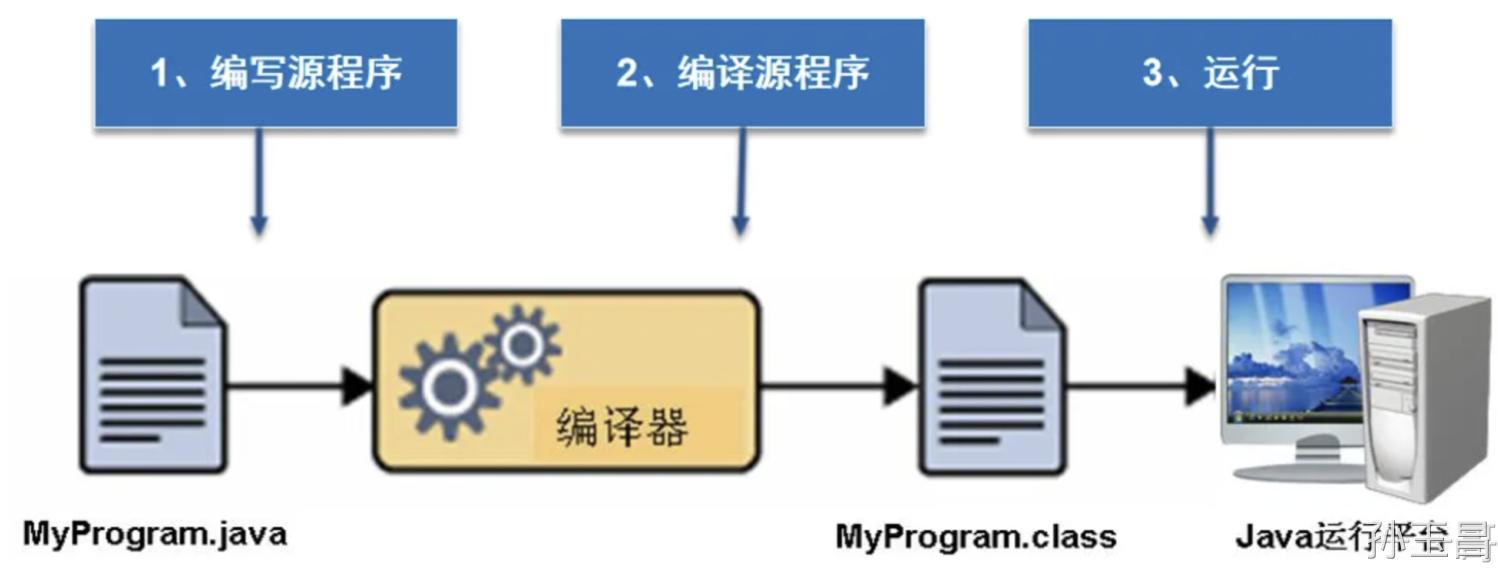
Now, you'll use the Java compiler (javac) to turn your human-readable .java source file into Java bytecode, which is a machine-readable .class file.
-
Open your terminal or command prompt.
-
Navigate to the directory where you saved
HelloWorld.java. For example:# On macOS/Linux cd /path/to/your/folder # On Windows cd C:\path\to\your\folder
-
Run the
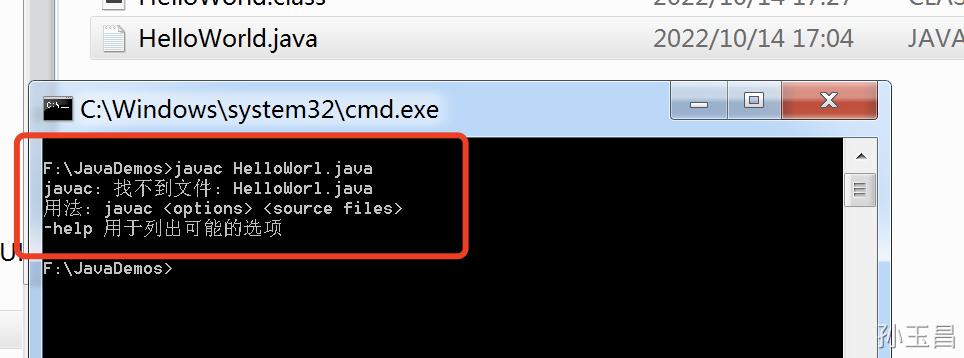
javaccommand:javac HelloWorld.java
If this command runs successfully, you will see a new file in your folder:
HelloWorld.class. This is the compiled bytecode.
Step 3: Run the Code (Execute the bytecode)
Finally, you'll use the java command to run your compiled program. The java command starts the JVM, which loads your class and executes its main method.
- Make sure you are still in the same directory in your terminal.
- Run the
javacommand. Notice you do not include the.classextension.java HelloWorld
You should see the following output printed to your console:
Hello, World!Explanation of the Code
Let's break down each line of the HelloWorld.java file.
// This is a single-line comment. The compiler ignores it.
public class HelloWorld {
    // A class is a blueprint for creating objects. All Java code must be inside a class.
    // The file name must be exactly "HelloWorld.java" because the class is named "HelloWorld".
    public static void main(String[] args) {
        // This is the main method. It's the entry point of any Java application.
        // The Java Virtual Machine (JVM) looks for this specific method to start running the program.
        //
        // public:    The method can be called from anywhere.
        // static:    The method belongs to the class itself, not to a specific object instance.
        // void:      The method does not return any value.
        // main:     The special name the JVM looks for.
        // String[] args: An array of strings that can hold command-line arguments.
        System.out.println("Hello, World!");
        // This line prints text to the console.
        //
        // System:   A built-in Java class that contains system-level operations.
        // out:      An object within System that handles output streams (like the console).
        // println: A method that prints a line of text. The 'ln' at the end means it adds a new line after printing.
    }
}
Method 2: Using an IDE (Integrated Development Environment)
An IDE like IntelliJ IDEA (Community Edition is free) or Eclipse makes writing, compiling, and running Java code much easier with features like code completion, debugging, and project management.
Here's a quick guide using IntelliJ IDEA:
-
Install IntelliJ IDEA: Download and install it from the JetBrains website.
-
Create a New Project:
- Open IntelliJ and select "New Project".
- Choose "Java" from the left panel.
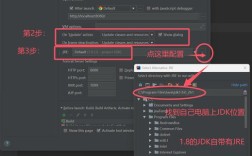
- Make sure the "Project SDK" is set to the JDK you installed earlier.
- Click "Create".
-
Write the Code:
- IntelliJ will create a basic project structure. Find the
src(source) folder. - Right-click on
src->New->Java Class. - Name the class
HelloWorldand press Enter. - IntelliJ will automatically create the file
HelloWorld.javawith a basic structure. Replace the contents with the "Hello, World!" code.
public class HelloWorld { public static void main(String[] args) { System.out.println("Hello, World!"); } } - IntelliJ will create a basic project structure. Find the
-
Run the Code:
- Right-click anywhere inside the
HelloWorld.javafile. - Select "Run 'HelloWorld.main()'".
- The output will appear in a "Run" window at the bottom of the IDE.
- Right-click anywhere inside the
Hello, World!Using an IDE is highly recommended for any project more complex than a simple "Hello, World!" program.