Of course! Reading data from Excel files is a very common task in Python. The most popular and powerful library for this is Pandas. I'll start with that and also show you a more basic alternative using openpyxl for more granular control.
The Best & Most Common Method: Using Pandas
Pandas is the standard for data analysis in Python. Its read_excel() function is simple, powerful, and can handle most Excel-related tasks.
Step 1: Install Pandas and the Required Engine
First, you need to install pandas. Since Excel files are not natively supported by Python, you also need a "backend engine" to read them. The most common one is openpyxl.
# Install pandas and the openpyxl engine
pip install pandas openpyxl
pandas: The main data analysis library.openpyxl: The engine that Pandas uses to read.xlsxfiles (the modern Excel format).
Step 2: Basic Reading of an Excel File
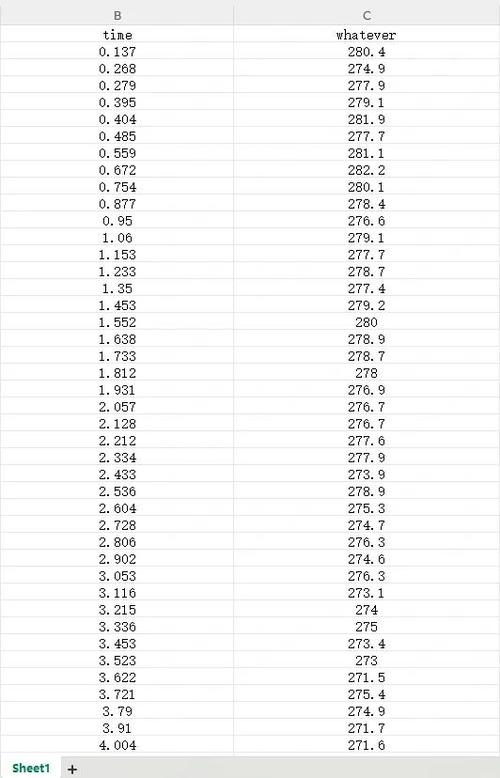
Let's say you have an Excel file named sales_data.xlsx with a sheet named January that looks like this:
| Date | Product | Sales |
|---|---|---|
| 2025-01-01 | Apple | 150 |
| 2025-01-02 | Orange | 200 |
| 2025-01-03 | Banana | 175 |
Here is the Python code to read this sheet into a Pandas DataFrame:
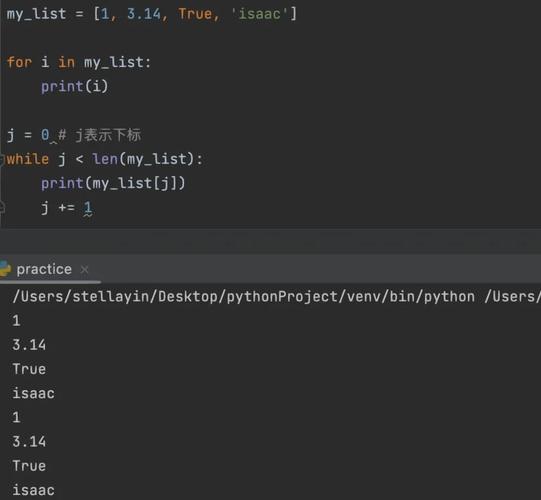
import pandas as pd
# The path to your Excel file
file_path = 'sales_data.xlsx'
# Read the first sheet of the Excel file into a DataFrame
df = pd.read_excel(file_path)
# Display the first 5 rows of the DataFrame
print(df.head())
# You can now work with the data like any other DataFrame
print("\nData types:")
print(df.dtypes)
Step 3: Reading Specific Sheets
An Excel file can have multiple sheets. You can specify which sheet to read.
# Read a sheet by its name
df_january = pd.read_excel(file_path, sheet_name='January')
# Read a sheet by its index (0 for the first sheet, 1 for the second, etc.)
df_february = pd.read_excel(file_path, sheet_name=1)
print("January Data:")
print(df_january)
print("\nFebruary Data (from index 1):")
print(df_february)
Step 4: Reading a Specific Range of Cells
If your data doesn't start at cell A1, you can use the header and usecols parameters.
header: The row number (0-indexed) to use as the column names.usecols: Which columns to read. You can use column names (e.g.,'A:C') or indices (e.g.,[0, 1, 2]).
Let's say your data looks like this in Excel, with a header row in row 2:
| Product | Sales | ||||
|---|---|---|---|---|---|
| Date | ... | ... | |||
| 2025-01-01 | Apple | 150 | ... | ... | ... |
# The data starts on row 2 (index 1), so header=1
# We only want columns 'Product' and 'Sales'
df_specific = pd.read_excel(
    file_path,
    sheet_name='January',
    header=1,
    usecols=['Product', 'Sales'] # Or use 'D:E' if they are in those columns
)
print(df_specific)
Step 5: Handling Missing Data
Pandas automatically handles empty cells by converting them to NaN (Not a Number).
# Create a sample DataFrame with missing data
data = {'A': [1, 2, None], 'B': [4, None, 6]}
df_with_nan = pd.DataFrame(data)
df_with_nan.to_excel('data_with_nan.xlsx', index=False)
# Read it back
df_read_nan = pd.read_excel('data_with_nan.xlsx')
print(df_read_nan)
# You can easily fill missing values
df_filled = df_read_nan.fillna(0) # Fill with 0
print("\nFilled with 0:")
print(df_filled)
Alternative: Using openpyxl for More Control
Pandas is great for data analysis, but sometimes you need to read cell by cell, access styling, or write complex formulas. For that, the openpyxl library is perfect. It's the engine Pandas uses, but you can use it directly.
Step 1: Install openpyxl
pip install openpyxl
Step 2: Basic Reading with openpyxl
This approach is more manual. You load the workbook, select a sheet, and then loop through the rows and cells.
from openpyxl import load_workbook
# Load the workbook
wb = load_workbook(filename='sales_data.xlsx')
# Select the active sheet (or a specific sheet by name)
ws = wb['January']
# Get the maximum row and column count
max_row = ws.max_row
max_col = ws.max_column
print(f"Sheet has {max_row} rows and {max_col} columns.")
# Loop through the rows and print the cell values
# We start from row 2 to skip the header
for row in ws.iter_rows(min_row=2, max_row=max_row, max_col=max_col):
    # Each 'row' is a tuple of cell objects
    date_cell, product_cell, sales_cell = row
    print(f"Date: {date_cell.value}, Product: {product_cell.value}, Sales: {sales_cell.value}")
Key Differences: Pandas vs. openpyxl
| Feature | Pandas (read_excel) |
openpyxl |
|---|---|---|
| Primary Use | Data Analysis & Manipulation | Reading/Writing Cell Data, Styles, Formulas |
| Output | A DataFrame (a powerful table-like structure) | Cell objects, worksheet objects, workbook objects |
| Ease of Use | Very Easy. One line to get a full table. | More Manual. Requires looping to get data. |
| Performance | Slower for very large files if you need all data. | Can be faster if you only need to read specific cells. |
| Best For | Loading data for statistics, plotting, machine learning. | Editing existing files, reading/writing metadata, complex layouts. |
Summary and Recommendation
-
For 95% of use cases, especially if your goal is to analyze, clean, or transform the data, use Pandas. It's the industry standard and will save you a lot of time.
-
Use
openpyxldirectly when you need fine-grained control, such as:- Reading or writing specific cell formats (colors, fonts).
- Working with Excel charts or images embedded in the sheet.
- Reading complex formulas or cell comments.
- When the data layout is irregular and doesn't fit neatly into a table.