Of course! This is a very common question for developers working on both the front-end (JavaScript) and back-end (Python).
The key thing to understand is that JavaScript (in the browser) and Python are two separate languages that run in different environments. They cannot directly "request" each other in the way a Python script can import another Python module.
Instead, they communicate over a network, typically using a REST API.
Here's the breakdown:
-
The Python Back-End (Server): This part runs a web server (using a framework like Flask or Django). Its job is to expose specific URLs (endpoints) that the JavaScript front-end can call. These endpoints perform actions (like fetching data, creating a user, etc.) and send back a response, usually in JSON format.
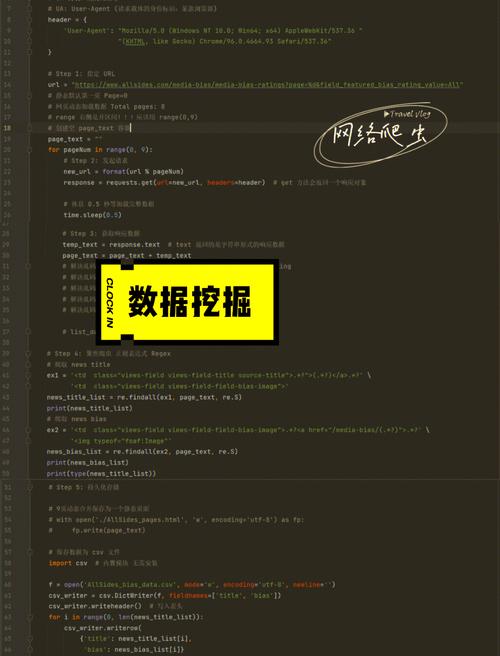 (图片来源网络,侵删)
 -
The JavaScript Front-End (Browser): This part runs in the user's web browser. It makes HTTP requests (like
GET,POST,PUT,DELETE) to the Python back-end's endpoints using thefetchAPI or a library likeaxios.
The Communication Flow
+---------------------+      HTTP Request (JSON)      +---------------------+
|  JavaScript (Browser) | -------------------------> |  Python (Back-End)  |
|  (e.g., React, Vue)  |                              |  (e.g., Flask, Django)|
+---------------------+                              +---------------------+
       ^                                                      |
       | HTTP Response (JSON)                                  | Process Data
       |                                                      | (Query DB, etc.)
       +------------------------------------------------------+
Step-by-Step Example: Python Flask + JavaScript fetch
Let's build a simple "Hello World" API with Python and call it from JavaScript.
Step 1: Create the Python Back-End (Flask)
First, you need to install Flask:
pip install Flask
Now, create a file named app.py:
# app.py
from flask import Flask, jsonify, request
# Create a Flask application instance
app = Flask(__name__)
# This is a simple in-memory "database"
users = [
    {"id": 1, "name": "Alice"},
    {"id": 2, "name": "Bob"}
]
# Define a route for the root URL
@app.route('/')
def home():
    return "Welcome to the Python API!"
# Define a route to get all users (GET request)
@app.route('/api/users', methods=['GET'])
def get_users():
    # jsonify converts the Python dictionary/list to a JSON response
    return jsonify(users)
# Define a route to get a single user by ID (GET request)
@app.route('/api/users/<int:user_id>', methods=['GET'])
def get_user(user_id):
    user = next((user for user in users if user['id'] == user_id), None)
    if user:
        return jsonify(user)
    # Return a 404 Not Found error if the user doesn't exist
    return jsonify({"error": "User not found"}), 404
# Define a route to create a new user (POST request)
@app.route('/api/users', methods=['POST'])
def create_user():
    if not request.json or not 'name' in request.json:
        return jsonify({"error": "Name is required"}), 400
    new_user = {
        'id': users[-1]['id'] + 1,
        'name': request.json['name']
    }
    users.append(new_user)
    return jsonify(new_user), 201 # 201 Created
# Run the app if this script is executed directly
if __name__ == '__main__':
    # Use debug=True for development, but not in production
    app.run(debug=True)
Step 2: Run the Python Server
Open your terminal, navigate to the directory where you saved app.py, and run:
python app.py
You should see output like this, indicating your server is running:
 * Serving Flask app 'app'
 * Debug mode: on
WARNING: This is a development server. Do not use it in a production deployment.
Use a production WSGI server instead.
 * Running on http://127.0.0.1:5000
Press CTRL+C to quit
Your Python API is now live and waiting for requests at http://127.0.0.1:5000.
Step 3: Create the JavaScript Front-End (HTML + fetch)
Create a file named index.html in the same directory. This file will contain the JavaScript code to call our Python API.
<!-- index.html -->
<!DOCTYPE html>
<html lang="en">
<head>
    <meta charset="UTF-8">
    <meta name="viewport" content="width=device-width, initial-scale=1.0">Python & JS Communication</title>
    <style>
        body { font-family: sans-serif; padding: 20px; }
        button { padding: 10px 15px; margin: 5px; cursor: pointer; }
        pre { background: #f4f4f4; padding: 15px; border-radius: 5px; }
    </style>
</head>
<body>
    <h1>Calling Python API from JavaScript</h1>
    <button id="getUsersBtn">Get All Users</button>
    <button id="getUserBtn">Get User with ID 1</button>
    <button id="createUserBtn">Create New User (Charlie)</button>
    <h2>Response:</h2>
    <pre id="responseOutput">Click a button to see the response...</pre>
    <script>
        const responseOutput = document.getElementById('responseOutput');
        // Helper function to display the response
        function displayResponse(data) {
            responseOutput.textContent = JSON.stringify(data, null, 2);
        }
        // --- 1. GET all users ---
        document.getElementById('getUsersBtn').addEventListener('click', () => {
            fetch('http://127.0.0.1:5000/api/users')
                .then(response => {
                    if (!response.ok) {
                        throw new Error(`HTTP error! status: ${response.status}`);
                    }
                    return response.json();
                })
                .then(data => {
                    displayResponse(data);
                })
                .catch(error => {
                    displayResponse({ error: error.message });
                });
        });
        // --- 2. GET a single user ---
        document.getElementById('getUserBtn').addEventListener('click', () => {
            fetch('http://127.0.0.1:5000/api/users/1')
                .then(response => response.json()) // .json() also parses non-200 OK responses
                .then(data => {
                    displayResponse(data);
                })
                .catch(error => {
                    displayResponse({ error: error.message });
                });
        });
        // --- 3. POST (create) a new user ---
        document.getElementById('createUserBtn').addEventListener('click', () => {
            const newUser = { name: 'Charlie' };
            fetch('http://127.0.0.1:5000/api/users', {
                method: 'POST',
                headers: {
                    'Content-Type': 'application/json',
                },
                body: JSON.stringify(newUser),
            })
            .then(response => {
                if (!response.ok) {
                    throw new Error(`HTTP error! status: ${response.status}`);
                }
                return response.json();
            })
            .then(data => {
                displayResponse(data);
            })
            .catch(error => {
                displayResponse({ error: error.message });
            });
        });
    </script>
</body>
</html>
Step 4: Run the Front-End
Since this is a simple HTML file, you can just open it directly in your web browser (e.g., Chrome, Firefox). You don't need a separate server for it.
Important: Because of browser security policies (CORS), you might run into an error if your Python server isn't configured to allow requests from your local HTML file. For development, Flask's debug=True mode often handles this automatically, but in a real-world scenario, you would need to install the Flask-CORS extension.
Now, open index.html in your browser and click the buttons. You will see the JSON responses from your Python server displayed on the page!
Alternative: Using axios in JavaScript
The fetch API is built into browsers, but many developers prefer the axios library because it's often considered simpler, especially for handling errors and POST requests.
First, include axios in your HTML via a CDN:
<!-- Add this inside your <head> tag -->
<script src="https://cdn.jsdelivr.net/npm/axios/dist/axios.min.js"></script>
Then, you can replace the fetch calls with axios. Notice how much cleaner the error handling is:
// Using axios for GET all users
document.getElementById('getUsersBtn').addEventListener('click', () => {
    axios.get('http://127.0.0.1:5000/api/users')
        .then(response => {
            displayResponse(response.data);
        })
        .catch(error => {
            // Axios puts the error in error.response
            displayResponse({ error: error.response ? error.response.data : error.message });
        });
});
// Using axios for POST
document.getElementById('createUserBtn').addEventListener('click', () => {
    const newUser = { name: 'Charlie' };
    axios.post('http://127.0.0.1:5000/api/users', newUser)
        .then(response => {
            displayResponse(response.data);
        })
        .catch(error => {
            displayResponse({ error: error.response ? error.response.data : error.message });
        });
});
Summary of Key Technologies
| Component | Language/Framework | Key Technology | Purpose |
|---|---|---|---|
| Back-End | Python | Flask or Django | Creates the web server and API endpoints. |
| Front-End | JavaScript | fetch API or axios |
Makes HTTP requests from the browser to the API. |
| Data Format | N/A | JSON | The universal language for data exchange between the two. |