Of course! Using Eclipse as a Python IDE is a very popular choice, especially for developers who are already familiar with the Eclipse ecosystem from Java or other languages. It provides a powerful, extensible, and professional environment.
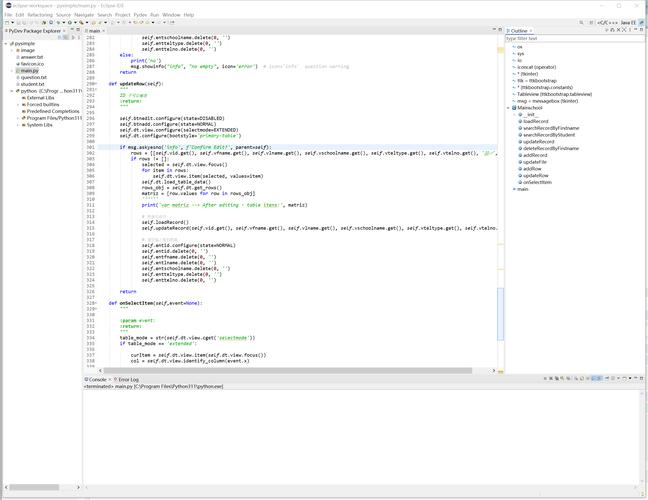
Here's a comprehensive guide to using Eclipse for Python development, covering why you'd choose it, how to set it up, and its key features.
Why Use Eclipse for Python? (The Pros)
- Cross-Platform: Works seamlessly on Windows, macOS, and Linux.
- Highly Extensible: The core of Eclipse is the Eclipse Platform, and its functionality is extended via plugins. This means you can customize it to do almost anything.
- Integrated Debugger: A powerful graphical debugger that allows you to set breakpoints, inspect variables, step through code line-by-line, and watch expressions.
- Excellent Code Editor: Features like syntax highlighting, code folding, code completion (intellisense), and on-the-fly error checking.
- Integrated Unit Testing: Excellent support for running Python's
unittestframework and other testing libraries likepytestdirectly from the IDE. - Version Control Integration: Built-in support for Git (EGit plugin) and other version control systems.
- PyDev Plugin is Mature: The main plugin, PyDev, has been actively developed for over 15 years and is very stable and feature-rich.
The Main Plugin: PyDev
The essential component that turns Eclipse into a Python IDE is the PyDev plugin. It's developed by the same company (Fabio Zadrozny) that originally developed the Python Development Tools (PDT) for Eclipse.
PyDev provides:
- Python and Jython editors.
- Code completion, code analysis, and code templates.
- An integrated debugger.
- Django and Google App Engine integration.
- Support for interactive Python shells (REPLs).
Step-by-Step Installation and Setup
Here’s how to get started from scratch.
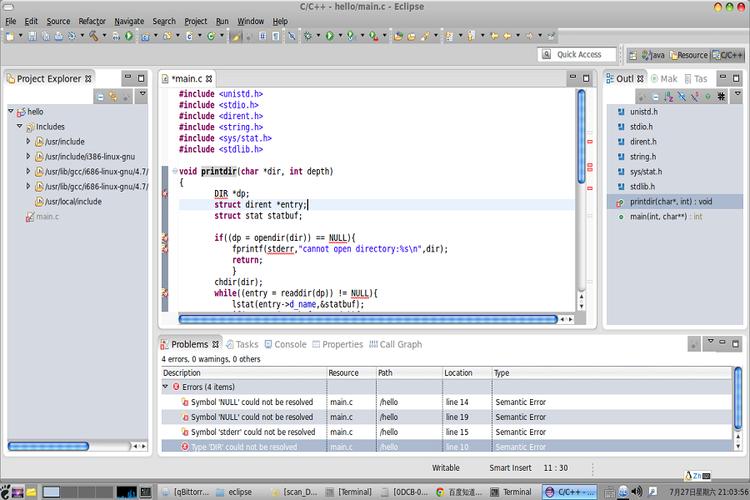
Step 1: Install Eclipse
First, you need a base installation of the Eclipse IDE. The best and most common choice for Python development is the Eclipse IDE for Enterprise Java and Web Developers. It comes with a lot of useful tools out of the box.
- Go to the Eclipse Downloads page.
- Download the "Eclipse IDE for Enterprise Java and Web Developers" package for your operating system.
- Unzip the downloaded file to a location on your computer. You don't need to run an installer; just run the
eclipse.exe(Windows) orEclipse.app(macOS) file.
Step 2: Install the PyDev Plugin
There are two primary ways to install PyDev.
Method A: Via the Eclipse Marketplace (Recommended)
This is the easiest and most common method.
- Open Eclipse.
- Go to Help -> Eclipse Marketplace....
- In the search bar, type "PyDev".
- Find "PyDev - Python IDE for Eclipse" in the results and click Install.
- Follow the on-screen instructions. You will be asked to review and accept the license agreements.
- Eclipse will download and install the plugin. It may prompt you to restart Eclipse. Do so.
Method B: Via "Install New Software"
This method is useful if the Marketplace is unavailable.
- Go to Help -> Install New Software....
- In the "Work with" field, paste the PyDev update site URL:
http://pydev.org/updates - Click Add... to add this repository.
- Eclipse will fetch the available software. Select "PyDev" from the list.
- Click Next, review the items, accept the license, and click Finish.
- Wait for the installation to complete and restart Eclipse.
Step 3: Configure the Python Interpreter
This is the most critical step. You must tell PyDev which Python installation it should use.
- Go to Window -> Preferences.
- Navigate to PyDev -> Interpreter - Python.
- Click the New... button on the right.
- A "Select interpreter" dialog will appear.
- In the Interpreter Executable field, click Browse... and navigate to your Python installation. This is usually located at:
- Windows:
C:\Users\<YourUsername>\AppData\Local\Programs\Python\PythonXX\python.exe - macOS:
/usr/local/bin/python3(if installed via Homebrew) or/usr/bin/python3 - Linux:
/usr/bin/python3or/usr/bin/python
- Windows:
- Once you select the executable, PyDev will automatically fill in the other fields. Click OK.
- Back in the "Interpreters" window, you will see your new interpreter listed. Make sure it is checked.
- Click Apply and Close. PyDev will now build its index of the Python standard library and installed packages (like NumPy, Pandas, etc.), which enables features like code completion.
Creating Your First Python Project
- Go to File -> New -> Project....
- Expand the PyDev folder and select PyDev Project. Click Next.
- Project Name: Give your project a name (e.g.,
my_python_app). - Grammar Version: Select the Python version you configured (e.g.,
9). - Project layout: Choose between "Source folders" (recommended for larger projects) and "Source folders" vs. "Test folders" (even better for organized testing).
- Click Finish.
Your new project will appear in the "Project Explorer" view. You can now create Python files by right-clicking the project folder -> New -> PyDev Module.
Key Features and How to Use Them
Running Code
- Right-click on a
.pyfile in the Project Explorer. - Select Run As -> Python Run.
- The output will appear in the "Console" view at the bottom of the screen.
Debugging Code
This is where Eclipse/PyDev shines.
- Set a Breakpoint: Double-click in the gray margin to the left of a line of code. A blue dot will appear.
- Start the Debugger: Right-click on the file and select Debug As -> Python Debug.
- Debug Perspective: Eclipse will switch to the "Debug" perspective. You'll see several new views:
- Debug: Shows the call stack and lets you control the execution.
- Variables: Shows the values of all variables in the current scope.
- Console: Shows the program's output.
- Control Execution: Use the buttons in the "Debug" view:
- Resume (F8): Continue running until the next breakpoint.
- Step Over (F6): Execute the current line and move to the next one.
- Step Into (F5): Dive into a function call.
- Step Return (F7): Finish executing the current function and return.
- Terminate: Stop the debugging session.
Code Analysis and Refactoring
PyDev provides real-time code analysis. It will underline potential issues (like unused variables, syntax errors) in your code. You can right-click on code to access refactorings like:
- Rename
- Extract Method
- Inline Variable
Alternatives to Consider
While Eclipse/PyDev is excellent, it's good to know what else is out there.
| IDE / Editor | Best For | Pros | Cons |
|---|---|---|---|
| PyCharm | Serious Python Development | Unmatched code analysis, deep Django/Flask support, professional debugger, fantastic community edition. | Can be resource-heavy; the Professional version is paid. |
| VS Code | Versatility and Ease of Use | Lightweight, fast, massive extension marketplace (Python extension by Microsoft is excellent), integrated terminal. | Can feel less "integrated" than PyCharm or Eclipse out-of-the-box. |
| Spyder | Scientific Computing & Data Analysis | Integrated with Anaconda, has a variable explorer, plot viewer, and console in one window. | Not as feature-rich for general-purpose web development or large applications. |
| IDLE | Absolute Beginners | Comes with Python, no installation needed. Very basic, lacks advanced features. |
Final Verdict
Choose Eclipse/PyDev if:
- You are already an Eclipse user and love its workflow.
- You need a highly customizable and extensible IDE.
- You are working in a mixed-language environment (e.g., Java and Python).
- You want a powerful, free, and open-source professional IDE.
For most new Python developers today, VS Code or PyCharm might be more straightforward choices. However, for those invested in the Eclipse ecosystem, PyDev remains a top-tier, powerful, and reliable Python IDE.