
Of course! The term "Python Shell Notepad" can mean a few different things. I'll cover the most common interpretations, from the simplest built-in tools to more powerful third-party applications.
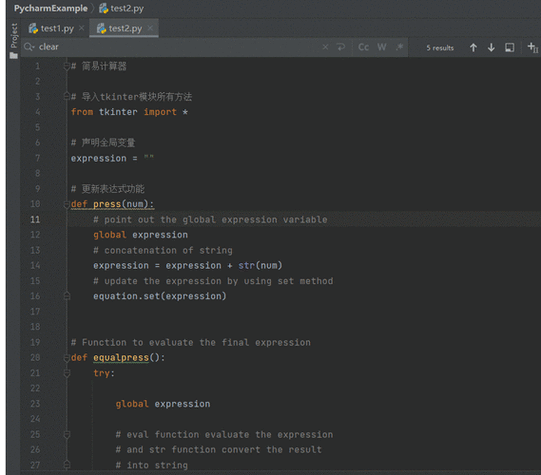
Let's break it down into three categories:
- The Built-in Python Shell (
IDLE): The default, simple tool that comes with Python. - Using a Text Editor with a Shell: A very common workflow for professional developers.
- Advanced IDEs (Integrated Development Environments): Powerful, all-in-one tools that combine a notepad, shell, and much more.
The Built-in Python Shell (IDLE)
This is the most direct answer to your request. When you install Python, you also get a simple application called IDLE. It has two main windows:
- The Shell Window: An interactive command-line where you can type Python code and see the results immediately.
- The Editor Window: A basic text editor where you can write, save, and run multi-line Python scripts (your "notepad").
How to Use IDLE
Step 1: Open IDLE
- Windows: Search for "IDLE" in the Start Menu.
- macOS: Open Finder -> Applications -> Python -> IDLE.
- Linux: It's usually in your application menu, or you can run
idlefrom a terminal.
Step 2: The Shell (Interactive Mode)
When you first open IDLE, you'll see the >>> prompt. This is the shell. You can type any Python command and press Enter to execute it.
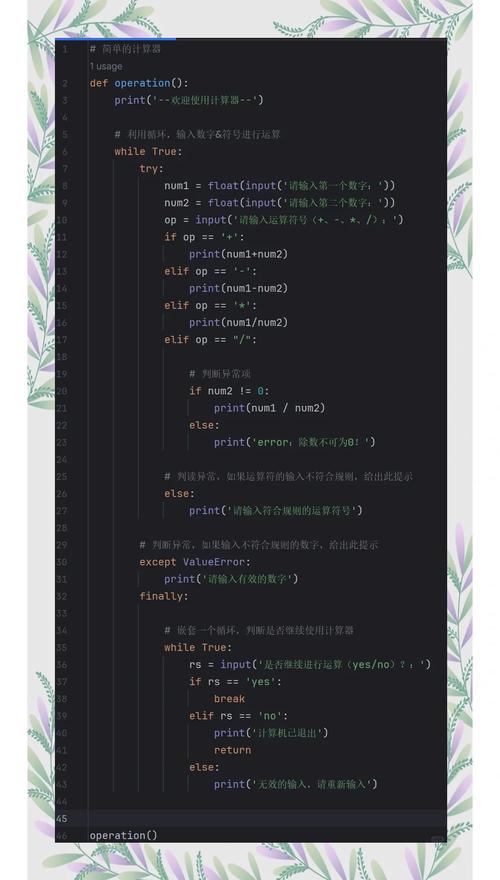
>>> print("Hello, from the IDLE Shell!")
Hello, from the IDLE Shell!
>>> x = 10
>>> y = 20
>>> x + y
30
>>> # You can even import modules
>>> import math
>>> math.sqrt(144)
12.0
Step 3: The Editor (Your "Notepad") To write a multi-line script, you need the editor window.
-
Go to the Shell window and click File -> New File. A blank editor window will appear.
-
Type your Python code in this new window. For example, create a file named
hello_script.py:# This is my script in the IDLE editor name = input("What is your name? ") greeting = f"Hello, {name}! Welcome to Python scripting." print(greeting) -
Save the file: Go to File -> Save As... and save it as
hello_script.py.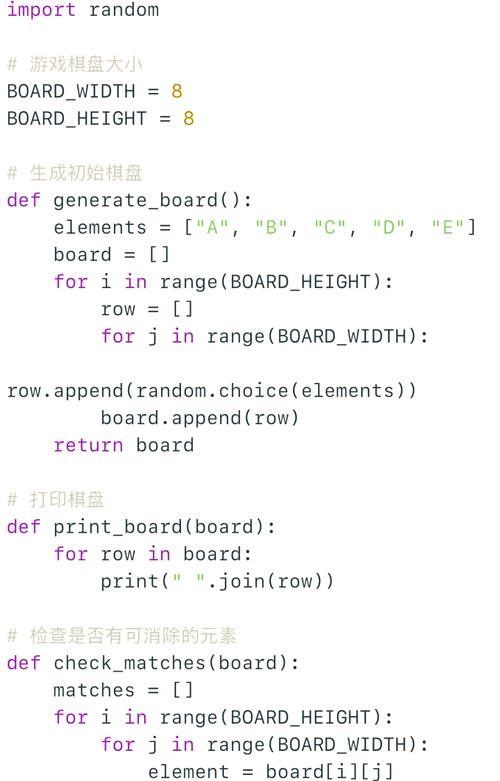 (图片来源网络,侵删)
 -
Run the script:
- You can press F5 on your keyboard.
- Or go to Run -> Run Module.
The output will appear in the Shell window:
What is your name? Alice
Hello, Alice! Welcome to Python scripting.
Pros of IDLE:
- Comes pre-installed with Python.
- Simple and easy to get started with.
- Color-codes your code (syntax highlighting).
Cons of IDLE:
- Very basic features (no auto-completion, no debugger, simple interface).
- Not suitable for large projects.
The Professional Workflow: Text Editor + Terminal
This is the most common and flexible way developers work. You use a dedicated text editor for writing code (your "notepad") and a separate terminal (the "shell") to run it.
Recommended Text Editors
- Visual Studio Code (VS Code): The most popular choice. It's free, powerful, and has excellent Python support.
- Sublime Text: Very fast, lightweight, and has a "beautified" interface.
- Notepad++: A classic for Windows users, fast and simple.
- PyCharm Community Edition: A full IDE (see next section), but its editor is top-notch.
Step-by-Step Workflow with VS Code
Step 1: Install a Text Editor
- Install Visual Studio Code.
Step 2: Install the Python Extension
- Open VS Code.
- Go to the Extensions view (click the icon on the left or press
Ctrl+Shift+X). - Search for "Python" by Microsoft and click Install.
Step 3: Write Your Code (The "Notepad")
-
Create a new folder for your project (e.g.,
my_project). -
Open that folder in VS Code (File -> Open Folder...).
-
Create a new file named
app.py. -
Write your code in
app.py:# app.py def greet(name): return f"Hi, {name}! This is VS Code." if __name__ == "__main__": user = "Developer" message = greet(user) print(message)
Step 4: Run Your Code (The "Shell")
- Open the Integrated Terminal in VS Code (View -> Terminal or press `Ctrl+``).
- You'll see a command prompt at the bottom of the screen.
- Type
python app.pyand press Enter.
The Output: The terminal will execute your script and display the result.
> python app.py
Hi, Developer! This is VS Code.
Why this workflow is powerful:
- Flexibility: You can use any terminal (PowerShell, Bash, etc.) and any editor you like.
- Powerful Editor: Features like IntelliSense (auto-completion), linting (finding errors), and debugging are built-in.
- Version Control: It's easy to use Git to track your changes.
Advanced IDEs (Integrated Development Environments)
These are all-in-one applications that combine a text editor, a shell, a debugger, project management, and many other tools into a single package. They are like a super-powered "Python Shell Notepad".
Top Python IDEs
- PyCharm: The king of Python IDEs. The Community Edition is free and fantastic. It has an integrated terminal, a powerful debugger, and excellent project management.
- Spyder: Designed specifically for scientific Python (with NumPy, Matplotlib, etc.). It feels like a mix of MATLAB and an IDE, with a variable explorer and console built-in.
- Thonny: Another beginner-friendly IDE that comes bundled with some Python installers. It has a very simple, clean interface and focuses on teaching.
Example: PyCharm
- Install PyCharm Community Edition from the JetBrains website.
- Create a New Project: Give it a name and a location.
- Write Code: PyCharm will open
main.pyfor you. You can type your code directly into the editor. - Run the Code:
- Click the green "Run" button in the top-right.
- Or right-click in the editor and select "Run 'main'".
- Or use the shortcut
Shift + F10.
The output will appear in the Run tool window at the bottom, which acts as your shell.
Summary Table
| Tool | Type | Best For | Key Features |
|---|---|---|---|
| IDLE | Built-in Shell/Editor | Absolute beginners, very simple scripts. | Simple, pre-installed, syntax highlighting. |
| VS Code + Terminal | Text Editor + External Shell | Most developers, from beginners to professionals. | Highly customizable, huge extension library, Git integration. |
| PyCharm | Full IDE | Serious development, large projects, data science. | Powerful debugger, intelligent refactoring, dedicated Python tooling. |
| Thonny | Beginner IDE | Kids, students, absolute beginners. | Ultra-simple interface, shows variable values, easy to understand. |
Recommendation:
- If you are just starting out, start with IDLE to understand the basics of the Python shell and scripts.
- As soon as you feel comfortable, switch to the VS Code + Terminal workflow. It's the most practical and widely used method.
- If you find yourself working on large, complex projects, PyCharm will be your best friend.











