Of course! The print() function is one of the most fundamental and frequently used tools in Python, especially when working on a Linux command line. Let's break it down from the basics to more advanced usage in a Linux environment.
The Basics of print()
At its simplest, print() displays text or other data to the standard output, which is usually your terminal.
Basic Syntax:
print(object(s), sep=' ', end='\n', file=sys.stdout, flush=False)
You don't need to worry about all the arguments at first. Let's look at the most common uses.
Example 1: Printing a String
print("Hello, Linux World!")
Output in your terminal:
Hello, Linux World!Example 2: Printing Multiple Objects
You can print multiple items separated by a space by default.
print("The operating system is", "Linux")
Output:
The operating system is LinuxThe sep (Separator) Argument
By default, print() separates multiple objects with a single space. You can change this using the sep argument.
Example 3: Custom Separator
Let's use a comma instead of a space.
print("apple", "banana", "cherry", sep=", ")
Output:
apple, banana, cherryThe end Argument
By default, print() adds a newline character (\n) at the end, which moves the cursor to the next line. You can change this behavior with the end argument. This is extremely useful for creating progress bars or single-line updates.
Example 4: Preventing the Newline
Let's print two things on the same line.
print("Processing...", end=" ")
print("Done.")
Output:
Processing... Done.Example 5: Creating a Simple Progress Bar
This is a very common use case in Linux for scripts.
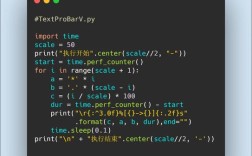
import time
import sys
for i in range(5):
    print(f"Progress: {i+1}/5", end="\r") # \r moves the cursor to the beginning of the line
    time.sleep(1)
print("\nOperation complete!") # The final print to move to a new line
What you'll see (updated every second):
Progress: 1/5
Progress: 2/5
...
Progress: 5/5
And then:
Operation complete!Printing to Standard Error (stderr)
In Linux, it's a best practice to send normal program output to Standard Output (stdout) and error messages to Standard Error (stderr). This allows users to redirect normal output to a file while still seeing errors on their screen.
You can do this by importing the sys module.
Example 6: Printing to stderr
import sys
print("This is a normal informational message.", file=sys.stdout)
print("This is an error message!", file=sys.stderr)
How to see the difference in your Linux terminal:
Run the script and redirect stdout to a file. You'll see the error message still appears on your screen.
# my_script.py contains the code from Example 6
python3 my_script.py > output.log
You will see this on your screen:
This is an error message!And the file output.log will contain:
This is a normal informational message.Advanced Formatting (f-strings)
For more complex output, you'll want to embed variables inside your strings. Modern Python (3.6+) recommends f-strings for this. They are fast and readable.
Example 7: Using f-strings
user = "alice"
disk_usage = 85.7
home_dir = "/home/alice"
print(f"User: {user}")
print(f"Disk Usage: {disk_usage}%")
print(f"Home directory is located at: {home_dir}")
print(f"Warning: Disk usage is over {disk_usage}!")
Output:
User: alice
Disk Usage: 85.7%
Home directory is located at: /home/alice
Warning: Disk usage is over 85.7!
You can also format numbers within f-strings:
pi = 3.14159
print(f"Pi is approximately {pi:.2f}") # .2f means format as a float with 2 decimal places
Output:
Pi is approximately 3.14Practical Linux Scripting Examples
Here are a couple of examples of how print() is used in real-world Linux Python scripts.
Example 8: System Information Script
This script uses the subprocess module to run Linux commands and print the results.
import subprocess
import sys
def get_system_info():
    """Gathers and prints basic system information."""
    print("--- System Information ---", file=sys.stdout)
    try:
        # Get the kernel version
        kernel_version = subprocess.check_output(["uname", "-r"]).decode().strip()
        print(f"Kernel Version: {kernel_version}", file=sys.stdout)
        # Get the number of CPU cores
        cpu_cores = subprocess.check_output(["nproc"]).decode().strip()
        print(f"CPU Cores: {cpu_cores}", file=sys.stdout)
        # Get the current memory usage
        mem_info = subprocess.check_output(["free", "-h"]).decode()
        print("\n--- Memory Usage ---", file=sys.stdout)
        print(mem_info, file=sys.stdout)
    except FileNotFoundError:
        print("Error: Command not found. Make sure you are on a Linux system.", file=sys.stderr)
    except Exception as e:
        print(f"An error occurred: {e}", file=sys.stderr)
if __name__ == "__main__":
    get_system_info()
Example 9: Logging Script Output
You can easily redirect all your print() output to a log file using the > shell operator.
# logger_script.py
import time
for i in range(10):
    print(f"Log entry {i+1}: Timestamp is {time.time()}")
    time.sleep(0.5)
Run it from your Linux terminal:
python3 logger_script.py > application.log
After running, the file application.log will contain all the print statements, while your terminal will be empty and ready for the next command.
Summary Table of print() Arguments
| Argument | Description | Default Value |
|---|---|---|
object(s) |
The value(s) to be printed. | (none) |
sep |
The separator between multiple objects. | (space) |
end |
The string appended at the end of the output | '\n' (newline) |
file |
A file-like object to write to (e.g., sys.stdout, sys.stderr). |
sys.stdout |
flush |
Whether to forcibly flush the stream. | False |