Of course! The PyDev Interactive Console (often called the "PyDev Python Shell") is a powerful feature within the PyDev plugin for Eclipse. It's essentially a Python interpreter that runs inside your Eclipse IDE, tightly integrated with your projects.
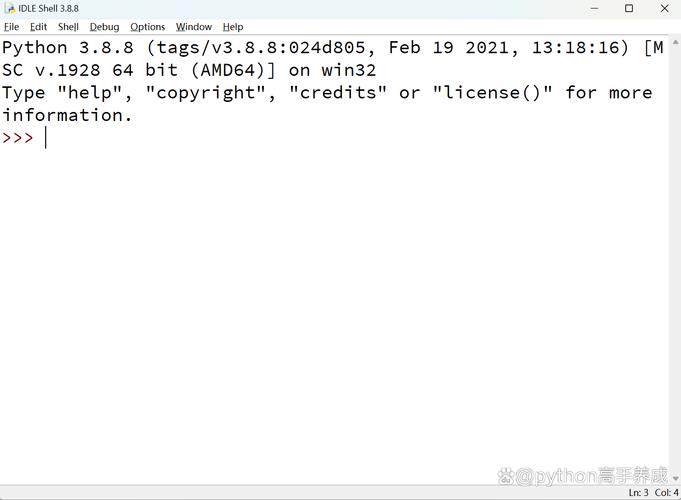
Let's break down what it is, why it's useful, and how to use it effectively.
What is the PyDev Python Shell?
Imagine the standard Python interpreter you get from your terminal (python or python3). The PyDev Python Shell is that same interpreter, but:
- It runs inside Eclipse: You don't need to switch to a terminal.
- It has access to your project: You can import modules, classes, and functions directly from your Eclipse project's source code without needing to install them.
- It has enhanced introspection: It understands your project's structure and provides better auto-completion and code hinting than a standard shell.
- It has persistent history: Your command history is saved within the Eclipse session.
It's your personal, project-specific Python playground.
Why Use It? (Key Benefits)
-
Rapid Experimentation: Test a small piece of code, a function call, or a complex import without creating a new
.pyfile and running it. This is incredibly fast for debugging logic. (图片来源网络,侵删)
 -
Debugging on the Fly: When you're debugging a regular Python script in PyDev, you can open the shell at a breakpoint. The shell will have access to all the local variables in the scope of that breakpoint, allowing you to inspect and manipulate them to understand what's going wrong.
-
Exploring Third-Party Libraries: You can quickly import a library (like
pandas,requests, etc.) and start exploring its classes, methods, and help documentation directly in the shell. -
No
sys.pathHeadaches: Because it's tied to your project, it automatically knows where to find your project's source files. You don't have to manually modifysys.pathto import modules from other packages within your project. -
Integrated Help: Use
help(),object?(IPython-style), ordir()to get documentation and explore objects without leaving the IDE. (图片来源网络,侵删)
How to Open and Use the PyDev Python Shell
Opening the Shell
There are a few easy ways to open it:
Method 1: Via the Menu (Most Common)
- Go to the Eclipse menu: Run -> PyDev Interactive Console.
- A dialog box will appear. You can usually just click OK.
- A new perspective will switch to "PyDev," and a console view will open, showing the Python interpreter's startup message.
Method 2: Using the Toolbar Icon
- Look for the PyDev toolbar in Eclipse. It has icons for running, debugging, etc.
- Find the icon that looks like a shell or terminal (it often has a
>>>prompt on it). - Click it to open the console.
Method 3: From the Debug Perspective
- When you are debugging a program and hit a breakpoint, you can open the "PyDev Debug Console" (a similar but debug-specific shell) from the Debug perspective's menu or toolbar. This gives you access to the debug context.
Basic Usage
Once the shell is open, you can start typing Python code.
Example 1: Simple Math & Imports
>>> 2 + 2
4
>>> print("Hello from PyDev!")
Hello from PyDev!
>>> import os
>>> os.getcwd()
'/home/user/my_workspace/my_project' # This will be your project's root
Example 2: Importing Your Project's Code
This is the killer feature. Let's say you have a file in your project: src/my_project/utils.py
# In src/my_project/utils.py
def greet(name):
    """A simple greeting function."""
    return f"Hello, {name}! Welcome to PyDev."
Now, in the PyDev Python Shell:
# The shell knows about your project's source path
>>> from my_project.utils import greet
# Use auto-completion (Ctrl+Space) after 'my_project.'
>>> greet("Alice")
'Hello, Alice! Welcome to PyDev.'
Example 3: Using Help and Introspection
>>> import requests
>>> requests.get?
# This will open a Javadoc-style view in Eclipse showing the documentation for requests.get()
>>> dir(requests.Session)
# This will list all the methods and attributes of the Session object in the console.
Tips and Best Practices
- Ctrl+Space is Your Best Friend: Use it for auto-completion on module names, classes, functions, and variables. It works just like in the PyDev editor.
%runMagic Command: You can run a script from your project directly in the shell. This is useful for scripts that have side effects or setup code.# Let's say you have a script 'setup_env.py' in your project >>> %run setup_env.py # The script will execute, and any variables it defines will be available in the shell.
- Clearing the Console: The console can get messy. To clear it, you can use the Eclipse menu: Edit -> Clear or the keyboard shortcut Ctrl+L.
- Closing the Shell: Simply click the 'X' on the console tab. It won't terminate your Eclipse instance.
- It's Not a Full REPL: While powerful, it's not as feature-rich as a dedicated REPL like IPython. For example, rich plotting (
%matplotlib) or more advanced "magic" commands might not work out of the box. For those, you might still prefer a standalone terminal or an IDE like VS Code with its integrated terminal.
Common Pitfalls and Solutions
- Problem:
ImportError: No module named 'my_project'- Cause: The PyDev shell might not be correctly associating with your project's source folder.
- Solution:
- Right-click on your project in the "Project Explorer" view.
- Go to Properties.
- Navigate to PyDev - PYTHONPATH.
- Ensure that your source folder (e.g.,
src/or the root folder if you don't use one) is listed and checked. If not, click Add Source Folder... and add it. - Click Apply and Close. Then, close and reopen the PyDev Python Shell.
Summary: PyDev Shell vs. Standard Terminal
| Feature | PyDev Python Shell | Standard Terminal (python) |
|---|---|---|
| Environment | Inside Eclipse IDE | Separate OS window/tab |
| Project Access | Excellent. Automatically knows PYTHONPATH. |
Poor. Requires manual sys.path setup. |
| Integration | High. Auto-completion, debugging context, help. | None. Just a plain text interface. |
| Use Case | Quick tests, exploring project code, debugging support | Running full scripts, system-level operations |
| Rich Features | Basic. Eclipse help integration. | Can be enhanced with IPython, Jupyter, etc. |
In short, the PyDev Python Shell is an indispensable tool for day-to-day Python development within Eclipse, bridging the gap between the editor and the runtime environment.