Of course! The term "create image" in Java can mean several different things. I'll cover the most common scenarios, from the simplest in-memory creation to drawing on an image and loading one from a file.
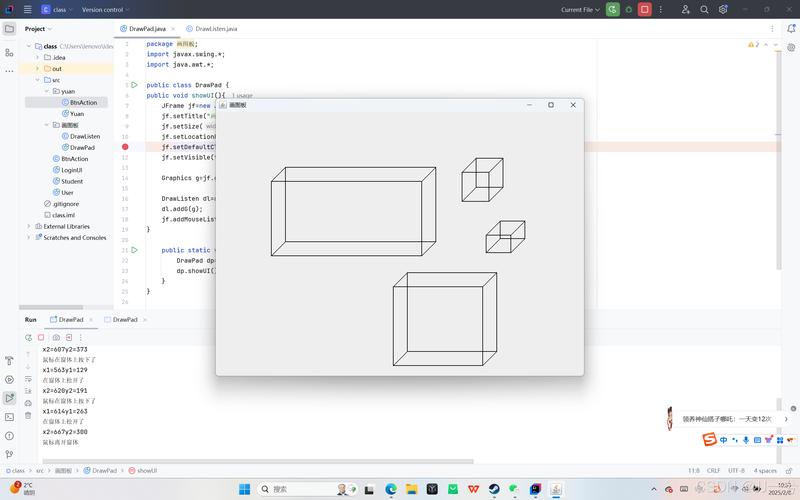
Here's a breakdown of the main ways to create an image in Java:
- Creating a Blank In-Memory Image: The most fundamental way, using the
BufferedImageclass. This is perfect for generating charts, diagrams, or performing pixel manipulation. - Drawing on an Image (2D Graphics): Using the
Graphics2Dobject to draw shapes, text, and lines onto your blank image. - Loading an Image from a File: Reading an existing image (like a
.pngor.jpg) from your disk into aBufferedImage. - Saving an Image to a File: Writing your
BufferedImageback to a file on disk.
Let's go through each one with complete, runnable examples.
Prerequisites
You'll need the Java Development Kit (JDK) installed. These examples use standard Java libraries, so you don't need any external dependencies.
Creating a Blank In-Memory Image (BufferedImage)
This is the starting point for almost all image manipulation in Java. The BufferedImage class represents an image with accessible buffer of image data.
You need to specify three things when creating one:
- Width and Height: The dimensions of the image in pixels.
- Image Type: A constant that defines how the color information is stored. The most common is
BufferedImage.TYPE_INT_RGB, which stores each pixel as a 32-bit integer (8 bits each for Red, Green, Blue, and Alpha/transparency).
Example: CreateBlankImage.java
import java.awt.image.BufferedImage;
import java.io.File;
import java.io.IOException;
import javax.imageio.ImageIO;
public class CreateBlankImage {
    public static void main(String[] args) {
        // 1. Define the image dimensions
        int width = 500;
        int height = 300;
        // 2. Create a blank BufferedImage
        // TYPE_INT_RGB means each pixel is a 32-bit integer (8 bits for R, G, B)
        BufferedImage blankImage = new BufferedImage(width, height, BufferedImage.TYPE_INT_RGB);
        // At this point, 'blankImage' is a 500x300 image filled with black pixels.
        // You can now draw on it or save it.
        // Let's save it to see the result
        saveImage(blankImage, "blank_image.png");
        System.out.println("Blank image created and saved as 'blank_image.png'");
    }
    /**
     * Helper method to save a BufferedImage to a file.
     * @param image The image to save.
     * @param fileName The name of the file to save to.
     */
    public static void saveImage(BufferedImage image, String fileName) {
        try {
            // Find a writer for the PNG format
            File output = new File(fileName);
            ImageIO.write(image, "png", output);
        } catch (IOException e) {
            System.err.println("Error saving image: " + e.getMessage());
        }
    }
}
To Run:
- Save the code as
CreateBlankImage.java. - Compile:
javac CreateBlankImage.java - Run:
java CreateBlankImage - You will find a
blank_image.pngfile in your directory, which is a 500x300 black rectangle.
Drawing on an Image (Graphics2D)
Once you have a BufferedImage, you can get a Graphics2D object from it. This object acts like a "paintbrush" that lets you draw shapes, text, and lines.
Example: DrawOnImage.java
This example creates an image, fills it with a background color, and then draws a rectangle and some text on it.

import java.awt.Color;
import java.awt.Font;
import java.awt.Graphics2D;
import java.awt.image.BufferedImage;
import java.io.File;
import java.io.IOException;
import javax.imageio.ImageIO;
public class DrawOnImage {
    public static void main(String[] args) {
        int width = 600;
        int height = 400;
        String text = "Hello, Java Graphics!";
        // 1. Create the blank image
        BufferedImage image = new BufferedImage(width, height, BufferedImage.TYPE_INT_RGB);
        // 2. Get the Graphics2D object to draw with
        Graphics2D g2d = image.createGraphics();
        // 3. --- Drawing Operations ---
        // Set a background color and fill the whole image
        g2d.setColor(Color.YELLOW);
        g2d.fillRect(0, 0, width, height);
        // Draw a blue rectangle
        g2d.setColor(Color.BLUE);
        g2d.drawRect(50, 50, 200, 100); // x, y, width, height
        // Draw a filled red oval
        g2d.setColor(Color.RED);
        g2d.fillOval(300, 80, 150, 150);
        // Set font and draw text
        g2d.setFont(new Font("Arial", Font.BOLD, 24));
        g2d.setColor(Color.BLACK);
        // The y-coordinate is the baseline of the text
        g2d.drawString(text, 50, height - 50);
        // 4. Dispose the Graphics2D object to free resources
        g2d.dispose();
        // 5. Save the final image
        saveImage(image, "drawn_image.png");
        System.out.println("Image with drawings created and saved as 'drawn_image.png'");
    }
    // (Use the same saveImage helper method from the previous example)
    public static void saveImage(BufferedImage image, String fileName) {
        try {
            File output = new File(fileName);
            ImageIO.write(image, "png", output);
        } catch (IOException e) {
            System.err.println("Error saving image: " + e.getMessage());
        }
    }
}
Key Graphics2D Methods:
setColor(Color c): Sets the current drawing color.fillRect(int x, int y, int w, int h): Fills a rectangle with the current color.drawRect(int x, int y, int w, int h): Draws the outline of a rectangle.fillOval(int x, int y, int w, int h): Fills an oval (or circle) within the bounding rectangle.drawString(String str, int x, int y): Draws text.dispose(): Very important! This releases system resources used by theGraphics2Dobject.
Loading an Image from a File
Often, you'll want to start with an existing image. The ImageIO class makes this easy.
Example: LoadImage.java
This example assumes you have an image file named logo.png in the same directory.
import java.awt.image.BufferedImage;
import java.io.File;
import java.io.IOException;
import javax.imageio.ImageIO;
import javax.swing.ImageIcon;
import javax.swing.JFrame;
import javax.swing.JLabel;
public class LoadImage {
    public static void main(String[] args) {
        String imagePath = "logo.png"; // Make sure this file exists!
        try {
            // Use ImageIO.read() to load the image from a File object
            BufferedImage image = ImageIO.read(new File(imagePath));
            if (image != null) {
                System.out.println("Image loaded successfully!");
                System.out.println("Image dimensions: " + image.getWidth() + "x" + image.getHeight());
                // For demonstration, let's display it in a simple window
                displayImage(image);
            } else {
                System.err.println("Image could not be read. The file might be corrupted or in an unsupported format.");
            }
        } catch (IOException e) {
            System.err.println("Error loading image: " + e.getMessage());
            System.err.println("Make sure '" + imagePath + "' is in the correct directory.");
        }
    }
    /**
     * Helper method to display an image in a JFrame.
     * @param image The BufferedImage to display.
     */
    public static void displayImage(BufferedImage image) {
        JFrame frame = new JFrame();
        JLabel label = new JLabel(new ImageIcon(image));
        frame.setDefaultCloseOperation(JFrame.EXIT_ON_CLOSE);
        frame.getContentPane().add(label);
        frame.pack(); // Sizes the frame to fit the image
        frame.setVisible(true);
    }
}
To Run:
- Place an image (e.g.,
logo.png,sample.jpg) in the same directory as your.javafile. - Compile and run the code. A window will pop up displaying your image.
Saving an Image to a File
We've used this in the previous examples, but here it is again for clarity. The key is ImageIO.write().
Example: SaveImageExample.java
import java.awt.image.BufferedImage;
import java.io.File;
import java.io.IOException;
import javax.imageio.ImageIO;
public class SaveImageExample {
    public static void main(String[] args) {
        // Create a simple image to save
        int width = 200;
        int height = 200;
        BufferedImage imageToSave = new BufferedImage(width, height, BufferedImage.TYPE_INT_RGB);
        Graphics2D g2d = imageToSave.createGraphics();
        g2d.setColor(Color.GREEN);
        g2d.fillRect(0, 0, width, height);
        g2d.setColor(Color.WHITE);
        g2d.drawString("Save Me!", 50, 100);
        g2d.dispose();
        // Define the output file name and format
        String fileName = "saved_image.jpg";
        String formatName = "jpg"; // "png", "gif", "bmp" are other options
        // Save the image
        try {
            File outputFile = new File(fileName);
            // The third argument is a ImageWriteParam, which can be null for default settings
            boolean isSaved = ImageIO.write(imageToSave, formatName, outputFile);
            if (isSaved) {
                System.out.println("Image successfully saved as '" + fileName + "'");
            } else {
                System.err.println("Could not find a writer for the '" + formatName + "' format.");
            }
        } catch (IOException e) {
            System.err.println("An error occurred while saving the image: " + e.getMessage());
        }
    }
}
Summary
| Task | Key Class/Method | Description |
|---|---|---|
| Create Blank | new BufferedImage(width, height, type) |
Creates an empty image in memory. |
| Draw | image.createGraphics() |
Gets a "paintbrush" (Graphics2D) to draw on the image. |
| Load | ImageIO.read(new File("path")) |
Reads an image from a file into a BufferedImage. |
| Save | ImageIO.write(image, "format", file) |
Writes a BufferedImage to a file in a specific format (PNG, JPG, etc.). |