
Of course! The term "Java select list" can mean a few different things depending on the context. I'll cover the most common interpretations:
- A GUI Component for Selecting Items: This is the most frequent meaning, referring to a dropdown list or a multi-select list in a graphical user interface (GUI). In Java, this is primarily handled by Swing and JavaFX.
- Selecting Data from a Database: This refers to the fundamental database operation of retrieving rows from a table. This is done using JDBC (Java Database Connectivity).
- Selecting from a List of Objects in Code: This could mean filtering a
ListorCollectionin your Java code based on certain criteria, often using the Stream API.
Let's break down each one with examples.
GUI Select List (Swing & JavaFX)
This is for building desktop applications where you want the user to choose from a list of options.
A) Using Swing (The Classic GUI Toolkit)
Swing's primary component for a single-selection dropdown list is JComboBox. For a multi-selection list, you use JList inside a JScrollPane.
Example: JComboBox (Single-Selection Dropdown)
import javax.swing.*;
import java.awt.event.ActionEvent;
import java.awt.event.ActionListener;
public class SwingSelectListExample {
    public static void main(String[] args) {
        // Create the main window
        JFrame frame = new JFrame("Swing JComboBox Example");
        frame.setDefaultCloseOperation(JFrame.EXIT_ON_CLOSE);
        frame.setSize(300, 150);
        frame.setLayout(new java.awt.FlowLayout());
        // 1. Create the data for the list
        String[] programmingLanguages = {"Java", "Python", "C++", "JavaScript", "Go"};
        // 2. Create the JComboBox with the data
        JComboBox<String> languageSelectList = new JComboBox<>(programmingLanguages);
        // 3. Add an ActionListener to react to user selection
        languageSelectList.addActionListener(new ActionListener() {
            @Override
            public void actionPerformed(ActionEvent e) {
                // Get the selected item
                String selectedLanguage = (String) languageSelectList.getSelectedItem();
                System.out.println("Selected Language: " + selectedLanguage);
                // You can perform actions based on the selection
                if ("Java".equals(selectedLanguage)) {
                    JOptionPane.showMessageDialog(frame, "Excellent choice!");
                }
            }
        });
        // Add the JComboBox to the frame
        frame.add(new JLabel("Choose a language:"));
        frame.add(languageSelectList);
        // Make the window visible
        frame.setVisible(true);
    }
}
Example: JList (Multi-Selection List)
import javax.swing.*;
import java.awt.event.*;
import java.util.List;
import java.util.ArrayList;
public class SwingJListExample {
    public static void main(String[] args) {
        JFrame frame = new JFrame("Swing JList Example");
        frame.setDefaultCloseOperation(JFrame.EXIT_ON_CLOSE);
        frame.setSize(350, 200);
        frame.setLayout(new java.awt.BorderLayout());
        // 1. Create the data
        String[] fruits = {"Apple", "Banana", "Cherry", "Date", "Elderberry"};
        // 2. Create the JList
        JList<String> fruitList = new JList<>(fruits);
        // Allow multiple selections
        fruitList.setSelectionMode(ListSelectionModel.MULTIPLE_INTERVAL_SELECTION);
        // 3. Put the JList in a JScrollPane to allow scrolling if the list is long
        JScrollPane scrollPane = new JScrollPane(fruitList);
        // 4. Add a button to get the selected items
        JButton showButton = new JButton("Show Selected");
        showButton.addActionListener(e -> {
            // Get an array of all selected indices
            int[] selectedIndices = fruitList.getSelectedIndices();
            List<String> selectedFruits = new ArrayList<>();
            for (int index : selectedIndices) {
                selectedFruits.add(fruitList.getModel().getElementAt(index));
            }
            JOptionPane.showMessageDialog(frame, "Selected fruits: " + selectedFruits);
        });
        frame.add(scrollPane, java.awt.BorderLayout.CENTER);
        frame.add(showButton, java.awt.BorderLayout.SOUTH);
        frame.setVisible(true);
    }
}
B) Using JavaFX (The Modern GUI Toolkit)
JavaFX is the successor to Swing and is generally recommended for new applications. It uses ComboBox for dropdowns and ListView for lists.
Example: ComboBox (Single-Selection Dropdown)
import javafx.application.Application;
import javafx.scene.Scene;
import javafx.scene.control.ComboBox;
import javafx.scene.layout.VBox;
import javafx.stage.Stage;
import javafx.collections.FXCollections;
import javafx.collections.ObservableList;
public class JavaFXComboBoxExample extends Application {
    @Override
    public void start(Stage primaryStage) {
        // 1. Create an ObservableList to hold the data
        ObservableList<String> options =
                FXCollections.observableArrayList(
                        "Java", "Python", "C++", "JavaScript", "Go"
                );
        // 2. Create the ComboBox
        ComboBox<String> languageSelectList = new ComboBox<>(options);
        // 3. Add a listener for selection changes
        languageSelectList.setOnAction(event -> {
            String selectedLanguage = languageSelectList.getValue();
            if (selectedLanguage != null) {
                System.out.println("Selected Language: " + selectedLanguage);
            }
        });
        // Set a default value
        languageSelectList.setValue("Java");
        // Layout and show the stage
        VBox root = new VBox(10, languageSelectList);
        root.setPadding(new javafx.geometry.Insets(15));
        Scene scene = new Scene(root, 300, 150);
        primaryStage.setTitle("JavaFX ComboBox Example");
        primaryStage.setScene(scene);
        primaryStage.show();
    }
    public static void main(String[] args) {
        launch(args);
    }
}
Selecting Data from a Database (JDBC)
This is about retrieving data from a database table and loading it into a list or a GUI component.
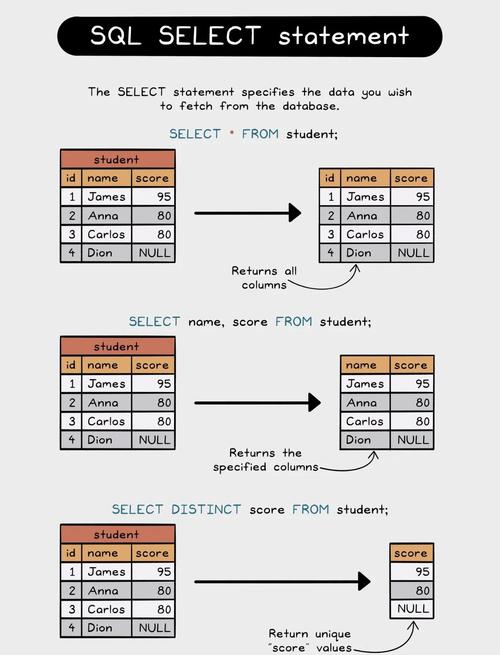
Conceptual Steps:
- Load the JDBC Driver: (For modern JDBC 4.0+, this is automatic).
- Establish a Connection: Connect to your database (e.g., MySQL, PostgreSQL).
- Create a Statement: An object to execute your SQL query.
- Execute the Query: Run a
SELECTstatement. - Process the Results: Iterate through the
ResultSetand add each row to aList(e.g.,ArrayList). - Close Resources: Always close the
ResultSet,Statement, andConnectionin afinallyblock or try-with-resources.
Example: Loading Data into an ArrayList
import java.sql.*;
import java.util.ArrayList;
import java.util.List;
// Assume you have a 'users' table with 'id' and 'name' columns
public class DatabaseSelectListExample {
    private static final String DB_URL = "jdbc:mysql://localhost:3306/your_database";
    private static final String USER = "your_username";
    private static final String PASS = "your_password";
    public List<String> getAllUserNames() {
        List<String> userNames = new ArrayList<>();
        // Use try-with-resources to automatically close resources
        try (Connection conn = DriverManager.getConnection(DB_URL, USER, PASS);
             Statement stmt = conn.createStatement();
             ResultSet rs = stmt.executeQuery("SELECT name FROM users")) {
            // Loop through the result set and add names to the list
            while (rs.next()) {
                // Retrieve by column name for robustness
                userNames.add(rs.getString("name"));
            }
        } catch (SQLException e) {
            e.printStackTrace();
        }
        return userNames;
    }
    public static void main(String[] args) {
        DatabaseSelectListExample dbExample = new DatabaseSelectListExample();
        List<String> names = dbExample.getAllUserNames();
        System.out.println("User names from database:");
        for (String name : names) {
            System.out.println("- " + name);
        }
    }
}
Selecting from a List of Objects in Code (Java Streams)
This is about filtering a collection of objects in your Java application based on a condition.
Example: Filtering a List with Stream
Let's say you have a List of Product objects and you want to select all products that are in a specific category and cost more than a certain amount.
import java.util.List;
import java.util.stream.Collectors;
// A simple Product class
class Product {
    private String name;
    private String category;
    private double price;
    public Product(String name, String category, double price) {
        this.name = name;
        this.category = category;
        this.price = price;
    }
    // Getters
    public String getName() { return name; }
    public String getCategory() { return category; }
    public double getPrice() { return price; }
    @Override
    public String toString() {
        return name + " (" + category + ", $" + price + ")";
    }
}
public class JavaStreamSelectExample {
    public static void main(String[] args) {
        // 1. Create a list of product objects
        List<Product> products = List.of(
            new Product("Laptop", "Electronics", 1200.00),
            new Product("T-Shirt", "Apparel", 25.50),
            new Product("Headphones", "Electronics", 150.00),
            new Product("Jeans", "Apparel", 80.00)
        );
        // 2. Define the selection criteria
        String targetCategory = "Electronics";
        double minPrice = 100.00;
        // 3. Use the Stream API to "select" (filter) the list
        List<Product> selectedProducts = products.stream()
            // Filter products that match the category
            .filter(p -> p.getCategory().equals(targetCategory))
            // Further filter products that are above the price
            .filter(p -> p.getPrice() > minPrice)
            // Collect the results into a new list
            .collect(Collectors.toList());
        // 4. Print the result
        System.out.println("Selected products in '" + targetCategory +
                          "' category over $" + minPrice + ":");
        selectedProducts.forEach(System.out::println);
    }
}
Summary
| Context | What it Means | Key Java Technologies |
|---|---|---|
| GUI | A dropdown or list component for user interaction. | Swing: JComboBox, JListJavaFX: ComboBox, ListView |
| Database | Retrieving data from a database table. | JDBC: Connection, Statement, ResultSet |
| Code Logic | Filtering a collection of objects in memory. | Java Streams: filter(), collect() |


