Of course! Converting Excel data to XML using Java is a common task for data integration, configuration, and web services. The most robust and popular way to achieve this is by using the Apache POI library to read the Excel file and the JDOM or DOM library to build the XML document.
Here’s a complete, step-by-step guide with code examples.
Recommended Libraries
- Apache POI: The de-facto standard for reading and writing Microsoft Office formats (like
.xlsand.xlsx) in Java. - JDOM: A user-friendly, Java-specific library for creating and manipulating XML documents. It's often easier to use than the standard
javax.xmlDOM API. - (Alternative) DOM API: If you don't want to add another dependency, you can use the built-in
javax.xml.parsers.DocumentBuilder. The code is slightly more verbose.
Step 1: Set Up Your Project (Maven)
The easiest way to manage dependencies is with Maven or Gradle. If you're using Maven, add the following dependencies to your pom.xml file.
<dependencies>
    <!-- Apache POI for reading Excel files -->
    <dependency>
        <groupId>org.apache.poi</groupId>
        <artifactId>poi</artifactId>
        <version>5.2.5</version>
    </dependency>
    <dependency>
        <groupId>org.apache.poi</groupId>
        <artifactId>poi-ooxml</artifactId>
        <version>5.2.5</version>
    </dependency>
    <!-- JDOM for creating XML -->
    <dependency>
        <groupId>org.jdom</groupId>
        <artifactId>jdom2</artifactId>
        <version>2.0.6.1</version>
    </dependency>
</dependencies>
Step 2: Prepare Your Excel File
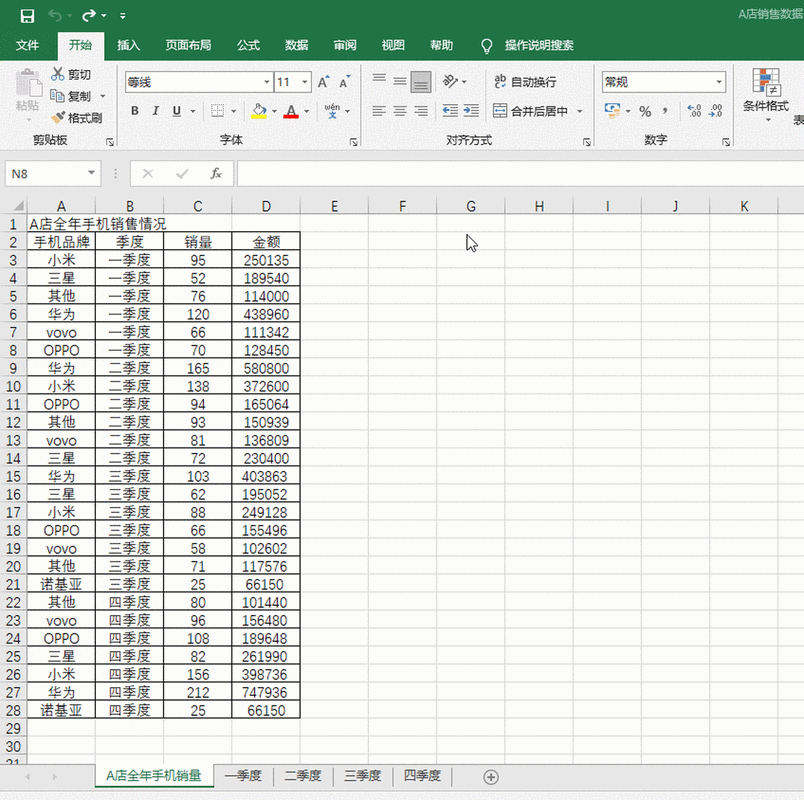
Let's assume you have an Excel file named data.xlsx with the following structure. The first row is the header, and subsequent rows are the data.
data.xlsx
| Name | City | Age |
|---|---|---|
| Alice | New York | 30 |
| Bob | London | 25 |
| Charlie | Tokyo | 35 |
Step 3: Write the Java Code
We will create a Java class that reads the data.xlsx file and converts it into an XML structure like this:
<people>
    <person>
        <Name>Alice</Name>
        <City>New York</City>
        <Age>30</Age>
    </person>
    <person>
        <Name>Bob</Name>
        <City>London</City>
        <Age>25</Age>
    </person>
    <person>
        <Name>Charlie</Name>
        <City>Tokyo</City>
        <Age>35</Age>
    </person>
</people>
Here is the complete Java code to perform the conversion.
import org.apache.poi.ss.usermodel.*;
import org.apache.poi.xssf.usermodel.XSSFWorkbook;
import org.jdom2.*;
import org.jdom2.output.Format;
import org.jdom2.output.XMLOutputter;
import java.io.File;
import java.io.FileInputStream;
import java.io.FileOutputStream;
import java.io.IOException;
import java.util.ArrayList;
import java.util.List;
public class ExcelToXmlConverter {
    public static void main(String[] args) {
        // Define file paths
        String excelFilePath = "data.xlsx";
        String xmlFilePath = "output.xml";
        try {
            // 1. Read data from Excel
            List<List<String>> excelData = readExcel(excelFilePath);
            // 2. Convert data to XML
            Element rootElement = convertToXml(excelData);
            // 3. Write XML to a file
            writeXmlToFile(rootElement, xmlFilePath);
            System.out.println("Successfully converted Excel to XML: " + xmlFilePath);
        } catch (IOException e) {
            System.err.println("Error reading the Excel file: " + e.getMessage());
            e.printStackTrace();
        } catch (Exception e) {
            System.err.println("An unexpected error occurred: " + e.getMessage());
            e.printStackTrace();
        }
    }
    /**
     * Reads data from an Excel file and returns it as a list of lists of strings.
     * @param filePath The path to the Excel file.
     * @return A list where each inner list represents a row.
     * @throws IOException If an I/O error occurs.
     */
    private static List<List<String>> readExcel(String filePath) throws IOException {
        List<List<String>> data = new ArrayList<>();
        FileInputStream fis = new FileInputStream(new File(filePath));
        Workbook workbook = new XSSFWorkbook(fis); // Use XSSFWorkbook for .xlsx, HSSFWorkbook for .xls
        Sheet sheet = workbook.getSheetAt(0); // Get the first sheet
        // Iterate through rows (skip header row if needed)
        for (Row row : sheet) {
            List<String> rowData = new ArrayList<>();
            // Iterate through cells
            for (Cell cell : row) {
                // Handle different cell types
                switch (cell.getCellType()) {
                    case STRING:
                        rowData.add(cell.getStringCellValue());
                        break;
                    case NUMERIC:
                        // Check if it's an integer or a double
                        if (DateUtil.isCellDateFormatted(cell)) {
                            rowData.add(cell.getDateCellValue().toString());
                        } else {
                            rowData.add(String.valueOf((int) cell.getNumericCellValue())); // Treat as integer
                        }
                        break;
                    case BOOLEAN:
                        rowData.add(String.valueOf(cell.getBooleanCellValue()));
                        break;
                    case FORMULA:
                        rowData.add(cell.getCellFormula());
                        break;
                    default:
                        rowData.add("");
                }
            }
            // Add row data to the main list, skipping empty rows if desired
            if (!rowData.isEmpty()) {
                data.add(rowData);
            }
        }
        workbook.close();
        fis.close();
        return data;
    }
    /**
     * Converts the 2D list data into a JDOM Element tree.
     * @param excelData The data read from the Excel file.
     * @return The root Element of the XML tree.
     */
    private static Element convertToXml(List<List<String>> excelData) {
        // The first row is assumed to be the header
        List<String> headers = excelData.get(0);
        // The rest are the data rows
        List<List<String>> dataRows = excelData.subList(1, excelData.size());
        // Create the root element
        Element rootElement = new Element("people");
        // Iterate over each data row
        for (List<String> row : dataRows) {
            Element personElement = new Element("person");
            // Iterate over each cell in the row and pair it with the header
            for (int i = 0; i < headers.size(); i++) {
                // Use the header as the XML tag name
                String header = headers.get(i);
                // Get the cell value, defaulting to an empty string if out of bounds
                String value = (i < row.size()) ? row.get(i) : "";
                Element fieldElement = new Element(header);
                fieldElement.setText(value);
                personElement.addContent(fieldElement);
            }
            rootElement.addContent(personElement);
        }
        return rootElement;
    }
    /**
     * Writes the JDOM Element tree to an XML file.
     * @param rootElement The root element of the XML document.
     * @param filePath The path to the output XML file.
     * @throws IOException If an I/O error occurs.
     */
    private static void writeXmlToFile(Element rootElement, String filePath) throws IOException {
        // Create a new JDOM Document
        Document document = new Document(rootElement);
        // Format the XML for pretty printing
        XMLOutputter xmlOutputter = new XMLOutputter(Format.getPrettyFormat());
        // Write the document to a file
        xmlOutputter.output(document, new FileOutputStream(filePath));
    }
}
How to Run the Code
-
Save the code as
ExcelToXmlConverter.java. -
Place your
data.xlsxfile in the same directory.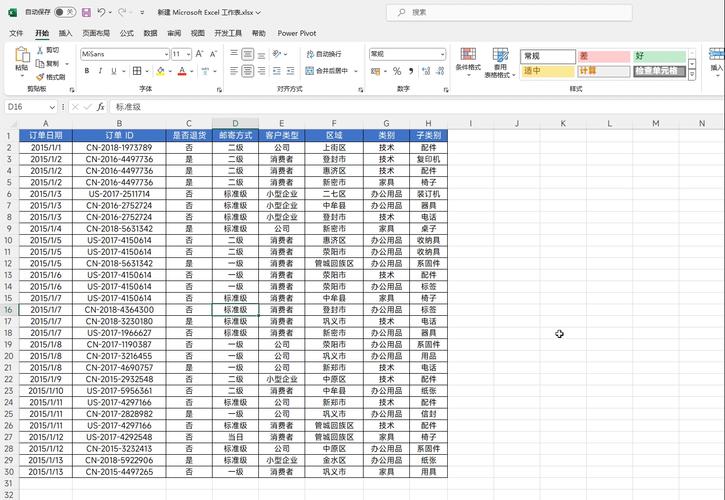 (图片来源网络,侵删)
 -
Compile and run the Java file. You can do this from your IDE or using the command line:
# Compile (ensure poi and jdom2 jars are in the classpath)
javac -cp ".:poi-5.2.5.jar:poi-ooxml-5.2.5.jar:poi-ooxml-lite-5.2.5.jar:xmlbeans-5.1.1.jar:stax-api-1.0.1.jar:stax-api-1.0.2.jar:jdom2-2.0.6.1.jar" ExcelToXmlConverter.java
# Run
java -cp ".:poi-5.2.5.jar:poi-ooxml-5.2.5.jar:poi-ooxml-lite-5.2.5.jar:xmlbeans-5.1.1.jar:stax-api-1.0.1.jar:stax-api-1.0.2.jar:jdom2-2.0.6.1.jar" ExcelToXmlConverter
(Note: On Windows, the classpath separator is instead of )
After running, a new file named output.xml will be created in the same directory with the XML content.
Alternative: Using the Standard DOM API
If you prefer not to use JDOM, you can use Java's built-in javax.xml libraries. The logic is very similar, but the API is more verbose.
Here's how you would modify the convertToXml and writeXmlToFile methods:
import org.apache.poi.ss.usermodel.*;
import org.apache.poi.xssf.usermodel.XSSFWorkbook;
import org.w3c.dom.Document;
import org.w3c.dom.Element;
import javax.xml.parsers.DocumentBuilder;
import javax.xml.parsers.DocumentBuilderFactory;
import javax.xml.parsers.ParserConfigurationException;
import javax.xml.transform.Transformer;
import javax.xml.transform.TransformerException;
import javax.xml.transform.TransformerFactory;
import javax.xml.transform.dom.DOMSource;
import javax.xml.transform.stream.StreamResult;
import java.io.File;
import java.io.FileOutputStream;
import java.io.IOException;
import java.util.List;
// ... (keep readExcel method from the previous example)
private static org.w3c.dom.Element convertToXmlWithDOM(List<List<String>> excelData) throws ParserConfigurationException {
    List<String> headers = excelData.get(0);
    List<List<String>> dataRows = excelData.subList(1, excelData.size());
    // Create a DocumentBuilderFactory and DocumentBuilder
    DocumentBuilderFactory docFactory = DocumentBuilderFactory.newInstance();
    DocumentBuilder docBuilder = docFactory.newDocumentBuilder();
    // Create a new Document
    Document doc = docBuilder.newDocument();
    // Create the root element
    Element rootElement = doc.createElement("people");
    doc.appendChild(rootElement);
    for (List<String> row : dataRows) {
        Element personElement = doc.createElement("person");
        for (int i = 0; i < headers.size(); i++) {
            String header = headers.get(i);
            String value = (i < row.size()) ? row.get(i) : "";
            Element fieldElement = doc.createElement(header);
            fieldElement.appendChild(doc.createTextNode(value));
            personElement.appendChild(fieldElement);
        }
        rootElement.appendChild(personElement);
    }
    return rootElement;
}
private static void writeXmlToFileWithDOM(org.w3c.dom.Element rootElement, String filePath) throws TransformerException, IOException {
    // The rootElement is already part of a Document, so we get its owner document
    Document doc = rootElement.getOwnerDocument();
    // Create a TransformerFactory
    TransformerFactory transformerFactory = TransformerFactory.newInstance();
    Transformer transformer = transformerFactory.newTransformer();
    // Set output properties (pretty print)
    transformer.setOutputProperty(javax.xml.transform.OutputKeys.INDENT, "yes");
    transformer.setOutputProperty("{http://xml.apache.org/xslt}indent-amount", "2");
    // Define the source and result
    DOMSource source = new DOMSource(doc);
    StreamResult result = new StreamResult(new FileOutputStream(filePath));
    // Transform the document to the output file
    transformer.transform(source, result);
}
// In your main method, you would call these new methods:
// org.w3c.dom.Element domRoot = convertToXmlWithDOM(excelData);
// writeXmlToFileWithDOM(domRoot, xmlFilePath);
Summary and Best Practices
- Choose Your XML Library: JDOM is generally recommended for its simplicity and readability. The standard DOM API is a good alternative if you want to minimize external dependencies.
- Error Handling: The provided code includes basic
try-catchblocks. In a production environment, you might want more specific error handling (e.g., for file not found, invalid Excel format). - File Format: The code uses
XSSFWorkbookfor modern.xlsxfiles. For legacy.xlsfiles, you would useHSSFWorkbook. - Data Types: The
readExcelmethod handles common cell types (String, Numeric, Boolean). You may need to extend this for more complex scenarios like dates or formulas. - Large Files: For very large Excel files, consider using
SXSSFWorkbook(from POI) for streaming to avoid memory issues. The JDOM/DOM approach builds the entire XML tree in memory, which can be a problem for huge datasets.