Of course! Converting XML data to an Excel file in Java is a common task. There are several excellent libraries to choose from, each with its own strengths.
Here’s a comprehensive guide covering the most popular methods:
- Apache POI (The Standard Choice): Best for full control, creating complex Excel files (.xlsx), and styling. It's the industry standard.
- EasyExcel (The Modern, High-Performance Choice): Developed by Alibaba, it's significantly faster and uses less memory than POI, especially for reading/writing large files.
- JAXB + Apache POI (The Standard Data Binding Approach): A more structured approach where you first map your XML to Java objects (unmarshalling) and then use POI to write those objects to Excel. This is ideal for large, well-defined XML structures.
Method 1: Apache POI (Recommended for most use cases)
Apache POI is the most powerful and widely-used library for Microsoft Office formats. We'll use its XSSF module for modern .xlsx files.
Step 1: Add Dependencies
You need the poi and poi-ooxml libraries in your project.
Maven (pom.xml):
<dependencies>
    <!-- For .xlsx files -->
    <dependency>
        <groupId>org.apache.poi</groupId>
        <artifactId>poi</artifactId>
        <version>5.2.5</version>
    </dependency>
    <dependency>
        <groupId>org.apache.poi</groupId>
        <artifactId>poi-ooxml</artifactId>
        <version>5.2.5</version>
    </dependency>
</dependencies>
Gradle (build.gradle):
implementation 'org.apache.poi:poi:5.2.5'
implementation 'org.apache.poi:poi-ooxml:5.2.5'
Step 2: Prepare Sample XML Data
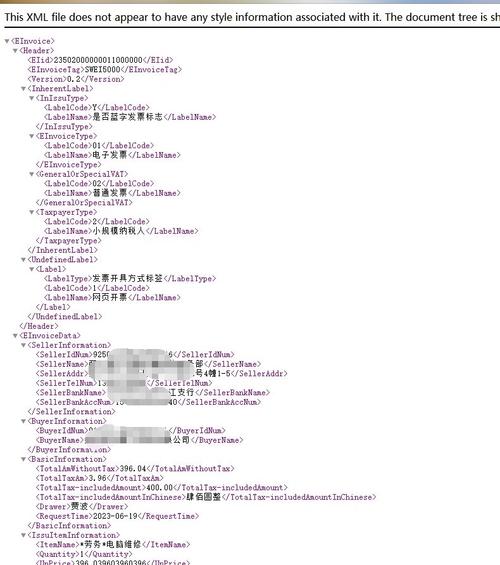
Let's assume you have an XML file named data.xml with a list of employees.
data.xml
<?xml version="1.0" encoding="UTF-8"?>
<employees>
    <employee>
        <id>101</id>
        <name>John Doe</name>
        <department>Engineering</department>
        <salary>85000</salary>
    </employee>
    <employee>
        <id>102</id>
        <name>Jane Smith</name>
        <department>Marketing</department>
        <salary>72000</salary>
    </employee>
    <employee>
        <id>103</id>
        <name>Peter Jones</name>
        <department>HR</department>
        <salary>68000</salary>
    </employee>
</employees>
Step 3: Write the Java Code
This code will parse the XML file and create an employees.xlsx file.

XmlToExcelPoi.java
import org.apache.poi.ss.usermodel.*;
import org.apache.poi.xssf.usermodel.XSSFWorkbook;
import org.w3c.dom.*;
import javax.xml.parsers.*;
import java.io.*;
public class XmlToExcelPoi {
    public static void main(String[] args) {
        String xmlFilePath = "data.xml";
        String excelFilePath = "employees_poi.xlsx";
        try {
            // 1. Setup the Excel Workbook and Sheet
            Workbook workbook = new XSSFWorkbook();
            Sheet sheet = workbook.createSheet("Employees");
            // 2. Create a Font for styling the header
            Font headerFont = workbook.createFont();
            headerFont.setBold(true);
            headerFont.setFontHeightInPoints((short) 12);
            headerFont.setColor(IndexedColors.BLACK.getIndex());
            // 3. Create a Cell Style for the header
            CellStyle headerCellStyle = workbook.createCellStyle();
            headerCellStyle.setFont(headerFont);
            headerCellStyle.setFillForegroundColor(IndexedProperties.GREY_25_PERCENT.getIndex());
            headerCellStyle.setFillPattern(FillPatternType.SOLID_FOREGROUND);
            headerCellStyle.setBorderBottom(BorderStyle.THIN);
            headerCellStyle.setBorderTop(BorderStyle.THIN);
            headerCellStyle.setBorderLeft(BorderStyle.THIN);
            headerCellStyle.setBorderRight(BorderStyle.THIN);
            // 4. Parse the XML file
            DocumentBuilderFactory factory = DocumentBuilderFactory.newInstance();
            DocumentBuilder builder = factory.newDocumentBuilder();
            Document document = builder.parse(new File(xmlFilePath));
            document.getDocumentElement().normalize();
            NodeList nodeList = document.getElementsByTagName("employee");
            // 5. Create Header Row
            Row headerRow = sheet.createRow(0);
            String[] headers = {"ID", "Name", "Department", "Salary"};
            for (int i = 0; i < headers.length; i++) {
                Cell cell = headerRow.createCell(i);
                cell.setCellValue(headers[i]);
                cell.setCellStyle(headerCellStyle);
            }
            // 6. Populate data rows
            int rowNum = 1; // Start from the second row (after header)
            for (int i = 0; i < nodeList.getLength(); i++) {
                Node node = nodeList.item(i);
                if (node.getNodeType() == Node.ELEMENT_NODE) {
                    Element element = (Element) node;
                    Row row = sheet.createRow(rowNum++);
                    // Get child elements and set cell values
                    row.createCell(0).setTextContent(element.getElementsByTagName("id").item(0).getTextContent());
                    row.createCell(1).setTextContent(element.getElementsByTagName("name").item(0).getTextContent());
                    row.createCell(2).setTextContent(element.getElementsByTagName("department").item(0).getTextContent());
                    row.createCell(3).setTextContent(element.getElementsByTagName("salary").item(0).getTextContent());
                }
            }
            // 7. Auto-size columns to fit content
            for (int i = 0; i < headers.length; i++) {
                sheet.autoSizeColumn(i);
            }
            // 8. Write the workbook to the Excel file
            try (FileOutputStream fileOut = new FileOutputStream(excelFilePath)) {
                workbook.write(fileOut);
            }
            // 9. Close the workbook
            workbook.close();
            System.out.println("Excel file created successfully: " + excelFilePath);
        } catch (Exception e) {
            e.printStackTrace();
        }
    }
}
Method 2: EasyExcel (High-Performance, Alibaba)
EasyExcel is a fantastic alternative, especially if you're dealing with very large XML files that could cause memory issues with POI.
Step 1: Add Dependencies
Maven (pom.xml):
<dependencies>
    <!-- EasyExcel for writing -->
    <dependency>
        <groupId>com.alibaba</groupId>
        <artifactId>easyexcel</artifactId>
        <version>3.3.2</version>
    </dependency>
    <!-- For XML parsing (DOM is fine for this example) -->
    <dependency>
        <groupId>org.apache.poi</groupId>
        <artifactId>poi</artifactId>
        <version>5.2.5</version>
    </dependency>
</dependencies>
Step 2: Write the Java Code
The main difference is that EasyExcel requires you to define a Java model (POJO) that matches your data structure.
Create the Employee Model (POJO) This class must match the XML element names.
Employee.java
import com.alibaba.excel.annotation.ExcelProperty;
import com.alibaba.excel.annotation.write.style.ContentRowHeight;
import com.alibaba.excel.annotation.write.style.HeadRowHeight;
// Optional: Set row heights for better appearance
@HeadRowHeight(20)
@ContentRowHeight(18)
public class Employee {
    @ExcelProperty("ID") // Maps to the Excel column header
    private Integer id;
    @ExcelProperty("Name")
    private String name;
    @ExcelProperty("Department")
    private String department;
    @ExcelProperty("Salary")
    private Integer salary;
    // Getters and Setters are required
    public Integer getId() { return id; }
    public void setId(Integer id) { this.id = id; }
    public String getName() { return name; }
    public void setName(String name) { this.name = name; }
    public String getDepartment() { return department; }
    public void setDepartment(String department) { this.department = department; }
    public Integer getSalary() { return salary; }
    public void setSalary(Integer salary) { this.salary = salary; }
}
Write the Main Conversion Logic
XmlToExcelEasyExcel.java
import com.alibaba.excel.EasyExcel;
import com.alibaba.excel.ExcelWriter;
import com.alibaba.excel.write.metadata.WriteSheet;
import org.w3c.dom.*;
import javax.xml.parsers.*;
import java.io.*;
import java.util.ArrayList;
import java.util.List;
public class XmlToExcelEasyExcel {
    public static void main(String[] args) {
        String xmlFilePath = "data.xml";
        String excelFilePath = "employees_easyexcel.xlsx";
        List<Employee> employeeList = parseXmlToEmployeeList(xmlFilePath);
        writeListToExcel(employeeList, excelFilePath);
    }
    // Method to parse XML and populate the list of Employee objects
    private static List<Employee> parseXmlToEmployeeList(String xmlFilePath) {
        List<Employee> list = new ArrayList<>();
        try {
            DocumentBuilderFactory factory = DocumentBuilderFactory.newInstance();
            DocumentBuilder builder = factory.newDocumentBuilder();
            Document document = builder.parse(new File(xmlFilePath));
            document.getDocumentElement().normalize();
            NodeList nodeList = document.getElementsByTagName("employee");
            for (int i = 0; i < nodeList.getLength(); i++) {
                Node node = nodeList.item(i);
                if (node.getNodeType() == Node.ELEMENT_NODE) {
                    Element element = (Element) node;
                    Employee employee = new Employee();
                    employee.setId(Integer.parseInt(element.getElementsByTagName("id").item(0).getTextContent()));
                    employee.setName(element.getElementsByTagName("name").item(0).getTextContent());
                    employee.setDepartment(element.getElementsByTagName("department").item(0).getTextContent());
                    employee.setSalary(Integer.parseInt(element.getElementsByTagName("salary").item(0).getTextContent()));
                    list.add(employee);
                }
            }
        } catch (Exception e) {
            e.printStackTrace();
        }
        return list;
    }
    // Method to write the list of objects to an Excel file
    private static void writeListToExcel(List<Employee> list, String excelFilePath) {
        // EasyExcel's write method is very simple
        ExcelWriter excelWriter = null;
        try {
            excelWriter = EasyExcel.write(excelFilePath, Employee.class).build();
            WriteSheet writeSheet = EasyExcel.writerSheet("Employees").build();
            excelWriter.write(list, writeSheet);
        } finally {
            // It's very important to close the writer
            if (excelWriter != null) {
                excelWriter.finish();
            }
        }
        System.out.println("Excel file created successfully: " + excelFilePath);
    }
}
Method 3: JAXB + Apache POI (Structured Approach)
This method separates the data parsing logic from the Excel creation logic. It's more robust and maintainable for complex applications.
Step 1: Add Dependencies
You need jaxb-api, jaxb-impl, jaxb-runtime (or jakarta.xml.bind-api for newer versions), and poi.
Maven (pom.xml):
<dependencies>
    <!-- JAXB for XML binding -->
    <dependency>
        <groupId>jakarta.xml.bind</groupId>
        <artifactId>jakarta.xml.bind-api</artifactId>
        <version>4.0.1</version>
    </dependency>
    <dependency>
        <groupId>org.glassfish.jaxb</groupId>
        <artifactId>jaxb-runtime</artifactId>
        <version>4.0.4</version>
    </dependency>
    <!-- Apache POI for Excel -->
    <dependency>
        <groupId>org.apache.poi</groupId>
        <artifactId>poi</artifactId>
        <version>5.2.5</version>
    </dependency>
    <dependency>
        <groupId>org.apache.poi</groupId>
        <artifactId>poi-ooxml</artifactId>
        <version>5.2.5</version>
    </dependency>
</dependencies>
Step 2: Generate Java Classes from XML (or write them manually)
You can use xjc (Java Architecture for XML Binding) compiler to generate classes from an XSD schema, or you can write them yourself. The classes need JAXB annotations.
Employees.java (Root Element)
import jakarta.xml.bind.annotation.*;
import java.util.ArrayList;
import java.util.List;
@XmlRootElement(name = "employees")
@XmlAccessorType(XmlAccessType.FIELD)
public class Employees {
    @XmlElement(name = "employee")
    private List<Employee> employeeList = new ArrayList<>();
    public List<Employee> getEmployeeList() {
        return employeeList;
    }
    public void setEmployeeList(List<Employee> employeeList) {
        this.employeeList = employeeList;
    }
}
Employee.java (Child Element)
import jakarta.xml.bind.annotation.*;
@XmlAccessorType(XmlAccessType.FIELD)
public class Employee {
    @XmlElement
    private int id;
    @XmlElement
    private String name;
    @XmlElement
    private String department;
    @XmlElement
    private int salary;
    // Getters and Setters
    public int getId() { return id; }
    public void setId(int id) { this.id = id; }
    public String getName() { return name; }
    public void setName(String name) { this.name = name; }
    public String getDepartment() { return department; }
    public void setDepartment(String department) { this.department = department; }
    public int getSalary() { return salary; }
    public void setSalary(int salary) { this.salary = salary; }
}
Step 3: Write the Java Code
The logic is now split into two clear parts: unmarshalling (XML -> Java) and writing (Java -> Excel).
XmlToExcelJaxb.java
import org.apache.poi.ss.usermodel.*;
import org.apache.poi.xssf.usermodel.XSSFWorkbook;
import jakarta.xml.bind.JAXBContext;
import jakarta.xml.bind.Unmarshaller;
import java.io.*;
public class XmlToExcelJaxb {
    public static void main(String[] args) {
        String xmlFilePath = "data.xml";
        String excelFilePath = "employees_jaxb_poi.xlsx";
        try {
            // 1. Unmarshal XML to Java object
            JAXBContext jaxbContext = JAXBContext.newInstance(Employees.class);
            Unmarshaller jaxbUnmarshaller = jaxbContext.createUnmarshaller();
            Employees employees = (Employees) jaxbUnmarshaller.unmarshal(new File(xmlFilePath));
            // 2. Create Excel Workbook using POI (similar to Method 1)
            Workbook workbook = new XSSFWorkbook();
            Sheet sheet = workbook.createSheet("Employees");
            // ... (Styling code from Method 1 can be copied here) ...
            // Header and cell style creation
            Font headerFont = workbook.createFont();
            headerFont.setBold(true);
            CellStyle headerCellStyle = workbook.createCellStyle();
            headerCellStyle.setFont(headerFont);
            // ... (add more styling as needed) ...
            // 3. Create Header Row
            Row headerRow = sheet.createRow(0);
            String[] headers = {"ID", "Name", "Department", "Salary"};
            for (int i = 0; i < headers.length; i++) {
                Cell cell = headerRow.createCell(i);
                cell.setCellValue(headers[i]);
                cell.setCellStyle(headerCellStyle);
            }
            // 4. Populate data from the Java object list
            int rowNum = 1;
            for (Employee employee : employees.getEmployeeList()) {
                Row row = sheet.createRow(rowNum++);
                row.createCell(0).setCellValue(employee.getId());
                row.createCell(1).setCellValue(employee.getName());
                row.createCell(2).setCellValue(employee.getDepartment());
                row.createCell(3).setCellValue(employee.getSalary());
            }
            // ... (Auto-size columns and write file logic from Method 1) ...
            for (int i = 0; i < headers.length; i++) {
                sheet.autoSizeColumn(i);
            }
            try (FileOutputStream fileOut = new FileOutputStream(excelFilePath)) {
                workbook.write(fileOut);
            }
            workbook.close();
            System.out.println("Excel file created successfully: " + excelFilePath);
        } catch (Exception e) {
            e.printStackTrace();
        }
    }
}
Summary and Recommendation
| Feature | Apache POI | EasyExcel | JAXB + POI |
|---|---|---|---|
| Ease of Use | Moderate (manual cell manipulation) | High (annotation-driven) | Moderate (setup overhead) |
| Performance | Good for most files | Excellent, low memory | Good (depends on POI) |
| Memory Usage | High for very large files | Very Low | High (depends on POI) |
| Flexibility | Very High (full control) | Good (standard features) | Good (full control via POI) |
| Best For | General purpose, complex Excel files with styling, small-to-medium data. | Large data files, high-performance requirements, simple to medium complexity. | Large, well-defined XML structures, enterprise applications, separating concerns. |
Recommendation:
- For most projects, start with Apache POI. It's the most versatile and widely understood.
- If you are dealing with very large XML files (e.g., millions of rows) and performance is a critical concern, use EasyExcel. It will save you from
OutOfMemoryErrorheadaches. - If your XML structure is complex, well-defined, and stable, and you prefer a clean separation of data and presentation logic, the JAXB + POI approach is the most robust and maintainable in the long run.