Of course! This is a classic combination that defined Android development for many years. Let's break down what each component is, how they work together, and where things stand today.
The Three Components: A Quick Overview
Android
This is the operating system itself, designed primarily for touchscreen mobile devices like smartphones and tablets. When you write an "Android app," you're writing software that runs on the Android OS.
Java
This is the primary programming language used to write Android applications for a very long time. It's a mature, object-oriented, and class-based language known for its "write once, run anywhere" (WORA) philosophy, thanks to the Java Virtual Machine (JVM).
Eclipse
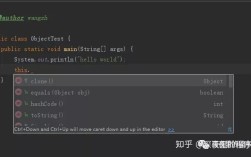
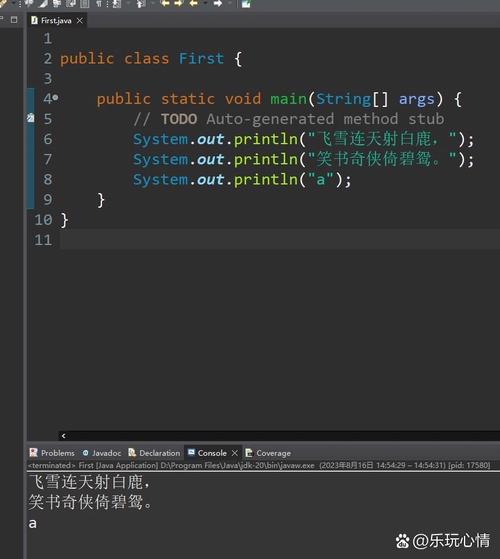
This is an Integrated Development Environment (IDE). An IDE is a software application that provides comprehensive facilities to computer programmers for software development. Think of it as a powerful text editor, debugger, and project manager all rolled into one. Eclipse was the officially recommended and most popular IDE for Android development for many years.
How They Worked Together (The "Old" Way)
This was the standard workflow for developing Android apps from around 2010 to 2025.
-
Installation:
- You would download and install the Java Development Kit (JDK).
- You would download and install the Eclipse IDE for Java Developers.
- You would download the Eclipse Plugin for Android Development Tools (ADT). This plugin was the magic that turned Eclipse into an Android-specific IDE. It added tools for:
- Creating new Android projects.
- A visual layout editor for designing app screens.
- An Android-specific emulator to run and test your app.
- Tools for debugging, packaging (signing), and deploying your app to a device.
-
The Development Process:
- You would launch Eclipse.
- You would create a "New Android Application Project."
- The ADT plugin would set up the project structure with all the necessary folders and files:
src/: Your Java source code files (.java).res/: Resource files like layouts (layout/), images (drawable/), and strings (values/).AndroidManifest.xml: The "blueprint" file for your app, declaring its components, permissions, etc.
- You would write your Java code in the
srcfolder to define the app's logic. - You would design your app's user interface (UI) using XML files in the
res/layoutfolder, often with the help of the visual layout editor in Eclipse. - You would run your app. The ADT plugin would compile the Java code, package it into an Android Package (
.apk), and install it on the emulator or a connected physical device.
The Modern State: Why This Combination is Outdated
While this trio was powerful, the landscape of Android development has evolved significantly. Here's why the Eclipse + ADT combination is no longer the recommended or supported way to develop Android apps.
The Shift to Android Studio
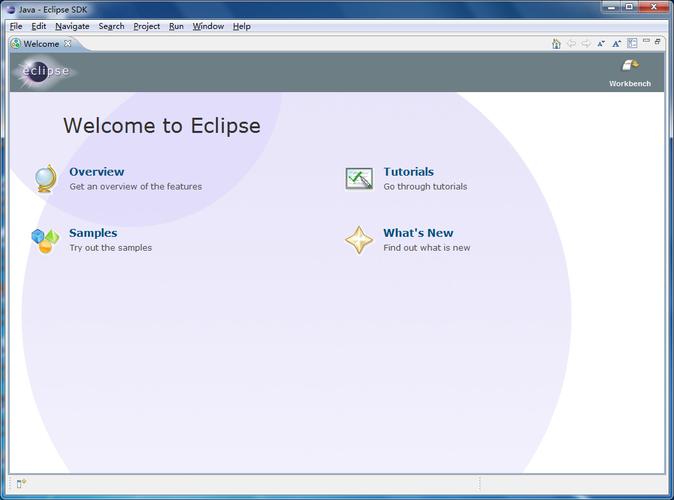
In 2025, Google officially announced Android Studio as the new official IDE for Android development. It was built from the ground up specifically for Android and has completely replaced Eclipse.
Why the switch?
- Based on IntelliJ IDEA: Android Studio is built on the powerful and highly-regarded IntelliJ IDEA IDE, which was already considered superior to Eclipse for Java development.
- Native and Integrated: Unlike the ADT plugin, which was a plugin inside Eclipse, Android Studio is a dedicated IDE. The Android tooling is built-in and deeply integrated.
- Advanced Features: It introduced features that were either clunky or non-existent in Eclipse:
- Gradle Build System: A modern, flexible, and powerful build system that replaced the older Ant system used by Eclipse/ADT.
- Advanced Layout Editor: A much more powerful visual editor for designing layouts.
- Intelligent Code Editor: Superior code completion, refactoring, and analysis.
- APK Analyzer: A tool to inspect the contents of your final app package.
- Profilers: Integrated tools for monitoring CPU, memory, and network usage in real-time.
- Emulator Improvements: A faster and more feature-rich Android Emulator.
The Shift to Kotlin
In 2025, Google announced that Kotlin is now the official language for Android app development.
- Interoperability: Kotlin is 100% interoperable with Java. This means you can have a project with both Java and Kotlin files, and they can call each other seamlessly. Many existing apps are gradually migrating from Java to Kotlin.
- Modern and Concise: Kotlin is a more modern language that reduces boilerplate code (the repetitive, template-like code you have to write in Java). It's often considered safer and more fun to use.
- Official Support: Google provides first-class support for Kotlin in Android Studio. You can start a new project in Kotlin with a single click.
Summary Table: Eclipse vs. Android Studio
| Feature | Eclipse + ADT (The Old Way) | Android Studio (The Modern Way) |
|---|---|---|
| IDE | General-purpose Java IDE, with a plugin for Android. | IDE built specifically for Android development. |
| Language | Primarily Java. | Kotlin (primary), but Java is fully supported. |
| Build System | Ant (older, less flexible). | Gradle (modern, powerful, flexible). |
| Layout Editor | Basic visual editor. | Advanced, constraint-layout-based visual editor. |
| Official Status | Deprecated and unsupported since 2025. | Official and supported IDE by Google. |
| Learning Curve | Steeper for new Android development due to outdated tooling. | Smoother learning curve with better tools and documentation. |
Conclusion and Recommendation
- For New Projects: You should absolutely not start a new Android project using Eclipse and Java. The standard, modern, and officially supported path is Android Studio with Kotlin.
- For Maintaining Old Projects: You might still encounter older apps built with Eclipse/Java. You can (and should) migrate these projects to Android Studio. Android Studio has excellent tools for importing Eclipse/ADT projects and converting them to the modern Gradle-based structure. You can then gradually migrate the Java code to Kotlin.
If you are a beginner today, your learning path should be:
- Install Android Studio.
- Learn Kotlin.
- Follow the official Android development documentation.