Of course! This is a classic and powerful stack for building web applications. Let's break down what each component does, why you use them together, and then walk through a complete setup.
The Big Picture: Why This Stack?
Think of building a web application as running a restaurant.
- Python/Django: This is the head chef and the kitchen. Django is a "batteries-included" framework for Python. It handles the core logic: taking orders (requests), figuring out what the customer wants (URL routing), preparing the food (business logic, database interactions), and plating it (rendering HTML). It's incredibly efficient at what it does, but it's not designed to handle hundreds of customers waiting at the door.
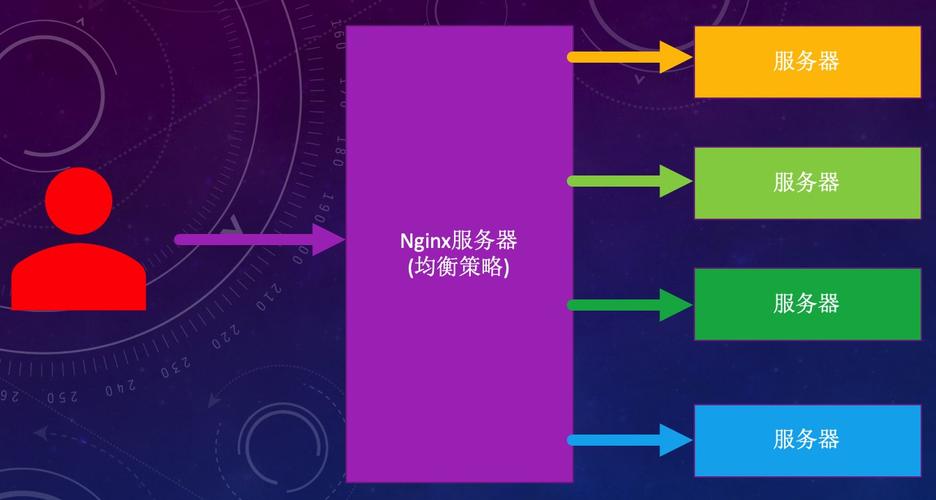
- Nginx (pronounced "Engine-X"): This is the Maître d' and the host. Its primary job is to manage incoming traffic (customers). It stands at the door, greets everyone, and takes their orders. It's fantastic at serving static content quickly (like handing out menus, wine lists, and desserts). It can also handle SSL/TLS encryption (taking payments securely) and load balancing (sending customers to different sections of the restaurant).
- uWSGI or Gunicorn: This is the expediter between the Maître d' and the kitchen. Nginx can't talk directly to Django. The uWSGI/Gunicorn server acts as a bridge. Nginx receives the request, passes it to the uWSGI/Gunicorn server, which then wakes up a "worker" (a chef) in the Django kitchen to do the work. Once the chef is done, the response goes back through the expediter to the Maître d', who then gives it to the customer.
This separation of concerns is key:
- Nginx handles the high-performance, static tasks and acts as a reverse proxy.
- uWSGI/Gunicorn manages the Python processes.
- Django focuses on the application logic.
This architecture is highly scalable, secure, and performant.
Core Concepts
- Reverse Proxy: Nginx is a reverse proxy for Django. This means that from the outside world, all traffic goes to Nginx. Nginx then decides what to do with it. For dynamic content (like a request from a logged-in user), it forwards the request to the Django/uWSGI server. For static content (like CSS, JS, images), it serves them directly without bothering Django. This is much faster.
- Static Files: These are files that don't change often: CSS, JavaScript, images, fonts. By default, Django serves them, which is inefficient for production. Nginx is optimized to serve these files extremely quickly.
- uWSGI vs. Gunicorn: Both are application servers that run your Django code and communicate with Nginx.
- Gunicorn: Simpler, easier to set up, and very popular. A great starting point.
- uWSGI: More feature-rich and configurable (better for complex deployments, multiple Python versions, etc.). Can be more complex to configure.
For this guide, we'll use Gunicorn as it's the most common and straightforward choice.

Step-by-Step Setup Guide (Linux/macOS)
This guide assumes you have a fresh server with Python and pip installed.
Step 1: Project Setup
Let's create a sample Django project.
# 1. Create a virtual environment (highly recommended)
python3 -m venv myprojectenv
source myprojectenv/bin/activate
# 2. Install Django and Gunicorn
pip install django gunicorn
# 3. Create a new Django project
django-admin startproject myproject
cd myproject
# 4. Create a simple app to have something to serve
python manage.py startapp hello
Step 2: Configure Django
We need to tell Django where to find its static files.
-
Edit
myproject/settings.py: Add your new app toINSTALLED_APPS: (图片来源网络,侵删)
# myproject/settings.py INSTALLED_APPS = [ 'django.contrib.admin', 'django.contrib.auth', 'django.contrib.contenttypes', 'django.contrib.sessions', 'django.contrib.messages', 'django.contrib.staticfiles', 'hello', # Add your new app here ] -
Define
STATIC_ROOT: This tells Django to collect all static files into one directory for Nginx to serve.# myproject/settings.py # ... at the bottom of the file STATIC_URL = 'static/' STATIC_ROOT = BASE_DIR / 'staticfiles' # Add this line
-
Create a view in
hello/views.py:# hello/views.py from django.http import HttpResponse def home(request): return HttpResponse("Hello from Django! Nginx is serving me.") -
Create a URL in
myproject/urls.py:# myproject/urls.py from django.contrib import admin from django.urls import path, include # Add include from hello.views import home # Add home view urlpatterns = [ path('admin/', admin.site.urls), path('', home, name='home'), # Add a root URL ] -
Collect static files:
python manage.py collectstatic
This will create a
staticfilesdirectory in your project root.
Step 3: Test Gunicorn
Before involving Nginx, let's make sure Gunicorn can run our project.
# The command format is: gunicorn <project_name>.wsgi:application
gunicorn myproject.wsgi:application --bind 0.0.0.0:8000
myproject.wsgi:applicationtells Gunicorn to look for theapplicationvariable inside themyproject/wsgi.pyfile.--bind 0.0.0.0:8000makes the server accessible on your machine's IP address on port 8000.
You should see output indicating it's running. If you visit http://<your_server_ip>:8000 in your browser, you should see "Hello from Django! Nginx is serving me." Press Ctrl+C to stop it.
Step 4: Configure Nginx
Now, let's set up Nginx to act as a reverse proxy.
-
Create an Nginx configuration file for your project.
sudo nano /etc/nginx/sites-available/myproject
-
Add the following configuration:
server {
    listen 80;
    server_name your_domain.com www.your_domain.com; # Replace with your domain or IP
    location = /favicon.ico { access_log off; log_not_found off; }
    location /static/ {
        root /home/user/myproject; # <-- IMPORTANT: Change this to your project's absolute path
    }
    location / {
        include proxy_params;
        proxy_pass http://unix:/run/gunicorn.sock; # <-- We will use a socket file
    }
}
listen 80;: Listens for standard HTTP traffic.server_name: Your domain name.location /static/: Tells Nginx to look for files in the/static/URL path and serve them from therootyou defined. This is where your collected static files are.location /: This is the catch-all for all other requests. It includes standard proxy settings and passes the request to Gunicorn. We're using a Unix socket (/run/gunicorn.sock) which is more efficient than a network port (localhost:8000) on the same machine.
-
Enable the site:
# Create a symbolic link from sites-available to sites-enabled
sudo ln -s /etc/nginx/sites-available/myproject /etc/nginx/sites-enabled/
# Test the Nginx configuration for syntax errors
sudo nginx -t
# If the test is successful, reload Nginx to apply the changes
sudo systemctl reload nginx
Step 5: Create a Gunicorn Systemd Service
We want Gunicorn to start automatically when the server boots and to run in the background. A systemd service is the best way to do this.
-
Create the service file:
sudo nano /etc/systemd/system/gunicorn.service
-
Add the following configuration: Crucially, change
UserandGroupto your Linux username, andWorkingDirectoryto your project's path.[Unit] Description=gunicorn daemon After=network.target [Service] User=your_linux_username # <-- CHANGE THIS Group=www-data WorkingDirectory=/home/user/myproject # <-- CHANGE THIS ExecStart=/home/user/myprojectenv/bin/gunicorn --access-logfile - --workers 3 --bind unix:/run/gunicorn.sock myproject.wsgi:application [Install] WantedBy=multi-user.target
User: The user that will run the Gunicorn process.Group:www-datais the standard group for web content on Debian/Ubuntu and gives Nginx permission to communicate with Gunicorn via the socket file.WorkingDirectory: The directory where your project code lives.ExecStart: The full command to start Gunicorn.- We use the virtual environment's
gunicorn. --workers 3: A good starting point for worker processes. A common formula is2 * CPU_CORES + 1.--bind unix:/run/gunicorn.sock: Binds to the same socket file our Nginx config is looking for.
- We use the virtual environment's
-
Start and enable the service:
# Reload systemd to read the new service file
sudo systemctl daemon-reload
# Start the Gunicorn service
sudo systemctl start gunicorn
# Enable it to start on boot
sudo systemctl enable gunicorn
# Check its status
sudo systemctl status gunicorn
You should see
active (running).
Step 6: The Final Result
Your stack is now fully configured!
- Nginx is listening on port 80.
- When a request comes in for a dynamic page (e.g., ), Nginx forwards it to the Gunicorn socket.
- Gunicorn passes the request to a Django worker process.
- Django processes the request and sends the response back through Gunicorn to Nginx.
- Nginx sends the final response to the user's browser.
- When a request comes in for a static file (e.g.,
/static/css/style.css), Nginx serves it directly without ever talking to Django.
If you visit http://your_domain.com in your browser, you should see your Django application running, served by Nginx