Of course! Here is a comprehensive guide to the Selenium Java API, structured for beginners to advanced users.

What is Selenium?
Selenium is a powerful suite of tools used for automating web browsers. It allows you to programmatically interact with web pages, just like a human user would. The Selenium WebDriver is the core component that controls a browser instance.
Why Use Java with Selenium?
- Robust and Stable: Java is a statically-typed, object-oriented language, which leads to more stable and maintainable test automation frameworks.
- Ecosystem and Libraries: The Java ecosystem is vast. You can easily integrate Selenium with other powerful libraries like TestNG (for test management), Maven/Gradle (for build automation), and Allure (for reporting).
- Industry Standard: Many large enterprises, especially in the financial and e-commerce sectors, use Java for their automation frameworks due to its stability and scalability.
Core Components of the Selenium Java API
The Selenium API revolves around a few key interfaces and classes.
WebDriver
This is the most important interface. It represents the browser instance and provides methods to control it (e.g., get(), findElement(), quit()).
WebDriver
This is the most important interface. It represents the browser instance and provides methods to control it (e.g., get(), findElement(), quit()).

WebElement
Represents a single HTML element on a web page. You get WebElement objects by using the findElement or findElements methods of the WebDriver. It provides methods to interact with the element (e.g., click(), sendKeys(), getText()).
By
A utility class used to locate elements on a page. It's not an interface. You use it with findElement (e.g., driver.findElement(By.id("username"))). The common locator strategies are:
By.id(): Fastest and most reliable.By.name()By.className()By.tagName()By.linkText()By.partialLinkText()By.xpath(): Powerful but can be brittle.By.cssSelector(): Very powerful and recommended.
Setting Up Your Project (Maven Example)
- Prerequisites: Java JDK (version 8 or higher) and an IDE (like IntelliJ or Eclipse).
- Create a Maven Project: In your IDE, create a new Maven project.
- Add Selenium Dependency: Open your
pom.xmlfile and add the Selenium WebDriver dependency for the browser you want to automate (e.g., Chrome).
<dependencies>
    <!-- Selenium WebDriver for Chrome -->
    <dependency>
        <groupId>org.seleniumhq.selenium</groupId>
        <artifactId>selenium-java</artifactId>
        <version>4.16.1</version> <!-- Use the latest version -->
    </dependency>
    <!-- WebDriver Manager (Recommended) -->
    <dependency>
        <groupId>io.github.bonigarcia</groupId>
        <artifactId>webdrivermanager</artifactId>
        <version>5.6.2</version> <!-- Use the latest version -->
    </dependency>
</dependencies>
What is WebDriver Manager?
It's a lifesaver! It automatically downloads the correct browser driver (like chromedriver.exe) for your installed browser version, so you don't have to manage it manually.
Basic Selenium Java API Usage: A Walkthrough
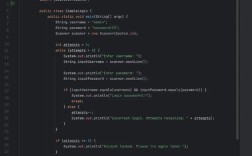
Here is a simple, complete Java class that automates opening Google, searching for "Selenium," and printing the title of the results page.

import io.github.bonigarcia.wdm.WebDriverManager;
import org.openqa.selenium.By;
import org.openqa.selenium.WebDriver;
import org.openqa.selenium.WebElement;
import org.openqa.selenium.chrome.ChromeDriver;
import org.openqa.selenium.chrome.ChromeOptions;
import org.testng.annotations.AfterTest;
import org.testng.annotations.BeforeTest;
import org.testng.annotations.Test;
public class GoogleSearchTest {
    // Declare the WebDriver instance
    WebDriver driver;
    @BeforeTest
    public void setup() {
        // Use WebDriverManager to automatically manage the ChromeDriver
        WebDriverManager.chromedriver().setup();
        // Optional: Add Chrome options for headless mode or other settings
        ChromeOptions options = new ChromeOptions();
        // options.addArguments("--headless"); // Run in headless mode (no browser UI)
        // options.addArguments("--disable-notifications");
        // Instantiate the WebDriver
        driver = new ChromeDriver(options);
        // Maximize the browser window
        driver.manage().window().maximize();
    }
    @Test
    public void performGoogleSearch() {
        // 1. Navigate to a URL
        driver.get("https://www.google.com");
        // 2. Find the search box element
        // We use the name locator "q" which is the name of the search input field
        WebElement searchBox = driver.findElement(By.name("q"));
        // 3. Enter text into the search box
        searchBox.sendKeys("Selenium");
        // 4. Find the "Google Search" button and click it
        // We use the XPath locator to find the button
        WebElement searchButton = driver.findElement(By.xpath("//div[@class='FPdoLc tfB0Bf']//input[@name='btnK']"));
        searchButton.click();
        // Alternative: Press Enter in the search box
        // searchBox.sendKeys(Keys.ENTER);
        // 5. Wait for the results page to load (simple sleep for demo, use explicit waits in real code)
        try {
            Thread.sleep(3000); // Not recommended for production code
        } catch (InterruptedException e) {
            e.printStackTrace();
        }
        // 6. Get the page title and print it
        String pageTitle = driver.getTitle();
        System.out.println("Page Title is: " + pageTitle);
        // Assertion (using TestNG)
        // Assert.assertEquals(pageTitle, "Selenium - Google Search");
    }
    @AfterTest
    public void tearDown() {
        // 7. Close the browser
        if (driver != null) {
            driver.quit();
        }
    }
}
Key API Methods and Interactions
Navigation
| Method | Description |
|---|---|
driver.get("https://example.com"); |
Navigates to a specific URL. |
driver.navigate().to("https://example.com"); |
Same as get(). |
driver.navigate().back(); |
Clicks the browser's back button. |
driver.navigate().forward(); |
Clicks the browser's forward button. |
driver.navigate().refresh(); |
Refreshes the current page. |
Finding Elements
| Method | Description | Return Type |
|---|---|---|
driver.findElement(By.id("username")); |
Finds the first element matching the locator. | WebElement |
driver.findElements(By.tagName("div")); |
Finds a list of all elements matching the locator. | List<WebElement> |
Interacting with Elements (WebElement)
| Method | Description |
|---|---|
element.click(); |
Simulates a mouse click. |
element.sendKeys("some text"); |
Types text into an input field. |
element.sendKeys(Keys.ENTER); |
Presses a special key (like Enter, Tab, Escape). |
element.clear(); |
Clears the text from an input field. |
element.submit(); |
Submits a form. Works if the element is inside a <form> tag. |
element.getText(); |
Gets the visible text of an element (e.g., the text of a button or a paragraph). |
element.getAttribute("value"); |
Gets the value of an element's attribute (e.g., value, href, src). |
element.isDisplayed(); |
Checks if the element is visible on the page (returns boolean). |
element.isEnabled(); |
Checks if the element is enabled (not disabled) (returns boolean). |
element.isSelected(); |
Checks if a checkbox, radio button, or option in a dropdown is selected (returns boolean). |
Handling Waits (Crucial for Stable Tests)
Modern web pages are dynamic. Using hard-coded Thread.sleep() is bad practice. Selenium provides two types of explicit waits.
a) Implicit Wait
Sets a global wait time for finding elements. The driver will wait for this duration before throwing a NoSuchElementException.
// Set an implicit wait of 10 seconds
driver.manage().timeouts().implicitlyWait(Duration.ofSeconds(10));
- Caution: Can make tests slow because it's applied to every element find call.
b) Explicit Wait (Recommended) Waits for a specific condition to be met before proceeding. It's more targeted and efficient.
import org.openqa.selenium.support.ui.ExpectedConditions;
import org.openqa.selenium.support.ui.WebDriverWait;
// Create an instance of WebDriverWait
WebDriverWait wait = new WebDriverWait(driver, Duration.ofSeconds(10));
// Wait until the element is clickable
WebElement myButton = wait.until(ExpectedConditions.elementToBeClickable(By.id("submit-button")));
myButton.click();
// Wait until the element is visible
WebElement myElement = wait.until(ExpectedConditions.visibilityOfElementLocated(By.xpath("//div[@class='results']")));
Common ExpectedConditions:
visibilityOfElementLocatedelementToBeClickablepresenceOfElementLocatedContains`
Handling Dropdowns (<select>)
Use the Select class for <select> elements.
import org.openqa.selenium.support.ui.Select;
// Find the dropdown element
WebElement dropdownElement = driver.findElement(By.id("country-select"));
// Create a Select object
Select dropdown = new Select(dropdownElement);
// Select by visible text
dropdown.selectByVisibleText("United States");
// Select by value attribute
dropdown.selectByValue("us");
// Select by index (0-based)
dropdown.selectByIndex(0);
// Deselect (only for multi-select dropdowns)
// dropdown.deselectByVisibleText("United States");
Handling Alerts
// Switch to the alert
driver.switchTo().alert();
// Get the alert text
String alertText = driver.switchTo().alert().getText();
System.out.println("Alert text: " + alertText);
// Accept the alert (clicks OK)
driver.switchTo().alert().accept();
// Dismiss the alert (clicks Cancel)
driver.switchTo().alert().dismiss();
// Type text into a prompt alert
driver.switchTo().alert().sendKeys("My text");
driver.switchTo().alert().accept();
Handling Frames
If your element is inside an <iframe>, you must switch to it first.
// Find the frame by its name, ID, or WebElement
WebElement frameElement = driver.findElement(By.id("my-iframe"));
// Switch to the frame
driver.switchTo().frame(frameElement);
// Now you can interact with elements inside the frame
driver.findElement(By.id("username")).sendKeys("admin");
// Switch back to the main page (parent frame)
driver.switchTo().defaultContent();
Handling Windows/Tabs
// Get the current window handle
String mainWindowHandle = driver.getWindowHandle();
// Click a link that opens a new tab/window
driver.findElement(By.linkText("Click me for a new tab")).click();
// Get all window handles
Set<String> allWindowHandles = driver.getWindowHandles();
// Switch to the new window
for (String handle : allWindowHandles) {
    if (!handle.equals(mainWindowHandle)) {
        driver.switchTo().window(handle);
        break;
    }
}
// Now you are working in the new tab/window
// ... perform actions ...
// Close the new tab and switch back to the main window
driver.close();
driver.switchTo().window(mainWindowHandle);
Best Practices
- Use Explicit Waits: Avoid
Thread.sleep(). Always use explicit waits for better stability and reliability. - Use Stable Locators: Prioritize
id>name>cssSelector>xpath. AvoidclassNameandtagNameunless they are unique. - Use Page Object Model (POM): This is a design pattern that makes your tests more readable, maintainable, and reusable. Each web page is represented by a Java class, and the elements and actions on that page are encapsulated within that class.
- Separate Test Logic from Test Data: Use configuration files (like
.propertiesor.yaml) or a data provider (in TestNG) to store test data. - Manage Browser Drivers: Use a library like WebDriverManager to handle driver downloads automatically.
- Clean Up: Always use
driver.quit()in your@AfterTestmethod. It closes all browser windows and ends the WebDriver session, freeing up resources.driver.close()only closes the current window.