Of course! This is a very common and powerful combination for building computer vision applications on macOS. Here’s a comprehensive guide covering the "why," the "how," and best practices for using Python, OpenCV, and Xcode together.
The Big Picture: Why Use This Combination?
-
Python + OpenCV: The "Engine"
- Python: Excellent for rapid prototyping, scientific computing, and has a massive ecosystem of libraries (NumPy, SciPy, TensorFlow, PyTorch).
- OpenCV: The world's most popular computer vision library. It provides functions for image and video processing, feature detection, object recognition, and much more.
- Together: They form a powerful, flexible, and fast development environment for building vision algorithms.
-
Xcode: The "Chassis"
- Native macOS UI: Xcode is the standard, professional tool for building native macOS applications. It provides Interface Builder for creating beautiful, responsive user interfaces (windows, buttons, sliders, image views).
- Integrated Debugger and Profiler: A world-class debugger and performance profiler are built right in.
- Deployment and Distribution: Tools for signing your app, creating notarized packages, and distributing them via the App Store or other means.
The Goal: To create a macOS app where the user interacts with a native Xcode UI, and the app's core logic (powered by Python and OpenCV) processes data in the background.
The Core Challenge: Bridging the Gap
The main challenge is that Xcode builds native macOS applications (using Swift or Objective-C), while OpenCV is typically used with Python. They can't directly call each other's functions.
The solution is to create a bridge. The most common and robust way to do this on macOS is with PyObjC.
- PyObjC: A bridge between the Python and Objective-C ecosystems. It allows you to call Objective-C classes and methods (like the ones in Xcode's UI frameworks) directly from Python, and vice-versa.
We will structure our app like this:
Xcode Project (Swift/Obj-C)
├── Main App UI (built in Interface Builder)
└── Python Script (called from the app)
    ├── Runs the core OpenCV logic.
    └── Uses PyObjC to send results (like images) back to the Xcode UI.
Step-by-Step Guide to Building Your First App
Let's build a simple app that displays a live webcam feed and applies a Canny edge detection filter when a button is clicked.
Step 1: Install Prerequisites
- Xcode: Install from the Mac App Store.
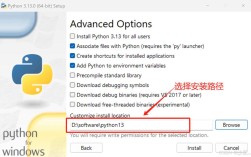
- Python: Make sure you have Python 3 installed. It's recommended to use a version manager like
pyenvto manage multiple Python versions. - Homebrew: A package manager for macOS. Install it if you don't have it:
/bin/bash -c "$(curl -fsSL https://raw.githubusercontent.com/Homebrew/install/HEAD/install.sh)" - OpenCV for Python: Install the Python bindings for OpenCV using pip.
pip install opencv-python
- PyObjC: Install the PyObjC bridge.
pip install pyobjc-core pyobjc-framework-Cocoa pyobjc-framework-AVFoundation
Note: We specifically install the frameworks we need (
Cocoafor UI,AVFoundationfor camera access).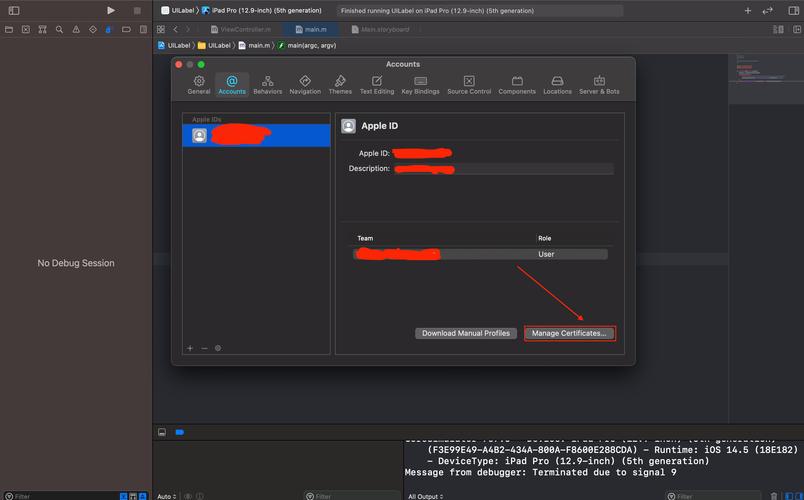 (图片来源网络,侵删)
Step 2: Create the Xcode Project
- Open Xcode and select Create a new Xcode project.
- Choose the macOS tab and select the App template. Click Next.
- Fill in the product information:
- Product Name:
VisionApp - Team: (Your Apple ID)
- Organization Identifier:
com.yourname - Interface: Storyboard (This is much easier than code-based UIs)
- Language: Swift (We'll use Swift for the UI and to call Python)
- Product Name:
- Save the project somewhere on your Mac.
Step 3: Design the User Interface
- Open
Main.storyboardin the Xcode editor. - Drag and drop the following UI elements from the Object Library (the + button in the top-right):
- A View to act as the main container.
- An Image View inside the View. This will display our video feed. Resize it.
- A Button below the Image View. Double-click it and change its title to "Apply Filter".
- Use Auto Layout to constrain these elements so they resize correctly. Select the elements, click the "Add New Constraints" button (the square with arrows), and add spacing constraints to the superview and between elements.
Your storyboard should look something like this:
Step 4: Connect UI to Code
- Open
ViewController.swift. - Ctrl-drag from the Image View in the storyboard to your
ViewController.swiftfile, right below theclass ViewController: NSViewController {line. Name the outletvideoImageView. - Ctrl-drag from the Button to the
ViewController.swiftfile. In the pop-up, choose Action and name itapplyFilterButtonClicked.
Your ViewController.swift file should now have these two new lines:
@IBOutlet weak var videoImageView: NSImageView!
@IBAction func applyFilterButtonClicked(_ sender: Any) {
}
Step 5: Write the Python Script
- In your Xcode project navigator, right-click the
VisionAppfolder and select New Group. Name itPythonScripts. - Right-click the
PythonScriptsgroup and select New File.... Choose Other -> Empty. Name itvision_logic.py. - Add the Python script to your Xcode project. In the file dialog that appears, make sure "Copy items if needed" is checked and the target
VisionAppis selected.
Now, add the following code to vision_logic.py:
import cv2
import numpy as np
import os
# --- Global Variables ---
# This will be set by the Swift code to pass frames
current_frame_np = None
def process_frame_with_canny():
    """
    This function is called from Swift. It processes the global frame.
    """
    global current_frame_np
    if current_frame_np is None:
        return None
    # Convert from BGR (OpenCV default) to RGB (macOS default)
    rgb_frame = cv2.cvtColor(current_frame_np, cv2.COLOR_BGR2RGB)
    # Convert to grayscale
    gray = cv2.cvtColor(rgb_frame, cv2.COLOR_RGB2GRAY)
    # Apply Canny edge detection
    edges = cv2.Canny(gray, 100, 200)
    # Convert back to a format that can be displayed
    # OpenCV uses BGR, NSImageView expects RGB. So we convert BGR to RGB.
    # The result of Canny is a single-channel image, so we stack it to make it 3-channel.
    edges_colored = cv2.cvtColor(edges, cv2.COLOR_GRAY2RGB)
    return edges_colored
def get_opencv_version():
    """A simple function to test the bridge."""
    return f"OpenCV Version: {cv2.__version__}"
Step 6: Bridge Python and Swift (The Core Logic)
Now we'll modify ViewController.swift to call our Python script.
-
First, we need to make Python executable from our app. Go to your Target settings, the Build Phases tab. Click the button under "Link Binary With Libraries". Click Add Other... -> Add Files... and navigate to your Python executable (usually
/usr/bin/python3or/opt/homebrew/bin/python3on Apple Silicon Macs). Add it. -
Now, replace the contents of
ViewController.swiftwith the following code. The comments explain each part.
import Cocoa
import AVFoundation // For camera access
class ViewController: NSViewController {
    @IBOutlet weak var videoImageView: NSImageView!
    // Timer to continuously grab frames from the camera
    var captureSession: AVCaptureSession!
    var videoPreviewLayer: AVCaptureVideoPreviewLayer!
    var captureDevice: AVCaptureDevice!
    // Timer to run the Python script periodically
    var pythonTimer: Timer?
    override func viewDidLoad() {
        super.viewDidLoad()
        setupCamera()
        startPythonBridge()
    }
    override func viewWillDisappear() {
        super.viewWillDisappear()
        // Clean up resources
        pythonTimer?.invalidate()
        captureSession.stopRunning()
    }
    func setupCamera() {
        captureSession = AVCaptureSession()
        captureSession.sessionPreset = .medium
        // Find the default camera
        guard let captureDevice = AVCaptureDevice.default(for: .video) else {
            print("Could not get default camera")
            return
        }
        do {
            let input = try AVCaptureDeviceInput(device: captureDevice)
            captureSession.addInput(input)
            videoPreviewLayer = AVCaptureVideoPreviewLayer(session: captureSession)
            videoPreviewLayer.frame = view.bounds
            videoPreviewLayer.videoGravity = .resizeAspectFill
            view.layer?.addSublayer(videoPreviewLayer)
            captureSession.startRunning()
            // Start a timer to grab frames
            Timer.scheduledTimer(withTimeInterval: 1/30.0, repeats: true) { _ in
                self.grabCurrentFrame()
            }
        } catch {
            print("Error setting up camera input: \(error.localizedDescription)")
        }
    }
    func grabCurrentFrame() {
        // This is a simplified way to get a frame.
        // For better performance, use AVCaptureVideoDataOutput.
        // For this example, we use the preview layer.
        guard let pixelBuffer = videoPreviewLayer.pixelBuffer else { return }
        // Convert CVPixelBuffer to CIImage
        let ciImage = CIImage(cvPixelBuffer: pixelBuffer)
        // Convert CIImage to NSImage to display
        let rep = NSCIImageRep(ciImage: ciImage)
        let nsImage = NSImage(size: rep.size)
        nsImage.addRepresentation(rep)
        DispatchQueue.main.async {
            self.videoImageView.image = nsImage
        }
    }
    // MARK: - Python Bridge
    func startPythonBridge() {
        // The path to our python script
        let scriptPath = Bundle.main.path(forResource: "vision_logic", ofType: "py", inDirectory: "PythonScripts")
        guard let scriptPath = scriptPath else {
            print("Could not find vision_logic.py")
            return
        }
        // Test the bridge
        let testTask = Process()
        testTask.executableURL = URL(fileURLWithPath: "/usr/bin/python3") // Or your python path
        testTask.arguments = [scriptPath, "get_opencv_version"]
        let pipe = Pipe()
        testTask.standardOutput = pipe
        do {
            try testTask.run()
            testTask.waitUntilExit()
            if testTask.terminationStatus == 0 {
                let outputData = pipe.fileHandleForReading.readDataToEndOfFile()
                if let output = String(data: outputData, encoding: .utf8) {
                    print("Python Bridge Test Successful: \(output)")
                }
            } else {
                print("Python script failed with status: \(testTask.terminationStatus)")
            }
        } catch {
            print("Failed to run Python script: \(error)")
        }
    }
    @IBAction func applyFilterButtonClicked(_ sender: Any) {
        print("Applying Canny filter...")
        // This is where you would pass the current frame to Python.
        // For simplicity, we'll just print. In a real app, you would grab the
        // pixel buffer, convert it to a NumPy array, and pass it to Python.
        // This is the most complex part of the bridge.
        // --- Placeholder for passing data to Python ---
        // 1. Get current frame as CVPixelBuffer
        // 2. Convert CVPixelBuffer to a NumPy array using a helper library or custom code.
        // 3. Use PyObjC to call a Python function and pass the NumPy array.
        // 4. The Python function processes it and returns a new NumPy array.
        // 5. Convert the returned NumPy array back to a CVPixelBuffer or NSImage.
        // 6. Update the videoImageView on the main thread.
        // For now, we'll just simulate it by showing a black image.
        let blackImage = NSImage(size: NSSize(width: 640, height: 480))
        blackImage.lockFocus()
        NSColor.black.set()
        NSRectFill(NSRect(x: 0, y: 0, width: 640, height: 480))
        blackImage.unlockFocus()
        DispatchQueue.main.async {
            self.videoImageView.image = blackImage
        }
    }
}
Step 7: Run the App
Press the Run button (▶) in Xcode. Your app should build and launch. You should see your camera feed in the window. Clicking the "Apply Filter" button will currently just show a black image, but the Python bridge is set up and ready.
Advanced Topics & Best Practices
- Performance: Passing large image data (frames) between Python and Swift is slow. The best practice is to use
AVCaptureVideoDataOutput. This gives you a callback for each frame as aCVPixelBuffer. You can then use a library likepyobjc-framework-AVFoundationto efficiently convert theCVPixelBufferto a NumPy array without copying the data. - Threading: Never run long-running Python tasks on the main UI thread, or your app will freeze. Use
DispatchQueue.global().asyncto run Python code in a background queue. When the Python code finishes, useDispatchQueue.main.asyncto update the UI. - Packaging the App: To distribute your app, you need to bundle the Python interpreter and your script.
- Download a standalone Python installer from the official Python website.
- Use a tool like
PyInstallerto package your script and its dependencies into a single executable:pyinstaller --onefile --windowed vision_logic.py. - Copy the resulting executable into your Xcode project and point to it in the "Build Phases" instead of the system Python.
- Alternative Bridges: While PyObjC is the most "native" solution on macOS, other options exist:
- Subprocess: You can run your Python script as a separate process and communicate with it via standard input/output (stdin/stdout) or network sockets (e.g., using Flask). This is simpler to set up but can be slower and more complex to manage state.
- Py2app: A tool specifically for creating standalone macOS apps from Python scripts. It can be used to create a complete app, but integrating it with a custom Xcode UI is more difficult.
This guide provides a solid foundation. The most complex part is the efficient data transfer, but with AVCaptureVideoDataOutput and PyObjC, it's a very achievable and powerful workflow.