Of course! Using Homebrew to manage Python on a Mac is a very common and powerful setup. Here’s a comprehensive guide covering everything from installation to managing different versions and virtual environments.
Why Use Homebrew for Python?
- Easy Installation: It handles downloading, compiling, and installing Python for you.
- Easy Updates: You can easily update Python to the latest version with a single command.
- Easy Uninstallation: You can cleanly remove Python if you need to.
- Integration: It integrates well with other Homebrew packages you might need (like libraries with C dependencies).
- Multiple Versions: Homebrew allows you to install and manage multiple Python versions side-by-side.
Part 1: Installation
Step 1: Install Homebrew (If you haven't already)
If you're new to Homebrew, open your Terminal (you can find it in /Applications/Utilities/ or search for it with Spotlight) and run the following command:
/bin/bash -c "$(curl -fsSL https://raw.githubusercontent.com/Homebrew/install/HEAD/install.sh)"
This script will explain what it will do and pause before doing it. Press Enter to continue. After it's done, it will give you two commands to add Homebrew to your PATH. It's very important to run these commands.
Step 2: Install Python with Homebrew
Once Homebrew is ready, installing Python is simple.
-
For the latest stable version of Python 3:
 (图片来源网络,侵删)
brew install python
This will install the latest stable version of Python 3 (e.g., 3.12, 3.11, etc.).
-
For a specific version (e.g., Python 3.10):
brew install python@3.10
-
For Python 2 (Legacy):
Warning: Python 2 is no longer supported. You should only install it if you absolutely need it for legacy projects. It is highly recommended to use Python 3 for all new development.
 (图片来源网络,侵删)
brew install python@2
Step 3: Verify the Installation
After the installation is complete, verify that it's working by checking the version.
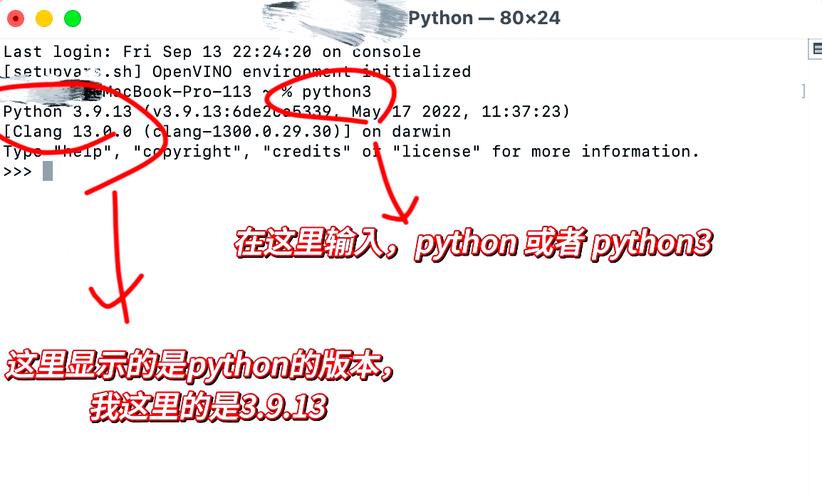
python3 --version
You should see something like Python 3.12.4. Note the 3 in the command. This is crucial.
Part 2: Understanding the python vs. python3 Command
This is the most common point of confusion for new Mac users.
- macOS comes with a built-in Python 2.7. You should never modify this system Python, as it's used by the operating system and other Apple applications.
- Homebrew installs its own Python 3. To use this new, modern Python, you must use the
python3command in your terminal.
# This points to the old, system Python 2.7 (DO NOT USE FOR NEW WORK)
python --version
# Python 2.7.18
# This points to the new, Homebrew-installed Python 3 (USE THIS)
python3 --version
# Python 3.12.4
Why not just python?
Forcing yourself to type python3 is a good habit that reminds you which Python environment you are using. However, if you find it tedious, you can create an alias. You can add this line to your shell's configuration file (~/.zshrc for Zsh, which is the default on modern macOS, or ~/.bash_profile for Bash):
echo 'alias python="python3"' >> ~/.zshrc
source ~/.zshrc
Now, python will run your Homebrew Python 3. Use with caution, as this can sometimes cause scripts to break if they expect the system Python.
Part 3: The Pip Package Manager
pip is the package manager for Python. Homebrew installs it alongside Python.
-
To install a package (e.g., the
requestslibrary):# Always use python3 -m pip to be explicit python3 -m pip install requests
-
To upgrade pip itself (a good practice):
python3 -m pip install --upgrade pip
-
To uninstall a package:
python3 -m pip uninstall requests
Security Note: The
--userflag is often recommended to install packages only for your user account and avoid system-wide permission issues.python3 -m pip install --user requests.
Part 4: Managing Multiple Python Versions
What if you need to work on a project that requires Python 3.10 and another that needs 3.12? Homebrew makes this easy.
Install Multiple Versions
brew install python@3.10
brew install python@3.12
Use the Correct Version
Homebrew creates symbolic links for each version. You can use these to run the correct Python and pip.
# To use Python 3.10
python@3.10 --version
pip3.10 install some-package
# To use Python 3.12
python@3.12 --version
pip3.12 install some-package
Part 5: Virtual Environments (The Best Practice)
This is the most important concept for Python development. A virtual environment is an isolated space for a single project. It prevents package version conflicts and keeps your global Python installation clean.
Here's the modern workflow using venv (which comes built-in with Python 3).
Navigate to Your Project Directory
cd ~/my-awesome-project
Create a Virtual Environment
It's common to name the environment folder venv or .venv.
# Use python3 to create the environment
python3 -m venv venv
This creates a venv folder in your project containing a complete, isolated Python installation.
Activate the Environment
You must activate the environment every time you work on the project.
source venv/bin/activate
Your terminal prompt will change to show the active environment, like (venv) ~$.
Work Inside the Environment
Now, python and pip will automatically use the versions inside your venv.
# This pip installs packages ONLY into the venv
pip install requests
# This python uses the interpreter inside the venv
python my_app.py
Deactivate the Environment
When you're done, simply type:
deactivate
Your prompt will return to normal.
Summary of Key Commands
| Task | Command |
|---|---|
| Install Python 3 | brew install python |
| Check Python 3 Version | python3 --version |
| Install a Package | python3 -m pip install <package_name> |
| Upgrade a Package | python3 -m pip install --upgrade <package_name> |
| Uninstall a Package | python3 -m pip uninstall <package_name> |
| Create a Virtual Environment | python3 -m venv <env_name> |
| Activate an Environment | source <env_name>/bin/activate |
| Deactivate an Environment | deactivate |
| Use a Specific Python Version | python@3.x --version |
| Use pip for a Specific Version | pip3.x install <package_name> |