Of course! Here is a comprehensive guide on how to use Python with Redis on a Windows machine.

We'll cover everything from installation to a complete, runnable example with explanations.
Overview: Why Redis on Windows?
Redis is a powerful in-memory data store, often used as a database, cache, or message broker. While Linux is the traditional and recommended platform for production Redis, Windows is perfectly fine for development, testing, and local learning.
There are two main ways to run Redis on Windows:
- WSL 2 (Windows Subsystem for Linux 2): This is the recommended approach. It runs a genuine Linux environment on Windows, providing the best performance and compatibility. You'll install and run Redis inside a Linux distribution (like Ubuntu).
- Native Windows Port: A community-driven port of Redis that runs directly on Windows. It's simpler to set up for a beginner but may have slight performance differences and is not recommended for production.
This guide will focus on the Native Windows Port for simplicity, as it's the fastest way to get started. We'll also cover the WSL 2 approach as a best practice.
Part 1: The Easy Way (Native Redis on Windows)
This method involves downloading a pre-compiled Redis server for Windows and using the standard Python redis library.
Step 1: Install the Redis Server for Windows
-
Go to the official Microsoft Store page for Redis.
-
Click "Get" or "Install". This will install Redis as a Windows service, meaning it will start automatically in the background.
-
Verify the Installation:
 (图片来源网络,侵删)
- Open PowerShell or Command Prompt as an Administrator.
- Run the following command to check if the Redis server is running:
redis-cli ping
- If it's working correctly, you will see the reply:
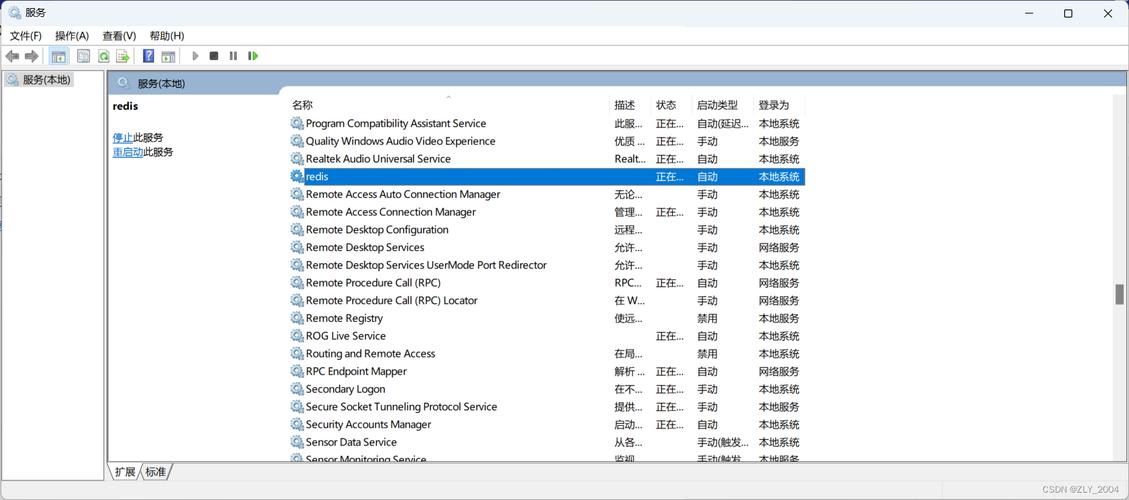
PONG. If you get an error likeCould not connect to Redis at 127.0.0.1:6379, it means the service isn't running. You can start it manually by runningredis-serverin a new terminal window or by finding the "Redis on Windows" service in the Windows Services manager (services.msc).
Step 2: Install the Python Redis Library
Now, let's install the Python client that will talk to our Redis server.
-
Open your terminal (PowerShell or Command Prompt).
-
It's best practice to use a virtual environment. If you don't have one, create one:
# Create a virtual environment
python -m venv redis_env
# Activate it
.\redis_env\Scripts\activate  # For PowerShell
# or
redis_env\Scripts\activate     # For Command Prompt
-
Install the
redislibrary usingpip:pip install redis
Part 2: Your First Python Script with Redis
Let's write a simple Python script to perform basic operations: SET (store a value) and GET (retrieve a value).
Create a file named redis_example.py and paste the following code into it:
import redis
import time
# --- Connection ---
# Connect to the Redis server running on your local machine.
# The default host is 'localhost' (or '127.0.0.1') and the default port is 6379.
try:
    r = redis.Redis(host='localhost', port=6379, decode_responses=True)
    # The `decode_responses=True` argument is very useful on Windows.
    # It makes Redis return strings instead of bytes, which is easier to work with.
    print("Successfully connected to Redis!")
    # --- Basic Operations: SET and GET ---
    # Set a key-value pair
    # The key is 'user:1000:name' and the value is 'Alice'
    r.set('user:1000:name', 'Alice')
    print("Set key 'user:1000:name' to 'Alice'")
    # Get the value of the key
    name = r.get('user:1000:name')
    print(f"Retrieved value for key 'user:1000:name': {name}")
    # --- More Data Types: Lists ---
    # Add items to a list
    r.lpush('my_list', 'world', 'hello')
    print("Pushed 'world' and 'hello' to the front of 'my_list'")
    # Get all items in the list
    my_list_items = r.lrange('my_list', 0, -1) # 0 to -1 means the whole list
    print(f"Current items in 'my_list': {my_list_items}")
    # --- Data Expiration: SET with a TTL (Time To Live) ---
    r.set('session_token:abc123', 'user_data', ex=10) # expires in 10 seconds
    print("Set 'session_token:abc123' to expire in 10 seconds")
    # Check the TTL (Time To Live) of the key
    ttl = r.ttl('session_token:abc123')
    print(f"TTL for 'session_token:abc123' is {ttl} seconds")
    # Wait for the key to expire
    print("Waiting for the key to expire...")
    time.sleep(11)
    # Try to get the key again (it should be gone)
    expired_value = r.get('session_token:abc123')
    if expired_value is None:
        print("Key 'session_token:abc123' has correctly expired.")
    else:
        print(f"Error: Key still exists with value: {expired_value}")
except redis.exceptions.ConnectionError as e:
    print(f"Could not connect to Redis: {e}")
    print("Please ensure the Redis server is running.")
How to Run the Script
- Make sure your Redis server is running (you should have gotten a
PONGearlier). - Make sure your virtual environment is active.
- Run the script from your terminal:
python redis_example.py
You should see output similar to this:
Successfully connected to Redis!
Set key 'user:1000:name' to 'Alice'
Retrieved value for key 'user:1000:name': Alice
Pushed 'world' and 'hello' to the front of 'my_list'
Current items in 'my_list': ['hello', 'world']
Set 'session_token:abc123' to expire in 10 seconds
TTL for 'session_token:abc123' is 10 seconds
Waiting for the key to expire...
Key 'session_token:abc123' has correctly expired.
Part 3: Best Practice - Using WSL 2 (Recommended)
For a more robust and performant setup, especially if you're comfortable with the command line, using WSL 2 is the way to go. It gives you the official, high-performance Redis experience.
Step 1: Install WSL 2
If you don't have it, open PowerShell or Command Prompt as Administrator and run:
wsl --install
This will enable the required Windows features and install the default Ubuntu Linux distribution. You may need to restart your computer.
Step 2: Install Redis in WSL
- Open the Ubuntu application from your Start Menu.
- Update your package list and install Redis:
sudo apt update
sudo apt install redis-server
- Start the Redis service:
sudo service redis-server start
- Verify it's running:
redis-cli ping
# Should return PONG
Step 3: Connect to WSL Redis from Python on Windows
The magic of WSL is that the Linux environment is network-accessible from Windows. The default IP address for WSL is 0.0.1 (localhost), but it uses a different port.
-
Find the WSL Redis Port: In your Ubuntu terminal, run this command to see which port Redis is listening on:
sudo ss -tulnp | grep redis
You will see output like
LISTEN 0 5 127.0.0.1:6379 .... The port is6379. -
Modify Your Python Script: The Python script is exactly the same! Just ensure the host and port match. Since it's
localhostand the default port6379, no change is needed. Yourredis.Redis(...)call will work perfectly.
# This exact same code will work with WSL Redis
import redis
try:
    # Connect to the Redis server running in WSL
    # It's accessible from Windows at localhost:6379
    r = redis.Redis(host='localhost', port=6379, decode_responses=True)
    r.ping()
    print("Successfully connected to Redis in WSL!")
    # ... rest of your code
except redis.exceptions.ConnectionError as e:
    print(f"Could not connect to Redis: {e}")
Troubleshooting Common Issues
-
redis.exceptions.ConnectionError: Error -2 connecting to localhost:6379. Connection refused.- Cause: The Redis server is not running.
- Solution:
- Native Windows: Open PowerShell as Admin and run
redis-server. Or, find "Redis on Windows" inservices.mscand start the service. - WSL: Open your Ubuntu terminal and run
sudo service redis-server start.
- Native Windows: Open PowerShell as Admin and run
-
redis.exceptions.ConnectionError: Error 10060orNo connection could be made...- Cause: A firewall is blocking the connection on port 6379.
- Solution: Temporarily disable your Windows Defender Firewall to test if this is the issue. If it is, you need to add an "inbound rule" to allow TCP traffic on port 6379.
-
AttributeError: 'str' object has no attribute 'decode'(or similar byte/string errors)- Cause: The Redis client is returning bytes, but your Python code is expecting a string.
- Solution: Add
decode_responses=Trueto yourredis.Redis()connection, as shown in the example. This is a common "gotcha" on Windows.