Of course! Let's break down the topic of "Python3 PhantomJS".
This is a classic topic, but it's very important to understand the current state of these technologies because the landscape has changed significantly.
Here's a complete guide covering:
- What is PhantomJS?
- The Old Way: Using
seleniumwithphantomjsdriver - The Modern & Recommended Way: Using
seleniumwithheadlessChrome/Firefox - A Practical Comparison
- When You Might Still Consider a Headless Browser
What is PhantomJS?
PhantomJS was a headless browser. This means it had a full rendering engine (like Chrome or Firefox) but without a graphical user interface (GUI). You could programmatically control it to navigate websites, click buttons, fill out forms, and scrape content, all from the command line or a script.
Key Characteristics of PhantomJS:

- Headless: No visible browser window.
- Fast: Because it didn't render pixels to a screen, it was often faster than a full browser.
- Scriptable: You could control it using JavaScript, and it became very popular for web scraping and automated testing with Python via the
seleniumlibrary.
The Big Problem: PhantomJS is Deprecated
This is the most critical point. PhantomJS has been officially deprecated and is no longer maintained. The last stable release was in 2025. It has known security vulnerabilities and compatibility issues with modern websites and web standards.
Conclusion: You should not start a new project with PhantomJS in 2025 or later. It's a legacy tool.
The Old Way: Using selenium with phantomjsdriver
For historical context, here is how you would have used it.
Step 1: Install PhantomJS
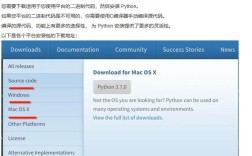
You had to download the PhantomJS binary and add it to your system's PATH.
macOS:
brew install phantomjs
Linux:
# You might need to add a repository first
sudo apt-get update
sudo apt-get install phantomjs
Windows:
Download the .zip file from the official site, unzip it, and add the bin directory to your system's PATH.
Step 2: Install the Python selenium library
pip install selenium
Step 3: Write the Python Code
You would tell selenium to use the PhantomJS driver.
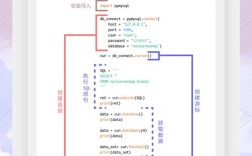
# old_phantomjs_example.py
from selenium import webdriver
from selenium.webdriver.common.by import By
from bs4 import BeautifulSoup
print("Launching PhantomJS browser...")
# Use the PhantomJS executable path
driver = webdriver.PhantomJS(executable_path='/usr/local/bin/phantomjs') # Adjust path if needed
# Alternatively, if it's in your PATH, you can just use 'phantomjs'
# driver = webdriver.PhantomJS()
try:
    # 1. Go to the target URL
    driver.get("https://quotes.toscrape.com/")
    # 2. Get the page source and parse it with BeautifulSoup
    soup = BeautifulSoup(driver.page_source, 'html.parser')
    # 3. Extract quotes
    quotes = soup.find_all('div', class_='quote')
    for quote in quotes:
        text = quote.find('span', class_='text').text
        author = quote.find('small', class_='author').text
        print(f'"{text}" - {author}')
finally:
    # 4. Close the browser
    print("Closing PhantomJS browser.")
    driver.quit()
The Modern & Recommended Way: Using selenium with headless Chrome/Firefox
This is the standard approach today. Instead of using the unmaintained PhantomJS, you use a modern, actively maintained browser and simply run it in "headless" mode.
Step 1: Install a Browser and its WebDriver
You need two things: the browser itself and a "driver" that selenium uses to control it.
For Chrome:
- Install Google Chrome (most people already have it).
- Install
chromedriver. The easiest way is with a library that manages it for you, likewebdriver-manager.
For Firefox:
- Install Mozilla Firefox.
- Install
geckodriver. Again,webdriver-manageris the easiest solution.
Step 2: Install Python Libraries
We'll use selenium and webdriver-manager to automatically handle the driver.
pip install selenium webdriver-manager
Step 3: Write the Modern Python Code
The code is very similar, but cleaner. We don't need to manually download or manage the driver.
# modern_headless_example.py
from selenium import webdriver
from selenium.webdriver.chrome.service import Service as ChromeService
from webdriver_manager.chrome import ChromeDriverManager
from selenium.webdriver.common.by import By
from bs4 import BeautifulSoup
print("Setting up headless Chrome browser...")
# Use webdriver-manager to automatically handle chromedriver
service = ChromeService(ChromeDriverManager().install())
# Configure Chrome options for headless mode
options = webdriver.ChromeOptions()
options.add_argument("--headless")  # Run in headless mode
options.add_argument("--disable-gpu") # Often necessary in headless mode
# options.add_argument("--window-size=1920,1080") # Set a window size
# Initialize the driver with the service and options
driver = webdriver.Chrome(service=service, options=options)
try:
    # 1. Go to the target URL
    driver.get("https://quotes.toscrape.com/")
    # 2. Get the page source and parse it with BeautifulSoup
    soup = BeautifulSoup(driver.page_source, 'html.parser')
    # 3. Extract quotes
    quotes = soup.find_all('div', class_='quote')
    for quote in quotes:
        text = quote.find('span', class_='text').text
        author = quote.find('small', class_='author').text
        print(f'"{text}" - {author}')
finally:
    # 4. Close the browser
    print("Closing headless Chrome browser.")
    driver.quit()
A Practical Comparison
| Feature | PhantomJS (Deprecated) | Headless Chrome/Firefox (Recommended) |
|---|---|---|
| Maintenance | None. Abandoned in 2025. | Excellent. Actively developed by Google/Mozilla. |
| JavaScript Support | Good, but outdated. | Excellent. Supports the latest ECMAScript features. |
| Web Standards | Lacks support for modern web APIs (e.g., WebRTC, some CSS). | Full. Supports all modern web standards. |
| Performance | Fast for its time, but slower than modern headless browsers. | Very Fast. Optimized heavily for performance and stability. |
| Ease of Use | Required manual driver setup. | Easy. Tools like webdriver-manager handle setup automatically. |
| Security | Vulnerable. Contains unpatched security flaws. | Secure. Receives regular security updates. |
| Future-Proof | None. Do not use for new projects. | Yes. This is the industry standard. |
When You Might Still Consider a Headless Browser
Even with modern browsers, a headless approach is still the right choice for many use cases. The question is not if you should use a headless browser, but which one.
Use a Headless Browser (like Chrome or Firefox) for:
- Web Scraping: When a site's content is loaded dynamically with JavaScript.
requestscan't get this content, but a real browser engine can. - Automated Testing: Running UI tests in a CI/CD pipeline (like Jenkins, GitHub Actions) where you don't have a display.
- Taking Screenshots/PDFs: Programmatically capturing a webpage as an image or a PDF.
- Automating Repetitive Tasks: Logging into sites, filling out forms, submitting data, etc.
Summary and Final Recommendation
Forget PhantomJS. It's a piece of internet history.
For any new Python project involving browser automation or scraping, your stack should be:
- Python 3
seleniumlibrary- A modern browser (Chrome or Firefox)
webdriver-managerto easily manage the browser's driver.- Run the browser in
headlessmode using its command-line options (--headless).
This stack is modern, secure, fast, and actively maintained. It will serve you well for years to come.