Of course! Creating and manipulating tables in Python is a common task. The term "word table" can mean a few different things, so I'll cover the most popular scenarios:

- Creating a Table in a Microsoft Word Document (using the
python-docxlibrary). - Creating a Table in a PDF Document (using libraries like
FPDF2orReportLab). - Creating Tables for Display in a Console or Jupyter Notebook (using libraries like
tabulateorrich).
Let's go through each one with clear examples.
Scenario 1: Creating a Table in a Microsoft Word Document
This is the most direct interpretation of "word table". The best library for this is python-docx.
Step 1: Install the Library
pip install python-docx
Step 2: Basic Code to Create a Table
This script will create a new Word document, add a table with 3 rows and 3 columns, add some text to the cells, and save the file.
import docx
# Create a new Word document
doc = docx.Document()
# Add a title
doc.add_heading('My First Word Table', 0)
# Add a table. The arguments are (number of rows, number of columns)
# Note: The first row is the header row.
table = doc.add_table(rows=3, cols=3)
# --- Add content to the table ---
# Get the header row
hdr_cells = table.rows[0].cells
hdr_cells[0].text = 'Name'
hdr_cells[1].text = 'Age'
hdr_cells[2].text = 'City'
# Get the data rows
for i in range(1, 3):
    row_cells = table.rows[i].cells
    row_cells[0].text = f'Person {i}'
    row_cells[1].text = str(30 + i)
    row_cells[2].text = f'City {i}'
# Add some text after the table
doc.add_paragraph('This is a paragraph after the table.')
# Save the document
doc.save('my_table.docx')
print("Word document 'my_table.docx' created successfully.")
Running this code will create a file named my_table.docx with the following content:
| Name | Age | City |
|---|---|---|
| Person 1 | 31 | City 1 |
| Person 2 | 32 | City 2 |
Scenario 2: Creating a Table in a PDF Document
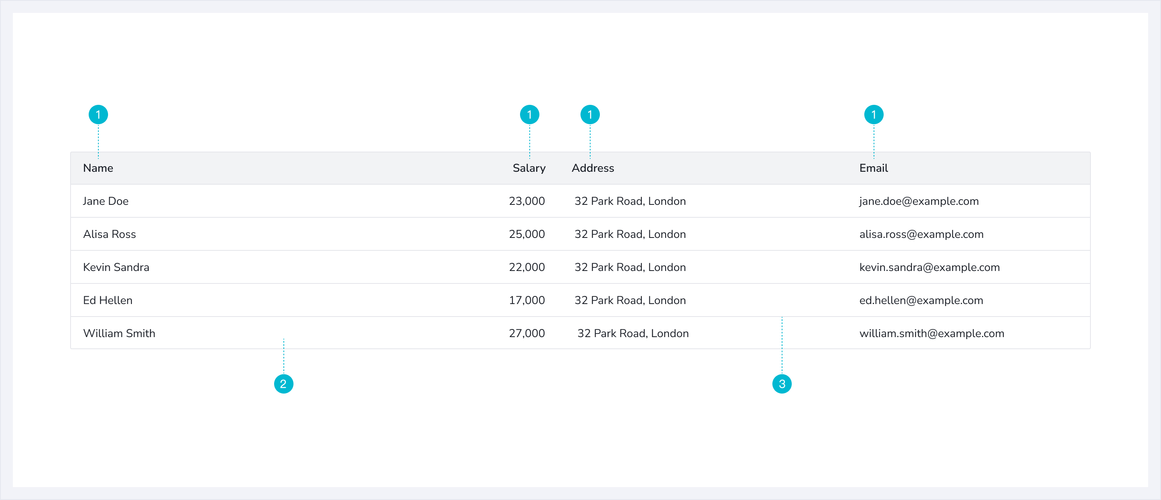
If you need to generate a table that looks like a table in a PDF, FPDF2 is a very simple and effective library.
Step 1: Install the Library
pip install fpdf2
Step 2: Basic Code to Create a PDF Table
This script creates a PDF with a table, handling text that might be too long for a column by wrapping it.
from fpdf import FPDF
import os
# Data for the table
data = [
    ["Name", "Age", "City"],
    ["Alice Smith", "30", "New York"],
    ["Bob Johnson", "45", "Los Angeles"],
    ["A very long name that will likely wrap to the next line", "28", "Chicago"],
]
# Create a PDF object
pdf = FPDF()
pdf.add_page()
pdf.set_font("Helvetica", size=12)
# Calculate column widths (you can adjust these)
col_widths = [60, 20, 60]
# --- Add table content ---
# Add header
for i, header in enumerate(data[0]):
    pdf.cell(col_widths[i], 10, txt=header, border=1, ln=0, align='C')
pdf.ln() # Move to the next line
# Add data rows
for row in data[1:]:
    for i, item in enumerate(row):
        # cell(w, h, txt, border, ln, align)
        pdf.cell(col_widths[i], 10, txt=item, border=1, ln=0, align='L')
    pdf.ln() # Move to the next line
# Save the PDF
pdf.output("my_table.pdf")
print("PDF document 'my_table.pdf' created successfully.")
Scenario 3: Creating Tables for Console / Jupyter Notebooks
Often, you just want to display data in a nice table format in your terminal or a Jupyter Notebook. The tabulate library is perfect for this.
Step 1: Install the Library
pip install tabulate
Step 2: Basic Code to Display a Table
This script takes a Python list of lists and prints it as a formatted table in the console.
from tabulate import tabulate
# Data for the table (list of lists)
data = [
    ["Product ID", "Product Name", "Price"],
    ["P001", "Laptop", "$1200"],
    ["P002", "Mouse", "$25"],
    ["P003", "Keyboard", "$75"],
    ["P004", "Monitor", "$300"],
]
# Define the headers
headers = ["ID", "Name", "Cost"]
# Print the table
# 'grid' is a nice table format. Other options: 'plain', 'simple', 'github', 'fancy_grid'
print(tabulate(data, headers=headers, tablefmt="grid"))
Output in the Console:
+-------------+---------------+--------+
 ID           Name            Cost
+=============+===============+========+
 Product ID   Product Name    $1200
 P001         Laptop          $25
 P002         Mouse           $75
 P003         Keyboard        $300
 P004         Monitor
+-------------+---------------+--------+
Summary and Recommendation
| Goal | Recommended Library | Key Feature |
|---|---|---|
Create a .docx file with a table |
python-docx |
Directly manipulates Microsoft Word documents. Best for generating reports in the .docx format. |
Create a .pdf file with a table |
FPDF2 |
Simple, pure-PDF generation. Great for creating invoices, reports, or any document that needs to be a PDF. |
| Display data in a terminal or notebook | tabulate |
Extremely easy to use for printing Python data structures (lists, NumPy arrays, Pandas DataFrames) beautifully. |
For most "I need to make a table in a Word file" requests, python-docx is the answer. For displaying data quickly during development, tabulate is unbeatable.