Of course! Understanding the relationship between Maven and the Java Home (JAVA_HOME) is fundamental for any Java developer. Here’s a comprehensive breakdown.
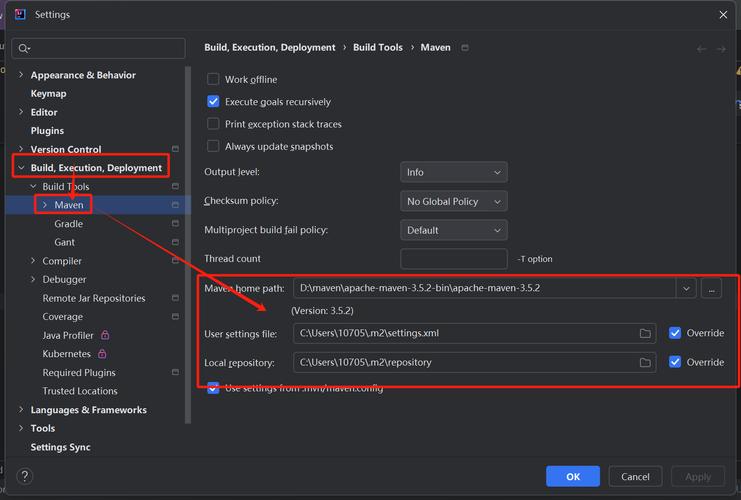
The Short Answer (TL;DR)
Maven needs JAVA_HOME to be set correctly on your system. This environment variable tells Maven where to find the Java Development Kit (JDK). Without it, Maven cannot compile your code, run tests, or package your application.
What is JAVA_HOME?
JAVA_HOME is an environment variable that acts as a pointer to the root directory of your JDK installation.
- Purpose: It provides a standard, system-wide way for other applications (like Maven, Tomcat, Gradle, your IDE) to find the Java compiler (
javac), the Java Virtual Machine (java), and other essential Java tools. - Value: The path to the JDK's installation directory, not the
bindirectory inside it.
Example Path (on Windows):
C:\Program Files\Java\jdk-17.0.2
Example Path (on macOS/Linux):
/Library/Java/JavaVirtualMachines/jdk-17.0.2.jdk/Contents/Home or /usr/lib/jvm/java-17-openjdk-amd64
Why Does Maven Need JAVA_HOME?
Maven is a build automation tool written in Java itself. To perform its core tasks, it must:
- Start its own JVM: Maven runs as a Java application.
- Compile your source code: It needs to execute the Java compiler (
javac). - Run tests: It needs the JVM to execute your JUnit or other test classes.
- Generate documentation: It uses tools from the JDK like
javadoc.
Maven doesn't know where Java is installed on your machine. It relies on the JAVA_HOME variable to locate the JDK and use its tools.
How to Check and Set JAVA_HOME
If Maven is not working (e.g., you get errors like "Unable to locate the Javac Compiler" or "JAVA_HOME is not defined correctly"), this is the first thing to check.
Step 1: Check if JAVA_HOME is Set and Correct
Open a new terminal or command prompt and run:
echo $JAVA_HOME
(On Windows Command Prompt, use echo %JAVA_HOME%)
- If it prints a path: You have
JAVA_HOMEset. Verify the path is correct and points to a JDK (not just a JRE). - If it prints nothing or is not recognized:
JAVA_HOMEis not set or not in your system's PATH. You need to set it.
Step 2: Verify the JDK Installation
Make sure you have a JDK installed and know its location. You can check with:
java -version
javac -version
Both commands should show the same version (e.g., 0.2). If javac is not found, you likely only have a JRE (Java Runtime Environment), which is not sufficient for development. You need to install a JDK.
Step 3: Set JAVA_HOME (Choose Your OS)
On Windows
- Find your JDK path: Look in
C:\Program Files\Java\for a folder likejdk-17.0.2. - Set the System Variable:
- Press the Windows key and search for "Environment Variables".
- Click on "Edit the system environment variables".
- In the System Properties window, click the "Environment Variables..." button.
- Under "System variables", click "New...".
- Variable name:
JAVA_HOME - Variable value: The path to your JDK (e.g.,
C:\Program Files\Java\jdk-17.0.2). - Click OK on all windows.
- Update the PATH:
- In the same "Environment Variables" window, find the
Pathvariable under "System variables" and click "Edit...". - Click "New" and add the path to your JDK's
bindirectory:%JAVA_HOME%\bin. - Move this new entry to the top of the list to ensure it's found first.
- In the same "Environment Variables" window, find the
- Restart your terminal and verify with
echo %JAVA_HOME%.
On macOS (using Homebrew)
If you installed Java via Homebrew, it's usually handled automatically, but you can verify.
-
Find your JDK path:
/usr/libexec/java_home -V
This will list all installed JDKs and their paths. Note the one you want to use (e.g.,
Library/Java/JavaVirtualMachines/openjdk-17.jdk/Contents/Home). -
Set it in your shell profile: Open your shell configuration file (e.g.,
~/.zshrcfor Zsh, which is default on modern macOS, or~/.bash_profilefor Bash).# Open the file in an editor like nano or vim nano ~/.zshrc
Add the following line to the end of the file, replacing the path with the one from the previous command:
export JAVA_HOME=$(/usr/libexec/java_home)
This command is dynamic and will always point to your active JDK.
-
Apply the changes:
source ~/.zshrc
-
Verify:
echo $JAVA_HOME
On Linux (Debian/Ubuntu)
-
Install OpenJDK (if not already installed):
sudo apt update
sudo apt install openjdk-17-jdk
-
Set it in your shell profile: Open your shell configuration file (e.g.,
~/.bashrcor~/.profile).nano ~/.bashrc
Add the following line. The path is often standard on Linux:
export JAVA_HOME=/usr/lib/jvm/java-17-openjdk-amd64
You may need to find the exact path using
update-java-alternatives -lorls /usr/lib/jvm/. -
Apply the changes:
source ~/.bashrc
-
Verify:
echo $JAVA_HOME
What if JAVA_HOME is Still Not Working for Maven?
Sometimes, even if JAVA_HOME is set correctly, Maven might not pick it up. Here are the most common solutions:
Solution 1: Use the MAVEN_OPTS Environment Variable
You can explicitly tell Maven which JVM to use by setting MAVEN_OPTS. This is useful for specifying a different JDK than the system default.
# Example to set Maven to use Java 17
export MAVEN_OPTS="-Djava.home=/path/to/your/jdk-17"
Add this line to your shell profile (.bashrc, .zshrc, etc.) to make it permanent.
Solution 2: Use the maven.config File
Create a file named maven.config in your Maven home directory (~/.m2/ on Linux/macOS, %USERPROFILE%\.m2\ on Windows) or in the root of your project. Add the following line:
-Djava.home=/path/to/your/jdk-17Solution 3: The -Dmaven.multiModuleProjectDirectory Flag
In some complex scenarios, Maven can get confused about its working directory. You can force it by starting Maven with this flag:
mvn -Dmaven.multiModuleProjectDirectory=`pwd` clean install
Solution 4: Check Your IDE's Configuration
If you're running Maven from an IDE like IntelliJ or Eclipse, the IDE has its own internal JDK configuration. The IDE might be using a different JDK than what your system's JAVA_HOME points to.
- IntelliJ:
File->Project Structure->Project-> check theSDKsetting. - Eclipse:
Window->Preferences->Java->Installed JREs-> ensure the correct JRE/JDK is checked.
Summary: Key Takeaways
| Concept | Description |
|---|---|
JAVA_HOME |
An environment variable pointing to the root of your JDK installation. |
| Why it's needed | Maven uses it to find javac, java, and other JDK tools to compile and run code. |
| How to set it | Define the variable in your system's environment settings and add %JAVA_HOME%\bin to your PATH. |
| JDK vs. JRE | You need a JDK (Java Development Kit). A JRE (Java Runtime Environment) is not enough because it lacks javac. |
| Troubleshooting | If Maven fails, check JAVA_HOME, try MAVEN_OPTS, check your IDE's settings, or use the -D flag. |