Of course! "Python Windows PS" is a great combination. It typically refers to using Python to interact with and manage Windows systems, often in ways that complement or enhance PowerShell.

Let's break this down into the most common use cases and provide practical examples.
Running PowerShell Commands from Python
This is the most direct interpretation. You can execute any PowerShell command or script from within a Python script using Python's subprocess module.
Why do this?
- Automation: Run complex system administration tasks from a Python script.
- Data Extraction: Get system information from PowerShell and process it in Python (e.g., parse JSON output).
- Leverage Existing Scripts: Use existing PowerShell scripts without rewriting them in Python.
How to do it: The subprocess Module
The subprocess module is the standard way to run external commands.
Example 1: Get the current Windows user
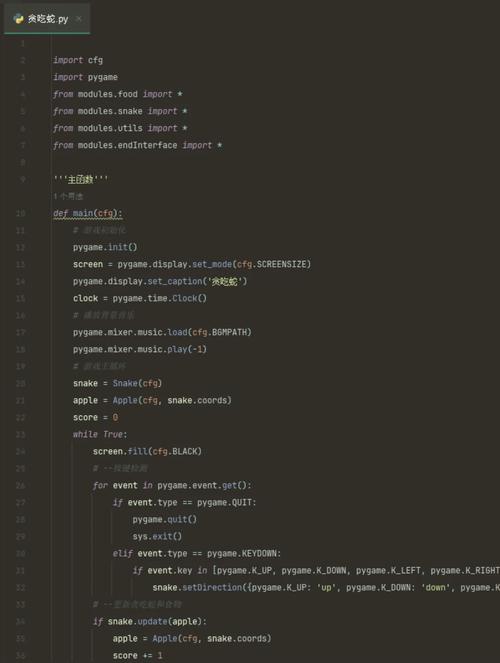
import subprocess
# The command to run
command = "whoami"
# Execute the command
# shell=True is needed on Windows to correctly interpret commands like 'whoami'
process = subprocess.run(command, shell=True, capture_output=True, text=True, check=True)
# Print the output
print(f"Current user: {process.stdout.strip()}")
Example 2: Get a list of running processes (and parse the output)
PowerShell's Get-Process is more powerful than the command line tasklist. We can ask it to output in JSON format, which is very easy for Python to parse.
import subprocess
import json
# The command to run, asking for JSON output
command = "Get-Process | ConvertTo-Json -Depth 1"
# Execute the command
process = subprocess.run(command, shell=True, capture_output=True, text=True, check=True)
# Parse the JSON output into a Python list of dictionaries
processes = json.loads(process.stdout)
# Now you can work with the data in Python
print(f"Found {len(processes)} running processes.")
print("-" * 30)
# Print the name and ID of the first 5 processes
for p in processes[:5]:
    print(f"Name: {p['ProcessName']}, ID: {p['Id']}")
Example 3: Passing arguments to a PowerShell script
Let's say you have a PowerShell script Get-ServiceStatus.ps1 that takes a service name as a parameter.
import subprocess
# The PowerShell script and its argument
script_path = "C:\\Scripts\\Get-ServiceStatus.ps1"
service_name = "spooler" # The Print Spooler service
# Construct the command. Note the '&' to execute the script.
command = f"& '{script_path}' -ServiceName '{service_name}'"
# Execute the command
try:
    process = subprocess.run(command, shell=True, capture_output=True, text=True, check=True)
    print(process.stdout)
except subprocess.CalledProcessError as e:
    print(f"Error executing script: {e}")
    print(f"Error output: {e.stderr}")
Using Python Libraries for Windows Administration
Instead of calling PowerShell, you can use pure Python libraries designed to interact with the Windows API. This is often cleaner and more "Pythonic."
Key Libraries:
pywin32: The most comprehensive library. It's a Python wrapper for the Windows COM (Component Object Model) API. You can control almost anything in Windows that can be automated.WMI: A library to interact with Windows Management Instrumentation (WMI), which is the underlying technology PowerShell often uses for system information.
Example 1: Get disk space using pywin32
import win32file
import win32api
# Get a list of all drives on the system
drives = win32api.GetLogicalDriveStrings().split('\000')[:-1]
print("Disk Space Information:")
print("-" * 30)
for drive in drives:
    try:
        # Get free space on the drive (in bytes)
        free_bytes, total_bytes, free_bytes_per_cluster, total_clusters, available_clusters, sectors_per_cluster, bytes_per_sector = win32file.GetDiskFreeSpaceEx(drive)
        total_gb = total_bytes / (1024**3)
        free_gb = free_bytes / (1024**3)
        print(f"Drive: {drive}")
        print(f"  Total Size: {total_gb:.2f} GB")
        print(f"  Free Space: {free_gb:.2f} GB")
        print("-" * 30)
    except Exception as e:
        print(f"Could not get info for {drive}: {e}")
Example 2: Get installed software using WMI
This is a classic WMI query that lists all installed programs.
import wmi
# Initialize the WMI connection
c = wmi.WMI()
print("Installed Software:")
print("-" * 30)
# Query for Win32_Product (this can be slow)
# For a faster query, you might use Win32_QuickFixEngineering for hotfixes
for software in c.Win32_Product():
    # Print only the first 10 to avoid flooding the console
    if len(software.Caption) > 0:
        print(f"- {software.Caption} (Version: {software.Version})")
        # Break after 10 items for brevity
        # if count >= 10: break
Using PowerShell Cmdlets Directly with pypsrp
This is a more advanced but very powerful approach. pypsrp is a library that implements the PowerShell Remoting Protocol (PSRP). This allows you to connect to a PowerShell engine (local or remote) and run commands natively, just like PowerShell does.
Why use this?
- Native Execution: It's not just
subprocess.call. It understands PowerShell objects, pipelines, and error handling. - Remote Management: You can manage remote Windows machines seamlessly.
- No Shell Escape Issues: You don't need to worry about shell injection vulnerabilities when passing parameters.
Example: Running a command with pypsrp
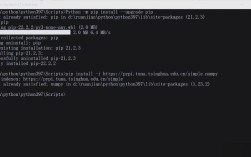
# First, install the library: pip install pypsrp
from pypsrp.client import Client
from pypsrp.shell import PowerShell, RunspacePool
# Connect to the local PowerShell engine
# For a remote machine, specify hostname and credentials
client = Client("localhost")
# Create a runspace pool (a session to run PowerShell commands)
with RunspacePool(client) as pool:
    # Create a PowerShell object within the runspace
    ps = PowerShell(pool)
    # Add a command to the pipeline
    ps.add_command("Get-Service")
    ps.add_parameter("Name", "bits") # Get the Background Intelligent Transfer Service
    # Invoke the command and get the results
    results = ps.invoke()
    # The results are PowerShell objects, which are easy to work with
    print(f"Service Name: {results[0].Name}")
    print(f"Display Name: {results[0].DisplayName}")
    print(f"Status: {results[0].Status}")
    # You can also run multiple commands in the same session
    ps.commands.clear()
    ps.add_script("$PSVersionTable.PSVersion")
    version_results = ps.invoke()
    print(f"\nPowerShell Version: {version_results[0].Major}.{version_results[0].Minor}")
Summary: Which one should you use?
| Method | Best For | Pros | Cons |
|---|---|---|---|
subprocess |
Quick tasks, leveraging existing .ps1 scripts, simple automation. |
Simple to use, no extra installation needed (built-in), can run any command. | Output is just text (requires parsing), slower due to process creation, less robust error handling. |
pywin32 / WMI |
Direct, low-level control of Windows components, performance-critical tasks. | Native Python objects, very powerful, can access parts of Windows not available via CLI. | Steeper learning curve, requires installing pywin32, can be complex for simple tasks. |
pypsrp |
Advanced automation, remote management, native PowerShell object handling. | Most powerful and "correct" way, handles objects and errors like PowerShell, great for remoting. | More complex setup, requires pypsrp library, overkill for simple commands. |
For most users starting out, subprocess is the perfect tool. When you find yourself parsing complex text output or need more direct control, it's time to explore pywin32. If you're building a serious automation framework or need to manage remote machines, pypsrp is the way to go.