Of course! Using qsub to submit Python scripts to a high-performance computing (HPC) cluster is a very common and powerful workflow. Here’s a comprehensive guide covering everything from the basics to advanced techniques.
The Core Idea
The workflow is simple:
- Write your Python script (
my_script.py). It should be self-contained and handle its own input/output. - Write a submission script (e.g.,
submit.sh). This script tells the cluster's scheduler (qsub) what resources you need (CPU, memory, time) and which command to run (e.g.,python my_script.py). - Submit the job to the cluster:
qsub submit.sh. - Monitor the job and retrieve its output.
Step 1: Write Your Python Script
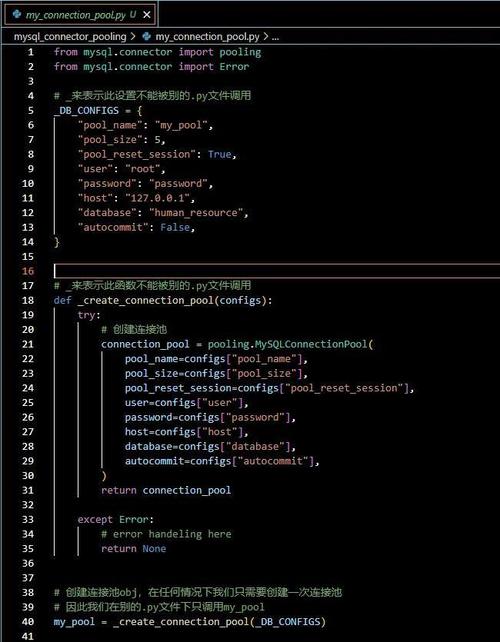
Your Python script should be designed to run non-interactively. The most important thing is to handle file I/O, as you won't have a terminal to type input or see the output directly.
Example: my_script.py
import time
import random
import sys
# --- 1. Handle Input/Output ---
# Read arguments from the command line. sys.argv[0] is the script name.
# sys.argv[1] will be the first argument, etc.
try:
    num_tasks = int(sys.argv[1])
    output_file = sys.argv[2]
except IndexError:
    print("Usage: python my_script.py <num_tasks> <output_file>")
    sys.exit(1)
print(f"Starting simulation with {num_tasks} tasks...")
# --- 2. Do the Work ---
results = []
for i in range(num_tasks):
    # Simulate some work
    time.sleep(random.uniform(0.1, 1.0))
    result = i ** 2
    results.append(result)
    print(f"Completed task {i+1}/{num_tasks}, result: {result}")
# --- 3. Save the Results ---
# Write results to a file. This is crucial!
with open(output_file, 'w') as f:
    f.write("TaskID,Result\n")
    for i, res in enumerate(results):
        f.write(f"{i+1},{res}\n")
print(f"All tasks finished. Results saved to {output_file}")
Key Points:
- Arguments: Use
sys.argvorargparseto pass input files, parameters, and output filenames to your script. - Output: Always print important information and save your final results to a file. The standard output (
stdout) and standard error (stderr) of your script will be captured by the job scheduler and saved in output files.
Step 2: Write the Submission Script (submit.sh)
This is the script that qsub actually executes. Its job is to set up the environment and launch your Python script.
Basic Example: submit.sh
#!/bin/bash
# --- Job Directives (for the scheduler) ---
# These are special comments that qsub recognizes.
# Give the job a name
#PBS -N MyPythonJob
# Request 1 hour of wall time
#PBS -l walltime=01:00:00
# Request 1 node and 4 cores on that node
#PBS -l nodes=1:ppn=4
# Join standard output and standard error into one file
#PBS -j oe
# --- Job Script Body (executed by the shell) ---
# 1. Load necessary modules
# This is CRITICAL. You must load the Python module you need.
module load python/3.9
# 2. Go to the directory where you submitted the job
# This ensures your script runs from the correct location.
cd $PBS_O_WORKDIR
# 3. Run your Python script
# Pass command-line arguments as needed.
python my_script.py 100 results.txt
echo "Job finished."
Explanation of Directives (#PBS ...)
| Directive | Explanation | Example |
|---|---|---|
#PBS -N JobName |
Sets the name of your job. Shows up in qstat. |
#PBS -N MyAnalysis |
#PBS -l walltime=HH:MM:SS |
Sets the maximum runtime for the job. The job will be killed if it exceeds this. | #PBS -l walltime=24:00:00 |
#PBS -l nodes=X:ppn=Y |
Nodes & Processors. X is the number of nodes. ppn (processors per node) is Y. For a single-node, multi-core job, this is common. |
#PBS -l nodes=1:ppn=16 (1 node, 16 cores) |
#PBS -j oe |
Output/Error Handling. o for stdout, e for stderr. oe merges them into one file named after the job ID (e.g., MyPythonJob.o123456). |
#PBS -j oe |
#PBS -o my_output.log |
Specifies a custom name for the output file. | #PBS -o my_output.log |
#PBS -q queue_name |
Submits the job to a specific queue (e.g., short, long, gpu). Queues have different limits and priorities. |
#PBS -q short |
#PBS -m abe |
Email Notifications. a=abort, b=begin, e=end. Send email at these times. |
#PBS -m abe |
#PBS -M your.email@example.com |
Sets the email address for notifications. | #PBS -M user@uni.edu |
Step 3: Submit and Manage the Job
-
Submit the Job: Make sure both
my_script.pyandsubmit.share in the same directory.# Make the submission script executable (good practice) chmod +x submit.sh # Submit the job qsub submit.sh
You will get back a Job ID, like
123456. Save this ID! -
Check Job Status: Use
qstatto see the status of your jobs. (图片来源网络,侵删)
# See all your jobs qstat # See a specific job qstat 123456 # See all jobs from all users (often requires admin rights) qstat -a
Common
qstatStates:Q: Queued - waiting for resources.R: Running - currently executing.C: Completed - finished successfully.E: Exiting - being removed from the system after completion.H: Held - suspended, not running.
-
Delete a Job: If you made a mistake or need to cancel a job.
qdel 123456
-
Retrieve Output: Once the job is complete (state
C), the output files will be in the directory where you submitted the job.- If you used
#PBS -j oe, the output will be in a file likeMyPythonJob.o123456. - If you used
#PBS -o my_output.log, it will be inmy_output.log.
You can
catorlessthese files to see theprintstatements from your Python script. - If you used
Advanced Topics
Array Jobs (Running Many Similar Tasks)
If you need to run the same script with many different parameters, array jobs are perfect. They are far more efficient than submitting thousands of individual jobs.
Example: submit_array.sh
#!/bin/bash
#PBS -N MyArrayJob
#PBS -l walltime=01:00:00
#PBS -l nodes=1:ppn=4
#PBS -j oe
module load python/3.9
cd $PBS_O_WORKDIR
# The magic is here:
# $PBS_ARRAYID will be a number from 1 to 100 for each sub-job.
# We use it to generate a unique output file for each task.
python my_script.py 100 results_${PBS_ARRAYID}.txt
Submitting an Array Job:
The -t option specifies the range of array indices.
# Run 100 tasks, with IDs from 1 to 100
qsub -t 1-100 submit_array.sh
The scheduler will run 100 "sub-jobs" under the single job ID MyArrayJob. You can see them with qstat as MyArrayJob[1], MyArrayJob[2], etc.
Requesting Specific Resources (e.g., GPUs)
If your Python script uses TensorFlow, PyTorch, or another library that needs a GPU, you must request it in your submission script.
Example: submit_gpu.sh
#!/bin/bash
#PBS -N MyGPUJob
#PBS -l walltime=04:00:00
#PBS -l nodes=1:ppn=4:gpus=1  # Request 1 node, 4 cores, and 1 GPU
#PBS -j oe
# Load the CUDA module (required for GPU support)
module load cuda/11.8
# Load your Python environment (e.g., from a virtual environment or conda)
# module load anaconda
# source activate my-tensorflow-env
cd $PBS_O_WORKDIR
python my_gpu_script.py
The exact syntax for requesting GPUs (gpus=1, accelerator=gpu, etc.) depends on your cluster's scheduler (PBS/Torque vs. SLURM). Check your cluster's documentation.
Using Virtual Environments (Conda/Venv)
It's highly recommended to use a virtual environment to manage your Python packages.
Method A: Conda (Recommended)
# In your submit.sh
module load anaconda  # Or miniconda
source activate my-env # Activate your pre-made environment
python my_script.py ...
Method B: Virtual Environment
# In your submit.sh
module load python/3.9
source /path/to/your/venv/bin/activate # Full path to activate script
python my_script.py ...
You must create the environment once on the login node before submitting the job. The environment will be available on the compute nodes because your home directory is typically shared across all nodes.