Of course! The command java -d eclipse is a common point of confusion because it's not a single, built-in command. It's actually a combination of two separate tools:
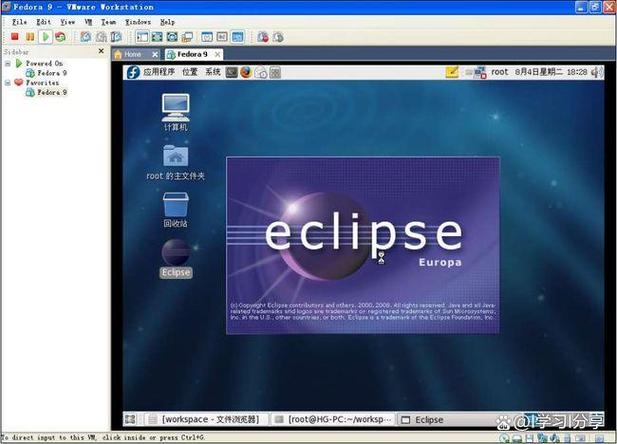
javac: The Java compiler.- Eclipse IDE: A popular development environment.
Let's break down what this combination means and how you use it.
The Core Idea: What java -d eclipse Really Means
The -d flag is a command-line option for the Java compiler (javac), not for the java virtual machine.
javac: Compiles your.javasource files into.classbytecode files.-d: Specifies the destination directory where the compiled.classfiles should be placed.
So, javac -d eclipse is telling the compiler: "Compile my source files and place all the resulting .class files into a directory named eclipse."
The "eclipse" part is just a directory name you've chosen. It's not a special keyword for the Eclipse IDE itself.
Why Would You Do This? The Scenario
You typically use javac -d when you want to organize your compiled output separately from your source code. This is exactly what Eclipse does by default.
Here's a typical project structure that both Eclipse and the javac -d command create:
my-project/
├── src/          <-- Your Java source code (.java files)
│   └── com/
│       └── mycompany/
│           └── Main.java
└── bin/          <-- Your compiled bytecode (.class files)
    └── com/
        └── mycompany/
            └── Main.class
In this structure:
src/is for your human-readable source files.bin/is for the machine-readable bytecode that the Java Virtual Machine (JVM) executes.
The javac -d bin command helps you automate the creation of this bin/ directory and populate it correctly.
Step-by-Step Example: Using javac -d
Let's walk through compiling a simple project from the command line to see how it works.
Project Setup
First, create the directory structure and the source file.
# Create the main project and source directories
mkdir my-project
cd my-project
mkdir src
# Create the package directory structure inside src
mkdir -p src/com/mycompany
# Create the Java source file
echo "package com.mycompany;
public class Main {
    public static void main(String[] args) {
        System.out.println(\"Hello from the command line!\");
    }
}" > src/com/mycompany/Main.java
Your directory now looks like this:
my-project/
└── src/
    └── com/
        └── mycompany/
            └── Main.java
Compile with javac -d
Now, use the javac command with the -d flag. We'll tell it to create a bin directory for the output.
# Compile the source code from the src directory
# and place the output in a new 'bin' directory.
javac -d bin src/com/mycompany/Main.java
What this command does:
javac: Invokes the Java compiler.-d bin: Tells the compiler to create abindirectory (if it doesn't exist) and place all compiled.classfiles inside it, preserving the package structure (com/mycompany/).src/com/mycompany/Main.java: The source file to compile.
Verify the Output
After running the command, check your directory structure again. You will see a new bin directory with the compiled class file inside.
# List the contents of the project directory
ls -R
The output will be:
.:
bin  src
./bin:
com
./bin/com:
mycompany
./bin/com/mycompany:
Main.class
./src:
com
./src/com:
mycompany
./src/com/mycompany:
Main.java
Perfect! The javac compiler has correctly created the bin directory and placed Main.class inside com/mycompany/, mirroring the package structure of the source file.
Run the Compiled Code
You can now run your compiled program from the command line using the java command. You must tell the java command where to find your compiled classes using the -classpath (or -cp) flag.
# Run the Main class, telling java to look in the 'bin' directory for classes
java -classpath bin com.mycompany.Main
Output:
Hello from the command line!The Role of Eclipse
Eclipse automates this entire process for you.
-
Eclipse Project Structure: When you create a Java project in Eclipse, it creates a similar structure by default. It usually has a
srcfolder for source and abinfolder (hidden from the "Package Explorer" view but used internally) for compiled output. -
Automatic Compilation: As you type code in Eclipse, its Java Compiler runs in the background (this is called "building"). It automatically finds your source files, compiles them, and places the
.classfiles in the correct output folder (e.g.,bin). -
How Eclipse uses
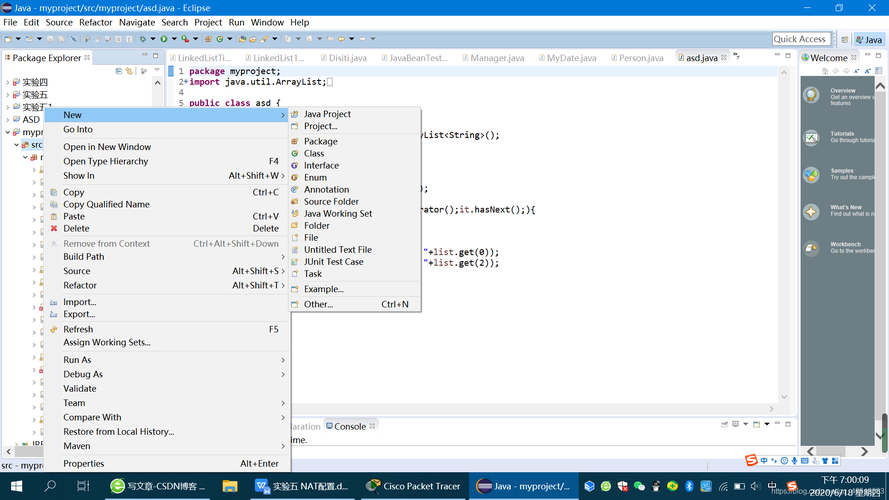
-d: Under the hood, the Eclipse compiler is using a-d-like mechanism to determine where to put the compiled files. You can configure this output folder in your project's properties:- Right-click your project -> Properties -> Java Build Path -> Source tab.
- You can see and modify the "Default output folder" there.
Summary
| Command/Tool | Purpose | Example |
|---|---|---|
javac -d <dir> |
Manual compilation from the command line. Compiles .java files and places the resulting .class files into a specified <dir>, preserving package structure. |
javac -d bin src/com/MyApp.java |
| Eclipse IDE | Automated development environment. Manages your project, automatically compiles code on save, and organizes source and output files for you. | (No direct command, it's a GUI application) |
So, when someone says "use java -d eclipse", they are almost certainly referring to the manual command-line process of compiling Java code with javac -d eclipse to prepare it for an Eclipse project, or they are just being imprecise and mean "compile my code for use in an Eclipse project."