Of course! Here is a comprehensive guide to using pip on Windows, from installation to common tasks and troubleshooting.
What is pip?
pip is the official package manager for Python. Think of it like the App Store for Python. It allows you to easily install, upgrade, and manage third-party libraries and packages that are not part of Python's standard library.
For example, if you want to use a powerful data analysis library like Pandas or a web framework like Django, you would use pip to install them.
Part 1: Installing pip (If you don't have it)
Most modern Python installations for Windows include pip by default. However, it's good to know how to check and install it if necessary.
Step 1: Check if pip is Already Installed
- Open the Command Prompt or PowerShell. You can search for "cmd" or "powershell" in the Start Menu.
- Type the following command and press Enter:
pip --version
- If you see something like this, you're all set!
pipis installed.pip 23.2.1 from C:\Users\YourUser\AppData\Local\Programs\Python\Python311\Lib\site-packages\pip (python 3.11) - If you get an error like
'pip' is not recognized..., it means eitherpipisn't installed or Windows doesn't know where to find it. Proceed to the next step.
Step 2: Ensure Python is in Your System's PATH
This is the most common reason pip isn't found. The PATH is a list of directories that Windows searches for programs. If Python's Scripts directory isn't in the PATH, Windows can't find pip.exe.
- Find your Python installation path. It's usually something like
C:\Users\YourUser\AppData\Local\Programs\Python\Python311\. - Add Python to PATH. The easiest way to do this is during installation, but you can do it afterward.
- If you haven't installed Python yet: Go to the Python for Windows website, download the installer, and on the first screen, make sure to check the box that says "Add Python to PATH".
- If Python is already installed:
- Open the Start Menu, search for "Edit the system environment variables", and open it.
- Click the "Environment Variables..." button.
- In the "System variables" section (the bottom half), find the
Pathvariable, select it, and click "Edit...". - Click "New" and add the path to your Python installation (e.g.,
C:\Users\YourUser\AppData\Local\Programs\Python\Python311\). - Click "New" again and add the path to your Python Scripts folder (e.g.,
C:\Users\YourUser\AppData\Local\Programs\Python\Python311\Scripts\). This is crucial forpip. - Click OK on all the windows to save.
- Close and reopen your Command Prompt or PowerShell window.
- Try the
pip --versioncommand again. It should now work.
Step 3: Install pip Manually (If needed)
If Python is in your PATH but pip is still missing, you can download it.
- Go to the pip download page.
- Right-click on the page and select "Save As..." to save the file as
get-pip.pyin a convenient location like yourDownloadsfolder. - Open Command Prompt or PowerShell and navigate to that folder:
cd Downloads
- Run the script using your Python interpreter. It's best to be explicit and use
pythonorpy:python get-pip.py
or
py get-pip.py
This will download and install
pipfor you.
Part 2: Using pip for Common Tasks
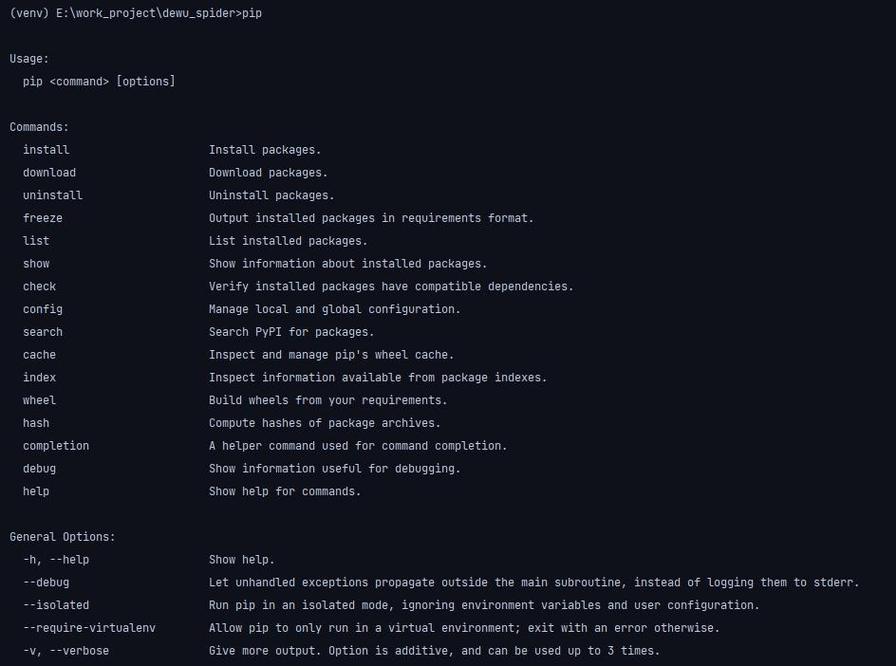
Once pip is working, here are the essential commands.
Install a Package
This is the most common task. Let's install the requests library, which is used for making HTTP requests.
pip install requests
To install a specific version:
pip install requests==2.28.1
To install from a requirements.txt file (a best practice for projects):
pip install -r requirements.txt
Upgrade a Package
If a new version of a package is released, you can upgrade it.
pip install --upgrade requests
Or use the shorter -U flag:
pip install -U requests
Uninstall a Package
When you no longer need a package, you can remove it.
pip uninstall requests
You will be prompted to confirm the uninstallation.
List Installed Packages
See all the packages you have installed.
pip list
Show Package Information
Get detailed information about a specific package, like its location, version, and dependencies.
pip show requests
Generate a requirements.txt File
This is extremely useful for sharing your project with others. It creates a file listing all your installed packages and their versions.
pip freeze > requirements.txt
Now you have a requirements.txt file that you can commit to version control (like Git) and share with your team.
Part 3: Troubleshooting Common Issues
Issue 1: 'pip' is not recognized as an internal or external command...
- Cause: Python's
Scriptsdirectory is not in your system'sPATHenvironment variable. - Solution: Follow the steps in Part 1, Step 2 to add Python and its
Scriptsfolder to your PATH.
Issue 2: ERROR: Could not find a version that satisfies the requirement <package-name> (from versions: none)
- Cause: You are likely trying to install a package that doesn't exist or has a typo.
- Solution:
- Double-check the package name for typos.
- Use
pip search <package-name>(though this command is sometimes unreliable) or search on the Python Package Index (PyPI) to ensure the package exists.
Issue 3: ERROR: Could not install packages due to an OSError: [Errno 2] No such file or directory: 'C:\\...\\_nsis.py'
- Cause: This is a common issue on Windows where the
pipinstallation files are corrupted or incomplete. The_nsis.pyfile is part of the installation process. - Solution:
- The most reliable fix is to uninstall Python completely, download the latest installer from the official Python website, and reinstall it, making sure to check "Add Python to PATH".
- If you can't reinstall, try running the
get-pip.pyscript again as described in Part 1, Step 3.
Issue 4: Permission Errors (e.g., Access is denied)
- Cause: You are trying to install a package globally (for all users) but don't have administrator privileges.
- Solution (Recommended): Install packages for your user account only. This avoids permission issues and doesn't require admin rights. Use the
--userflag:pip install --user requests
This installs the package into your user-specific site-packages directory, which is already in your PATH.
Part 4: pip vs. py -m pip
You might see people use py -m pip instead of just pip.
pip install requests: This command relies on thepipexecutable being in your system's PATH.py -m pip install requests: This command uses thepylauncher (which is standard on modern Windows) to find your Python installation and then runs thepipmodule from within it.
Why use py -m pip?
- Reliability: It's more robust because it doesn't depend on the PATH being set up correctly for
pip.exe. It always uses thepipassociated with the Python version you specify (e.g.,py -3.11 -m pip). - Best Practice: Many developers and Python documentation recommend this method to avoid ambiguity, especially when you have multiple Python versions installed.
For most day-to-day use, pip is fine. But if you run into strange issues, try py -m pip.