Of course! Here is a comprehensive guide to using pytesseract in Python, covering everything from installation to advanced techniques and best practices.
What is pytesseract?
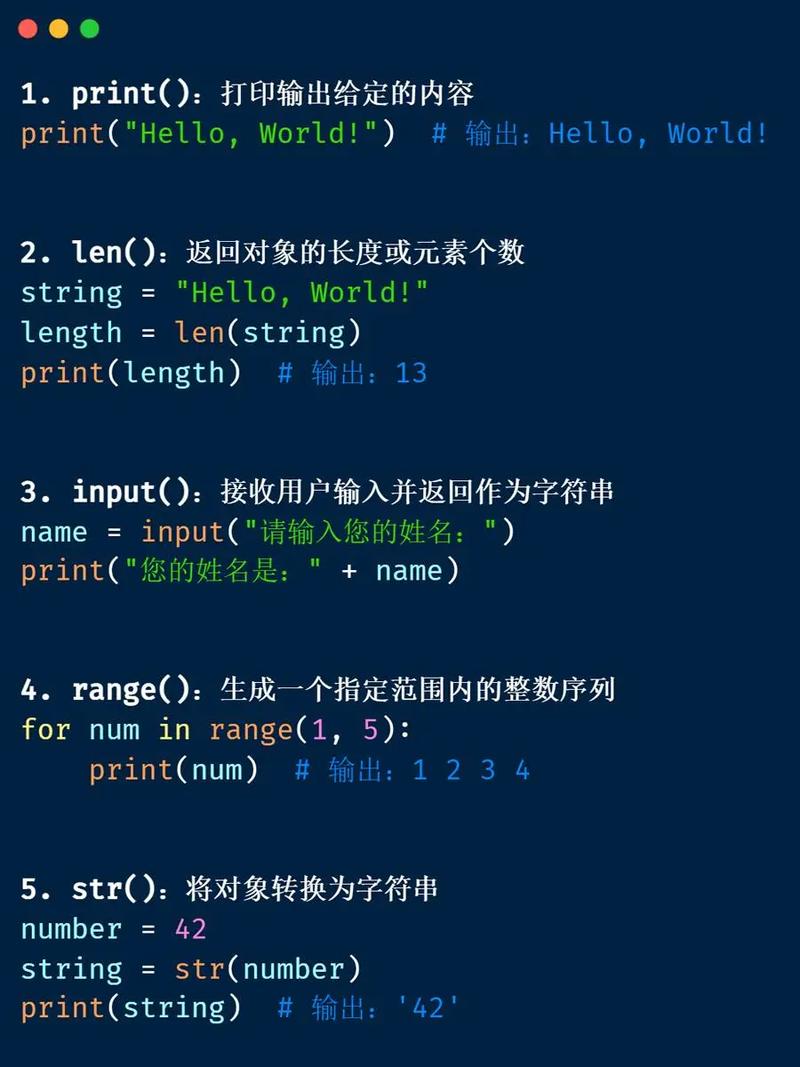
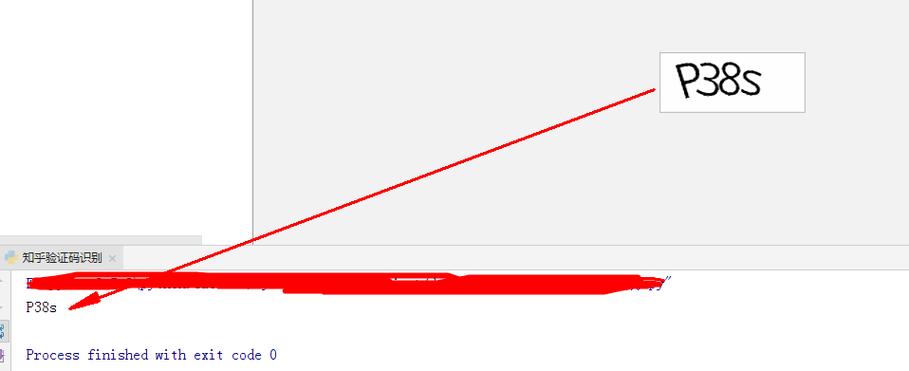
pytesseract is a Python wrapper for Google's Tesseract-OCR Engine. Tesseract is one of the most powerful and accurate open-source OCR engines available. It can read text from images and convert it into a machine-readable string format.
pytesseract makes it incredibly easy to use Tesseract's capabilities directly within your Python scripts.
Installation
You need to install two things: the Tesseract OCR engine itself and the Python wrapper library.
Step 1: Install the Tesseract OCR Engine
You must install Tesseract on your system before installing the Python package.
-
Windows:
- Download the installer from the Tesseract at UB Mannheim page.
- Run the installer. Crucially, during the installation, make sure to note the installation path (e.g.,
C:\Program Files\Tesseract-OCR) and check the box that addstesseract.exeto your system's PATH environment variable. This will make it easy forpytesseractto find.
-
macOS (using Homebrew):
brew install tesseract
This will also install the English language data by default.
-
Linux (Debian/Ubuntu):
 (图片来源网络,侵删)
sudo apt update sudo apt install tesseract-ocr
This will install the engine, but you'll need to install language data separately (see below).
Step 2: Install the Python Library (pytesseract)
Open your terminal or command prompt and install it using pip:
pip install pytesseract
Step 3: Install Language Data (Optional but Essential)
Tesseract can only read text in languages for which you have installed the corresponding data files. By default, it usually includes English (eng).
To see what languages are available in your installation:
# On Linux/macOS
tesseract --list-langs
# On Windows (if added to PATH)
tesseract.exe --list-langs
To install additional languages (e.g., for French, Spanish, and German):
-
Windows: The UB Mannheim installer has a "Select additional languages" option. You can also download language packs from the Tesseract GitHub repository and place them in your Tesseract
tessdatafolder (e.g.,C:\Program Files\Tesseract-OCR\tessdata). -
Linux (Debian/Ubuntu):
sudo apt install tesseract-ocr-eng tesseract-ocr-fra tesseract-ocr-spa
-
macOS (using Homebrew):
brew install tesseract-lang # This installs a large pack of common languages
Basic Usage
Here is the simplest example to get you started.
Import the library:
import pytesseract
from PIL import Image
Note: We use Pillow (a fork of PIL) to handle image files. It's a common dependency.
Specify the Tesseract Path (if not in PATH)
If you installed Tesseract manually and didn't add it to your system's PATH, you need to tell pytesseract where to find the tesseract.exe file.
# Example for Windows
pytesseract.pytesseract.tesseract_cmd = r'C:\Program Files\Tesseract-OCR\tesseract.exe'
Open an Image and Extract Text
Let's say you have an image file named image.png.
# Open the image file
image = Image.open('image.png')
# Use pytesseract to extract text
text = pytesseract.image_to_string(image)
# Print the extracted text
print(text)
That's it! This will print all the text it finds in the image.
Core Functions and Parameters
pytesseract provides several functions. The most common ones are:
| Function | Description |
|---|---|
image_to_string(image) |
Extracts text from an image and returns it as a string. |
image_to_data(image) |
Extracts detailed data about each word and block, including bounding box coordinates, confidence, etc. |
image_to_boxes(image) |
Returns string data with recognized characters and their bounding box coordinates. |
get_languages(config='') |
Returns a list of languages Tesseract is trained to recognize. |
image_to_string() Parameters
You can improve OCR accuracy by providing configuration options.
text = pytesseract.image_to_string(
    image,
    lang='eng',  # Specify language(s). Default is 'eng'.
    config='--psm 6 --oem 3'  # Specify Tesseract-specific options.
)
lang: A string or list of strings specifying the language(s) to use. For multiple languages, use a hyphen:'eng+fra'.config: A string of Tesseract command-line flags. The most important ones are:- Page Segmentation Mode (
--psm): How to analyze the image.3- Fully automatic page segmentation, but no OSD. (Good for most cases)6- Assume a single uniform block of text. (Good for single-line text)11- Sparse text. Find as much text as possible in no particular order.12- Sparse text with OSD.13- Raw line. Treat the image as a single text line.- (See the Tesseract PSM documentation for all options)
- OCR Engine Mode (
--oem): Which OCR engine to use.1- Legacy Tesseract engine only.3- Default, uses both Legacy and LSTM engines.2- LSTM engine only.0- Legacy + LSTM, similar to 3.- (LSTM is generally more accurate, so
3is a good default.)
- Page Segmentation Mode (
Advanced Example: Getting Bounding Boxes with image_to_data
This is extremely useful if you want to locate the text on the page, for example, to draw boxes around recognized words.
The image_to_data function returns a CSV-like string. We can parse it to get information for each text block.
import pytesseract
from PIL import Image, ImageDraw, ImageFont
# (Assume pytesseract path is set up)
image_path = 'image.png'
image = Image.open(image_path)
# Get detailed data including bounding boxes
data = pytesseract.image_to_data(image)
# Parse the data string
for i, line in enumerate(data.splitlines()):
    if i == 0:
        # Skip the header line
        continue
    # Split the line into columns
    cols = line.split('\t')
    # Ensure the line has enough columns
    if len(cols) >= 12:
        # Extract information
        try:
            conf = int(cols[10])  # Confidence score
            if conf > 60:  # Filter out low-confidence results
                x, y, w, h = map(int, [cols[6], cols[7], cols[8], cols[9]])
                # Draw a rectangle on the image
                draw = ImageDraw.Draw(image)
                draw.rectangle([(x, y), (x + w, y + h)], outline="red", width=2)
                # Put the text above the box
                text = cols[11]
                draw.text((x, y - 10), text, fill="red")
        except (ValueError, IndexError):
            continue
# Save or display the result
image.save('image_with_boxes.png')
image.show()
Best Practices for Better Accuracy
OCR is sensitive to image quality. Here are key tips:
-
Pre-process Your Images: Use libraries like OpenCV or Pillow to clean up the image before passing it to Tesseract.
- Convert to Grayscale: Reduces complexity.
- Binarization (Thresholding): Convert to pure black and white to make text stand out.
- Deskew: Correct the image's rotation if the text is slanted.
- Increase Resolution: A higher DPI (e.g., 300) is almost always better.
- Remove Noise: Use filters to eliminate specks and artifacts.
Example with OpenCV:
import cv2 import numpy as np from PIL import Image # Load image with OpenCV cv_image = cv2.imread('noisy_image.png') # Convert to grayscale gray = cv2.cvtColor(cv_image, cv2.COLOR_BGR2GRAY) # Apply Gaussian blur to reduce noise blurred = cv2.GaussianBlur(gray, (5, 5), 0) # Apply adaptive thresholding thresh = cv2.adaptiveThreshold(blurred, 255, cv2.ADAPTIVE_THRESH_GAUSSIAN_C, cv2.THRESH_BINARY_INV, 11, 2) # Find contours (optional, for advanced processing) contours, _ = cv2.findContours(thresh.copy(), cv2.RETR_EXTERNAL, cv2.CHAIN_APPROX_SIMPLE) # Convert the processed OpenCV image back to a PIL Image pil_image = Image.fromarray(thresh) # Now pass the clean image to pytesseract text = pytesseract.image_to_string(pil_image, config='--psm 6') print(text) -
Choose the Right PSM: Experiment with different
--psmvalues.6is a good general-purpose choice, but11or13can be better for specific layouts. -
Use Language Data: Always specify the correct language(s) using the
langparameter. -
Filter by Confidence: When using
image_to_data, ignore words with a low confidence score (e.g., less than 60 or 70).
Alternatives and When to Use Them
- EasyOCR: Often praised for being extremely easy to use out-of-the-box with high accuracy, especially for CJK (Chinese, Japanese, Korean) languages. It's a great alternative if
pytesseractgives you trouble. - Cloud-based APIs (Google Vision AI, AWS Textract, Azure Vision): These services offer state-of-the-art accuracy, especially on complex documents, forms, and images with poor quality. They are not free and require an internet connection, but they are often the best choice for production applications.