Of course! Creating charts in Excel using Python is a powerful way to automate reporting, data analysis, and visualization. The most popular and recommended library for this is openpyxl, which can both read from and write to .xlsx files.
Here’s a comprehensive guide covering:
- Setup: Installing the necessary library.
- The Basics: Creating a simple chart from scratch.
- Advanced Examples: Adding titles, axis labels, and multiple data series.
- Saving and Styling: Saving your workbook and applying built-in styles.
- Alternative Libraries: A quick look at
pandasandXlsxWriter.
Setup: Installing openpyxl
First, you need to install the openpyxl library. You can do this using pip:
pip install openpyxl
The Basics: Creating a Simple Chart
Let's start with a fundamental example. We'll create a new Excel file, add some data, and then create a simple 2D Column chart from that data.
Code
from openpyxl import Workbook
from openpyxl.chart import BarChart, Reference
# 1. Create a new workbook and select the active sheet
wb = Workbook()
ws = wb.active= "Sales Data"
# 2. Add data to the worksheet
# Headers
ws.append(["Month", "Sales"])
# Data rows
data = [
    ["January", 500],
    ["February", 750],
    ["March", 850],
    ["April", 600],
    ["May", 900],
]
for row in data:
    ws.append(row)
# 3. Create a BarChart object
chart = BarChart()
chart.type = "col"  # 'col' for column chart, 'bar' for bar chart
chart.style = 10   # Built-in chart style (1-48)
chart.title = "Monthly Sales"
chart.y_axis.title = 'Sales in USD'
chart.x_axis.title = 'Month'
# 4. Define the data for the chart
# The Reference object specifies the range of cells to use.
# min_col=2 means the second column (Sales)
# min_row=1 means the first row (the header "Sales")
# max_row=6 means the last row of data
# max_col=2 means we are only taking the "Sales" column
data = Reference(ws, min_col=2, min_row=1, max_row=6, max_col=2)
# 5. Define the labels for the X-axis (the months)
# min_col=1 means the first column (Month)
# min_row=2 means we start from the first data row ("January")
labels = Reference(ws, min_col=1, min_row=2, max_row=6)
# 6. Add the data and labels to the chart
chart.add_data(data, titles_from_data=True) # titles_from_data uses the header as series name
chart.set_categories(labels)
# 7. Add the chart to the worksheet
# The anchor is the top-left cell where the chart will be placed.
ws.add_chart(chart, "E2")
# 8. Save the workbook
filename = "simple_chart.xlsx"
wb.save(filename)
print(f"Chart created successfully and saved as {filename}")
Explanation
Workbook()andws.active: Creates a new Excel workbook and gets its first sheet.ws.append(): An easy way to add data row by row.BarChart(): Creates a chart object. You can also useLineChart(),PieChart(),ScatterChart(), etc.Reference(): This is the most important class. It tells the chart which part of your worksheet to use for data or labels.ws: The worksheet object.min_row,max_row: The row range.min_col,max_col: The column range.
chart.add_data(): Adds the data series to the chart.chart.set_categories(): Sets the category labels (e.g., months on the X-axis).ws.add_chart(): Places the chart object onto the worksheet at a specific cell (e.g., "E2").
Advanced Example: Multiple Data Series
A common requirement is to compare multiple data sets. Let's add a "Target" column to our sales data and create a chart with two series.
Code
from openpyxl import Workbook
from openpyxl.chart import BarChart, Reference
# 1. Create workbook and sheet
wb = Workbook()
ws = wb.active= "Sales vs Target"
# 2. Add data (now with a "Target" column)
ws.append(["Month", "Sales", "Target"])
data = [
    ["January", 500, 600],
    ["February", 750, 700],
    ["March", 850, 800],
    ["April", 600, 750],
    ["May", 900, 850],
]
for row in data:
    ws.append(row)
# 3. Create a BarChart
chart = BarChart()
chart.type = "col"
chart.style = 11
chart.title = "Sales vs. Target"
chart.y_axis.title = 'Amount in USD'
chart.x_axis.title = 'Month'
# 4. Define data for both series
# We select columns 2 and 3 (Sales and Target) and all rows
data = Reference(ws, min_col=2, min_row=1, max_row=6, max_col=3)
# 5. Define labels (Month column)
labels = Reference(ws, min_col=1, min_row=2, max_row=6)
# 6. Add data and labels to the chart
chart.add_data(data, titles_from_data=True)
chart.set_categories(labels)
# 7. Add chart to the sheet
ws.add_chart(chart, "G2")
# 8. Save the workbook
filename = "multi_series_chart.xlsx"
wb.save(filename)
print(f"Multi-series chart created and saved as {filename}")
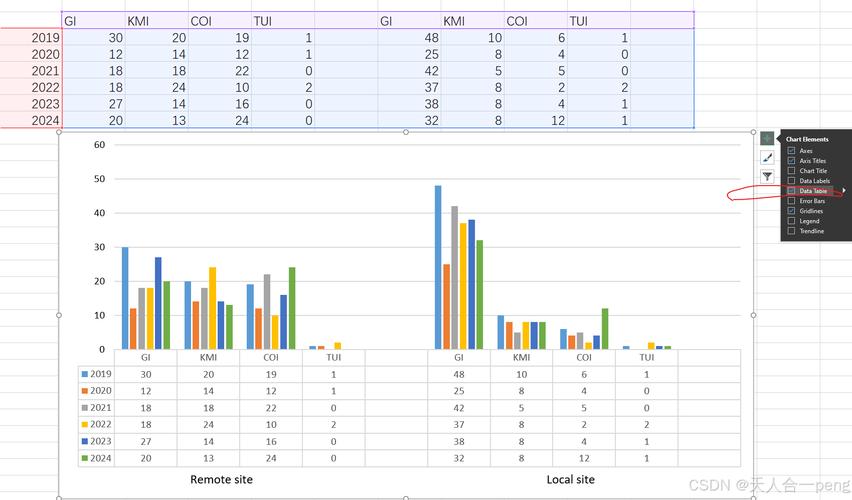
This will produce a chart with two sets of bars, one for "Sales" and one for "Target," for each month.
Saving and Styling
You can easily change the appearance of your chart.
Built-in Chart Styles
As seen in the examples, chart.style = 10 applies one of Excel's 48 built-in style combinations. Just change the number to see different looks.
Adding a Legend
By default, titles_from_data=True in add_data() creates a legend. You can customize it:

chart.legend.position = "b" # 'b' for bottom, 't' for top, 'r' for right, 'l' for left
Changing Colors (Advanced)
Changing individual bar colors is more complex and requires modifying the chart's graphicalProperties and shapeProperties. Here's a quick example to color one series:
# Assuming 'chart' is your BarChart object with one series
series = chart.series[0]
# Fill with a solid blue color
series.graphicalProperties.solidFill = "4472C4" # An RGB hex code
Alternative Libraries
While openpyxl is excellent for modifying existing workbooks or creating simple charts, other libraries offer different strengths.
Using pandas and openpyxl together
pandas is the go-to library for data manipulation in Python. It has a built-in function to plot directly to an Excel sheet using openpyxl as the engine.
First, install pandas:
pip install pandas
Code Example:
import pandas as pd
from openpyxl import load_workbook
# 1. Create a DataFrame
data = {
    'Month': ['January', 'February', 'March', 'April', 'May'],
    'Sales': [500, 750, 850, 600, 900],
    'Target': [600, 700, 800, 750, 850]
}
df = pd.DataFrame(data)
# 2. Create a writer object to save the DataFrame and the chart
# 'engine="openpyxl"' is required for charting
writer = pd.ExcelWriter('pandas_chart.xlsx', engine='openpyxl')
# 3. Write the DataFrame to the Excel file
df.to_excel(writer, sheet_name='Report', index=False)
# 4. Get the workbook and worksheet objects from the writer
# This is necessary to add the chart
workbook = writer.book
worksheet = writer.sheets['Report']
# 5. Create a chart using openpyxl (same as before)
chart = pd.DataFrame(df.plot(kind='bar', x='Month', y=['Sales', 'Target'])).to_excel_chart() # This is a conceptual way
# Let's do it the proper openpyxl way:
from openpyxl.chart import BarChart, Reference
chart = BarChart()
chart.type = "col"
chart.title = "Pandas Generated Chart"
chart.y_axis.title = 'Amount'
chart.x_axis.title = 'Month'
# Data and labels are easily referenced from the DataFrame
data = Reference(worksheet, min_col=2, min_row=1, max_col=4, max_row=7)
labels = Reference(worksheet, min_col=1, min_row=2, max_row=7)
chart.add_data(data, titles_from_data=True)
chart.set_categories(labels)
# 6. Add the chart to the worksheet
worksheet.add_chart(chart, "F2")
# 7. Close the writer to save the file
writer.close()
print("Chart created using pandas and openpyxl.")
XlsxWriter
Another powerful library, especially for writing Excel files. It has a very comprehensive chart interface.
Installation: pip install XlsxWriter
Key Difference: XlsxWriter is a write-only library. You cannot read or modify existing Excel files with it. It's fantastic for generating new reports from scratch.
The syntax is slightly different but very powerful:
import xlsxwriter
# Create a workbook and add a worksheet.
workbook = xlsxwriter.Workbook('xlsxwriter_chart.xlsx')
worksheet = workbook.add_worksheet()
# Add data to the worksheet
data = [
    ['Month', 'Sales', 'Target'],
    ['January', 500, 600],
    ['February', 750, 700],
    ['March', 850, 800],
    ['April', 600, 750],
    ['May', 900, 850],
]
for row_num, row_data in enumerate(data):
    worksheet.write_row(row_num, 0, row_data)
# Create a chart object.
chart = workbook.add_chart({'type': 'column'})
# Configure the first series (Sales).
chart.add_series({
    'name':       '=Sheet1!$B$1',
    'categories': '=Sheet1!$A$2:$A$6',
    'values':     '=Sheet1!$B$2:$B$6',
})
# Configure the second series (Target).
chart.add_series({
    'name':       '=Sheet1!$C$1',
    'categories': '=Sheet1!$A$2:$A$6',
    'values':     '=Sheet1!$C$2:$C$6',
})
# Add a chart title and some axis labels.
chart.set_title({'name': 'Sales vs. Target'})
chart.set_x_axis({'name': 'Month'})
chart.set_y_axis({'name': 'Amount in USD'})
# Set an Excel chart style. Colors with white background and horizontal gridlines.
chart.set_style(11)
# Insert the chart into the worksheet (with an offset).
worksheet.insert_chart('E2', chart, {'x_offset': 25, 'y_offset': 10})
# Close the workbook.
workbook.close()
print("Chart created using XlsxWriter.")
Summary: Which one should you use?
| Library | Best For | Key Feature |
|---|---|---|
openpyxl |
Read/Write/Modify existing .xlsx files. |
Great for automating tasks on existing workbooks. Can create charts. |
pandas |
Data Analysis & Manipulation. | The df.plot().to_excel() method is incredibly convenient for quick charts directly from DataFrames. |
XlsxWriter |
Creating new, complex Excel reports from scratch. | Excellent performance and a very rich API for charts, formatting, and images. Write-only. |
For most general-purpose charting needs, openpyxl is the perfect choice. If your data is already in a pandas DataFrame, using it in conjunction with openpyxl is a very common and effective workflow.