Of course! Here is a comprehensive guide to finding, understanding, and using Appium with Python, with a focus on the official GitHub resources.
The Official GitHub Repository
The central hub for all things Appium Python is the official repository on GitHub.
This repository contains the primary Python client library for Appium. You will find:
- Source Code: The actual library code.
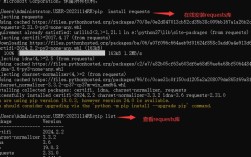
- Installation Instructions: How to install the package (
pip install Appium-Python-Client). - Documentation: A detailed README with links to API documentation and examples.
- Examples: Code snippets for common tasks like finding elements, interacting with them, and gestures.
- Issue Tracker: Where you can report bugs or request features.
Key Components of the appium-python-client
When you work with Appium in Python, you're interacting with several key classes and methods from this client library.
A. The Driver Object
This is the most important object. It's your entry point to controlling the mobile device or emulator. You get it by calling webdriver.Remote().
from appium import webdriver
# Your Appium server capabilities
capabilities = {
    "platformName": "Android",
    "deviceName": "Pixel_4_API_30",
    "app": "/path/to/your/app.apk",
    "automationName": "UiAutomator2" # Recommended for Android
}
# The URL of your Appium server
url = "http://localhost:4723/wd/hub"
# Initialize the driver
driver = webdriver.Remote(url, capabilities)
B. Finding Elements
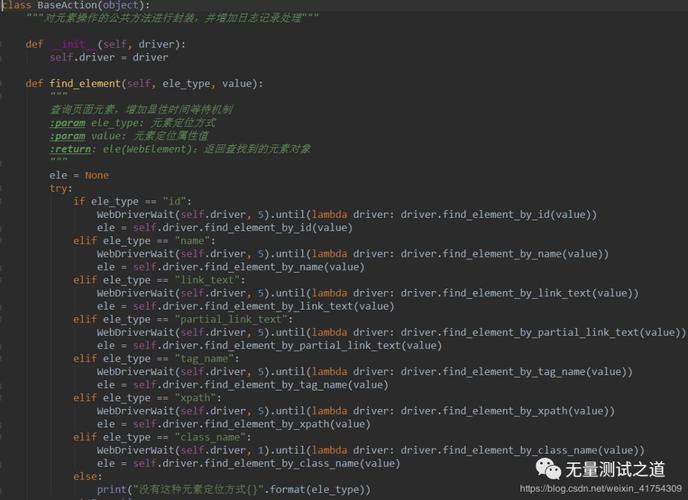
Appium uses the Selenium WebDriver locator strategies. The appium-python-client provides convenient aliases for these.
| Locator Strategy | Python Method | Description |
|---|---|---|
| ID | driver.find_element(By.ID, 'value') |
Fast and reliable if elements have unique IDs. |
| Accessibility ID | driver.find_element(By.ACCESSIBILITY_ID, 'value') |
The recommended strategy. Maps to content-desc on Android and accessibility identifier on iOS. |
| XPath | driver.find_element(By.XPATH, '//value') |
Powerful but can be slower. Use when other strategies fail. |
| Class Name | driver.find_element(By.CLASS_NAME, 'value') |
The class of the UI element. |
| Android UI Automator | driver.find_element('android', 'new UiSelector().text("value")') |
Android-specific, very powerful for dynamic content. |
| iOS XCUITest | driver.find_element('ios', '**/[label == "value"]') |
iOS-specific, uses the XCTest framework. |
Example:
# Using ID (fastest)
username_field = driver.find_element(By.ID, 'com.example.app:id/username')
# Using Accessibility ID (recommended)
login_button = driver.find_element(By.ACCESSIBILITY_ID, 'login_button')
# Using Android UI Automator
dynamic_element = driver.find_element('android', 'new UiSelector().text("Submit")')
C. Interacting with Elements
Once you have an element object, you can perform actions on it.
# Click an element
login_button.click()
# Send text to a field
username_field.send_keys("testuser")
# Get text from an element
welcome_message = driver.find_element(By.ID, 'welcome_text').text
print(welcome_message)
D. Advanced Interactions (Touch Actions)
For complex gestures like swiping, pinching, or long-pressing, you use the TouchAction class.
from appium.webdriver.common.touch_action import TouchAction
# Example: Swipe Right
action = TouchAction(driver)
# 1. Press down on the starting element (e.g., a list item)
# 2. Move your finger to the right
# 3. Release
action.press(element).move_to(x=500, y=300).release().perform()
A Complete "Hello World" Example
This example launches a calculator app, performs a simple calculation, and verifies the result.
Prerequisites:
- Appium Server is running.
- An Android Emulator or a real Android device is connected and accessible.
- The built-in Android
Calculatorapp is used (no.apkneeded).
import time
from appium import webdriver
from appium.webdriver.common.appiumby import AppiumBy
# 1. Set up the desired capabilities
capabilities = {
    "platformName": "Android",
    "deviceName": "Pixel_4_API_30", # Change this to your device/emulator name
    "automationName": "UiAutomator2",
    "appPackage": "com.google.android.calculator",
    "appActivity": "com.android.calculator2.Calculator"
}
# 2. Appium Server URL
appium_server_url = "http://localhost:4723/wd/hub"
# 3. Initialize the WebDriver
driver = webdriver.Remote(appium_server_url, capabilities)
# 4. Find elements using their IDs (resource-id)
# Note: IDs can change between Android versions. These are for API 30.
field_1 = driver.find_element(AppiumBy.ID, "com.google.android.calculator:id/op_add")
field_2 = driver.find_element(AppiumBy.ID, "com.google.android.calculator:id/digit_2")
field_3 = driver.find_element(AppiumBy.ID, "com.google.android.calculator:id/digit_3")
field_equals = driver.find_element(AppiumBy.ID, "com.google.android.calculator:id/eq")
field_result = driver.find_element(AppiumBy.ID, "com.google.android.calculator:id/result_final")
# 5. Perform the calculation: 2 + 3 =
field_2.click()
field_1.click()
field_3.click()
field_equals.click()
# 6. Verify the result
result_text = field_result.text
print(f"The result of the calculation is: {result_text}")
assert result_text == "5", f"Expected result to be '5', but got '{result_text}'"
# 7. Close the driver
time.sleep(2) # Keep the screen on for a moment to see the result
driver.quit()
print("Test Passed!")
Other Useful GitHub Resources
While the main client library is the core, these other repos are essential for a complete Appium setup.
-
- What it is: The Appium server itself. You don't need to clone this to use Appium, but it's where the server code, documentation, and issue tracking for the server live.
-
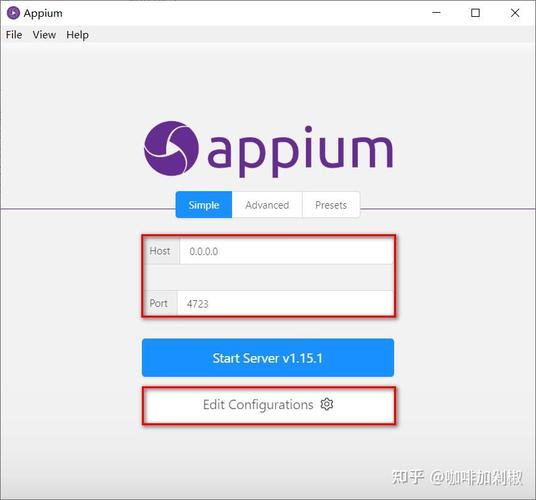
- What it is: The official GUI for running Appium servers. It's highly recommended for beginners as it helps you start the server, manage capabilities, and view logs.
-
- What it is: A powerful, standalone tool for inspecting the UI hierarchy of your mobile application. You can use it to find the exact locators (IDs, XPaths, etc.) for the elements you want to automate, which is the most time-consuming part of test automation.
Getting Help and Community
- GitHub Issues: If you find a bug in the
appium-python-clientor have a feature request, open an issue on the appium-python-client repo. - Official Appium Docs: The documentation on the Appium website is the best place for general Appium concepts, setup guides, and advanced topics.
- Appium Slack/Discord: Join the official Appium community channels for real-time help from other users and developers.