Of course. Here is a comprehensive guide to using Python on Ubuntu 14.04.

⚠️ Important Warning: Ubuntu 14.04 is End-of-Life (EOL)
This is the most critical point to understand. Ubuntu 14.04 reached its End of Life (EOL) in May 2025.
This means:
- No Security Updates: Your system is vulnerable to security exploits. It is highly discouraged for use on the internet or with any sensitive data.
- No Software Updates: You will not receive updates for any software, including Python packages.
- No Community Support: You will find it very difficult to get help for issues related to Ubuntu 14.04, as the community has moved on.
Recommendation: If at all possible, you should upgrade to a modern, supported version of Ubuntu (like 22.04 LTS). If you absolutely must use 14.04 (e.g., for legacy hardware or a specific, un-migratable application), proceed with extreme caution.
Default Python Version on Ubuntu 14.04
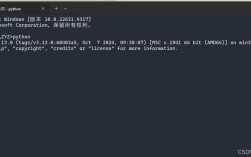
Ubuntu 14.04 comes with Python 2.7 pre-installed as the system default. This is the version that many system tools and scripts rely on.

python --version
# Output: Python 2.7.6
You will also find Python 3.4 available, though it was not the default.
python3 --version
# Output: Python 3.4.3
Managing Python Packages with pip
pip is the standard package manager for Python. On Ubuntu 14.04, you'll need to install it separately.
For Python 2.7
sudo apt-get update
sudo apt-get install python-pip
For Python 3.4
sudo apt-get update
sudo apt-get install python3-pip
Important Security Note: The pip version you get from the Ubuntu 14.04 repositories is very old and contains a critical security vulnerability. You should upgrade it immediately after installation.
# Upgrade pip for Python 2
pip install --upgrade pip
# Upgrade pip for Python 3
pip3 install --upgrade pip
Creating Virtual Environments (Highly Recommended)
Virtual environments are essential for isolating your project dependencies. This prevents different projects from conflicting with each other.
For Python 2.7
The virtualenv package is the standard tool.
# Install virtualenv
sudo pip install virtualenv
# Create a new environment for your project
mkdir my_project
cd my_project
virtualenv venv
# Activate the environment
source venv/bin/activate
# Your prompt will change to show (venv). Now you can install packages
# that are isolated to this project.
pip install requests
# To deactivate the environment when you're done
deactivate
For Python 3.4
Python 3.4 includes the venv module, which is the built-in way to create environments.
# Create a new environment for your project
mkdir my_project3
cd my_project3
python3 -m venv venv3
# Activate the environment
source venv3/bin/activate
# Your prompt will change to show (venv3). Now you can install packages.
pip install requests
# To deactivate the environment when you're done
deactivate
Installing Python 3.6 (Optional)
While 14.04 comes with Python 3.4, you might need a newer version like 3.6. You can add a third-party repository to get it.
Warning: This will install a Python version alongside the system's default. Do not remove the system Python (/usr/bin/python), as it will break your system.
# Add the deadsnakes PPA (Personal Package Archive)
sudo add-apt-repository ppa:deadsnakes/ppa
sudo apt-get update
# Install Python 3.6
sudo apt-get install python3.6
# You will also want the corresponding pip and venv tools
sudo apt-get install python3.6-venv python3.6-pip
Now you can use python3.6 directly.
python3.6 --version
# Output: Python 3.6.9
# Create a virtual environment for Python 3.6
python3.6 -m venv venv36
source venv36/bin/activate
# ...
Popular IDEs and Editors
You can use many code editors on Ubuntu 14.04.
Visual Studio Code (Recommended)
A modern, powerful, and free editor.
# Download the .deb package from the official website
# Then install it with:
sudo dpkg -i code_*.deb
sudo apt-get install -f
Sublime Text
A very fast and lightweight editor.
# Add the GPG key and repository
wget -qO - https://download.sublimetext.com/sublimehq-pub.gpg | sudo apt-key add -
echo "deb https://download.sublimetext.com/ apt/stable/" | sudo tee /etc/apt/sources.list.d/sublime-text.list
# Update and install
sudo apt-get update
sudo apt-get install sublime-text
PyCharm Community Edition
A full-featured IDE from JetBrains.
# Download the .tar.gz from the JetBrains website
# Extract it and run the installer script
tar -xzf pycharm-community-*.tar.gz
cd pycharm-community-*/
./bin/pycharm.sh
Summary of Common Commands
| Task | Command (Python 2.7) | Command (Python 3.4) | Command (Python 3.6) |
|---|---|---|---|
| Check Version | python --version |
python3 --version |
python3.6 --version |
| Start Interpreter | python |
python3 |
python3.6 |
| Package Manager | pip |
pip3 |
pip3.6 |
| Install Package | pip install <package> |
pip3 install <package> |
pip3.6 install <package> |
| Create Venv | virtualenv venv |
python3 -m venv venv |
python3.6 -m venv venv |
| Activate Venv | source venv/bin/activate |
source venv/bin/activate |
source venv/bin/activate |
| Deactivate Venv | deactivate |
deactivate |
deactivate |
Final Advice
Again, the most important takeaway is to avoid using Ubuntu 14.04 for any new projects or for systems connected to the internet. The lack of security updates makes it a significant liability.
If you are learning Python, it is highly recommended to install a modern version of Ubuntu on a virtual machine (using VirtualBox or VMware) or on your actual hardware. This will give you a secure and supported environment to work in.