Of course! Let's dive deep into the grid() geometry manager in Python's Tkinter. It's one of the most powerful and commonly used methods for arranging widgets in a window.
What is the grid() Geometry Manager?
The grid() manager organizes widgets in a table-like structure of rows and columns. You simply place each widget in a specific cell by providing its row and column index.
Think of it like a spreadsheet or a grid on a piece of graph paper. Each cell can hold one widget.
Key Concepts and Parameters
To use grid(), you call the .grid() method on a widget. Here are the most important parameters:
row and column
These are the most fundamental parameters. They specify the cell where the widget will be placed.
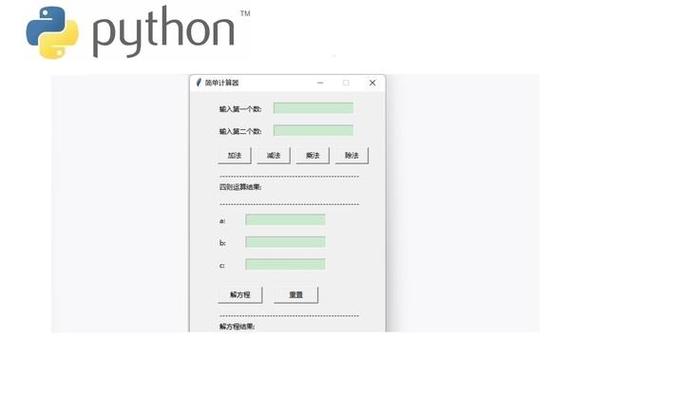
row=0is the topmost row.column=0is the leftmost column.- Rows and columns are numbered starting from 0.
Example:
import tkinter as tk
root = tk.Tk()"Grid Basics")
# Widget in row 0, column 0
label1 = tk.Label(root, text="Row 0, Col 0")
label1.grid(row=0, column=0)
# Widget in row 0, column 1
label2 = tk.Label(root, text="Row 0, Col 1")
label2.grid(row=0, column=1)
# Widget in row 1, column 0
label3 = tk.Label(root, text="Row 1, Col 0")
label3.grid(row=1, column=0)
root.mainloop()
sticky
By default, a widget is centered within its grid cell. The sticky option allows you to "stick" the widget to one or more sides of the cell.
You use compass directions (N, S, E, W) and combinations (NE, SW, etc.) or the constants tk.N, tk.S, tk.E, tk.W.
tk.W: Stick to the West (left) side.tk.E: Stick to the East (right) side.tk.N: Stick to the North (top) side.tk.S: Stick to the South (bottom) side.tk.W+tk.E(ortk.EW): Stretch horizontally to fill the cell.tk.N+tk.S(ortk.NS): Stretch vertically to fill the cell.tk.W+tk.E+tk.N+tk.S(ortk.NSEW): Stretch to fill the entire cell.
Example:
import tkinter as tk
root = tk.Tk()"Sticky Example")
# Label stuck to the left
left_label = tk.Label(root, text="Left", bg="red")
left_label.grid(row=0, column=0, sticky=tk.W)
# Label stretched to fill the cell
stretch_label = tk.Label(root, text="Stretched", bg="green")
stretch_label.grid(row=0, column=1, sticky=tk.EW)
root.mainloop()
padx and pady
These add external padding around the widget, creating space between the widget and the edges of its grid cell.
padx: Padding on the left and right.pady: Padding on the top and bottom.
You can provide a single value for equal padding on both sides or a tuple (left/right, top/bottom).
Example:
import tkinter as tk
root = tk.Tk()"Padding Example")
# padx=10 adds 10 pixels of padding on the left and right
# pady=5 adds 5 pixels of padding on the top and bottom
button1 = tk.Button(root, text="Padded Button")
button1.grid(row=0, column=0, padx=10, pady=5)
root.mainloop()
ipadx and ipady
These add internal padding inside the widget, increasing its size.
ipadx: Adds padding to the widget's internal width.ipady: Adds padding to the widget's internal height.
Example:
import tkinter as tk
root = tk.Tk()"Internal Padding Example")
# ipadx=20 makes the button 20 pixels wider internally
# ipady=10 makes the button 10 pixels taller internally
button2 = tk.Button(root, text="Internally Padded")
button2.grid(row=0, column=0, ipadx=20, ipady=10)
root.mainloop()
rowspan and columnspan
Sometimes you want a widget to span multiple rows or columns. These parameters control that.
rowspan=2: The widget will occupy 2 rows.columnspan=3: The widget will occupy 3 columns.
Example:
import tkinter as tk
root = tk.Tk()"Span Example")
# This button spans 2 rows (row 0 and 1) and 1 column
big_button = tk.Button(root, text="Spans 2 Rows", bg="lightblue")
big_button.grid(row=0, column=0, rowspan=2, sticky=tk.NS, padx=5, pady=5)
# This label spans 3 columns (col 1, 2, and 3)
wide_label = tk.Label(root, text="Spans 3 Columns", bg="lightgreen")
wide_label.grid(row=2, column=1, columnspan=3, sticky=tk.EW, padx=5, pady=5)
# Other widgets to show the grid
label1 = tk.Label(root, text="R1, C1")
label1.grid(row=0, column=1)
label2 = tk.Label(root, text="R1, C2")
label2.grid(row=0, column=2)
label3 = tk.Label(root, text="R2, C1")
label3.grid(row=1, column=1)
label4 = tk.Label(root, text="R2, C2")
label4.grid(row=1, column=2)
root.mainloop()
A Complete, Practical Example: A Login Form
This example combines several grid() concepts to create a clean, aligned login form.
import tkinter as tk
from tkinter import ttk
# --- Create the main window ---
root = tk.Tk()"Login Form")
root.geometry("300x150") # Set a fixed size for the window
# --- Create the widgets ---
# Username Label and Entry
username_label = ttk.Label(root, text="Username:")
username_entry = ttk.Entry(root)
# Password Label and Entry
password_label = ttk.Label(root, text="Password:")
password_entry = ttk.Entry(root, show="*") # Show '*' for password
# Login Button
login_button = ttk.Button(root, text="Login")
# --- Arrange widgets using grid ---
# Use sticky=tk.W to align all labels to the left
username_label.grid(row=0, column=0, sticky=tk.W, padx=5, pady=5)
username_entry.grid(row=0, column=1, sticky=tk.EW, padx=5, pady=5)
password_label.grid(row=1, column=0, sticky=tk.W, padx=5, pady=5)
password_entry.grid(row=1, column=1, sticky=tk.EW, padx=5, pady=5)
# Make the button span both columns
login_button.grid(row=2, column=0, columnspan=2, pady=10)
# --- Configure grid weights for resizing ---
# This is crucial for a responsive layout!
# It tells the grid which columns and rows should expand when the window is resized.
# Make column 1 (the entry column) expandable
root.grid_columnconfigure(0, weight=1) # Column 0 can expand, but less priority
root.grid_columnconfigure(1, weight=3) # Column 1 expands more
# Make the rows expandable as well (though less critical here)
root.grid_rowconfigure(0, weight=1)
root.grid_rowconfigure(1, weight=1)
root.grid_rowconfigure(2, weight=1)
# --- Start the application's main loop ---
root.mainloop()
Explanation of the Login Form:
- Alignment:
sticky=tk.Won the labels ensures they are left-aligned, creating a neat column. - Spanning:
columnspan=2on thelogin_buttonmakes it stretch across the entire form. - Responsive Layout:
root.grid_columnconfigure(1, weight=3)is the key. It tells thegridmanager that column 1 should be given a "weight" of 3 when resizing the window, while column 0 has a weight of 1. This means column 1 will take up 3/4 of the extra space, allowing the entry fields to grow while the labels stay a more fixed width. Without this, the columns would not resize.
grid() vs. pack() vs. place()
It's important to know when to use grid().
| Feature | grid() |
pack() |
place() |
|---|---|---|---|
| Arrangement | Rows and columns, like a table. | Simple stacking (side-by-side or top-to-bottom). | Precise x/y coordinates. |
| Complexity | Medium. Powerful but can get complex with many widgets. | Simple. Good for basic layouts. | Very complex. For pixel-perfect, fixed layouts. |
| Use Case | Forms, dashboards, tables, most application UIs. | Simple dialogs, toolbars, frames with a few items. | Drag-and-drop interfaces, custom graphics, overlays. |
| Mixing | Do not mix grid() and pack() in the same container (like the same window or frame). |
Do not mix grid() and pack() in the same container. |
Can be mixed with grid() or pack() on different widgets, but can be confusing. |
Golden Rule: For any given container (window, frame), use only one geometry manager. Choose the one that best fits the layout you need to create. For most standard applications, grid() is the most flexible and recommended choice.