Of course! Using Visual Studio for Java development is a very popular and powerful choice. While IntelliJ IDEA and Eclipse are the traditional heavyweights, Visual Studio (specifically its Visual Studio Code edition) has become an excellent, modern, and highly efficient environment for Java developers.
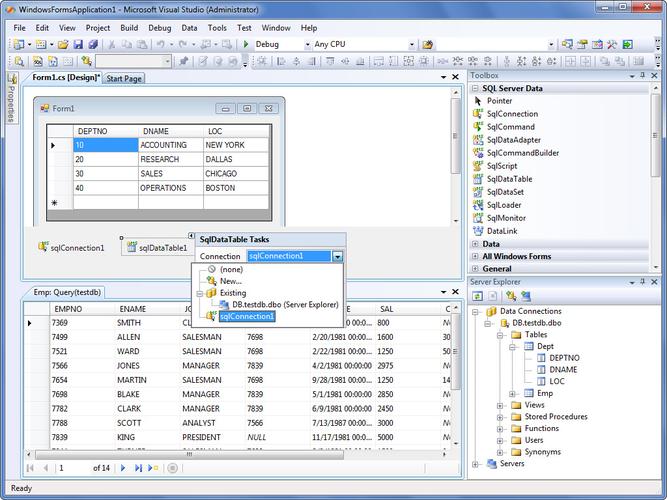
Let's break down everything you need to know, from which version to choose to getting started and key features.
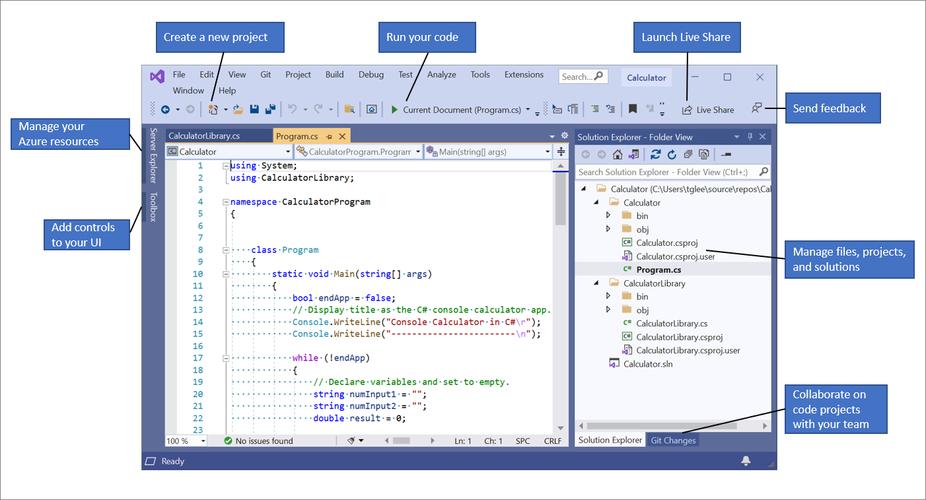
First, a Crucial Distinction: Visual Studio vs. Visual Studio Code
This is the most important point to clarify.
| Feature | Visual Studio (The "Full" IDE) | Visual Studio Code (VS Code) |
|---|---|---|
| What it is | A full-featured, integrated development environment (IDE). Primarily known for C++, C#, and .NET development. | A lightweight, source-code editor that can be turned into a powerful IDE through extensions. |
| Java Support | Requires a separate installation. You install the "Java Development Kit" (JDK) and then add Java project templates and tools. It's a bit clunky and not the primary focus. | Excellent and first-class. Java support is provided by a free, official extension from Microsoft. This is the recommended way to use VS for Java. |
| Best For | .NET, C++, C# development. If you must use a single IDE for everything, it can work, but it's not its strength. | Cross-platform development. It's the recommended choice for Java, Python, web development, and more. It's fast, customizable, and highly popular. |
Conclusion: For Java development, you should almost certainly be using Visual Studio Code. The rest of this guide will focus entirely on that.
Getting Started with Java in Visual Studio Code
Here is a step-by-step guide to setting up your Java development environment.
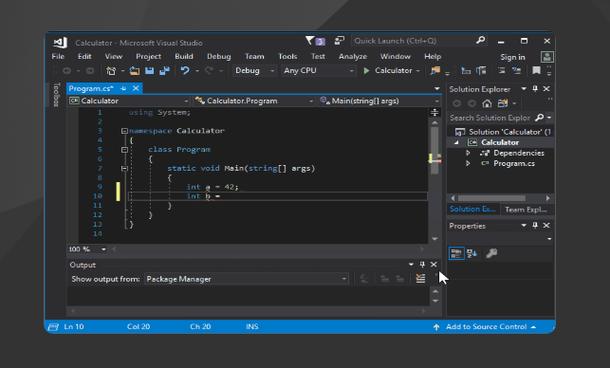
Step 1: Install Prerequisites
Before you even open VS Code, you need two things:
-
The Java Development Kit (JDK): This is the core compiler and runtime environment for Java.
- Recommendation: Use a Long-Term Support (LTS) version like Java 17 or Java 21. These are stable and widely supported.
- Where to get it: Adoptium (Eclipse Temurin) is an excellent, free, and open-source choice. You can download the installer for your operating system (Windows, macOS, Linux) from there.
- Important: After installing the JDK, make sure it's added to your system's
PATHenvironment variable. Most modern installers do this for you.
-
Visual Studio Code: Download and install it from the official website: https://code.visualstudio.com/
Step 2: Install the Java Extension Pack
Once VS Code is installed, you need to add the tools that make it a Java IDE.
- Open the Extensions view by clicking the icon on the Activity Bar on the side of the window or pressing
Ctrl+Shift+X(orCmd+Shift+Xon Mac). - Search for "Java Extension Pack" by Microsoft.
- Click Install on the first result.
This pack includes several essential extensions:
- Extension Pack for Java: The main bundle.
- Language Support for Java by Red Hat: Provides intelligent code completion (IntelliSense), error checking, and navigation.
- Debugger for Java: Allows you to set breakpoints, inspect variables, and step through your code.
- Test Runner for Java: For running and debugging JUnit and TestNG tests.
- Maven for Java: For managing projects built with Maven.
- Java Dependency Viewer: To view your project's dependencies.
Step 3: Create Your First Java Project
You have two main options for creating a project.
Option A: The Easy Way (Using a Starter Kit)
- Open the Command Palette (
Ctrl+Shift+PorCmd+Shift+P). - Type
Java: Create Java Projectand select it. - Choose a starter template like "Hello World" or "Maven".
- It will automatically create the project structure and open your first file.
Option B: The Manual Way (Using Maven)
This is the standard for most real-world Java applications.
- Create a new folder for your project (e.g.,
my-java-app). - Open that folder in VS Code (
File > Open Folder...). - Open the Command Palette (
Ctrl+Shift+P). - Type
Java: Create Maven Projectand select it. - Follow the prompts to choose a Maven archetype (like
maven-archetype-quickstart) and configure your project'sgroupIdandartifactId. - VS Code will generate a standard Maven project structure with a
pom.xmlfile and a sampleApp.javafile.
Step 4: Write and Run Code
You'll see your Java file in the editor. You can write code just like in any other editor.
- To run your code: Open the Command Palette and type
Java: Run Java File. You can also use the "Run" button that appears in the top-right corner of the editor. - To build your project: Open the Command Palette and type
Java: Build WorkspaceorJava: Rebuild Workspace. For Maven projects, you can also runmvn clean installfrom the integrated terminal.
Key Features and Advantages of VS Code for Java
- IntelliSense (Smart Code Completion): As you type, VS Code suggests classes, methods, variables, and even imports. It's context-aware and incredibly fast.
- Integrated Debugger: This is a game-changer. You can:
- Set breakpoints by clicking in the gutter.
- Inspect the values of variables while the code is paused.
- Step through your code line by line.
- View the call stack.
- JUnit Test Runner: Run all your tests, a single test file, or a specific test method with a single click. See test results directly in the UI.
- Built-in Terminal: VS Code has a built-in terminal, so you can run
mvncommands,gitcommands, orjavacommands without leaving the editor. - Maven and Gradle Support: Excellent integration with both build tools. You can explore your project's dependencies, add new ones, and run build goals directly from the UI.
- Spring Boot Support: If you're developing Spring Boot applications, the "Spring Boot Extension Pack" provides even more powerful tools for running, debugging, and managing your Spring app.
- Highly Customizable: VS Code is like a chameleon. You can change themes, install extensions for other languages (like Python or JavaScript), and configure every aspect of the editor to fit your workflow.
- Git Integration: Built-in source control support. See changes, stage commits, and push to GitHub/GitLab/Bitbucket without leaving the editor.
Comparison with Other Java IDEs
| Feature | VS Code + Java Extension | IntelliJ IDEA (Community Edition) | Eclipse |
|---|---|---|---|
| Performance | Excellent. Very fast startup and low resource usage. | Good. Can be slower to start and uses more RAM, especially with large projects. | Can be slow. Known for being resource-intensive and sometimes sluggish. |
| Learning Curve | Low to Medium. Simple to start, but deep customization takes time. | Medium. Very powerful, but the sheer number of features can be overwhelming for beginners. | Medium to High. The UI can feel dated and less intuitive than the others. |
| Customization | Extremely High. The king of customization via extensions and settings. | High. Highly configurable, but within the IntelliJ ecosystem. | High. Very configurable, but the process can be more complex. |
| Java Features | Excellent. Covers 95% of what most developers need. | Best-in-Class. The most advanced refactoring tools, deep analysis, and project management. | Excellent. A long-standing, mature Java development environment. |
| Cost | Free. | Free (Community Edition). Ultimate version is paid. | Free. |
Conclusion: Should You Use VS Code for Java?
Absolutely, yes.
- For Beginners: VS Code is a fantastic starting point. It's lightweight, fast, and the modern UI is very approachable.
- For Professionals: It is a serious contender. It provides all the essential features you need for day-to-day Java development in a package that is fast and less demanding on your machine than a full IDE like IntelliJ.
- For Full-Stack Developers: If you also do web development (JavaScript, TypeScript, HTML/CSS), VS Code is the undisputed champion. You can use one tool for everything.
The only reason to choose IntelliJ IDEA over VS Code is if you need its superior, enterprise-grade refactoring tools or are deeply embedded in the JetBrains ecosystem. For the vast majority of Java developers, Visual Studio Code is a top-tier, free, and highly capable choice.