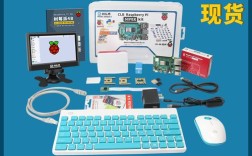
Of course! Let's break down how to use Python on a Raspberry Pi, starting from the basics and moving to more advanced topics. This guide is perfect for beginners and those looking to solidify their knowledge.
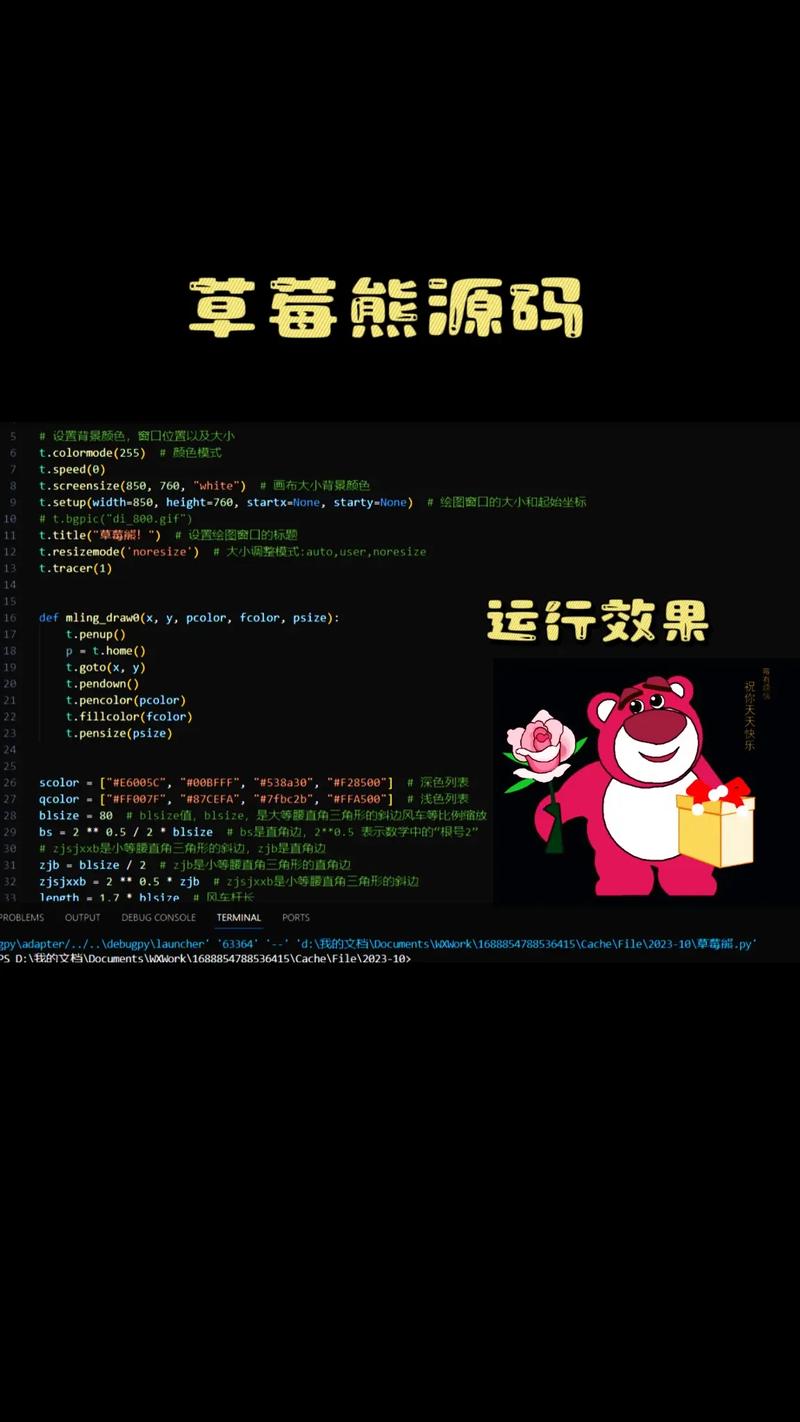
Part 1: The Absolute Basics - What is vi and Python?
First, let's clarify the terms in your question.
vi(or its modern successorvim): This is a text editor, not a programming language. It's a powerful, keyboard-driven tool for creating and editing files, including Python scripts. Think of it like Notepad on Windows, but much more efficient for programmers once you learn it.- Python: This is a high-level, versatile programming language. It's incredibly popular for beginners because its syntax is clean and easy to read. On Raspberry Pi OS (formerly Raspbian), Python 3 is the default and officially supported language for all kinds of projects, from simple scripts to robotics and web applications.
So, your question is essentially: "How do I write and run Python code on a Raspberry Pi using the vi text editor?"
Part 2: Your First Python Script with vi
Let's walk through the entire process step-by-step.
Step 1: Open the Terminal
The vi editor runs in the terminal.
- Click on the terminal icon (a black box with
>_) in the top toolbar. - Or press
Ctrl+Alt+T.
Step 2: Start vi and Create Your File
To create a new Python file, type vi followed by the filename you want to use. It's a good practice to end your filenames with .py.
vi hello.py
You will now see a mostly empty screen. Don't type anything yet! You are currently in Normal mode.
Step 3: Enter Insert Mode to Type
In Normal mode, you can't type text directly. You need to enter Insert mode.
- Press the
ikey. You'll see-- INSERT --at the bottom of the screen.
Now you can type your Python code.
# This is a comment
print("Hello, Raspberry Pi!")
print("Welcome to Python!")
Step 4: Save and Exit
You must return to Normal mode to save your file.
- Press the
Esckey. The-- INSERT --message will disappear.
Now, you can give a command:
- Type
wqand pressEnter.wstands for write (save).qstands for quit.
- Your file is saved, and you're back at the terminal prompt.
If you made a mistake and want to quit without saving:
- Press
Esc. - Type
q!and pressEnter.The forces the quit, discarding any changes.
Step 5: Run Your Python Script
Now that your file hello.py is saved, you can run it from the terminal using the python3 command.
python3 hello.py
You should see the output:
Hello, Raspberry Pi!
Welcome to Python!
Congratulations! You've just written and executed your first Python script on the Pi using vi.
Part 3: A Quick vi Cheatsheet
vi has a learning curve, but these are the most essential commands to get you started.
| Action | Command in Normal Mode (Press Esc first) |
Description |
|---|---|---|
| Start Editing | i |
Enter Insert mode before the cursor. |
a |
Enter Insert mode after the cursor. | |
| Save & Quit | wq |
Write (save) the file and quit. |
| Quit (No Save) | q! |
Quit immediately, discarding all changes. |
| Move Cursor | h, j, k, l |
Move Left, Down, Up, Right. |
| Delete a Character | x |
Deletes the character under the cursor. |
| Delete a Word | dw |
Deletes from the cursor to the end of the word. |
| Delete a Line | dd |
Deletes the entire line the cursor is on. |
| Undo | u |
Undoes the last change. |
| Search | /your_word |
Searches forward for "your_word". Press n for next, N for previous. |
| Copy (Yank) | yw |
Copies (yanks) the word the cursor is on. |
| Paste | p |
Pastes what you copied after the cursor. |
Part 4: Why Use Python on a Raspberry Pi?
Python is the go-to language for the Pi because it's great for interacting with the real world. Here are some popular project ideas:
- GPIO Control: Blink an LED, read a button press, or control a servo motor.
- Library:
RPi.GPIOor the more moderngpiozero.
- Library:
- Sensors: Read data from temperature, humidity, motion, or light sensors.
- Camera Projects: Take photos, create time-lapses, or build a security camera.
- Library:
picamera.
- Library:
- Robotics: Build a robot that can navigate or avoid obstacles.
- Home Automation: Control lights, switches, and other home appliances.
- Web Servers: Create a simple web interface to control your projects from a web browser.
- Frameworks: Flask or Django.
Example: Blinking an LED with gpiozero
This is the "Hello, World!" of hardware projects on the Pi.
-
Hardware:
- An LED.
- A 220Ω resistor.
- Breadboard and jumper wires.
- Connect the Pi's GPIO 17 pin to the resistor, the resistor to the LED's long leg (anode), and the LED's short leg (cathode) to a GND (Ground) pin.
-
Python Script (
blink.py):
from gpiozero import LED
import time
# Create an LED object connected to GPIO 17
led = LED(17)
print("Blinking LED. Press Ctrl+C to stop.")
try:
    while True:
        led.on()       # Turn the LED on
        time.sleep(1)  # Wait for 1 second
        led.off()      # Turn the LED off
        time.sleep(1)  # Wait for 1 second
except KeyboardInterrupt:
    print("Program stopped.")
    led.close() # Clean up the GPIO pin
- Run it:
python3 blink.py
Your LED will start blinking!
Part 5: Alternatives to vi
While vi is powerful, it can be intimidating. Here are two excellent alternatives:
-
Thonny IDE: This is the best editor for beginners. It comes pre-installed with Raspberry Pi OS.
- Why it's great: It has a simple interface, a built-in file browser, and a "variables" pane that shows you the value of your variables in real-time. It makes debugging much easier.
-
VS Code (Visual Studio Code): A modern, free, and extremely powerful code editor.
- Why it's great: It has syntax highlighting, auto-completion, an integrated terminal, and a massive library of extensions (including ones for Python and the Raspberry Pi).
Summary
| Task | Command / Tool |
|---|---|
| Write Python Code | vi your_file.py (then press i to type) |
Save & Exit vi |
Press Esc, then type wq and press Enter. |
| Run Python Script | python3 your_file.py |
| Beginner-Friendly IDE | Use Thonny (pre-installed). |
| Advanced Editor | Use VS Code (install from the Pi Store). |
Start with the basics, practice writing simple scripts, and soon you'll be connecting sensors and building amazing things with Python on your Raspberry Pi