Of course! Here is a comprehensive guide to using JButton in Java Swing, from the basics to more advanced topics.

What is a JButton?
A JButton is a fundamental component in the Swing GUI toolkit. It's a push button that can be clicked by the user to trigger an action. When you click a button, it typically fires an ActionEvent.
Creating a Basic JButton
The simplest way to create a button is by providing a text label for it.
import javax.swing.JButton;
// Create a button with the text "Click Me"
JButton button = new JButton("Click Me");
You can also create a button without text and set it later:
JButton button = new JButton(); // Creates a button with no text
button.setText("Click Me");     // Sets the text
Adding a Button to a GUI
A button doesn't do anything on its own; you need to place it inside a container, most commonly a JFrame.
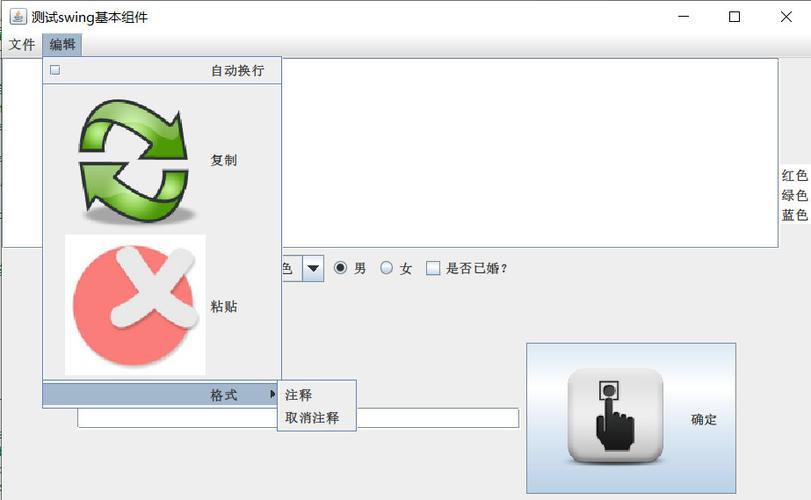
Here is a complete, runnable example of a simple window with a button.
import javax.swing.*;
import java.awt.*;
public class SimpleButtonExample {
    public static void main(String[] args) {
        // 1. Create the main window (JFrame)
        JFrame frame = new JFrame("Simple Button Example");
        frame.setDefaultCloseOperation(JFrame.EXIT_ON_CLOSE); // Close the app when window is closed
        frame.setSize(300, 200);                           // Set the window size
        frame.setLayout(new FlowLayout());                  // Use a simple layout manager
        // 2. Create the JButton
        JButton button = new JButton("Click Me");
        // 3. Add the button to the frame's content pane
        frame.getContentPane().add(button);
        // 4. Make the window visible
        frame.setVisible(true);
    }
}
To run this:
- Save the code as
SimpleButtonExample.java. - Compile it:
javac SimpleButtonExample.java - Run it:
java SimpleButtonExample
You will see a small window with a button in the center.
Handling Button Clicks (The Action Listener)
This is the most important part. To make the button do something when clicked, you need to add an ActionListener.
An ActionListener is an interface with a single method: actionPerformed(ActionEvent e).
You can implement this in two main ways:
Method 1: Using an Anonymous Inner Class (Most Common)
This is the standard and most readable way for simple actions.
import javax.swing.*;
import java.awt.event.ActionEvent;
import java.awt.event.ActionListener;
public class ButtonClickListener {
    public static void main(String[] args) {
        JFrame frame = new JFrame("Button Click Listener");
        frame.setDefaultCloseOperation(JFrame.EXIT_ON_CLOSE);
        frame.setSize(300, 200);
        frame.setLayout(new FlowLayout());
        JButton button = new JButton("Click Me");
        // Add the ActionListener using an anonymous inner class
        button.addActionListener(new ActionListener() {
            @Override
            public void actionPerformed(ActionEvent e) {
                // This code runs every time the button is clicked
                System.out.println("Button was clicked!");
                JOptionPane.showMessageDialog(frame, "You clicked the button!");
            }
        });
        frame.add(button);
        frame.setVisible(true);
    }
}
Method 2: Implementing the Interface in a Separate Class
This is useful for more complex applications where you might reuse the same listener logic.
import javax.swing.*;
import java.awt.event.ActionEvent;
import java.awt.event.ActionListener;
public class SeparateListenerExample {
    public static void main(String[] args) {
        JFrame frame = new JFrame("Separate Listener");
        frame.setDefaultCloseOperation(JFrame.EXIT_ON_CLOSE);
        frame.setSize(300, 200);
        frame.setLayout(new FlowLayout());
        JButton button = new JButton("Click Me");
        // Create an instance of our custom listener class
        MyButtonListener listener = new MyButtonListener();
        button.addActionListener(listener);
        frame.add(button);
        frame.setVisible(true);
    }
}
// A separate class that implements ActionListener
class MyButtonListener implements ActionListener {
    @Override
    public void actionPerformed(ActionEvent e) {
        System.out.println("Button clicked from a separate class!");
        JOptionPane.showMessageDialog(null, "Hello from the separate listener!");
    }
}
Common JButton Customizations
You can easily change the appearance and behavior of a button.
a. Changing Text and Font
JButton button = new JButton("A Big Font Button");
button.setFont(new Font("Arial", Font.BOLD, 18));
b. Setting an Icon
You need an image file (e.g., icon.png) in your project directory.
import javax.swing.Icon;
import javax.swing.ImageIcon;
// Assuming "icon.png" is in the same directory as your .class file
Icon icon = new ImageIcon("icon.png");
JButton button = new JButton("With Icon", icon);
// To show only the icon:
// JButton button = new JButton(icon);
c. Enabling and Disabling a Button
A disabled button is "greyed out" and cannot be clicked.
JButton button = new JButton("Enabled");
button.setEnabled(true); // This is the default
// To disable it:
// button.setEnabled(false);
d. Setting a Mnemonic (Keyboard Shortcut)
A mnemonic is an underlined character in the button's text that can be used as a shortcut (e.g., Alt+C).
JButton button = new JButton("C_lick Me"); // The 'l' will be the mnemonic
button.setMnemonic(KeyEvent.VK_L);         // VK_L is the virtual key code for 'L'
e. Setting Tool Text (Tooltip)
A small popup text that appears when the mouse hovers over the button.
JButton button = new JButton("Help");
button.setToolTipText("This is a helpful tooltip. Click for more info.");
Complete Example with Customizations
Here is a full example that combines several of the features above.
import javax.swing.*;
import java.awt.*;
import java.awt.event.ActionEvent;
import java.awt.event.ActionListener;
import java.awt.event.KeyEvent;
public class JButtonCustomExample {
    public static void main(String[] args) {
        // 1. Create the main window
        JFrame frame = new JFrame("JButton Custom Example");
        frame.setDefaultCloseOperation(JFrame.EXIT_ON_CLOSE);
        frame.setSize(400, 300);
        frame.setLayout(new FlowLayout()); // Simple layout for components
        // 2. Create and customize the first button
        JButton clickButton = new JButton("Click Me");
        clickButton.setFont(new Font("Verdana", Font.PLAIN, 14));
        clickButton.setToolTipText("This is the main action button");
        // 3. Create and customize the second button with an icon and mnemonic
        // For this example, we'll use a built-in Swing icon
        Icon exitIcon = UIManager.getIcon("OptionPane.errorIcon"); // Using a system icon
        JButton exitButton = new JButton("E_xit", exitIcon);
        exitButton.setMnemonic(KeyEvent.VK_X); // Alt+X to click
        exitButton.setToolTipText("Closes the application");
        // 4. Add ActionListener to the first button
        clickButton.addActionListener(e -> {
            // Using a lambda expression for a concise listener
            JOptionPane.showMessageDialog(frame, "Button Clicked!", "Action", JOptionPane.INFORMATION_MESSAGE);
        });
        // 5. Add ActionListener to the second button
        exitButton.addActionListener(e -> {
            // Ask for confirmation before exiting
            int option = JOptionPane.showConfirmDialog(frame, "Are you sure you want to exit?", "Confirm Exit", JOptionPane.YES_NO_OPTION);
            if (option == JOptionPane.YES_OPTION) {
                System.exit(0); // Terminate the application
            }
        });
        // 6. Add buttons to the frame
        frame.add(clickButton);
        frame.add(exitButton);
        // 7. Make the window visible
        frame.setVisible(true);
    }
}
Key Takeaways
JButton: The core component for clickable actions.ActionListener: The mechanism to "listen" for clicks and execute code.- Anonymous Inner Class: The most common and convenient way to add an
ActionListener. JFrame: The main window that holds yourJButtonand other components.- Customization: Use methods like
setText(),setFont(),setIcon(),setEnabled(),setMnemonic(), andsetToolTipText()to change the button's appearance and behavior.