Of course! The QListWidget is a fundamental and highly useful widget in PyQt/PySide. It provides a classic list view that allows users to select one or multiple items from a list.
Here's a comprehensive guide covering everything from basic usage to advanced features.
What is QListWidget?
QListWidget is an item-based widget that uses a QListWidgetItem for each entry in the list. This is different from a QListView, which is more powerful and flexible but requires you to provide your own data model (like QStandardItemModel or QAbstractListModel).
Use QListWidget when:
- You need a simple list of strings or icons.
- You want to use the built-in convenience methods for adding/removing items.
- You don't need the full power and complexity of a model/view architecture.
Use QListView with a model when:
- You have a very large dataset (millions of items) and need performance.
- Your data comes from a database or network.
- You need to display the same data in multiple views (e.g., a list and a table).
- You need highly customized item rendering.
Basic Setup and Usage
Let's start with a simple example that creates a window with a list.
import sys
from PyQt5.QtWidgets import QApplication, QMainWindow, QListWidget, QVBoxLayout, QWidget, QLabel
class MainWindow(QMainWindow):
    def __init__(self):
        super().__init__()
        self.setWindowTitle("QListWidget Example")
        self.setGeometry(100, 100, 300, 400)
        # --- Central Widget and Layout ---
        central_widget = QWidget()
        self.setCentralWidget(central_widget)
        layout = QVBoxLayout(central_widget)
        # --- The QListWidget ---
        self.list_widget = QListWidget()
        layout.addWidget(self.list_widget)
        # --- Add items to the list ---
        self.list_widget.addItem("Apple")
        self.list_widget.addItem("Banana")
        self.list_widget.addItems(["Cherry", "Date", "Elderberry"]) # addItems is faster
        # --- Connect signals to slots ---
        self.list_widget.currentItemChanged.connect(self.on_item_changed)
        self.list_widget.itemClicked.connect(self.on_item_clicked)
        self.list_widget.itemDoubleClicked.connect(self.on_item_double_clicked)
    def on_item_changed(self, current, previous):
        """Called when the current selection changes (even by keyboard)."""
        if current:
            print(f"Selection changed to: {current.text()}")
        else:
            print("Selection cleared.")
    def on_item_clicked(self, item):
        """Called when an item is clicked with the mouse."""
        print(f"Clicked on: {item.text()}")
    def on_item_double_clicked(self, item):
        """Called when an item is double-clicked."""
        print(f"Double-clicked on: {item.text()}")
        # Example: Remove the item on double-click
        # self.list_widget.takeItem(self.list_widget.row(item))
if __name__ == '__main__':
    app = QApplication(sys.argv)
    window = MainWindow()
    window.show()
    sys.exit(app.exec_())
Key Concepts from the Example:
QListWidget(): Creates the list widget.addItem(text): Adds a single item to the list.addItems(list_of_texts): Adds multiple items from a list. More efficient than callingaddItemin a loop.currentItemChanged(current, previous): A signal emitted whenever the current item changes. It's great for tracking selection.itemClicked(item): Emitted only on a mouse click.itemDoubleClicked(item): Emitted on a double-click.
Working with QListWidgetItem
Each entry in a QListWidget is a QListWidgetItem object. This gives you fine-grained control over each item.
Creating and Adding Custom Items
You can create a QListWidgetItem and set its properties before adding it.
# In the __init__ method of the MainWindow class
# Add an item with a custom icon
item_with_icon = QListWidgetItem()
item_with_icon.setText("Orange")
item_with_icon.setIcon(self.style().standardIcon(self.style().SP_FileIcon)) # Use a standard icon
self.list_widget.addItem(item_with_icon)
# Add an item with a checkable state
checkable_item = QListWidgetItem("Check Me")
checkable_item.setCheckState(Qt.Unchecked) # or Qt.Checked
self.list_widget.addItem(checkable_item)
# Add an item with a tool tip
tooltip_item = QListWidgetItem("Hover over me")
tooltip_item.setToolTip("This is a helpful tooltip!")
self.list_widget.addItem(tooltip_item)
Note: You'll need to import Qt: from PyQt5.QtCore import Qt
Common QListWidgetItem Methods:
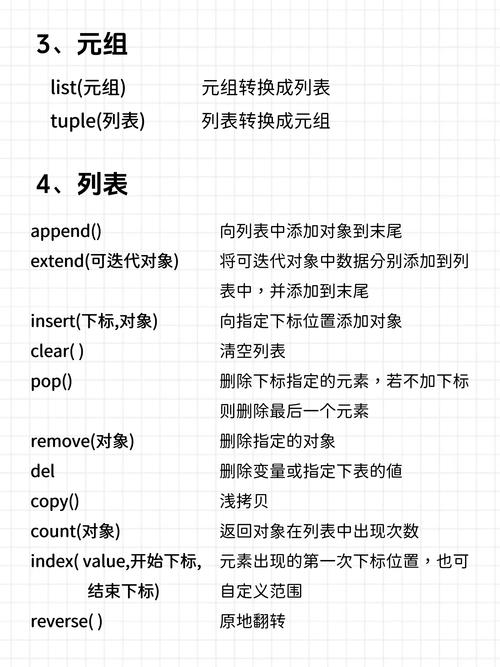
setText(text): Sets the item's text.text(): Returns the item's text.setIcon(icon): Sets an icon. You can useQIconfrom an image file.icon(): Returns the item's icon.setCheckState(state): Makes the item checkable (Qt.CheckedorQt.Unchecked).checkState(): Returns the item's check state.setToolTip(text): Sets the text shown on hover.isSelected(): ReturnsTrueif the item is selected.setSelected(bool): Sets the item's selection state.
Managing Items
You can programmatically add, remove, and find items.
# --- Add an item at a specific position ---
self.list_widget.insertItem(1, "Inserted Grape") # Inserts at index 1
# --- Get an item ---
item = self.list_widget.item(2) # Gets the item at index 2
if item:
    print(f"Item at index 2 is: {item.text()}")
# --- Remove an item ---
# Method 1: Take the item (returns the item object)
# item_to_remove = self.list_widget.takeItem(0)
# item_to_remove = None # Delete the item to free memory
# Method 2: Delete the item directly
# self.list_widget.takeItem(0) # takeItem also deletes it
# --- Find an item ---
found_item = self.list_widget.findItems("Date", Qt.MatchExactly)
if found_item:
    print(f"Found 'Date' at row: {self.list_widget.row(found_item[0])}")
# --- Clear all items ---
# self.list_widget.clear()
Selection Modes
A QListWidget can be configured to allow different types of selection.
# In the __init__ method
# Set the selection mode
# self.list_widget.setSelectionMode(QListWidget.SingleSelection) # Default: Only one item can be selected
self.list_widget.setSelectionMode(QListWidget.ExtendedSelection) # Multiple items can be selected using Ctrl+Click or Shift+Click
# self.list_widget.setSelectionMode(QListWidget.MultiSelection) # Multiple items can be selected with simple clicks
# self.list_widget.setSelectionMode(QListWidget.NoSelection) # Selection is not allowed
Getting Selected Items
# Add a button to trigger getting selected items
from PyQt5.QtWidgets import QPushButton
self.get_selected_btn = QPushButton("Get Selected Items")
self.get_selected_btn.clicked.connect(self.get_selected_items)
layout.addWidget(self.get_selected_btn)
def get_selected_items(self):
    selected_items = self.list_widget.selectedItems()
    if not selected_items:
        print("No items selected.")
        return
    print(f"Selected items ({len(selected_items)}):")
    for item in selected_items:
        print(f"- {item.text()}")
    # To get the row numbers
    selected_rows = [self.list_widget.row(item) for item in selected_items]
    print(f"Selected rows: {selected_rows}")
Customizing the Look
You can customize how items are rendered by subclassing QListWidgetItem or, more powerfully, by using a delegate (QStyledItemDelegate). Here's a simple example using a QListWidgetItem with different fonts and colors.
# In the __init__ method
# --- Custom item styling ---
bold_item = QListWidgetItem("Bold Item")
font = bold_item.font()
font.setBold(True)
bold_item.setFont(font)
red_text_item = QListWidgetItem("Red Text")
red_text_item.setForeground(Qt.red) # Set text color
blue_bg_item = QListWidgetItem("Blue Background")
blue_bg_item.setBackground(Qt.blue)
self.list_widget.addItem(bold_item)
self.list_widget.addItem(red_text_item)
self.list_widget.addItem(blue_bg_item)
Complete Advanced Example
This example combines many of the features discussed above.
import sys
from PyQt5.QtWidgets import (QApplication, QMainWindow, QListWidget, QVBoxLayout,
                             QWidget, QPushButton, QLabel, QAbstractItemView)
from PyQt5.QtGui import QIcon, QFont
from PyQt5.QtCore import Qt
class AdvancedListWidgetDemo(QMainWindow):
    def __init__(self):
        super().__init__()
        self.setWindowTitle("Advanced QListWidget Demo")
        self.setGeometry(300, 300, 400, 500)
        self.initUI()
    def initUI(self):
        central_widget = QWidget()
        self.setCentralWidget(central_widget)
        layout = QVBoxLayout(central_widget)
        # List Widget
        self.list_widget = QListWidget()
        self.list_widget.setSelectionMode(QAbstractItemView.ExtendedSelection)
        layout.addWidget(self.list_widget)
        # Add some sample items with icons
        self.add_sample_items()
        # Buttons
        btn_layout = QVBoxLayout()
        self.add_btn = QPushButton("Add 'New Item'")
        self.add_btn.clicked.connect(self.add_new_item)
        btn_layout.addWidget(self.add_btn)
        self.remove_btn = QPushButton("Remove Selected")
        self.remove_btn.clicked.connect(self.remove_selected)
        btn_layout.addWidget(self.remove_btn)
        self.clear_btn = QPushButton("Clear All")
        self.clear_btn.clicked.connect(self.list_widget.clear)
        btn_layout.addWidget(self.clear_btn)
        layout.addLayout(btn_layout)
        # Status Label
        self.status_label = QLabel("Ready")
        layout.addWidget(self.status_label)
        # Connect signals
        self.list_widget.itemSelectionChanged.connect(self.selection_changed)
    def add_sample_items(self):
        """Adds items with icons and different states."""
        items_data = [
            ("Document", "document.png", "A text document"),
            ("Folder", "folder.png", "A system folder"),
            ("Image", "image.png", "A picture file"),
            ("Music", "music.png", "An audio file"),
        ]
        # NOTE: You need actual icon files for this to work.
        # For a real app, you'd bundle these with your application.
        # Here, we use standard system icons as a fallback.
        for text, icon_file, tooltip in items_data:
            item = QListWidgetItem(QIcon.fromTheme(icon_file, self.style().standardIcon(self.style().SP_FileIcon)), text)
            item.setToolTip(tooltip)
            self.list_widget.addItem(item)
    def add_new_item(self):
        """Adds a new, editable item to the list."""
        # currentItem() returns the last selected item for insertAfter
        current_item = self.list_widget.currentItem()
        row = self.list_widget.row(current_item) if current_item else -1
        new_item = QListWidgetItem("Newly Added Item")
        if row >= 0:
            self.list_widget.insertItem(row + 1, new_item)
        else:
            self.list_widget.addItem(new_item)
        self.list_widget.setCurrentItem(new_item)
        self.list_widget.editItem(new_item) # Make it editable immediately
    def remove_selected(self):
        """Removes all currently selected items."""
        selected_items = self.list_widget.selectedItems()
        if not selected_items:
            self.status_label.setText("No items selected to remove.")
            return
        # Must iterate in reverse because removing an item changes the indices of subsequent items
        for item in reversed(selected_items):
            row = self.list_widget.row(item)
            self.list_widget.takeItem(row)
        self.status_label.setText(f"Removed {len(selected_items)} item(s).")
    def selection_changed(self):
        """Updates the status label when the selection changes."""
        count = len(self.list_widget.selectedItems())
        if count == 0:
            self.status_label.setText("No items selected.")
        elif count == 1:
            item = self.list_widget.selectedItems()[0]
            self.status_label.setText(f"Selected: {item.text()}")
        else:
            self.status_label.setText(f"{count} items selected.")
if __name__ == '__main__':
    app = QApplication(sys.argv)
    window = AdvancedListWidgetDemo()
    window.show()
sys.exit(app.exec_())