Of course! The command java -jar is a fundamental and very common command used on Linux (and other Unix-like systems) to run Java applications packaged as JAR (Java Archive) files.
Let's break it down in detail, from the basics to more advanced usage.
The Basic Command
The most straightforward way to run a JAR file is:
java -jar your-application.jar
What each part does:
java: This is the command to invoke the Java Virtual Machine (JVM). It's the program that executes Java bytecode. The system uses thejavacommand found in your system'sPATHenvironment variable.-jar: This is a command-line option that tells thejavacommand: "The argument that follows is a JAR file. I want you to run the main class defined within that JAR file's manifest."your-application.jar: This is the path to your JAR file. It can be a relative path (e.g.,./app.jar) or an absolute path (e.g.,/home/user/myapp/app.jar).
How it Works: The MANIFEST.MF File
The magic behind -jar lies in a special file inside the JAR archive called META-INF/MANIFEST.MF. This manifest file contains metadata about the application. The most important entry for running a JAR is the Main-Class attribute.
When you run java -jar your-app.jar, the JVM:
- Opens the
your-app.jarfile. - Reads the
META-INF/MANIFEST.MFfile. - Looks for a line like
Main-Class: com.example.Main. - Locates the
com.example.Mainclass. - Executes its
public static void main(String[] args)method.
Example MANIFEST.MF content:
Manifest-Version: 1.0
Main-Class: com.mycompany.MyApplication
Common Options and Arguments
You often need to provide more information to the JVM or your application. Here are the most common scenarios.
A. Passing Arguments to Your Application
If your Java application is designed to accept command-line arguments, you simply add them after the JAR file name. The JVM will pass them directly to your application's main method.
# The JVM passes "arg1", "--config", "config.properties" to your app's main method.
java -jar my-app.jar arg1 --config config.properties
B. Setting JVM Options (Crucial for Performance)
Sometimes, the default JVM settings aren't enough. You need to give the JVM itself options. This is done using the -X and -XX flags.
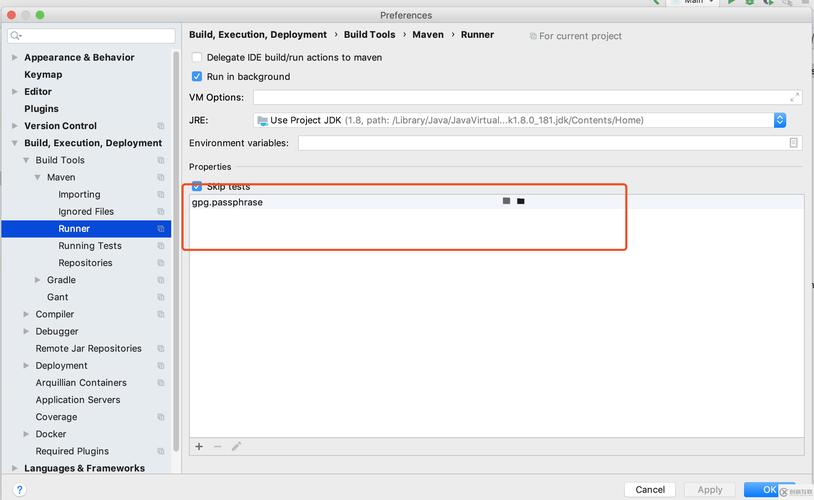
Important: JVM options must come before the -jar option.
# Example: Increase the maximum heap size to 2 gigabytes
java -Xmx2g -jar my-app.jar
# Example: Set a custom Garbage Collector (G1GC) and a custom log file
java -Xms512m -Xmx2g -XX:+UseG1GC -Xlog:gc:gc.log -jar my-app.jar
Common JVM Options:
-Xms<size>: Sets the initial heap size.-Xmx<size>: Sets the maximum heap size. This is the most common one to tune.-Xss<size>: Sets the size of a thread's stack.-XX:+UseG1GC: Use the G1 Garbage Collector, a good modern default.-D<name>=<value>: Sets a system property that your application can read (e.g.,-Dspring.profiles.active=prod).
C. Running in the Background
If you want to start your application and continue using your terminal, you can run it in the background.
Method 1: The Ampersand (&)
This is the simplest way. The application will start, and you'll get your prompt back immediately.
java -jar my-app.jar &
- Pros: Simple.
- Cons: The application will be terminated if you close your terminal (SIGHUP signal). Standard output and error will still be printed to your terminal, which can be messy.
Method 2: nohup (No Hang Up)
This is a very common and robust method for running processes on servers. It makes the process immune to SIGHUP, meaning it will keep running even after you log out.
nohup java -jar my-app.jar > app.log 2>&1 &
nohup: The command that makes the process immune to hangups.> app.log: Redirects standard output (stdout) to a file namedapp.log.2>&1: Redirects standard error (stderr) to the same place as standard output (i.e., also toapp.log).&: Runs the command in the background.
Troubleshooting
Problem: Error: Unable to access jarfile my-app.jar
- Cause: The file doesn't exist at that location.
- Solution: Check the path. Use
ls -l my-app.jarto verify the file is there and you have permission to read it. Use a relative path (./my-app.jar) or an absolute path (/path/to/my-app.jar).
Problem: Error: Could not find or load main class
- Cause 1: The
Main-Classattribute inMANIFEST.MFis missing or incorrect.- Solution: Unpack the JAR (
jar -xvf my-app.jar) and checkMETA-INF/MANIFEST.MFto see if theMain-Classis correct. You might need to rebuild the JAR with the correct manifest.
- Solution: Unpack the JAR (
- Cause 2: You are trying to run the JAR with a classpath (
-cp) that conflicts with the-jaroption. The-jaroption must be used by itself.- Incorrect:
java -cp my-lib.jar -jar my-app.jar - Correct:
java -cp "my-app.jar:my-lib.jar" com.example.Main(This runs the main class directly, without using the JAR's manifest).
- Incorrect:
Problem: Error: Could not open the initial file descriptor in the JAR manifest
- Cause: This is often a file permission issue on the JAR file itself.
- Solution: Run
chmod +x my-app.jar. The JAR file needs to be executable for some systems and Java versions to properly read its manifest.
Production Deployment Best Practices
For running a Java application in a production environment, you should avoid just running java -jar ... in a terminal. Here are better approaches:
-
Use a Process Manager: A process manager like
systemd(modern standard for most Linux distros) is the best way to manage your service.- It automatically restarts your application if it crashes.
- It manages logging properly.
- It can be configured to start on boot.
- You can easily check its status (
systemctl status my-app), stop it (systemctl stop my-app), etc.
-
Use a Wrapper Script: A simple shell script can make starting and stopping your application easier, especially if you need to set up environment variables or handle complex JVM options.
Example my-app.service file for systemd:
[Unit]
Description=My Awesome Java Application
After=network.target
[Service]
# The user and group that will run the application
User=myappuser
Group=myappgroup
# The working directory
WorkingDirectory=/opt/my-app
# The command to start the application
# Environment variables can be set here
ExecStart=/usr/bin/java -Xmx2g -jar /opt/my-app/my-app.jar
# Restart policy
Restart=on-failure
RestartSec=10
# Logging
StandardOutput=journal
StandardError=journal
[Install]
WantedBy=multi-user.target
You would place this file at /etc/systemd/system/my-app.service and then run systemctl daemon-reload, systemctl start my-app, and systemctl enable my-app.