Of course. The term "Java OpenOffice PDF" typically refers to one of two main tasks:
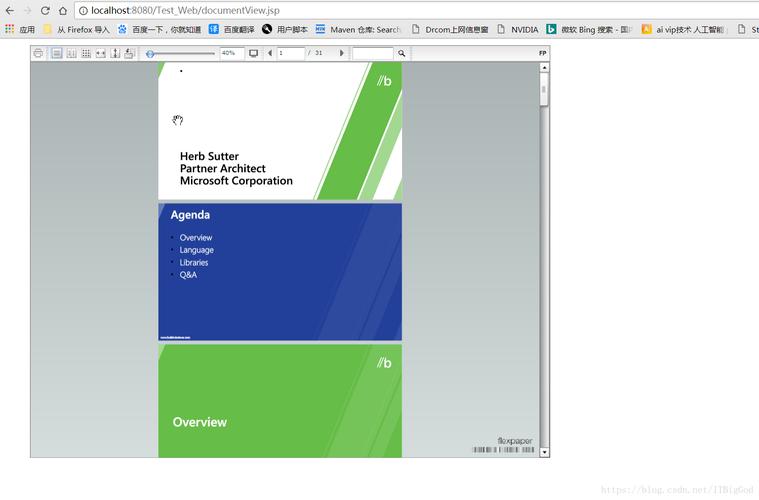
- Generating a PDF from an OpenOffice/LibreOffice document using a Java program. This is the most common use case.
- Extracting content (like text) from a PDF that was created by OpenOffice/LibreOffice using Java.
I'll cover both, with a strong focus on the first, as it's more practical and widely used.
Summary
| Task | Recommended Approach | Why? |
|---|---|---|
| Create PDF from ODT/ODS | UNO (Universal Network Objects) | The native, most powerful, and most reliable way to control OpenOffice/LibreOffice from any external language, including Java. |
| Extract Text from PDF | Apache PDFBox or iText | These are dedicated Java libraries for working with PDFs. They are generally more robust and easier than trying to parse PDFs via UNO. |
Task 1: Generating a PDF from an OpenOffice Document using Java (UNO)
This is the core of "Java OpenOffice PDF". You will use Java to start a hidden instance of LibreOffice (or OpenOffice), load a document (like an .odt or .ods file), and then save it as a PDF.
Prerequisites
-
Java Development Kit (JDK): Ensure you have a JDK installed (version 8 or newer is fine).
-
LibreOffice (Recommended) or OpenOffice: You need a full installation of the office suite on the same machine where your Java code will run. LibreOffice is the modern, actively maintained fork of OpenOffice and is highly recommended.
 (图片来源网络,侵删)
 -
The UNO JAR file: You need the
juh.jar(Java UNO Helper) andridl.jar(Remote Interface Definition Language) files from your LibreOffice/OpenOffice installation.- Typical Location on Linux:
/usr/lib/libreoffice/program/ - Typical Location on Windows:
C:\Program Files\LibreOffice\program\ - Typical Location on macOS:
/Applications/LibreOffice.app/Contents/
- Typical Location on Linux:
Step-by-Step Implementation
Step 1: Set up your Java Project
Create a new Java project in your favorite IDE (IntelliJ, Eclipse, etc.). Add the two JAR files (juh.jar and ridl.jar) to your project's classpath.
Step 2: Write the Java Code
Here is a complete, well-commented Java class that converts an .odt file to a PDF.
import com.sun.star.beans.PropertyValue;
import com.sun.star.frame.XStorable;
import com.sun.star.lang.XComponent;
import com.sun.star.lang.XMultiComponentFactory;
import com.sun.star.uno.Exception;
import com.sun.star.uno.XComponentContext;
import java.io.File;
public class OpenOfficePdfConverter {
    // Path to your LibreOffice/OpenOffice installation directory
    private static final String OFFICE_HOME = "C:\\Program Files\\LibreOffice";
    public static void main(String[] args) {
        // Define input and output file paths
        String inputFile = "C:\\path\\to\\your\\document.odt";
        String outputFile = "C:\\path\\to\\your\\output.pdf";
        try {
            convertOdtToPdf(inputFile, outputFile);
            System.out.println("Successfully converted '" + inputFile + "' to '" + outputFile + "'");
        } catch (Exception e) {
            System.err.println("Conversion failed!");
            e.printStackTrace();
        }
    }
    public static void convertOdtToPdf(String inputFilePath, String outputFilePath) throws Exception {
        // 1. Get the component context
        XComponentContext xComponentContext = getComponentContext();
        if (xComponentContext == null) {
            throw new RuntimeException("Failed to get component context. Is LibreOffice installed correctly?");
        }
        // 2. Get the central office component
        XMultiComponentFactory xMCF = xComponentContext.getServiceManager();
        if (xMCF == null) {
            throw new RuntimeException("Failed to get service manager.");
        }
        // 3. Open the input document
        Object document = loadDocument(xComponentContext, xMCF, inputFilePath);
        if (document == null) {
            throw new RuntimeException("Failed to load document: " + inputFilePath);
        }
        // 4. Save the document as PDF
        saveDocumentAsPdf(document, outputFilePath);
        // 5. Close the document
        // Note: Closing is important to prevent memory leaks and office instances from hanging.
        // The XComponent.dispose() method might not be available directly through the Object reference.
        // A more robust approach is to query for the XComponent interface.
        // For simplicity in this example, we'll rely on the office process terminating.
        // A real application should manage this lifecycle better.
        System.out.println("Conversion process complete.");
    }
    private static XComponentContext getComponentContext() throws Exception {
        // The Bootstrap class is the entry point to connect to a running office instance
        // or to start a new one.
        return com.sun.star.comp.helper.Bootstrap.bootstrap();
    }
    private static Object loadDocument(XComponentContext xContext, XMultiComponentFactory xMCF, String filePath) throws Exception {
        // Create a desktop instance
        Object desktop = xMCF.createInstanceWithContext("com.sun.star.frame.Desktop", xContext);
        // Prepare the arguments for opening the file
        PropertyValue[] loadProps = new PropertyValue[1];
        loadProps[0] = new PropertyValue();
        loadProps[0].Name = "Hidden"; // Open the document in a hidden window
        loadProps[0].Value = true;
        // Load the document
        // The first argument is the URL of the file.
        // The second is a set of properties to control how the document is opened.
        return com.sun.star.lang.XComponent.class.cast(desktop).getClass()
                .getMethod("loadComponentFromURL", String.class, String.class, int.class, PropertyValue[].class)
                .invoke(desktop, filePath, "_blank", 0, loadProps);
    }
    private static void saveDocumentAsPdf(Object document, String outputPath) throws Exception {
        // Query for the XStorable interface, which allows us to save the document
        XStorable xStorable = com.sun.star.frame.XStorable.class.cast(document);
        // Prepare the arguments for saving the file
        PropertyValue[] storeProps = new PropertyValue[1];
        storeProps[0] = new PropertyValue();
        storeProps[0].Name = "FilterName";
        storeProps[0].Value = "writer_pdf_Export"; // The filter name for PDF export in Writer
        // Save the document to the new path with the specified filter
        xStorable.storeToURL(outputPath, storeProps);
    }
}
How to Run:
- Make sure
OFFICE_HOMEin the code points to your LibreOffice installation. - Make sure
inputFileandoutputFilepaths are correct. - Run the
mainmethod.
Important Notes:
- Performance: Starting a new LibreOffice process for every conversion can be slow. For high-volume applications, you should manage a pool of long-running office instances.
- Headless Mode: The
Hiddenproperty is good, but for server environments, you should start LibreOffice itself in "headless" mode.- Windows: `soffice.exe -headless -accept="socket,host=127.0.0.1,port=2002;urp;"
- Linux:
soffice --headless --accept="socket,host=127.0.0.1,port=2002;urp;" - Then, in your Java code, you would connect to this running instance instead of letting Bootstrap start a new one.
- Filters: The
FilterNameis crucial. Here are some common ones:writer_pdf_Export: For Writer documents (.odt->.pdf)calc_pdf_Export: For Calc documents (.ods->.pdf)impress_pdf_Export: For Impress presentations (.odp->.pdf)draw_pdf_Export: For Draw documents (.odg->.pdf)
Task 2: Extracting Text from a PDF using Java
While you could use UNO to open a PDF and get its text, it's often more complex and less reliable than using a dedicated Java PDF library. If your goal is just text extraction, use a tool built for it.
Recommended Libraries: Apache PDFBox
Step 1: Add PDFBox Dependency
If you're using Maven, add this to your pom.xml:
<dependency>
    <groupId>org.apache.pdfbox</groupId>
    <artifactId>pdfbox</artifactId>
    <version>2.0.27</version> <!-- Use the latest version -->
</dependency>
Step 2: Write the Java Code
This example is much simpler than the UNO approach.
import org.apache.pdfbox.pdmodel.PDDocument;
import org.apache.pdfbox.text.PDFTextStrip