Of course! Let's dive deep into viewclient for Python.
What is ViewClient?
ViewClient is a powerful third-party Python library for automating Android UI tests. It acts as a "bridge" between your Python script and an Android device (either an emulator or a real phone).
Think of it as a more advanced and flexible alternative to the built-in uiautomator2. Its main strength lies in its ability to get a complete, hierarchical view of the entire UI, which is extremely useful for complex applications, especially those using custom UI components.
Key Features:
- Full UI Hierarchy: Unlike
uiautomator2, which often only sees a flattened list of visible elements,ViewClientcan get the full XML tree of the UI, including hidden elements. This is invaluable for testing complex layouts. - Pythonic API: It provides a rich, object-oriented Python API to interact with UI elements.
- Cross-Platform: Works on Windows, macOS, and Linux.
- Device Emulation: Can interact with system dialogs, notifications, and other system-level UI elements.
- Screenshot Capabilities: Easy to take screenshots of the device screen.
Installation
First, you need to install the viewclient package using pip.
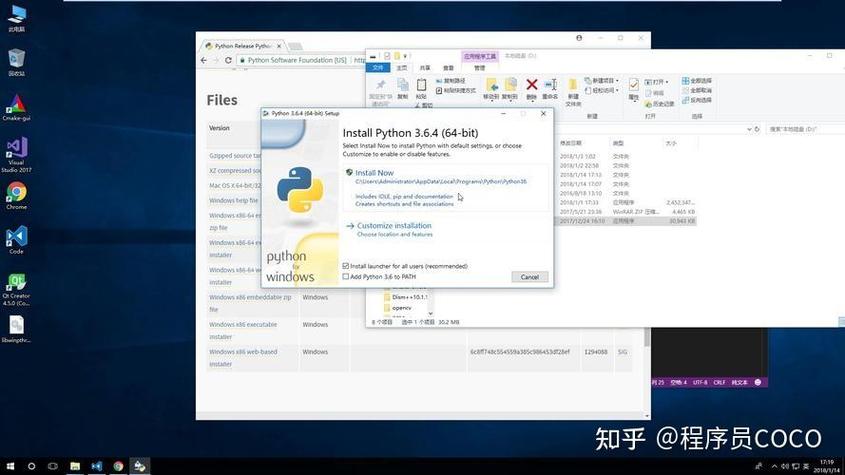
pip install viewclient
You also need the Android SDK Platform Tools installed on your machine, as ViewClient uses adb (Android Debug Bridge) under the hood. Make sure adb is in your system's PATH.
Basic Setup and Usage
Here's a step-by-step guide to get you started.
Connect Your Device/Emulator
Ensure your Android device is connected via USB with USB debugging enabled, or your Android emulator is running.
# Check if your device/emulator is detected by adb
adb devices
You should see a device listed with its serial number.
The First Script: "Hello, World!" of UI Automation
Let's write a simple script that connects to the device, gets the current UI, and prints the text of the first few visible elements.
import re
import sys
import os
# Add the path to your Android SDK tools
# This is often necessary if adb is not in your system's PATH
# Replace with your actual SDK path
# os.environ['ANDROID_HOME'] = '/path/to/your/android-sdk'
# os.environ['PATH'] += os.pathsep + os.path.join(os.environ['ANDROID_HOME'], 'platform-tools')
from com.dtmilano.android.adb.adbclient import AdbClient
from com.dtmilano.android.viewclient import ViewClient
def main():
    # Connect to the device
    # The 'serialno' can be obtained from 'adb devices'
    # If you have only one device, you can leave it as None
    serialno = None
    # The 'kwargs' can be used to specify additional adb options
    # e.g., {'forceadb': True} to force the use of adb
    vc = ViewClient(serialno, adb_server_port=5037)
    # Get the root view of the current UI
    # The 'useUiAutomator' flag is important. Set to True for modern apps.
    # It's good practice to get the root view first.
    vc.dump()
    root = vc.getRoot()
    # Find views by their text
    # ViewClient uses a powerful selector syntax
    # Let's find the "Settings" app icon on a typical launcher
    settings_views = vc.findViewsWithText("Settings")
    if settings_views:
        settings_view = settings_views[0]
        print(f"Found 'Settings' view with ID: {settings_view.getId()}")
        print(f"View details: {settings_view}")
        # You can get properties of the view
        print(f"View bounds: {settings_view.getVisibleBounds()}")
        print(f"View center: {settings_view.getCenter()}")
        # Let's simulate a click on it
        print("\nClicking on 'Settings'...")
        settings_view.touch()
        # Wait for the new screen to load
        import time
        time.sleep(2)
        # Now, let's dump the UI again to see the new screen
        vc.dump()
        root = vc.getRoot()
        # Find a button on the Settings screen
        # We can use regular expressions for more flexible matching
        search_button = vc.findViewWithText(re.compile(r"Search|Suche")) # Works for English and German devices
        if search_button:
            print("\nFound 'Search' button. Clicking it...")
            search_button.touch()
            time.sleep(1)
    else:
        print("Could not find the 'Settings' view. Is the home screen visible?")
if __name__ == '__main__':
    main()
Core Concepts and API
ViewClient Class
This is the main entry point. It manages the connection to the adb server and provides methods to interact with the device.
ViewClient(serialno=None, adb_server_port=5037, ...): Initializes the client.vc.dump(): This is the most important method. It takes a screenshot of the device screen and parses the UI hierarchy, making all the views available for querying.vc.getRoot(): Returns the rootViewobject of the UI hierarchy.
View Class
Represents a single UI element (a button, a text view, a layout, etc.) on the screen. You get View objects as a result of the find... methods.
-
Properties:
view.getId(): Gets the resource ID of the view (e.g.,com.android.settings:id/search).view.getText(): Gets the text content of the view.view.getClassName(): Gets the class name of the view (e.g.,android.widget.TextView).view.getContentDescription(): Gets the content description, useful for accessibility.view.getVisibleBounds(): Returns a dictionary withleft,top,right,bottomcoordinates.view.getCenter(): Returns a tuple(x, y)of the view's center coordinates.
-
Actions:
view.touch(): Simulates a tap/click on the view.view.longTouch(duration): Simulates a long press.durationis in milliseconds.view.type(text): Simulates typing text into an input field (like anEditText). This requires the view to be focused.
Finding Views: The Power of Selectors
ViewClient offers several methods to find views. The key is using selectors, which can be strings, regular expressions, or dictionaries of attributes.
-
vc.findViewById(id): Finds a view by its resource ID.search_view = vc.findViewById('com.android.settings:id/search') -
vc.findViewsByClass(className): Finds all views of a specific class.all_text_views = vc.findViewsByClass('android.widget.TextView') -
vc.findViewWithText(text): Finds a view whose text exactly matches the given string.ok_button = vc.findViewWithText("OK") -
vc.findViewsWithText(text): Same as above, but returns a list of all matching views. -
vc.findViewWithContentDescription(text): Finds a view by its content description. -
vc.findViewWithAttribute(attr, value): Finds a view with a specific attribute and value. This is very powerful.# Find a TextView with the text "Wi-Fi" wifi_view = vc.findViewWithAttribute('className', 'android.widget.TextView').withText('Wi-Fi')
Practical Example: Automating a Login Flow
Let's automate a simple login process. Imagine an app with a username field, a password field, and a login button.
import re
import time
from com.dtmilano.android.viewclient import ViewClient
def login_to_app():
    # --- Setup ---
    serialno = None # Replace with your device serial if needed
    vc = ViewClient(serialno, adb_server_port=5037)
    vc.dump()
    root = vc.getRoot()
    # --- Step 1: Navigate to the Login Screen (Assuming we're on a home screen) ---
    # This part depends on your app. Let's assume there's a "Login" button.
    login_button = vc.findViewWithText("Login")
    if login_button:
        print("Found 'Login' button. Clicking...")
        login_button.touch()
        time.sleep(3) # Wait for login screen to load
        vc.dump() # Refresh the view hierarchy
    else:
        print("Login button not found. Aborting.")
        return
    # --- Step 2: Enter Username ---
    # Find the username EditText by its ID (best practice)
    username_field = vc.findViewById('com.example.myapp:id/et_username')
    if username_field:
        print("Found username field. Typing...")
        username_field.touch() # Focus the field
        username_field.type("testuser")
    else:
        # Fallback: find any EditText and hope it's the username field
        print("Username ID not found, trying to find any EditText...")
        username_field = vc.findViewWithAttribute('className', 'android.widget.EditText')
        if username_field:
            username_field.touch()
            username_field.type("testuser")
        else:
            print("Could not find username field. Aborting.")
            return
    # --- Step 3: Enter Password ---
    password_field = vc.findViewById('com.example.myapp:id/et_password')
    if password_field:
        print("Found password field. Typing...")
        password_field.touch()
        password_field.type("password123")
    else:
        print("Password field not found. Aborting.")
        return
    # --- Step 4: Click Login Button ---
    login_button_on_screen = vc.findViewWithText("Log In") # Text might be different
    if login_button_on_screen:
        print("Found 'Log In' button. Clicking...")
        login_button_on_screen.touch()
        time.sleep(5) # Wait for the app to process the login
        # --- Step 5: Verify Login ---
        vc.dump()
        # Check for a welcome message or a logout button
        welcome_message = vc.findViewWithText("Welcome, testuser!")
        logout_button = vc.findViewWithText("Logout")
        if welcome_message or logout_button:
            print("\nLogin successful!")
        else:
            print("\nLogin failed or verification failed.")
    else:
        print("Could not find 'Log In' button. Aborting.")
if __name__ == '__main__':
    login_to_app()
ViewClient vs. uiautomator2
| Feature | ViewClient |
uiautomator2 |
|---|---|---|
| UI Hierarchy | Full XML tree, including hidden views. | Flattened list of visible views. |
| API | Pythonic, object-oriented. | Simpler, often returns lists of dicts. |
| Installation | pip install viewclient + adb. |
pip install uiautomator2 + python -m uiautomator2 init. |
| Device Setup | Requires manual ADB setup. | uiautomator2 init handles a lot of setup on the device. |
| Performance | Can be slower due to full hierarchy dump. | Generally faster for simple interactions. |
| Best For | Complex apps, custom views, deep UI traversal. | Simple scripts, quick tests, visible element interaction. |
Conclusion
ViewClient is an incredibly robust tool for any serious Android UI automation in Python. Its ability to inspect the full UI hierarchy makes it indispensable for debugging flaky tests and interacting with applications that have complex or non-standard UIs. While the setup might be slightly more involved than uiautomator2, the power and flexibility it offers are well worth the effort.