Of course! Java File Input is a fundamental topic for reading data from files. I'll guide you through the most common and modern ways to do it, from the classic Scanner to the highly recommended Files utility class.
Let's break it down into sections:
- The Classic Way:
Scanner- Simple, great for beginners and reading text line-by-line or token-by-token. - The Modern Standard:
Files.readString()- The easiest way to read an entire file into a single string (Java 11+). - The Efficient Way:
Files.lines()- The best for reading large files line-by-line as a Stream. - The Advanced Way:
BufferedReader- The classic, high-performance way to read text, offering more control. - Reading Binary Files - For non-text files like images, videos, etc.
- Best Practices & Key Concepts - File paths,
try-with-resources, and exception handling.
The Classic Way: java.util.Scanner
Scanner is a simple, versatile tool for parsing primitive types and strings from a source (like a file, input stream, or string). It's excellent for reading text files formatted in a predictable way.
Key Concepts:
Scanner(File source): Constructor that takes aFileobject.useDelimiter(String pattern): Sets the delimiter (e.g.,\nfor lines, for CSV).nextLine(): Reads the entire current line and moves to the next.next(),nextInt(),nextDouble(): Reads the next token (delimited by whitespace).
Example: Reading a File Line-by-Line
Let's assume you have a file named input.txt:
Hello World!
This is the second line.
This is the third line.
import java.io.File;
import java.io.FileNotFoundException;
import java.util.Scanner;
public class ScannerExample {
public static void main(String[] args) {
// Create a File object representing the file
File file = new File("input.txt");
// Use a try-with-resources block to automatically close the scanner
try (Scanner scanner = new Scanner(file)) {
// Loop through each line in the file
while (scanner.hasNextLine()) {
String line = scanner.nextLine();
System.out.println(line);
}
} catch (FileNotFoundException e) {
System.err.println("Error: File not found at " + file.getAbsolutePath());
e.printStackTrace();
}
}
}
The Modern Standard: Files.readString() (Java 11+)
If you are using Java 11 or newer, this is the simplest and most concise way to read the entire content of a small text file into a single String.
Key Concepts:
java.nio.file.Files: A utility class with many static methods for file operations.Files.readString(Path path): Reads all content from a file into a string. The file is read as UTF-8 by default.Path: A modern representation of a file or directory path, more flexible than the legacyFileclass. UsePaths.get("filename.txt")to create one.
Example: Reading a File into a String
import java.io.IOException;
import java.nio.file.Files;
import java.nio.file.Path;
import java.nio.file.Paths;
public class ReadStringExample {
    public static void main(String[] args) {
        Path path = Paths.get("input.txt");
        try {
            // Read the entire file content into a single string
            String content = Files.readString(path);
            System.out.println("--- File Content ---");
            System.out.println(content);
            System.out.println("--------------------");
        } catch (IOException e) {
            System.err.println("Error reading the file: " + e.getMessage());
            e.printStackTrace();
        }
    }
}
The Efficient Way: Files.lines() (Java 8+)
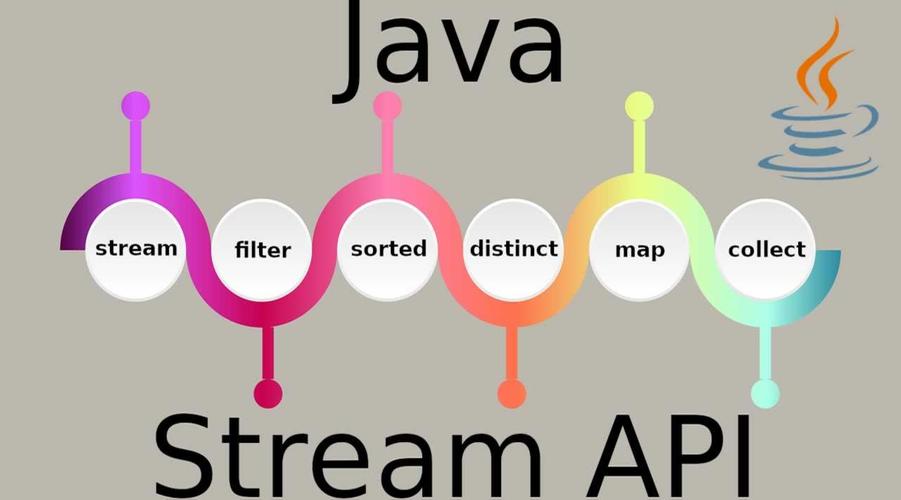
For large files, loading everything into memory with readString() can cause an OutOfMemoryError. Files.lines() is the perfect solution. It reads the file line-by-line and returns a Stream<String>, which is highly memory-efficient.
Key Concepts:
Files.lines(Path path): Returns aStream<String>, where each element is a line from the file.Stream: A sequence of elements that can be processed. You can use methods likeforEach(),map(),filter(), etc.- Important: The stream must be closed to release the underlying file handle. The easiest way is with
try-with-resources.
Example: Processing a Large File Line-by-Line
import java.io.IOException;
import java.nio.file.Files;
import java.nio.file.Path;
import java.nio.file.Paths;
import java.util.stream.Stream;
public class LinesStreamExample {
    public static void main(String[] args) {
        Path path = Paths.get("input.txt");
        // Use try-with-resources to automatically close the stream
        try (Stream<String> lines = Files.lines(path)) {
            System.out.println("--- Processing file line by line ---");
            // Process each line using a stream
            lines.forEach(line -> {
                // Example: Print each line in uppercase
                System.out.println(line.toUpperCase());
            });
        } catch (IOException e) {
            System.err.println("Error reading the file: " + e.getMessage());
            e.printStackTrace();
        }
    }
}
The Advanced Way: BufferedReader
BufferedReader is a lower-level, high-performance reader that reads text from a character-input stream, buffering characters to provide efficient reading of characters, arrays, and lines. It was the standard before Java 7 and try-with-resources.
Key Concepts:
new BufferedReader(Reader in): Wraps anotherReader(likeFileReader) to add buffering.readLine(): Reads a line of text. Returnsnullwhen the end of the stream is reached.FileReader: Reads text from a file using the platform's default character encoding.
Example: Classic BufferedReader Approach
import java.io.BufferedReader;
import java.io.FileReader;
import java.io.IOException;
public class BufferedReaderExample {
    public static void main(String[] args) {
        String filePath = "input.txt";
        // The outer try-with-resources ensures the reader is closed
        try (BufferedReader reader = new BufferedReader(new FileReader(filePath))) {
            String line;
            // readLine() returns null when the end of the file is reached
            while ((line = reader.readLine()) != null) {
                System.out.println(line);
            }
        } catch (IOException e) {
            System.err.println("Error reading the file: " + e.getMessage());
            e.printStackTrace();
        }
    }
}
Reading Binary Files
For non-text files (images, audio, serialized objects, etc.), you should use byte streams. The Files class again provides the best tools.
Key Concepts:
Files.readAllBytes(Path path): The simplest way to read a small binary file into abyte[]array. (Similar toreadStringbut for bytes).Files.newInputStream(Path path): Returns anInputStreamfor reading bytes from the file. This is the best approach for large binary files as it streams the data without loading it all into memory.
Example: Reading a Small Binary File (e.g., an image)
import java.io.IOException;
import java.nio.file.Files;
import java.nio.file.Path;
import java.nio.file.Paths;
public class ReadBinaryExample {
    public static void main(String[] args) {
        Path path = Paths.get("my-image.png");
        try {
            // Read all bytes from the file
            byte[] imageData = Files.readAllBytes(path);
            System.out.println("Successfully read " + imageData.length + " bytes from the file.");
            // In a real application, you would now use the imageData array
            // to write to a new file or process it as an image.
        } catch (IOException e) {
            System.err.println("Error reading the binary file: " + e.getMessage());
            e.printStackTrace();
        }
    }
}
Best Practices & Key Concepts
File Paths
- Absolute Path: Starts from the root directory (e.g.,
C:\Users\YourUser\Documents\file.txton Windows or/home/youruser/docs/file.txton Linux). - Relative Path: Relative to the current working directory of your Java application. This is usually the project's root folder.
input.txtis a relative path. - Using
Paths.get(): ThePaths.get()method is the modern way to construct aPathobject. It handles path separators (\vs ) correctly for you.// Cross-platform way to create a path Path path = Paths.get("data", "subfolder", "file.txt");
try-with-resources
This is a critical feature for file I/O. It ensures that your resources (like Scanner, BufferedReader, Stream, etc.) are automatically closed when the block is exited, even if an exception occurs. This prevents resource leaks.
// GOOD: Automatically closes the scanner
try (Scanner scanner = new Scanner(new File("file.txt"))) {
    // ... code ...
} // scanner.close() is called here automatically
// BAD: Resource leak if an exception occurs
Scanner scanner = new Scanner(new File("file.txt"));
// ... if an exception happens here, scanner is never closed ...
scanner.close();
Exception Handling
File operations can fail for many reasons:
FileNotFoundException: The file doesn't exist.IOException: A general I/O error occurred (e.g., no read permission, disk full).SecurityException: The security manager denies access to the file.
Always wrap file I/O code in a try-catch block to handle these potential errors gracefully.