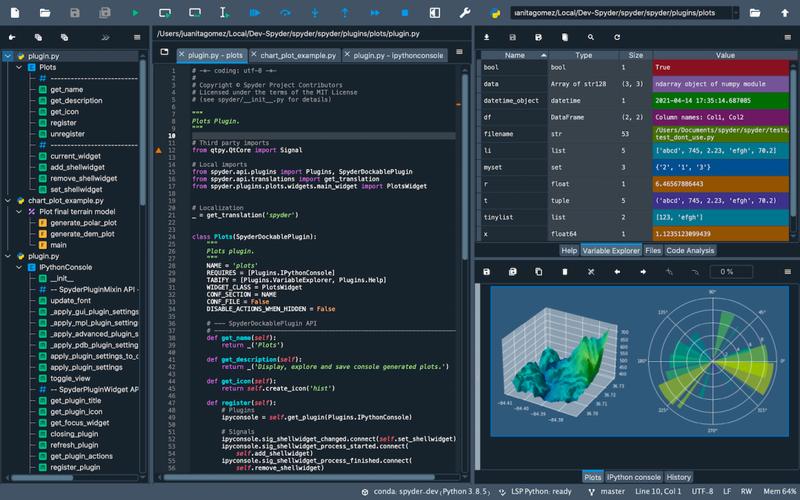
Of course! When people refer to a "Spider Python IDE," they are almost certainly talking about Spyder, a popular and powerful integrated development environment (IDE) specifically designed for scientific and data-focused Python programming.
Let's break down what Spyder is, who it's for, and how it compares to other popular Python environments.
What is Spyder?
Spyder is a free and open-source IDE that comes bundled with the Anaconda distribution. It's designed from the ground up to be a tool for data analysis, scientific computing, and interactive computing.
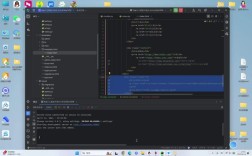
Its name is a playful reference to its multi-panel layout, which resembles a spider with its body and legs.
Key Features That Make Spyder Stand Out
Spyder's popularity comes from a set of features that are perfectly tailored for its target audience.
The Interactive Console (IPython)
This is the heart of Spyder. It allows you to execute Python code line-by-line or in blocks and see the results immediately. This is incredibly useful for:
- Experimenting with code snippets.
- Testing data analysis steps.
- Learning Python interactively.
Variable Explorer
This is a game-changer for data scientists. The Variable Explorer is a dedicated panel that shows you all the variables currently in memory, along with their:
- Name: The variable's identifier.
- Type:
int,float,list,dict,numpy.ndarray,pandas.DataFrame, etc. - Size: How much memory it's using.
- Value: A preview of the data.
You can also interact with these variables directly in the explorer:
- View, edit, and filter data inside a pandas DataFrame.
- Plot data from a variable directly.
- Sort, copy, and delete variables.
Code Editor
Spyder's editor is feature-rich and helps you write clean, efficient code:
- Syntax Highlighting: Makes code easier to read.
- Code Completion: Suggests functions, variables, and methods as you type.
- Code Analysis: Lints your code in real-time to find potential bugs, style issues (Pylint), and undefined variables.
- Go to Definition: Quickly jump to where a function or class is defined.
Plots Pane
Any plots you generate using libraries like Matplotlib or Seaborn are displayed in a dedicated Plots pane. This keeps your plots separate from your code and console output, making your workspace much cleaner.
Profiling Pane
This is an advanced but essential feature for optimizing code. The Profiler helps you identify bottlenecks in your code by showing you:
- Which functions take the longest to run.
- How many times each function was called.
- The cumulative time spent in each function.
This is crucial for speeding up slow data analysis scripts.
Integrated Help
The Help pane provides instant access to documentation for any function, class, or method you have selected in your editor. This saves you from constantly having to look up documentation in a separate browser tab.
Who is Spyder For?
Spyder is an excellent choice for:
- Data Scientists & Analysts: Its Variable Explorer and Plots pane are perfect for exploring datasets.
- Scientists & Engineers: It's designed for numerical computing and prototyping algorithms.
- Students & Educators: It's a fantastic tool for learning Python and data science because it provides immediate visual feedback on data and code.
- Anyone who uses Jupyter Notebooks but wants a more traditional IDE: Spyder offers the interactive nature of Jupyter but within a more structured, project-based environment.
Spyder vs. Other Popular Python Environments
Here’s a quick comparison to help you see where Spyder fits in.
| Feature | Spyder | PyCharm | Jupyter Notebook/Lab | VS Code |
|---|---|---|---|---|
| Primary Use Case | Scientific & Data Analysis | General-purpose, Web Dev, Large Projects | Interactive Computing, Storytelling | General-purpose, Highly Customizable |
| Best For... | Data exploration, quick prototyping, interactive debugging. | Large-scale applications, professional development, strong refactoring tools. | Creating shareable notebooks, data visualization, teaching. | Versatility, huge extension library, lightweight feel. |
| Key Strength | Variable Explorer and tight integration with scientific libraries. | Powerful debugger, intelligent code completion, and project management. | Cell-based execution and rich display of outputs (Markdown, LaTeX). | Ultimate flexibility via extensions (Python, Jupyter, Docker, etc.). |
| Learning Curve | Low to Moderate | Moderate to High | Low | Low to Moderate (depends on extensions) |
| How to Get It | Bundled with Anaconda | Standalone download from JetBrains | pip install jupyter or jupyterlab |
Standalone download from Microsoft, plus Python extension |
How to Get Started with Spyder
The easiest way to install Spyder is by installing the Anaconda distribution.
- Download Anaconda: Go to the Anaconda Distribution website and download the appropriate version for your operating system (Windows, macOS, or Linux).
- Install Anaconda: Run the installer and follow the on-screen instructions. It's highly recommended to add Anaconda to your system's PATH during installation.
- Launch Spyder: Once installed, you can launch Spyder from the Anaconda Navigator application or directly from your system's application menu.
You will be greeted with the classic multi-panel interface, ready to start coding.
Summary
Spyder is a specialized, powerful IDE that excels at scientific computing and data analysis in Python. If your work involves manipulating dataframes, running simulations, or analyzing datasets, the interactive features of Spyder, especially the Variable Explorer, will make your life significantly easier. If you're a general-purpose programmer working on web applications or large software projects, a more general-purpose IDE like PyCharm or VS Code might be a better fit.