Of course! Here is a comprehensive guide on how to perform a tap action in Appium using Python, covering the basic method, advanced options, and best practices.
The Core Concept: tap() vs. click()
In Appium, for most elements, you will use the standard Selenium WebDriver method:
element.click()
This is the recommended and most reliable way to interact with an element. Appium intelligently translates this click() command into the appropriate native UI automation event on the mobile device (e.g., a touch event on Android, a tap event on iOS).
However, Appium also provides a more direct, lower-level method called tap(). This method is part of the TouchAction class and is used for performing complex, multi-touch gestures or for tapping at a specific coordinate on the screen, even if there isn't a specific element there.
Basic Tap on an Element (Using .click())
This is the most common scenario. You find an element and "click" it.
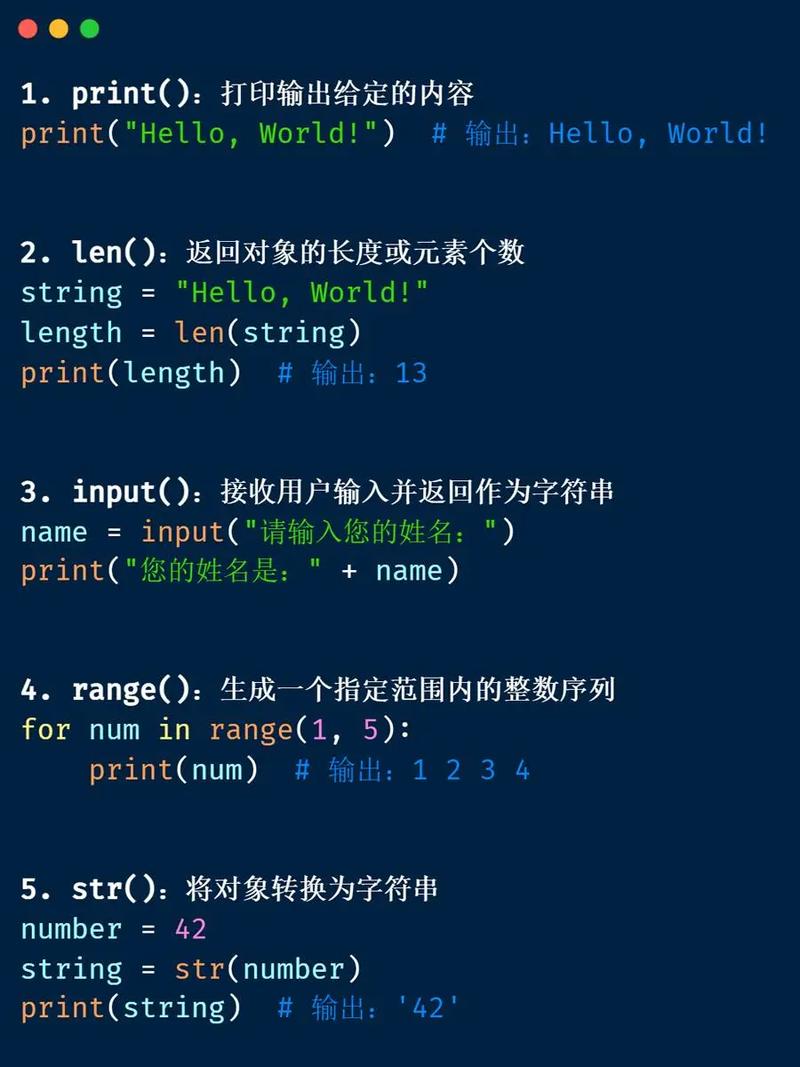
Prerequisites:
- You have an Appium server running.
- You have a Python script with the necessary libraries installed (
Appium-Python-Client). - Your mobile device or emulator is connected and ready.
Example: Tapping a Login Button
# 1. Import necessary libraries
from appium import webdriver
from appium.webdriver.common.appiumby import AppiumBy
# 2. Define your desired capabilities
# Replace with your actual capabilities
caps = {
    "platformName": "Android",
    "deviceName": "Pixel_4_API_30", # Can be any name
    "appPackage": "com.android.settings",
    "appActivity": ".Settings",
    "automationName": "UiAutomator2" # Recommended for Android
}
# 3. Initialize the Appium driver
driver = webdriver.Remote("http://localhost:4723/wd/hub", caps)
try:
    # 4. Find an element and tap it
    # Let's find the 'Wi-Fi' option in the Settings app
    wifi_element = driver.find_element(AppiumBy.ACCESSIBILITY_ID, "Wi-Fi")
    print("Found 'Wi-Fi' element. Tapping now...")
    # This is the recommended way to tap
    wifi_element.click()
    print("Tap successful!")
    # You can add a small wait to see the result
    # driver.implicitly_wait(5)
finally:
    # 5. Quit the driver
    print("Quitting the driver.")
    driver.quit()
Advanced Tap: Using TouchAction for Coordinate Taps
Sometimes, you need to tap on a specific (x, y) coordinate on the screen. This is where TouchAction is essential. This is useful for:
- Tapping on an element that is not easily identifiable by standard locators.
- Tapping in a specific area of a view (e.g., a custom-drawn button).
- Performing taps as part of a more complex gesture.
Example: Tapping by Coordinates
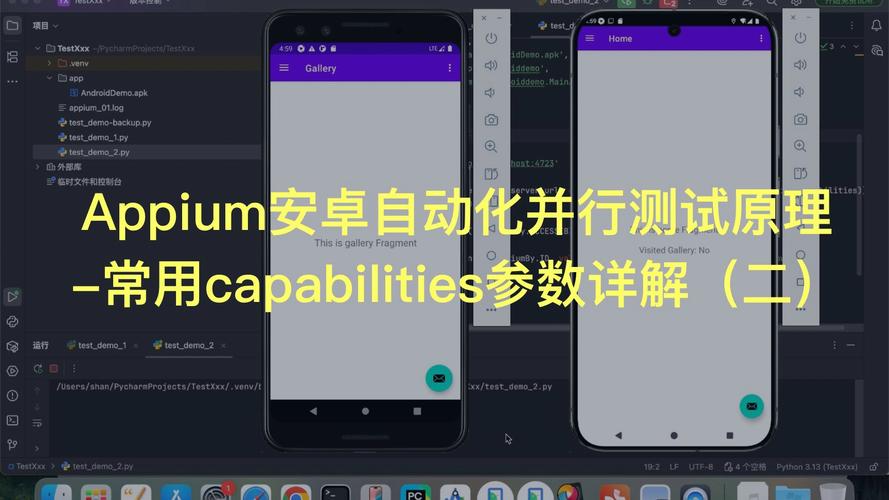
The tap() method of TouchAction takes an options dictionary, which can include:
element: The element to tap on (alternative to.click()).x: The x-coordinate.y: The y-coordinate.
# 1. Import necessary libraries
from appium import webdriver
from appium.webdriver.common.appiumby import AppiumBy
from appium.webdriver.common.touch_action import TouchAction
import time
# 2. Define your desired capabilities
caps = {
    "platformName": "Android",
    "deviceName": "Pixel_4_API_30",
    "appPackage": "com.android.settings",
    "appActivity": ".Settings",
    "automationName": "UiAutomator2"
}
# 3. Initialize the Appium driver
driver = webdriver.Remote("http://localhost:4723/wd/hub", caps)
try:
    # Let's get the screen size to calculate a tap point
    screen_size = driver.get_window_size()
    width = screen_size['width']
    height = screen_size['height']
    # Define the tap coordinates (e.g., tap in the middle of the screen)
    tap_x = width // 2
    tap_y = height // 2
    print(f"Screen size: {width}x{height}")
    print(f"Attempting to tap at coordinates: ({tap_x}, {tap_y})")
    # 4. Create a TouchAction object
    actions = TouchAction(driver)
    # 5. Perform the tap using coordinates
    # The options dictionary specifies the x and y coordinates
    actions.tap(options={'x': tap_x, 'y': tap_y}).perform()
    print("Coordinate tap successful!")
    time.sleep(3) # Wait to see the effect
finally:
    # 6. Quit the driver
    print("Quitting the driver.")
    driver.quit()
Best Practices and Common Pitfalls
-
Prefer
.click()overTouchAction.tap()for Elements: Always try to locate an element and useelement.click(). It's more robust, readable, and self-documenting. UseTouchActiononly when you absolutely need coordinates or multi-touch gestures. -
Use Explicit Waits: Never hardcode
time.sleep(). It makes your tests flaky. Use explicit waits to ensure the element is present, visible, and enabled before trying to tap it.from selenium.webdriver.support.ui import WebDriverWait from selenium.webdriver.support import expected_conditions as EC # Wait for a maximum of 10 seconds for the element to be clickable wifi_element = WebDriverWait(driver, 10).until( EC.element_to_be_clickable((AppiumBy.ACCESSIBILITY_ID, "Wi-Fi")) ) wifi_element.click() -
Verify the Tap Action: After a tap, verify that the expected result occurred. For example, if you tap a "Settings" button, verify that the "Settings" screen is displayed. This confirms the tap was successful.
wifi_element.click()
# Verify the result
assert "Wi-Fi" in driver.page_source # Or a more specific locator
-
Handle Stale Element Reference: If an element is refreshed by the app after a tap, the original reference becomes "stale". It's best practice to re-find the element after performing an action if you need to interact with it again.
-
Coordinate Relativity: When using coordinates, be aware that they are relative to the current application view. If your app has a status bar or navigation bar, those areas might not be tappable. Also, screen sizes vary between devices, so hardcoding coordinates can make your tests non-portable. Use them sparingly and only for specific, non-reusable UI components.
Summary Table: .click() vs. TouchAction.tap()
| Feature | element.click() |
TouchAction.tap() |
|---|---|---|
| Primary Use | Interacting with a specific, identifiable element. | Tapping by coordinates or as part of a gesture. |
| Reliability | High. Appium handles the translation to the correct OS event. | Lower. Depends on accurate coordinates. |
| Readability | High. Clearly states the intent. | Lower. Requires understanding of coordinates. |
| Dependencies | Standard Selenium WebDriver. | Requires TouchAction class. |
| Best For | 95% of all tapping scenarios. | Custom UI, games, or when locators are not available. |