Of course! Here is a comprehensive guide on how to check the Java version on Linux, covering the most common methods, potential issues, and what to do if you don't have Java installed.
The Short and Sweet Answer (TL;DR)
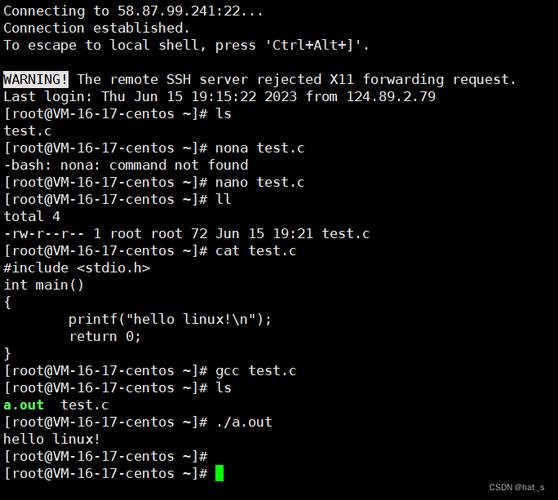
The most common and reliable command is:
java -version
You will see output similar to this:
openjdk version "17.0.10" 2025-01-16
OpenJDK Runtime Environment (build 17.0.10+7-Ubuntu-0ubuntu122.04)
OpenJDK 64-Bit Server VM (build 17.0.10+7-Ubuntu-0ubuntu122.04, mixed mode, sharing)
Detailed Guide: Checking Java Version on Linux
There are a few ways to check the Java version, each with its own purpose.
Method 1: java -version (The Standard Way)
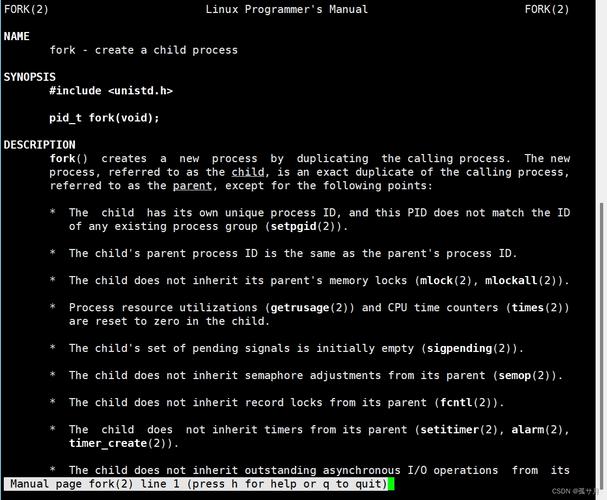
This is the most direct command. It prints the version information to the standard error stream (stderr), which is why it's often run with 2>&1 to combine the output if you're piping it.
Command:
java -version
What it shows:
- Java Version: The major version number (e.g., 8, 11, 17).
- Vendor: Who provides the Java implementation (e.g., OpenJDK, Oracle, Amazon Corretto).
- JVM Details: Information about the Java Virtual Machine (JVM), such as the build and if it's a 32-bit or 64-bit VM.
Example Output (OpenJDK 17):
openjdk version "17.0.10" 2025-01-16
OpenJDK Runtime Environment (build 17.0.10+7-Ubuntu-0ubuntu122.04)
OpenJDK 64-Bit Server VM (build 17.0.10+7-Ubuntu-0ubuntu122.04, mixed mode, sharing)
Method 2: javac -version (Checking the Compiler)
Sometimes, you need to verify that the Java compiler is installed and matches the runtime environment.

Command:
javac -version
What it shows:
- The version of the Java Compiler (
javac).
Example Output:
javac 17.0.10If javac is not found, it means the JDK (Java Development Kit) is not installed, only the JRE (Java Runtime Environment).
Method 3: $JAVA_HOME (The Environment Variable Way)
Many applications and build tools (like Maven or Gradle) use the $JAVA_HOME environment variable to locate the Java installation. It's crucial to ensure this variable is set correctly.
Step 1: Check if $JAVA_HOME is set
echo $JAVA_HOME
If it's set correctly, this will print the path to your Java installation directory (e.g., /usr/lib/jvm/java-17-openjdk-amd64). If it's empty, it's not set.
Step 2: Find the correct JAVA_HOME
If $JAVA_HOME is not set or is incorrect, you can find the path using the update-java-alternatives tool (common on Debian/Ubuntu-based systems) or alternatives (common on Red Hat/CentOS-based systems).
For Debian/Ubuntu (using update-java-alternatives):
# List all installed Java versions
update-java-alternatives --list
# Example output:
# java-11-openjdk-amd64 1111 /usr/lib/jvm/java-11-openjdk-amd64
# java-17-openjdk-amd64 1710 /usr/lib/jvm/java-17-openjdk-amd64
# Set the default Java version (e.g., to Java 17)
sudo update-java-alternatives --set java-17-openjdk-amd64
# JAVA_HOME is often set automatically by the package manager, but you can set it manually in your ~/.bashrc or ~/.profile
echo 'export JAVA_HOME=/usr/lib/jvm/java-17-openjdk-amd64' >> ~/.bashrc
source ~/.bashrc
For Red Hat/CentOS (using alternatives):
# List all installed Java versions
sudo alternatives --config java
# Example output:
# There are 2 programs which provide 'java'.
#   Selection    Command
# -----------------------------------------------
# *  1           java-17-openjdk.x86_64 (/usr/lib/jvm/java-17-openjdk-17.0.10.0.x86_64/bin/java)
# +  2           java-11-openjdk.x86_64 (/usr/lib/jvm/java-11-openjdk-11.0.21.0.9.x86_64/bin/java)
# Enter the number of the desired choice to set it as default.
# Then, set JAVA_HOME accordingly.
export JAVA_HOME=$(readlink -f /usr/bin/java | sed "s:bin/java::")
Common Issues and How to Fix Them
"bash: java: command not found"
This means Java is not installed on your system, or its location is not in your system's PATH environment variable.
Solution: Install Java
The package names and commands vary by distribution.
For Debian/Ubuntu:
# Update your package list
sudo apt update
# Install the default OpenJDK (often the latest LTS version)
sudo apt install default-jdk
# Or install a specific version, like OpenJDK 17
sudo apt install openjdk-17-jdk
For Red Hat/CentOS/Fedora:
# Enable the EPEL repository (if not already enabled)
sudo dnf install -y epel-release
# Install OpenJDK (e.g., version 17)
sudo dnf install java-17-openjdk-devel
"bash: javac: command not found"
This means the JDK (which includes the javac compiler) is not installed, only the JRE (Java Runtime Environment).
Solution: Install the full JDK package.
- On Debian/Ubuntu: Use
sudo apt install openjdk-17-jdkinstead ofopenjdk-17-jre. - On Red Hat/CentOS: Use
sudo dnf install java-17-openjdk-devel.
Multiple Java Versions Installed
You might have several Java versions (e.g., Java 8 and Java 17). You need to set which one is the default.
Solution: Use the alternatives system as shown in Method 3.
# List available Java versions
sudo update-java-alternatives --list # For Debian/Ubuntu
sudo alternatives --config java      # For Red Hat/CentOS
# Set the default one
sudo update-java-alternatives --set java-17-openjdk-amd64
Summary Table
| Command | Purpose | Example Output |
|---|---|---|
java -version |
Best for checking the runtime version. | openjdk version "17.0.10" ... |
javac -version |
Checks the compiler version (confirms JDK is installed). | javac 17.0.10 |
echo $JAVA_HOME |
Checks the environment variable used by applications. | /usr/lib/jvm/java-17-openjdk-amd64 |
which java |
Finds the path to the java executable in your PATH. |
/usr/bin/java |