Of course! Using Python in Houdini is one of the most powerful skills you can develop as a TD (Technical Director) or a technical artist. It allows you to automate tasks, create custom tools, and build complex procedural workflows that would be difficult or impossible to achieve with the node-based interface alone.
Here’s a comprehensive guide covering the essentials, from basic concepts to advanced applications.
Why Use Python in Houdini?
- Automation: Repetitive tasks like importing assets, renaming nodes, or preparing scenes for rendering can be scripted in seconds.
- Customization: Create your own nodes, UIs (toolbars, shelves), and shelf tools that fit your studio's pipeline.
- Proceduralism: Go beyond the existing nodes by writing your own algorithms for geometry generation, VEX-like logic, or file manipulation.
- Integration: Interact with other software. Use Python to send data from Houdini to Maya, Nuke, or a database.
- Flexibility: Python is a general-purpose, high-level language with a massive ecosystem of libraries (NumPy, Pandas, etc.).
The Two Main "Flavors" of Python in Houdini
There are two primary ways you'll use Python in Houdini, and it's crucial to understand the difference.
A) The Python Shell (Interactive)
This is the best place for learning, debugging, and running quick, one-off commands.
- How to access it: Go to the menu
Windows > General Editors > Python Shell. - What it is: An interactive console where you can type Python code and see the results immediately.
- Key Feature: It has a special
houmodule pre-loaded, which gives you access to Houdini's entire API (Application Programming Interface).
B) Python Script Nodes (Procedural)
This is how you embed Python directly into your network, making it a reusable part of your digital asset (HDA).
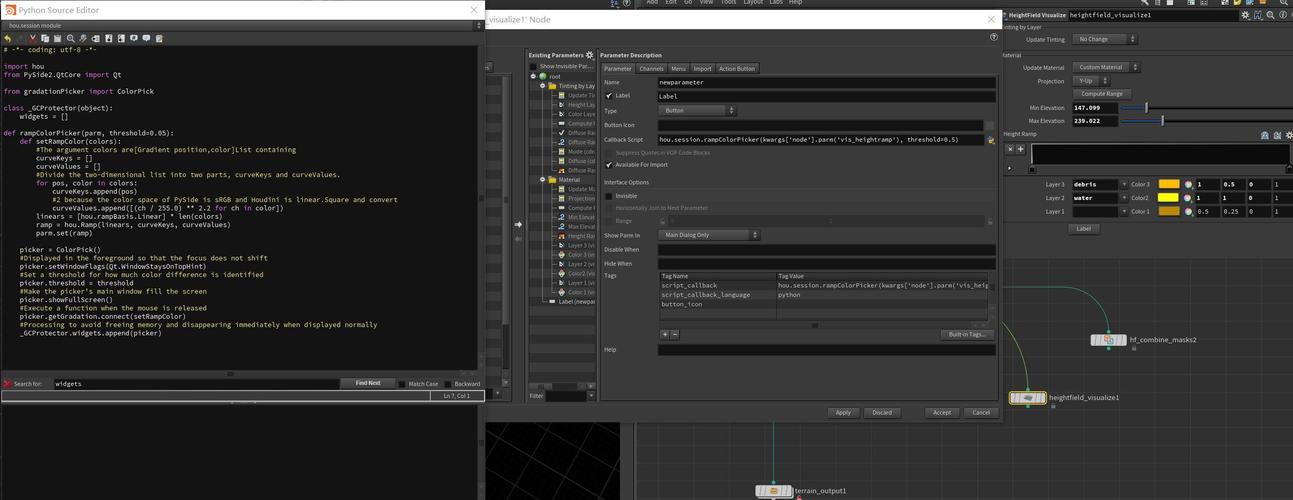
- How to create it: In a network editor, right-click and go
Create > Python Script. - What it is: A node that executes a Python script every time the node cooks. It's like a
Point WrangleorAttribute Wranglenode, but for general-purpose Python. - Key Feature: It can access and modify the data of its input node(s), making it a powerful procedural building block.
The hou Module: Your Bridge to Houdini
The hou module is the heart of Houdini's Python integration. It's a Python wrapper around Houdini's C++ API. You use it to:
- Access the scene, nodes, parameters, and geometry.
- Create, modify, and delete elements in your scene.
- Run Houdini commands and functions.
Essential hou Objects and Concepts:
| Object/Concept | Description | Example |
|---|---|---|
hou.pwd() |
"Path to Working Node". Inside a Python Script node, this returns the node itself. This is your most important starting point. | node = hou.pwd() |
hou.node(path) |
Gets a node from its path string. | geo_node = hou.node('/obj/geo1') |
hou.scene() |
Represents the entire Houdini scene. | all_nodes = hou.scene().children() |
hou.hscript() |
Executes a Houdini command (like in the Python Shell). | hou.hscript('ls /obj') |
| *`hou.ui.`** | Functions to create user interfaces (dialogs, buttons, file browsers). | result = hou.ui.readInput("Enter a name:") |
hou.parm() |
Gets a specific parameter on a node. | t parm = hou.parm('/obj/geo1/tx') |
Practical Examples
Let's start with some common tasks. You can run these in the Python Shell.
Example 1: Get a Node and Print Its Name
# Get the 'geo1' node from the /obj context
geo_node = hou.node('/obj/geo1')
# Check if the node exists before trying to use it
if geo_node:
    print(f"Found node: {geo_node.name()}")
    print(f"Its full path is: {geo_node.path()}")
else:
    print("Could not find /obj/geo1")
# You can also get all children of a node
all_children = geo_node.children()
print(f"Children of {geo_node.name()}: {[child.name() for child in all_children]}")
Example 2: Create a New Node
# Get the /obj context
obj_context = hou.node('/obj')
# Create a new sphere node
# The arguments are: node_type, node_name
new_sphere = obj_context.createNode('geo', 'my_new_sphere')
# If you want to create a primitive inside it
new_sphere.createNode('sphere', 'my_sphere_prim')
print(f"Created a new node at: {new_sphere.path()}")
Example 3: Modify a Node's Parameters
# Get a specific node
file_node = hou.node('/obj/geo1/file1')
if file_node:
    # Get a parameter by its exact path
    file_path_parm = hou.parm('/obj/geo1/file1/file')
    # Set its value
    file_path_parm.set('/path/to/my/model.bgeo.sc')
    # You can also set multiple parms at once using the setValues method
    # For example, setting translation parms
    tx_parm = hou.parm('/obj/geo1/tx')
    ty_parm = hou.parm('/obj/geo1/ty')
    tx_parm.set(5.0)
    ty_parm.set(3.0)
Python Script Node In-Depth
This is where the real power lies. Let's build a tool.
Scenario: A "Random Color Generator" Script Node
- Create a Python Script node inside a
Geometrynetwork. - Wire a
Boxnode into the first input of the Python Script node. - Double-click the Python Script node to open the editor.
Here is the code you would put inside:
# 1. Get the node this script is attached to
node = hou.pwd()
# 2. Get the input node (the first one wired to our script)
input_node = node.inputs()[0]
# 3. Get the geometry data from the input node
#    The .geometry() method cooks the input node and gets its result.
geo = input_node.geometry()
# 4. Check if we have any geometry to work with
if not geo:
    hou.ui.displayMessage("Input has no geometry!", severity=hou.severityType.Error)
    # Stop the script if there's no geometry
    raise SystemExit
# 5. Create a new attribute for colors
#    We'll create a 'Cd' (Color) attribute if it doesn't exist.
if 'Cd' not in geo.pointAttribs():
    geo.addPointAttrib('Cd', hou.attribData.Color) # 3 components for RGB
# 6. Loop through all the points and assign a random color
for point in geo.points():
    # hou.Vector3 is a 3-component vector (x, y, z)
    random_color = hou.Vector3(
        hou.random.random(),  # Red component (0-1)
        hou.random.random(),  # Green component (0-1)
        hou.random.random()   # Blue component (0-1)
    )
    # Set the 'Cd' attribute for this point
    point.setAttribValue('Cd', random_color)
# 7. Add a comment to the node to show what it did
node.setComment("Added random color to all points.")
# The node will automatically output the modified geometry.
What this code does:
- It finds the box node that is wired into it.
- It grabs the geometry from that box.
- It adds a
Cd(Color) attribute to the points if it's not already there. - It loops through every point, generates a random RGB color, and assigns it.
- It adds a helpful comment to the node.
Now, if you change the Box node (e.g., change its divisions), the Python Script node will automatically re-cook and update the colors!
Creating a Custom Shelf Tool
This is how you package your Python code into a reusable button in Houdini's interface.
- Write your Python code (e.g., the code from Example 2 that creates a sphere).
- Go to
Windows > Edit Toolbars. - In the "Shelf" tab, click
New Tool. - A new, empty tool will appear. Give it a name like "Create My Sphere".
- In the "Script" field at the bottom, paste your Python code. Make sure it's a single block.
- Click
Save to Houdini File. - Now, if you look at your main shelf, you'll see a new button. Clicking it will run the script and create a new sphere node.
You can even make your tool more interactive by using hou.ui to ask the user for a name.
# This is the script for the shelf tool
# Ask the user for a name
result = hou.ui.readInput("Enter a name for the new geo:")
if result[0] == hou.operationResult.Succeeded:
    node_name = result[1]
    obj_context = hou.node('/obj')
    new_geo = obj_context.createNode('geo', node_name)
    new_geo.createNode('sphere', 'my_sphere_prim')
else:
    # User cancelled the dialog
    pass
Best Practices & Tips
- The Houdini Documentation is Your Bible: The
houmodule documentation is essential. Bookmark it: Houdini Python API Documentation - Use
print()for Debugging: The Python Shell's output is your best friend. Addprint(f"Variable X is: {my_variable}")all over your script to see what's happening. try...exceptBlocks: Houdini's Python API can raise exceptions (errors). Always wrap your code intry...exceptblocks to make your tools robust.try: # Risky code here node = hou.node('/obj/geo1') node.destroy() except hou.Error as e: # If the node doesn't exist, hou.Error will be raised hou.ui.displayMessage(f"Error: {e}", severity=hou.severityType.Error)- Performance: For heavy-duty number crunching on geometry (like modifying thousands of points), VEX is almost always faster. Use Python Script nodes for logic, setup, and tasks that are not per-point/per-primitive. For pure performance, use a Point Wrangle node.
- HDA Development: When creating HDAs, you can use Python in the "Type Properties" dialog to create custom callbacks (e.g., code that runs when an HDA is created or when a parameter is changed). This is how you build complex, self-contained digital assets.