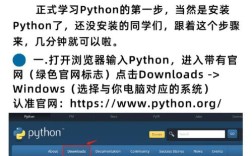
Of course! Here is a comprehensive guide to using Python on Windows, covering everything from installation and setup to best practices and common tasks.
Table of Contents
- Why Python on Windows? (A brief overview)
- Step 1: Installing Python
- The Official Recommended Method
- The Manual Method (Downloading the Installer)
- Step 2: Verifying the Installation
- Step 3: Choosing a Code Editor or IDE
- Built-in Tools (Good for Beginners)
- Popular Free IDEs
- Lightweight Editors
- Step 4: Running Your First Python Script
- Using the Interactive Interpreter
- Using an Editor/IDE
- Essential Tools for Windows Development
- The Package Manager:
pip - The Virtual Environment:
venv - The Package Index:
PyPI
- The Package Manager:
- Best Practices
- Use Virtual Environments
- Write Scripts in a Project Folder
- Keep Python Updated
- Common Issues and Solutions
- "Python is not recognized as an internal or external command..."
- Permission Errors when Installing Packages
- Choosing Between Python 2 and 3
Why Python on Windows?
Python is a versatile and powerful language that works exceptionally well on Windows. It's used for:
- Automation Scripting: Automating repetitive tasks on your PC.
- Web Development: Building websites and web applications (e.g., with Django or Flask).
- Data Science & Analysis: Using libraries like Pandas and NumPy.
- Artificial Intelligence & Machine Learning: With frameworks like TensorFlow and PyTorch.
- Game Development: Creating 2D games with libraries like Pygame.
Microsoft has become a major supporter of the Python community, making the experience on Windows better than ever.
Step 1: Installing Python
This is the most critical step. Getting it right from the start will save you many headaches.
The Official Recommended Method (Easiest)
The Python for Windows installer is smart. It automatically handles adding Python to your system's PATH, which is essential for running Python from the command line.
-
Go to the Official Website: Navigate to the Python Downloads page for Windows.
-
Download the Latest Stable Release: Click the "Latest Python 3 Release" button. As of this writing, it's Python 3.12, but you should always use the most recent stable version.
-
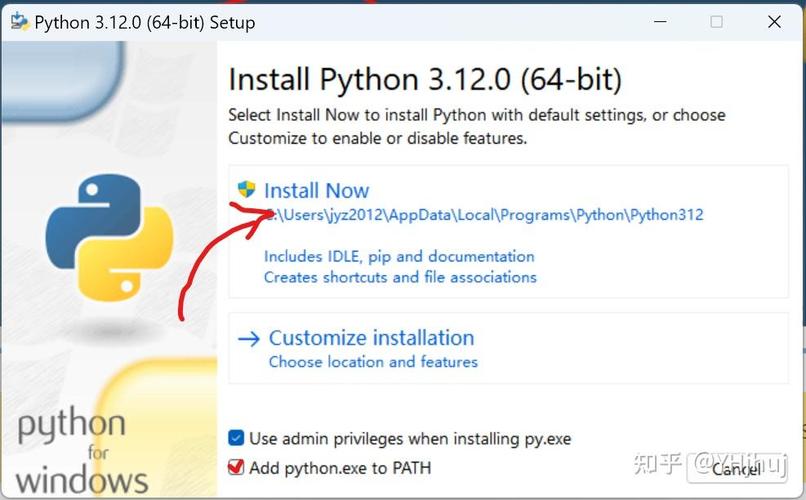
Run the Installer: Open the downloaded
.exefile. -
CRITICAL STEP: Check the Box! At the bottom of the installer window, you will see a checkbox that says:
"Add python.exe to PATH"
Make sure this box is checked! This is the most important part of the installation. It allows you to run
pythonandpipfrom any command prompt or PowerShell window. -
Install Now: Click the "Install Now" button. The installer will handle everything for you.
The Manual Method (If you need more control)
If you need to install Python for multiple users or change the installation directory, you can use the "Customize installation" option. However, for most users, "Install Now" is perfect.
Step 2: Verifying the Installation
Once the installation is complete, you need to confirm that it worked correctly.
-
Open Command Prompt or PowerShell.
- Press the Windows Key.
- Type
cmdorpowershelland press Enter.
-
Check the Python Version: Type the following command and press Enter.
python --version
You should see output like
Python 3.12.0. If you get an error like'python' is not recognized..., it means the "Add python.exe to PATH" step was missed. You will need to add Python to your PATH manually. -
Check the Pip Version:
pipis Python's package installer. It's good to confirm it's working too.pip --version
You should see output like
pip 23.2.1 from ....
Step 3: Choosing a Code Editor or IDE
You can't write code in Notepad (it doesn't understand syntax) and you shouldn't. Use a proper tool.
Built-in Tools (Good for Beginners)
- IDLE: Comes pre-installed with Python. It's a very basic editor and interpreter. Good for your first few lines of code but not for serious projects.
- Python Interactive Window in Windows Terminal: If you use the new Windows Terminal, you can get a rich interactive Python experience.
Popular Free IDEs (Integrated Development Environments)
These are full-featured applications that provide everything you need in one place: editing, debugging, testing, and project management.
- Visual Studio Code (VS Code): (Highly Recommended)
- A free, lightweight, and extremely powerful editor from Microsoft.
- You just need to install the Python extension from the marketplace.
- It has excellent support for debugging, Git integration, and a massive library of extensions.
- PyCharm Community Edition:
- A full-featured IDE built specifically for Python.
- It has powerful code analysis, debugging, and testing tools.
- The Community Edition is free and fantastic for beginners and professionals alike.
Lightweight Editors
- Sublime Text: Very fast and minimalistic. Requires some setup but is incredibly efficient.
- Notepad++: A great replacement for Windows Notepad with syntax highlighting.
Step 4: Running Your First Python Script
Let's put everything together.
Using the Interactive Interpreter (Good for testing)
- Open Command Prompt or PowerShell.
- Type
pythonand press Enter. You'll see the>>>prompt. - You can now type Python code directly.
>>> print("Hello, Windows!")
Hello, Windows!
>>> 2 + 2
4
>>> exit()
Using an Editor/IDE (The standard way)
- Open your chosen editor (e.g., VS Code).
- Create a new file. Go to
File > New File. - Write your code. Type the following line:
print("Hello from my Python script!") - Save the file. Go to
File > Save As.... Save it with a.pyextension, for example,hello.py. Save it in a new folder likeC:\Users\YourName\Documents\PythonProjects. - Run the script.
- From VS Code: Open the terminal in VS Code (
View > Terminal) and typepython hello.py. - From Command Prompt:
a. Navigate to your project folder:
cd C:\Users\YourName\Documents\PythonProjectsb. Run the script:python hello.py
- From VS Code: Open the terminal in VS Code (
You should see the output: Hello from my Python script!
Essential Tools for Windows Development
The Package Manager: pip
pip is the tool you use to install third-party libraries (like for web development, data science, etc.).
- Install a package:
pip install requests
- Uninstall a package:
pip uninstall requests
- List installed packages:
pip list
The Virtual Environment: venv
A virtual environment is an isolated space for your project's dependencies. This is a critical best practice. It prevents your different projects from conflicting with each other.
- Navigate to your project folder in the command prompt.
cd C:\Users\YourName\Documents\PythonProjects\my_new_app
- Create the environment:
python -m venv venv
This creates a new folder named
venvin your project directory. - Activate the environment:
venv\Scripts\activate
Your command prompt will now change to show
(venv)at the beginning. This means the environment is active. - Now, install packages. They will be installed only in this environment.
pip install django
- Deactivate the environment when you're done:
deactivate
The Package Index: PyPI
PyPI (the Python Package Index) is the central repository where you'll find all the packages you can install with pip. You can browse it at pypi.org.
Best Practices
- ALWAYS use virtual environments. This is the single most important habit to develop.
- Keep your project files organized. Have a dedicated folder for each project.
- Keep Python updated. New versions bring performance improvements, security fixes, and new features.
- Use a
.gitignorefile. If you use Git for version control, make sure to add yourvenvfolder to a.gitignorefile so you don't commit it to your repository.
Common Issues and Solutions
"Python is not recognized as an internal or external command..."
This is the most common error. It means the Windows PATH environment variable doesn't include the location of your Python executable.
Solution:
- Find where Python is installed. It's usually
C:\Users\YourName\AppData\Local\Programs\Python\PythonXX(whereXXis your version number). - Inside that folder, you'll see a
Scriptsfolder (e.g.,C:\Users\YourName\AppData\Local\Programs\Python\Python312\Scripts). - You need to add both the main Python folder and the
Scriptsfolder to your system's PATH. - How to edit PATH:
- Search for "Environment Variables" in the Start Menu and open "Edit the system environment variables".
- Click the "Environment Variables..." button.
- In the "System variables" section, find and select the
Pathvariable, then click "Edit...". - Click "New" and paste the paths to your Python and
Scriptsfolders. - Click OK on all the windows to save.
- Close and re-open your Command Prompt or PowerShell for the changes to take effect.
Permission Errors when Installing Packages
Sometimes pip might fail with a permission error.
Solution:
- The Best Solution: Use a virtual environment (as described above). This avoids permission issues entirely.
- Alternative: Instead of running
pip installdirectly, try running it as an administrator. Right-click on Command Prompt or PowerShell and select "Run as administrator".
Choosing Between Python 2 and 3
You should only use Python 3. Python 2 reached its end-of-life in 2025 and no longer receives updates. It is not supported for security. All new development should be done in Python 3.