Of course! Here is a comprehensive guide to using cv2.imread() in Python with OpenCV, covering the basics, common issues, best practices, and alternatives.
The Basics: How to Use cv2.imread()
The cv2.imread() function is the primary way to load an image from a file into a NumPy array, which is the format OpenCV uses for images.
Syntax
cv2.imread(filename, flags)
Parameters
filename(string): The path to the image file. This can be a relative path (e.g.,'my_image.jpg') or an absolute path (e.g.,'/home/user/images/my_image.jpg').flags(int, optional): This parameter specifies the color mode of the loaded image. It's an integer constant.
Common flags
cv2.IMREAD_COLOR(default value is1): Loads the image in the BGR (Blue, Green, Red) format. This is the most common flag. Any transparency channel (alpha channel) is ignored.cv2.IMREAD_GRAYSCALE(value is0): Loads the image as a single-channel grayscale image. This is useful for simpler image processing tasks.cv2.IMREAD_UNCHANGED(value is-1): Loads the image "as is", preserving the alpha channel if it exists (e.g., in PNG or TIFF files).
Complete Code Example
This example demonstrates how to load an image, display it, and check its properties.
import cv2
import numpy as np
# Make sure you have an image file named 'lena.jpg' in the same directory
# Or provide the full path to your image file
image_path = 'lena.jpg'
# --- 1. Load the image ---
# Load in color (BGR format) - this is the default
image_bgr = cv2.imread(image_path, cv2.IMREAD_COLOR)
# Load in grayscale
image_gray = cv2.imread(image_path, cv2.IMREAD_GRAYSCALE)
# Load with the alpha channel preserved
image_unchanged = cv2.imread(image_path, cv2.IMREAD_UNCHANGED)
# --- 2. Check if the image was loaded successfully ---
# This is a crucial step!
if image_bgr is None:
    print(f"Error: Could not open or find the image at '{image_path}'")
else:
    print("Image loaded successfully!")
    # --- 3. Display the images ---
    cv2.imshow('BGR Image', image_bgr)
    cv2.imshow('Grayscale Image', image_gray)
    # The 'unchanged' image will only display correctly if it has an alpha channel
    if image_unchanged is not None and image_unchanged.shape[2] == 4:
        cv2.imshow('Image with Alpha Channel', image_unchanged)
    elif image_unchanged is not None:
        print("Image has no alpha channel to preserve.")
    # --- 4. Print image properties ---
    print("\n--- BGR Image Properties ---")
    print(f"Type: {type(image_bgr)}")
    print(f"Shape (Height, Width, Channels): {image_bgr.shape}")
    print(f"Data Type: {image_bgr.dtype}")
    print(f"Min Pixel Value: {image_bgr.min()}")
    print(f"Max Pixel Value: {image_bgr.max()}")
    print("\n--- Grayscale Image Properties ---")
    print(f"Shape (Height, Width): {image_gray.shape}")
    print(f"Data Type: {image_gray.dtype}")
    # --- 5. Wait for a key press and close windows ---
    print("\nPress any key to close the image windows...")
    cv2.waitKey(0)       # Wait indefinitely for a key press
    cv2.destroyAllWindows() # Close all OpenCV windows
Common Pitfalls and How to Fix Them
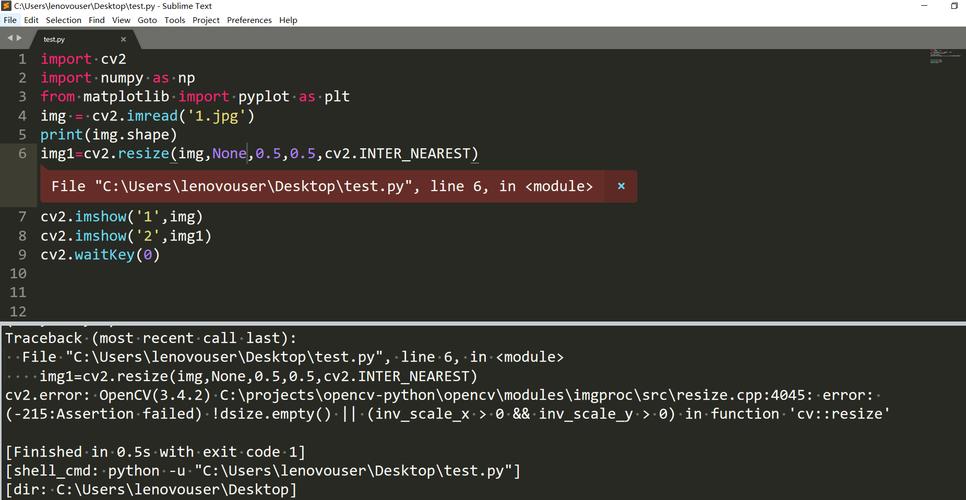
Pitfall 1: cv2.imread Returns None on Failure
This is the most common issue. If the file path is incorrect, the file is corrupted, or the file is not an image, cv2.imread() will silently return None. Trying to process this None object will result in a TypeError.
Solution: Always check if the returned image is None before proceeding.

img = cv2.imread('non_existent_file.jpg')
if img is None:
    print("Error: Image not found!")
    # Handle the error, exit the program, etc.
else:
    # Proceed with image processing
    pass
Pitfall 2: Incorrect File Path
The path must be correct. A relative path is relative to the current working directory of your script, not the location of the Python file.
Solution: Use absolute paths for robustness or ensure your script and image are in the same directory. You can print the current working directory to debug:
import os
print(f"Current working directory: {os.getcwd()}")
Pitfall 3: Confusing BGR with RGB
OpenCV loads images in BGR (Blue, Green, Red) format by default, while most other libraries like Matplotlib, PIL, and web browsers use RGB (Red, Green, Blue). If you display an OpenCV image with Matplotlib without converting it, the colors will be wrong.
Solution: Convert the color space from BGR to RGB before displaying with Matplotlib.
import cv2
import matplotlib.pyplot as plt
# Load image with OpenCV (BGR format)
img_bgr = cv2.imread('lena.jpg')
# Convert from BGR to RGB
img_rgb = cv2.cvtColor(img_bgr, cv2.COLOR_BGR2RGB)
# Display with Matplotlib (which expects RGB)
plt.imshow(img_rgb)'Correct Colors with Matplotlib')
plt.axis('off') # Hide axes
plt.show()
Alternatives to cv2.imread()
While cv2.imread() is great for most use cases, other libraries can be useful, especially for specific formats or integration with other data science tools.
Alternative 1: Pillow (PIL Fork)
Pillow is a powerful and user-friendly library for image manipulation. It loads images in RGB format by default, which is often more intuitive.
from PIL import Image
# Load image with Pillow (RGB format by default)
img_pil = Image.open('lena.jpg')
# Display the image
img_pil.show()
# Convert Pillow image to NumPy array (RGB format)
img_np_rgb = np.array(img_pil)
# If you need a BGR array for OpenCV, you can convert it
img_np_bgr = cv2.cvtColor(img_np_rgb, cv2.COLOR_RGB2BGR)
Alternative 2: Matplotlib
Matplotlib can also read images and is convenient if you're already working within the Matplotlib ecosystem.
import matplotlib.pyplot as plt
import numpy as np
# Load image with Matplotlib (returns a NumPy array in RGB format)
img_rgb = plt.imread('lena.jpg')
# Display the image
plt.imshow(img_rgb)
plt.show()
# Convert to BGR for use with other OpenCV functions
img_bgr = cv2.cvtColor(img_rgb, cv2.COLOR_RGB2BGR)
Summary: Which One to Use?
| Scenario | Recommended Function | Why? |
|---|---|---|
| General OpenCV workflows | cv2.imread() |
The standard, most efficient way to load images for OpenCV processing. |
| Working with Matplotlib | plt.imread() or cv2.imread() + cvtColor |
plt.imread() is convenient and returns RGB directly. |
| General image manipulation | PIL.Image.open() |
Pillow has a more user-friendly API and better support for a wide range of formats. |
| Data Science pipelines (Pandas, etc.) | PIL.Image.open() or plt.imread() |
Integrates more naturally with the Python data science stack. |