Of course! Setting up Java development on a Mac using Eclipse is a very common and powerful workflow. Here is a comprehensive, step-by-step guide covering everything from installation to creating your first "Hello, World!" project.
Overview: The Big Picture
The process involves three main steps:
- Install Java: The programming language itself. Eclipse is just a tool (an IDE - Integrated Development Environment) to write and manage Java code.
- Install Eclipse: The software where you'll write, compile, and run your code.
- Configure and Create a Project: Use Eclipse to create a new project, write some code, and run it.
Step 1: Install Java (JDK)
Eclipse requires a Java Development Kit (JDK) to function. The JDK contains the compiler (javac) and the Java Runtime Environment (JRE) needed to run your programs.
Which JDK to Choose?
For most modern development, JDK 17 or JDK 21 are excellent choices. They are Long-Term Support (LTS) versions, meaning they will be supported for many years.
Installation Methods
You have two primary ways to install Java on a Mac:
Method A: Using Homebrew (Recommended for Developers) Homebrew is a popular package manager for macOS. If you don't have it, install it first by running this command in your Terminal:
/bin/bash -c "$(curl -fsSL https://raw.githubusercontent.com/Homebrew/install/HEAD/install.sh)"
Once Homebrew is installed, installing the JDK is simple:
# To install the latest LTS version (e.g., JDK 17)
brew install openjdk@17
# Or to install the latest JDK (e.g., JDK 21)
brew install openjdk@21
After installation with Homebrew, you MUST set up the JAVA_HOME environment variable.
- Find the installation path. It will be something like
/opt/homebrew/opt/openjdk@17(for Apple Silicon Macs) or/usr/local/opt/openjdk@17(for Intel Macs). - Open your shell profile file. If you use Zsh (the default on newer macOS), it's
~/.zshrc. If you use Bash, it's~/.bash_profile. - Add the following line to the end of the file, replacing the path with your actual path:
export JAVA_HOME=$(/usr/libexec/java_home -v 17) # Or the version you installed
export PATH="$JAVA_HOME/bin:$PATH"
- Save the file and restart your Terminal, or run
source ~/.zshrcto apply the changes. - Verify the installation by typing
java -versionandjavac -versionin your Terminal. You should see the version you just installed.
Method B: Manual Download from Oracle
- Go to the official Oracle Java SE Development Kit downloads page: Oracle JDK Downloads
- Accept the license agreement.
- Download the macOS
.dmgfile for your Mac's architecture (Intel or Apple Silicon). - Open the
.dmgfile and run the installer package (.pkg). - The installer will place the JDK in a standard location like
/Library/Java/JavaVirtualMachines/. - The
JAVA_HOMEvariable is often set automatically by the installer, but you can verify it with/usr/libexec/java_home -v 17in your Terminal.
Step 2: Install Eclipse IDE
Eclipse is a self-contained application, so installation is very straightforward.
-
Download Eclipse: Go to the official Eclipse downloads page: Eclipse IDE for Java Developers
- Important: Make sure you download the "Eclipse IDE for Java Developers" package. This version comes with the tools you need out of the box.
-
Unzip the Archive: The download will be a
.tar.gzfile. Don't try to run it directly. Use your Archive Utility (double-clicking it usually works) or the command line to unzip it.# In your Terminal, navigate to where you downloaded the file cd ~/Downloads # Unzip it tar -xzf eclipse-jee-2025-12-R-linux-gtk-aarch64.tar.gz # Name will vary
This will create a folder named
eclipse. -
Move the Application: It's a good practice to move the
eclipsefolder to yourApplicationsdirectory.mv eclipse /Applications/
-
Run Eclipse:
- Open your
Applicationsfolder. - Find the Eclipse icon and drag it to your Dock for easy access.
- Double-click the icon to launch it.
- Open your
First Launch:
- The first time you run Eclipse, it will ask you to choose a "workspace." This is the folder where all your projects will be stored. You can use the default or choose a location you prefer. Check "Use this as the default and do not ask again" if you're happy with it.
- Eclipse will then open its main workbench.
Step 3: Create and Run Your First Java Project in Eclipse
Now for the fun part!
Set the JDK for Eclipse
It's crucial to tell Eclipse which JDK to use. This ensures your projects are configured correctly.
- Go to the menu: Eclipse -> Preferences... (on macOS) or Window -> Preferences (on other OS).
- In the Preferences window, navigate to Java -> Installed JREs.
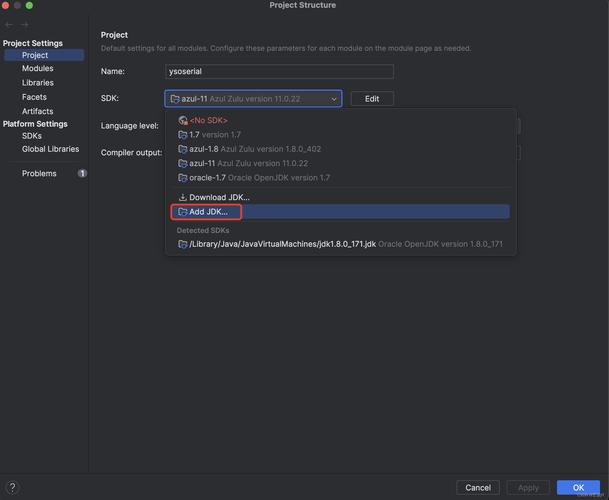
- You should see the JDK you installed listed. If not, click Add....
- Select Standard VM and click Next.
- Click Directory... and navigate to your JDK installation folder (e.g.,
/Library/Java/JavaVirtualMachines/jdk-17.jdk/Contents/Homeor/opt/homebrew/opt/openjdk@17). - Click Finish. You should now see your JDK in the list.
- Check the box next to your JDK to make it the default.
- Click Apply and Close.
Create a New Java Project
- In the Eclipse menu, go to File -> New -> Java Project.
- Give your project a name, for example,
HelloWorld. - Make sure the "Use an execution environment JRE:" option is selected and that it points to the JDK you just configured (e.g., JavaSE-17).
- Click Finish.
Eclipse will create your project and open the "Java Perspective," which is a layout optimized for Java development. You'll see your HelloWorld project in the "Project Explorer" view on the left.
Write the "Hello, World!" Code
- In the Project Explorer, right-click on your
HelloWorldproject. - Go to New -> Class.
- In the "New Java Class" window:
- Enter
HelloWorldas the Name. - Check the box that says
public static void main(String[] args). This is essential because it creates the main entry point for your program. - Click Finish.
- Enter
Eclipse will create a file named HelloWorld.java and open it in the editor. It will already contain some boilerplate code. Modify it to look like this:
public class HelloWorld {
    public static void main(String[] args) {
        // This is a comment
        System.out.println("Hello, Eclipse World!"); // Print a message to the console
    }
}
Run the Program
You have a couple of easy ways to run this:
Method A: Using the Run Button
- Make sure the
HelloWorld.javaeditor window is active. - Click the green Run button (it looks like a play icon) in the toolbar.
- Eclipse will ask you to "Select an entry point to launch." Choose
HelloWorldfrom the list and click OK.
Method B: Using the Context Menu
- Right-click anywhere inside the
HelloWorld.javaeditor window. - Go to Run As -> Java Application.
See the Output
The output of your program will appear in the "Console" view at the bottom of the Eclipse window. You should see:
Hello, Eclipse World!Congratulations! You have successfully set up Java on your Mac and run your first program using Eclipse.
Troubleshooting Common Issues
-
Problem: "Could not find the main class. Program will exit."
- Cause: You likely didn't check the box for
public static void main(String[] args)when creating the class. - Solution: Right-click the file -> Run As -> Run Configurations.... Select your application, go to the "Main" tab, and ensure the correct main class is selected.
- Cause: You likely didn't check the box for
-
Problem: "Incompatible Java version" or build errors.
- Cause: Your project is configured for a different Java version than the one you installed or set in Eclipse.
- Solution: Right-click your project in the Project Explorer -> Properties -> Java Compiler. Ensure the compiler compliance level matches your JDK (e.g., 17). Also, double-check that you set the correct JRE in the project properties (Java Build Path -> Libraries).
-
Problem: Eclipse is very slow.
- Cause: On Apple Silicon (M1/M2/M3) Macs, running Eclipse in Rosetta 2 emulation can cause performance issues.
- Solution: Right-click the Eclipse app in your
Applicationsfolder -> Get Info. Uncheck the box that says "Open using Rosetta". This ensures Eclipse runs as a native Apple Silicon application.